Applies to: Lasernet Core 10
Used for sending a job as email via the SMTP protocol.
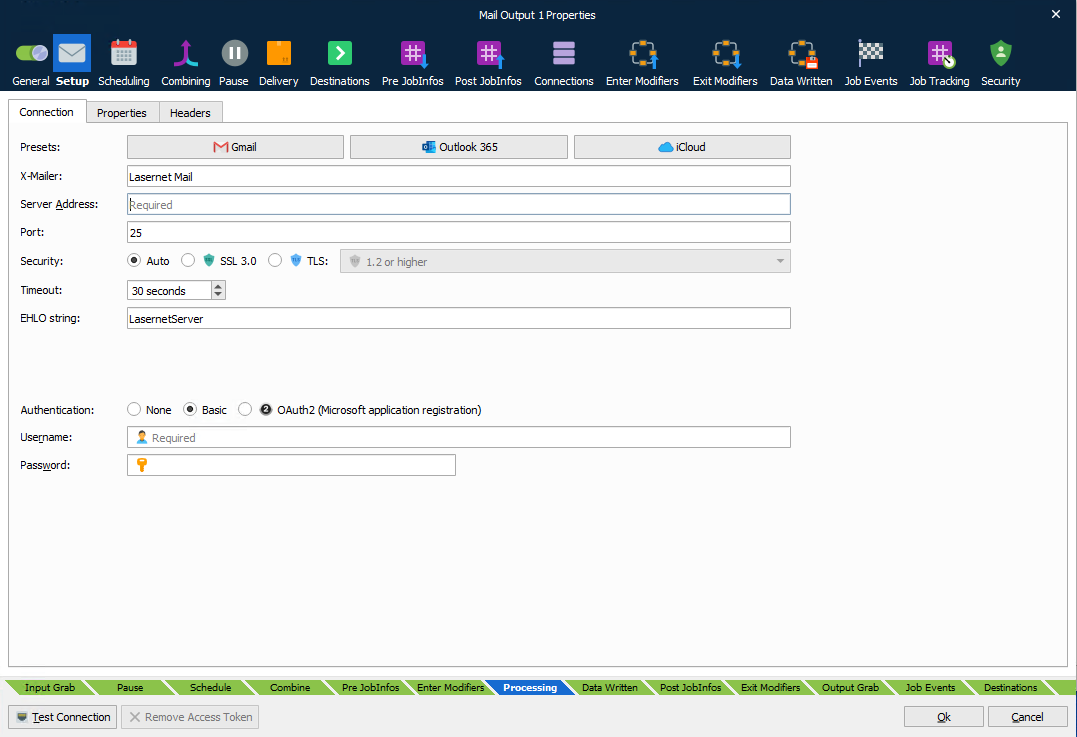
General
| X-Mailer | By default, the X-Mailer header identifies that Lasernet Core has created the email message. The field is optional and if left blank the X-Mailer will not appear in the email message. |
| Server Address | DNS name or IP address of SMTP server. |
| Port | Port number of the SMTP server. |
| Security | Selectable choices for security protocols are None, SSL 3.0 and TLS. Activate SSL port and set up the port number (default 465) to provide encrypted communication and secure identification. Configure the TLS protocol to use specifically version 1.0, 1.1, 1.2 or 1.3 of the protocol or configure it to negotiate with the server the use of a particular version or higher (for example, 1.2 or higher). |
| Timeout | If the connection cannot be established before the timeout period ends, the attempt will be abandoned. Default Timeout is 30 seconds. |
| EHLO string | Set up the IP address for identifying the client (Lasernet Core) against the SMTP server. |
| Authentication | Select None, Basic authentication, or OAuth2 (Microsoft application registration) authentication. |
| User Name (Basic authentication only) |
A username with access to send the e-mail via the SMTP server. |
| Password (Basic authentication only) |
The password for the above username. |
| Tenant Domain (OAuth2 authentication only) |
Tenant domain of the app registration. |
| Client ID (OAuth2 authentication only) |
Client ID of the app registration. |
| Client secret (OAuth2 authentication only) |
Client secret of the app registration. |
OAuth2 Configuration
To set up OAuth2 authentication, you must complete tasks in Microsoft Entra ID and Exchange in addition to configuring this Lasernet Core module.
Follow this overall process:
In Entra ID, create an application registration for Lasernet Core and then grant it the following permissions:
For POP access: POP.AccessAsApp
For IMAP access: IMAP.AccessAsApp
For SMTP access: SMTP.SendAsApp
In Entra ID, get tenant admin consent for the Lasernet Core application registration to access Exchange mailboxes through POP, IMAP, or SMTP.
In Exchange, use the New-ServicePrincipal cmdlet to register the service principal.
- Note: This step must be completed by an Exchange administrator.
In Exchange, use the Add-MailboxPermission cmdlet to grant the application the necessary access to specific mailboxes.
- For example: Add-MailboxPermission -Identity "john.smith@example.com" -User 3f2504e0-4f89-11d3-9a0c-0305e82c3301 -AccessRights FullAccess
Note
The process above summarises the following Microsoft documentation. For full instructions and accompanying examples, go to https://learn.microsoft.com/en-us/exchange/client-developer/legacy-protocols/how-to-authenticate-an-imap-pop-smtp-application-by-using-oauth#use-client-credentials-grant-flow-to-authenticate-smtp-imap-and-pop-connections.
Properties
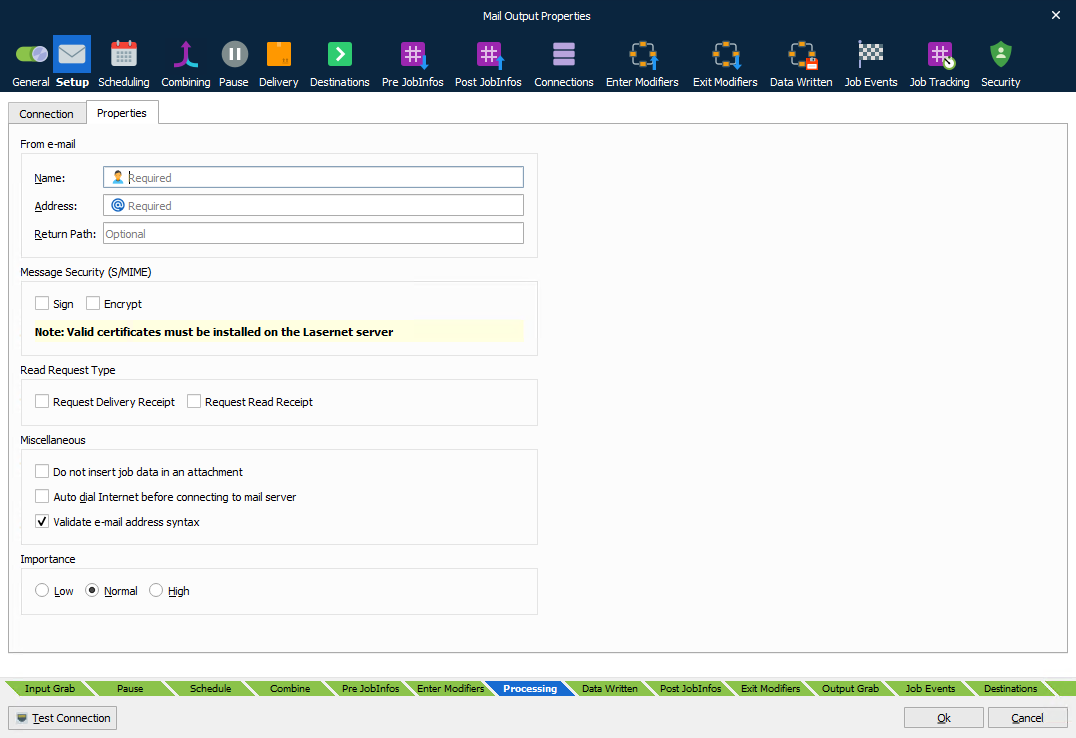
| Name | From e-mail name |
| Address | From e-mail address |
| S/MIME: Sign | Signs the email with the S/MIME certificate associated with the Address in the From e-mail area. (This requires that certificate is imported into Microsoft Windows on the machine running the Lasernet Core service.) |
| S/MIME: Encrypt | Encrypts the email with each S/MIME certificates associated with each recipient’s addresses. (This requires that the certificate for each receiver is imported into Microsoft Windows on the machine running the Lasernet Core service.) If not, all receiver certificates are available, no e-mail is sent. |
| Request Delivery Receipt | If selected, a delivery receipt will be sent to the e-mail address when the message is successfully delivered to the recipient. |
| Request Read Receipt | If selected, a receipt will be sent to the e-mail address when the recipient has opened the e-mail. |
| Do not insert job data in an attachment | If selected, job data will not be inserted as an attachment in the e-mail. Used if you only want a mail body to be presented (other attachments can still be added via the MailAttachment functionality – see JobInfo Reference for MailAttachment and MailAttachmentFileName). |
| Auto dial Internet | If selected, Microsoft Windows Internet connection settings will be used to dial up. It will use the default connection selected by the user on whose behalf the Lasernet Core service runs. |
| Importance | Set the category of importance to Low, Normal (default) or High. |
Headers
Optionally, you can custom add MIME headers to the emails sent by a Mail Output module. Some possible uses for custom headers are to enable the sending organization to troubleshoot delivery issues by examining unique codes in the header data in bounced emails, and to enable enhanced workflow visibility by enabling the organization to track emails back to their originating Lasernet Core process or job.
The Mail Output module will add the configured custom headers to outgoing email and give each header the specified value.
You can specify a static value for a header; for example, Lasernet Core Mail. Else you can use JobInfo substitution if you want header values to be dynamic. For example, you could enter a JobInfo reference (like #InvoiceNumber#) as the header’s Value.
If a mail is bounced back to the sender and is read by Lasernet Core’s Mail Input module, Lasernet Core creates JobInfos that have names and values corresponding to the custom headers in the bounced email.
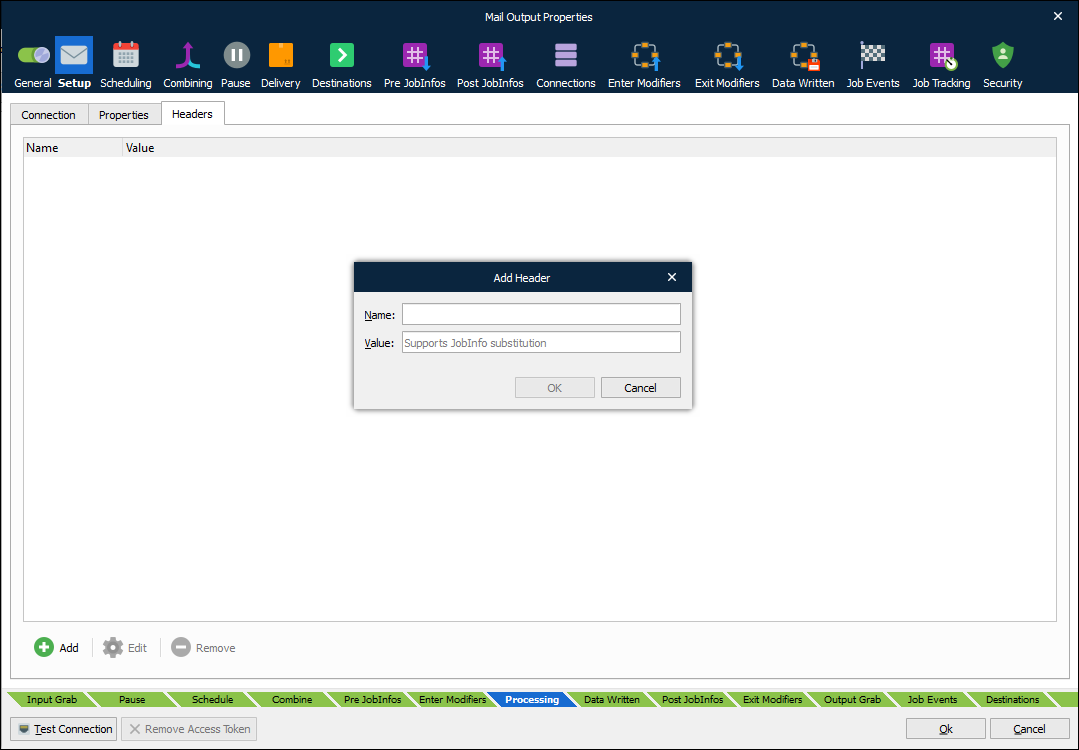
| Name | The custom header to add to email. |
| Value | The value for the header. Supports JobInfo substitution. |