Applies to: Lasernet Core 10
Queues
For each of the different queue types: paused, scheduled and failed, there is a tree of queues that contain jobs. If there are no jobs in a queue or the queue type is successful/archived, it is not displayed.
There are three queue levels in the tree:
Top: Module type.
Middle: Module instance.
Bottom: Instance grouped by the JobInfo FormType.
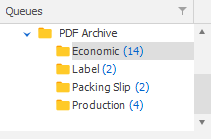
The higher you go in the tree; the more queues are covered and more jobs are shown.
The FormType JobInfo is a special JobInfo which is used to group jobs in a queue in separate lists. If no FormType is specified for a job, it will automatically be in the list called ‘<None>’.
FormType is stored by default, so a JobInfo profile does not need to be created to use this feature.
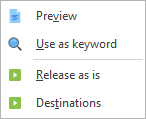
A popup menu is available for the queues when right-clicking;

It is possible to release all jobs at a selected tree level to their default destinations. Failed jobs are then retried.
It is also possible to remove all jobs from any queue at any selected tree level.
Queue
The contents of the queue are shown on the right-hand side.
All stored JobInfos that are marked with ‘Show’ are shown as columns.
A range of actions are possible via the buttons or popup menu.
Add
A job can be added manually to the Web Server Input module specified during setup or to any other input module accepting jobs from the Lasernet Client.

It is possible to add a list of JobInfos, with scheduling enabled, to the job.
Remove
The job will be removed from the Queue.
Note
It is not possible to recover a removed job.
JobInfos
All of the available JobInfos for a job are not always shown in the JobInfo profiles attached to a queue. It is possible however, to view these JobInfos through the JobInfos function. There are two choices:
All: All the JobInfos are read from the actual job.
Database: Only the JobInfos chosen to be stored via Job Tracking are shown.
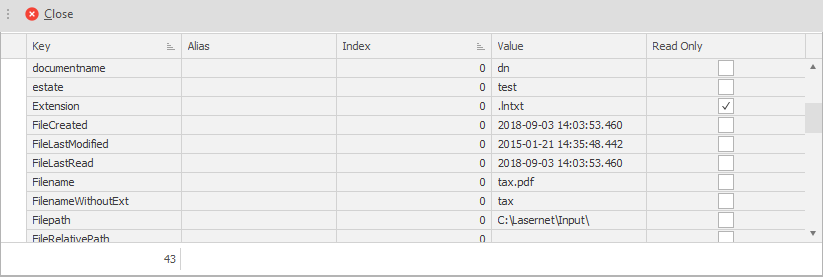
JobInfos that are marked as Read-Only in the JobInfo profile are not editable.
It is possible to add more JobInfos to the job or change the values of existing JobInfos.

Note
JobInfos with system status are only visible if you are logged with administrator rights in the Lasernet Client.
View
The View action opens the job in the application associated with the file type specified in the JobInfo ‘Extension’. The extension must be specified with a dot (.) in front, for example ‘.PDF’ or ‘.LnEMF’.
LnEMF files are opened in the Lasernet Viewer (if installed).
Use as keyword
This action copies the content of the cell to the keyword field and searches for it. This saves the user from manually copying or setting a value into the search field and searching.
Release as is
This action instructs Lasernet Core to release the job for further processing. According to the status of the job the following actions will be performed on it:
Paused: The job is sent to destination.
Scheduled: The job is sent to destination immediately instead of when originally scheduled.
Failed: The job is retried.
When releasing a paused job containing a  tentative or
  failure status field, the JobInfo OCRValidated will be set to 0 (false). The JobInfo can be used as a condition, in the Lasernet Core configuration, to define a special action for jobs containing tentative or failure fields. It is recommended that they are configured to be stored in the same queue again.
Destinations
The destinations dialog allows the user to choose which destinations a job should be released to when pressing OK. This can be useful if a job is configured with multiple or alternative destinations.
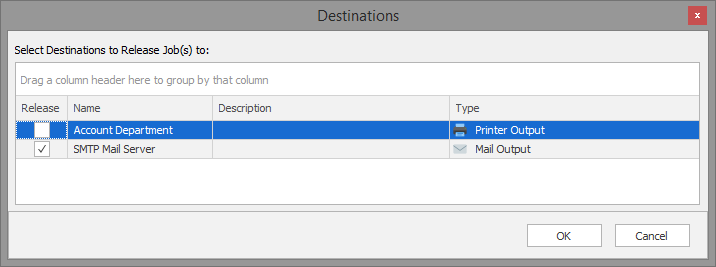
Default destinations are automatically checked and alternative destinations are unchecked.
Reschedule
A scheduled job can be rescheduled to another date and time.
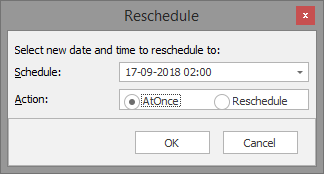
The reschedule action specifies what to do if the job cannot be released at the scheduled time because Lasernet Core is offline.
AtOnce: The job is released when Lasernet Core comes online again.
Reschedule: The job is rescheduled according to the rules of the module.
Keyword
The list of jobs can be filtered by a keyword. The keyword is matched against the JobInfo values stored via job tracking.
When a keyword is used, only jobs which match this keyword are shown.
Paging
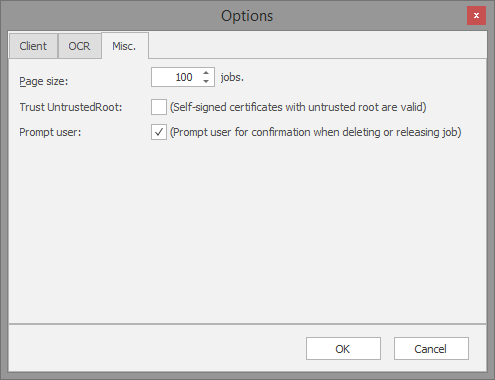
Since Queues can contain thousands of jobs, paging is used to limit how many jobs are actually retrieved and shown.
To change how many jobs are shown on a page, edit Server Options and select Performance tab.
Note
Increasing the page size can severely reduce performance of both the Lasernet Core service and the Lasernet Client.
Below the list of jobs, there are controls for moving to another page.

First: Jumps to the first page of jobs.
Previous: Jumps to the previous page of jobs if not currently on the first page.
Next: Jumps to the next page of jobs if not currently on the last page.
Last: Jumps to the last page of jobs.
Page: Jumps to a specific page.
Search
Search is not a queue type. Search works across all queue types and shows jobs independently of their statuses. The status of the job determines which actions are possible.
It is not possible to search for a date, a status or a failure reason.
The most recent searches are shown on the left for easy access.
Validation Rules
If validation of JobInfos in a job is required it must be configured in the Lasernet Developer. In the validation tab for a JobInfo Profile you can define your validation rules for jobs and embed them for any module except the OCR module.
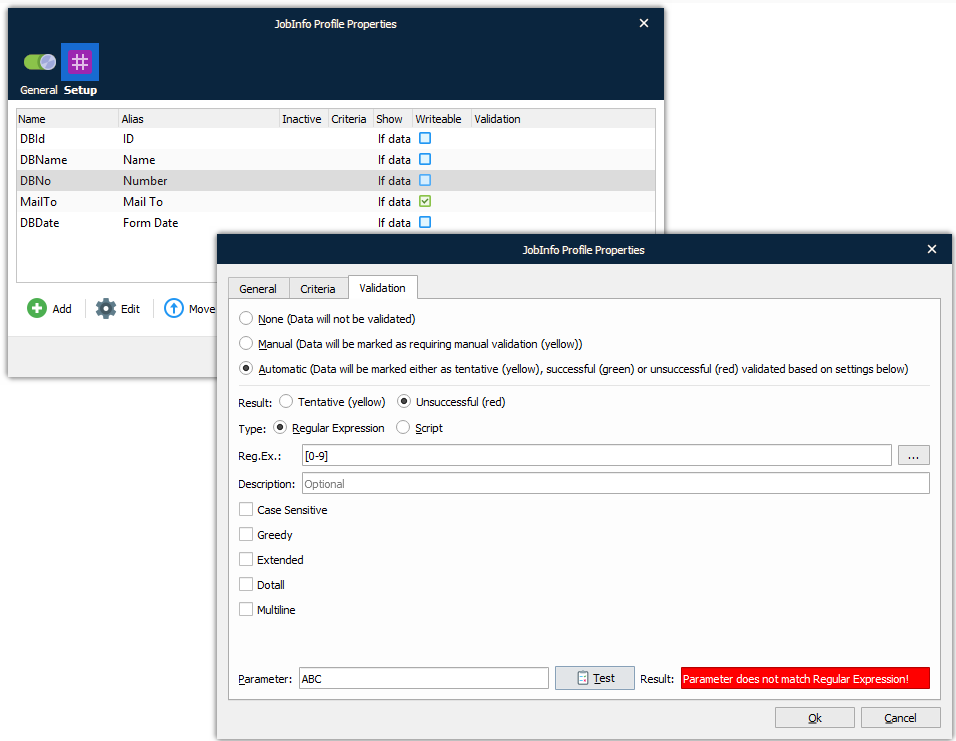
If you want to validate OCR fields, extracted by the OCR module, it is necessary to define the validation rules of each OCR field in the settings of the OCR Module.
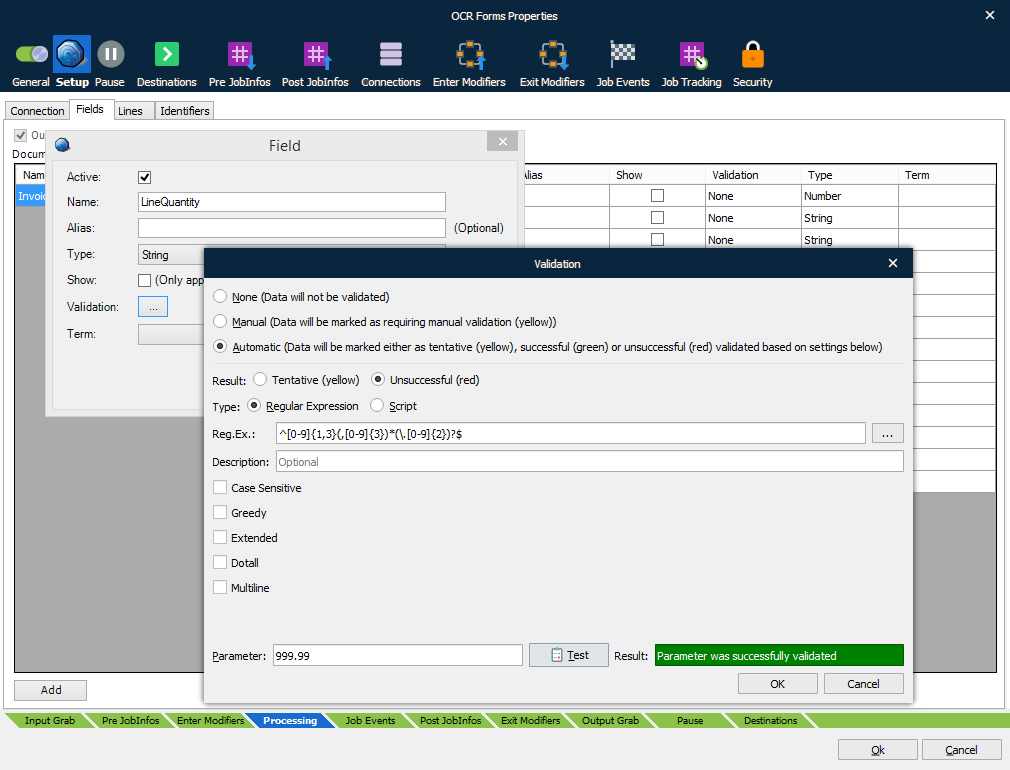
For more information about how to configure validation rules, see the Lasernet OCR 10 Guide and the Lasernet Developer 10 Guide.
Validation Tools
You can select any job or field in the grid that has write permissions or is marked with a yellow or red validation code and edit the contents.
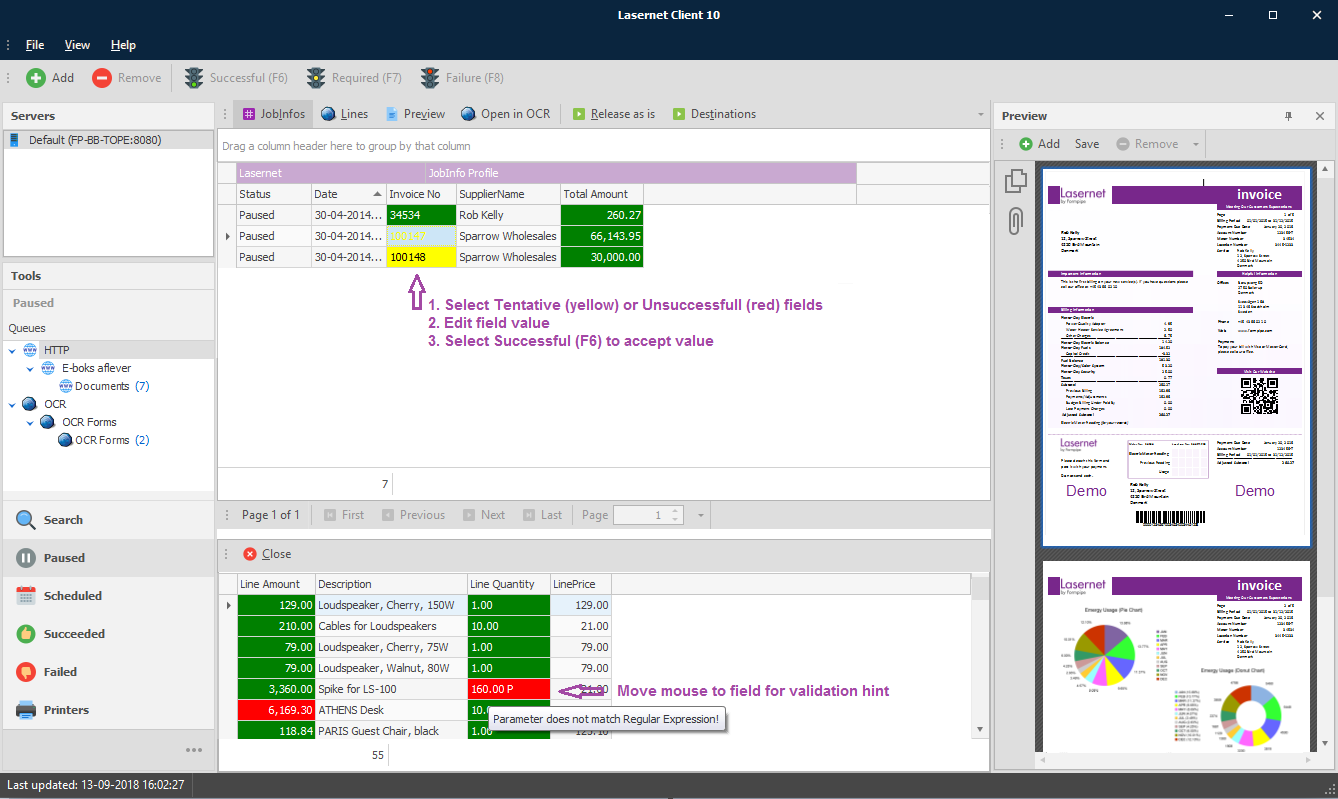
If the job contains item lines created via the OCR module, click the ‘Lines’ button to view them in the lower view. You can navigate around the grid via arrow keys and hit return to edit a field. When a field is marked as tentative (yellow) or failure (red) you can change the contents to the correct (expected) value. In the preview window you can see a copy of the original document.
The validation color codes are:
Failure Field value has a failure and must be validated and corrected by the user
Tentative Field value is tentative and must be validated and corrected by the user
 Successful Field value has been successfully validated by system or user
The tool bar has three validation tools:

Press F6-key to mark a validation field as successful (green)
Press F7-key to mark a validation field as required (yellow)
Press F8-key to mark a validation field as failed (red)
Before selecting Release as is it is recommended that all the validation fields have a successful (green) status, both in the upper view (main fields) and lower view (item lines). If there are any fields still marked with a tentative or failure status, it is recommended that the validation fields are validated by another user or by a 3rd party workflow system.
Dates and Regional Profiles
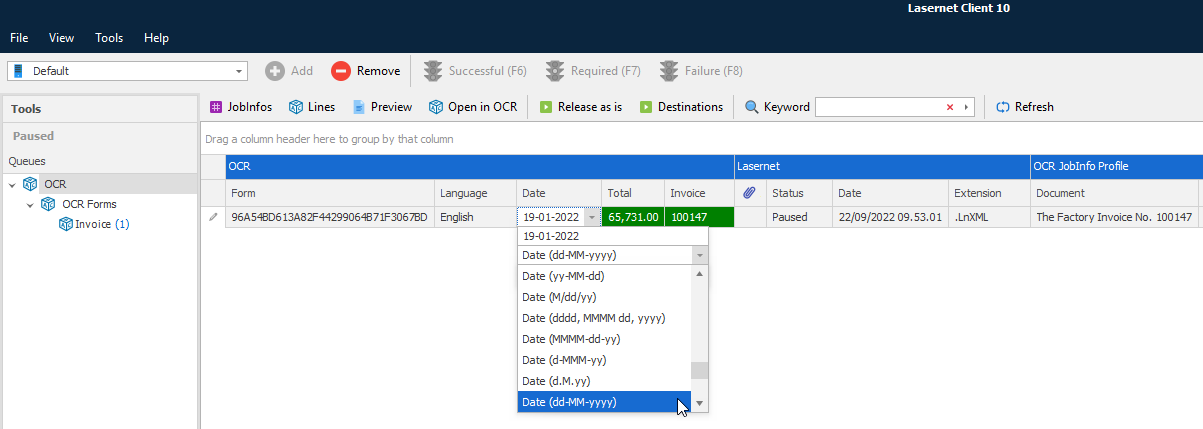
Select a column presenting a date format (OCR Forms only), to define a regional profile, which match the listed value. Any value selected will automatically be updated in the OCR Form, which have extracted the date value and created the regional profile.
Next time the same OCR Form is being processed, the selected regional profile is used to match the date format.