Applies to: Lasernet Core 10
The Lasernet Client has an intuitive interface for viewing and managing the jobs stored in Lasernet Core.
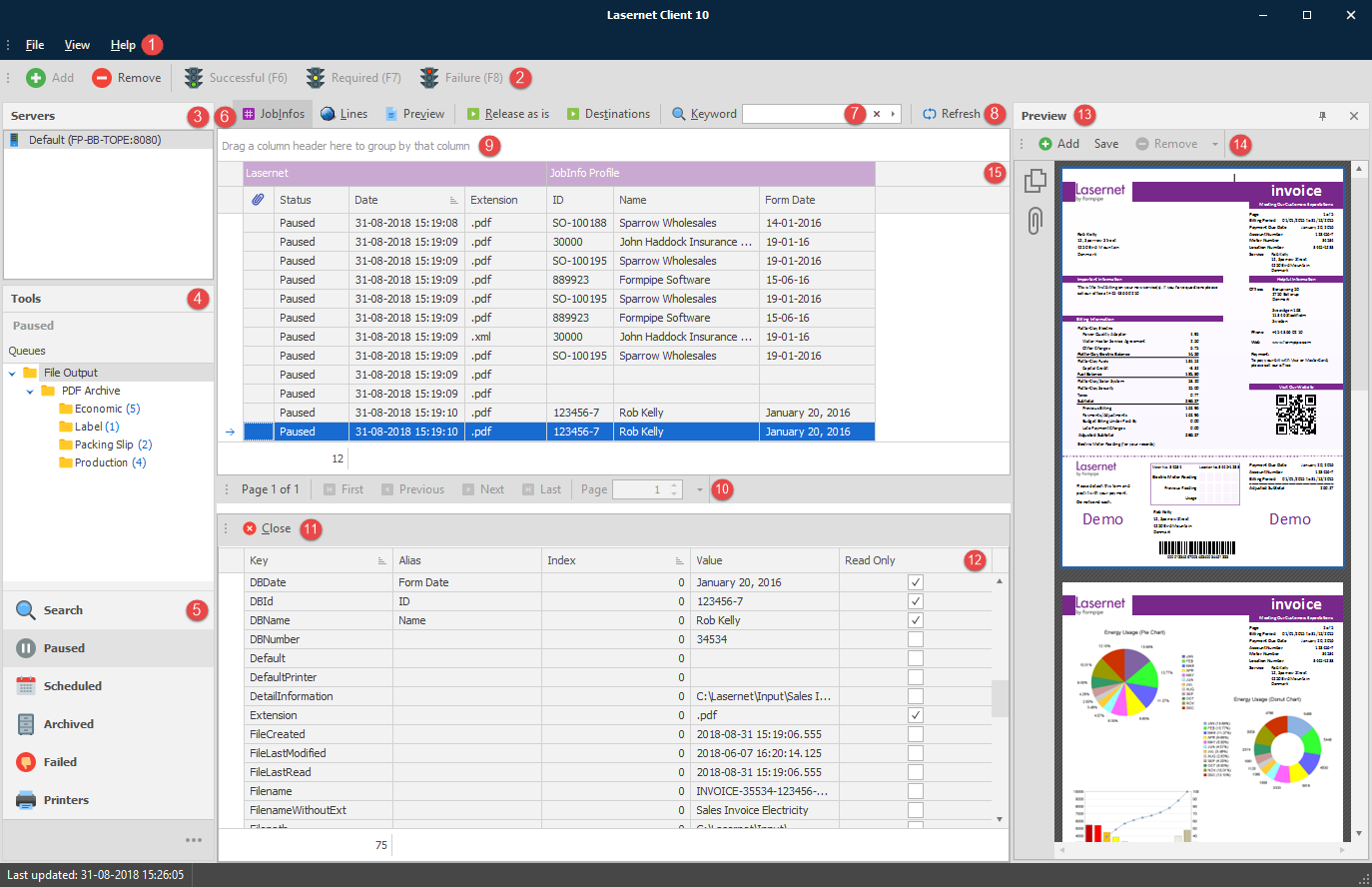
File menu containing basic commands for Closing the application, activating the Preview Job window and the About box.
Toolbar for upper (9) and lower (12) window. Add a new Job/JobInfo or Remove a selected Job(s). Select Successful, Required or Failure for validation of fields in upper (9) or lower (12) window.
Servers and added connection strings. Right click in the window to Add, Edit or Remove server from list.
The Add and Remove buttons on the toolbar manage queue jobs only. You cannot use them to add or remove servers.
Tree view showing only Queues containing jobs and how many jobs are stored in them.
The client has four main queues which can be viewed on the corresponding tabs. Depending on the job status the Archived queue can also be used to show successful jobs.
The queue types are:
Paused: Jobs which must be manually released (unpaused) by the user;
Scheduled: Jobs which are awaiting automatic release at a predetermined time;
Successful: Jobs which have been processed successfully. This queue will only show metadata but will not preview jobs. Queue is only visible if there are succeeded jobs in database.
Failed: Jobs which have failed somewhere in Lasernet Core.
Search: Search is not a queue type. Search works across all queue types and shows jobs independently of their status.
Printers: Printers is not a queue type. It shows the Windows printer statuses for Lasernet Printer Output modules added to the Lasernet Core configuration on the connected server.
Toolbox for upper (9) window. Click JobInfos to show additional JobInfos (metadata), saved via JobInfo profiles in any Lasernet Core module. Click Lines to show additional JobInfos saved via Item Lines in the Lasernet OCR module. View opens the job in an application associated with the configured extension. Click Release as is to release the selected job from the selected queue. Click Destinations to select an alternative destination for the selected job (requires that an alternative destination has been configured for the selected job).
Type a Keyword to search for the value in any column and any queue. Keywords cannot be found in JobData.
Click Refresh to retrieve new jobs from server and update list view for jobs.
Main window contains jobs stored in the selected queue. The Status column will show queue type and additional columns will show names and values defined in the JobInfo Profile. JobInfo Profiles are configured in Lasernet Developer and activated when the job is stored. A field can have 5 different colors depending on the status type:
 Standard Standard field if no special action is taken.
 Selected The field is selected and actions in tool box can be taken.
 Failure Field value has a failure and must be validated and corrected by the user.
 Tentative Field value is tentative and must be validated and corrected by the user.
 Successful Field value has been successfully validated by the system or the user.
Navigate to First, Previous, Next, Last or specific Page number.
The paging only works chronologically. It is not affected by how the view is sorted in the Lasernet Client. This means the first page will always contain the oldest jobs and the last page the newest jobs.
Toolbox for lower window. Click Close to close list of additional JobInfos or Lines for selected job.
If JobInfo mode is selected the lower window will contain columns for additional JobInfos (key column) including columns for alias name, index number, value and security settings (read/write).
In Line mode, the toolbox for the lower panel will include a button to change between mixed and grouped listings for line item types. Only Item Lines/fields extracted by the Lasernet OCR module will be listed in Line mode.
Activate View > Preview Job to show selected job in Preview window. The Lasernet Client is able to preview the following formats in the Preview window: PDF, XLS, XLSX, DOC, DOCX, RTF, TIF and XML. EMF/LnEMF can be previewed in PDF format if activated on server side.
The preview window is not guaranteed to be 100% accurate and compatible with the specifications for the listed formats. If you want to confirm that the job looks as expected you must open it in external application, like Microsoft Word, Microsoft Excel, Internet Explorer or Acrobat Reader. Ensure that the extension is associated with the mimetype/application and then double click on the selected job to open it.Click Add button in Preview window to add additional attachments to paused or scheduled jobs.
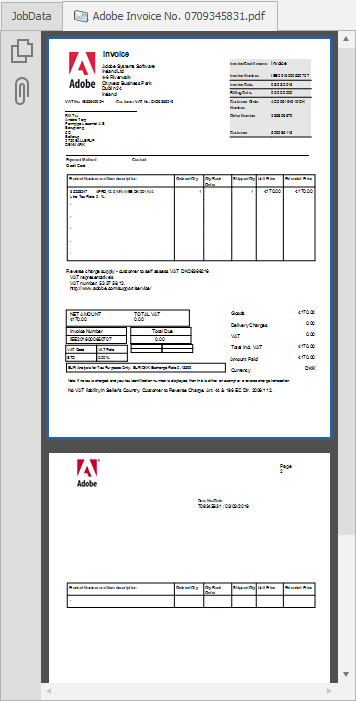
Click JobData tab to view the primary stored job and click Save to store a copy in a folder. Select other tabs to view or save each attachment stored with the primary job. Supported viewing formats are Word, Excel, TEXT, PDF, XML and TIFF. Select the attachment and click Remove button to delete it. The attachment will no longer be attached to the primary job and cannot be restored again. Attachments added manually by a user in Lasernet Client and released to the server, are added by the system to the following JobInfos:

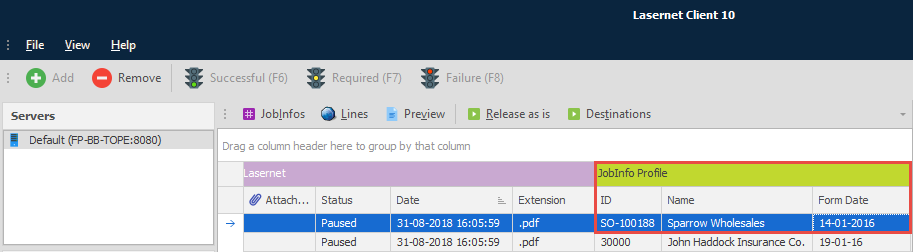
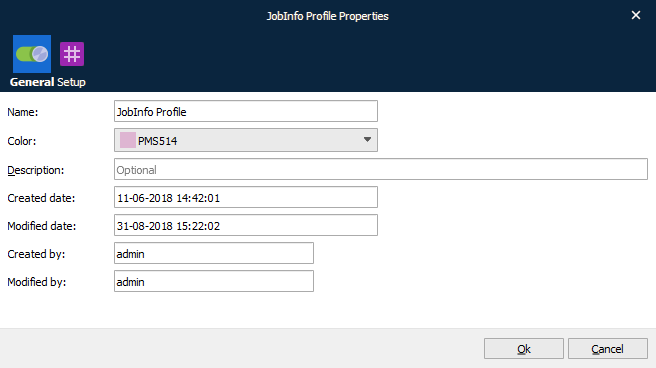
The bandings contain a group of JobInfos. The first group named ‘Lasernet’ contains the system information for the number of attachments, job status and a timestamp for the job. It has a fixed color defined by system. User defined colors can be configured for other groups of JobInfos that all belong to a JobInfo Profile. The color for each JobInfo Profiles are maintained in the Lasernet Developer > JobInfo Profiles > General tab.
Paused Jobs
Pausing is usually added to verify that the output from a module looks correct before releasing it to its output destination(s).
Paused jobs require manual release (unpausing) by a user before they can continue. Jobs can be paused at any level in Lasernet Core:
Input Modules and Engines: Pausing is done on the output side of the module.
Output Modules: Pausing is done on the input side of the module.
Printing devices can also be paused so that all jobs passed to them are held, regardless of where they are sent from.
It is possible to use JobInfo criteria to determine if a job is paused or not.
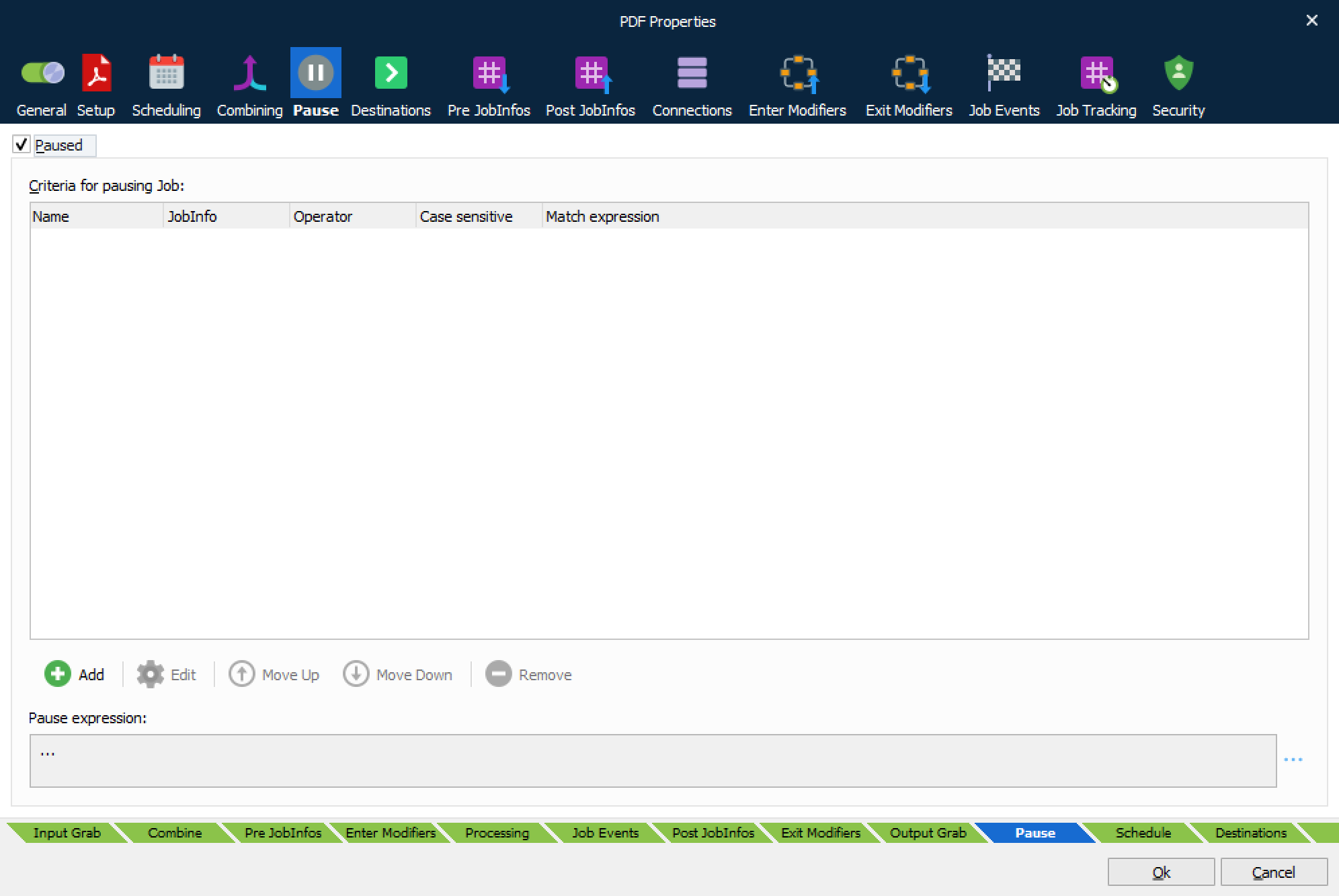
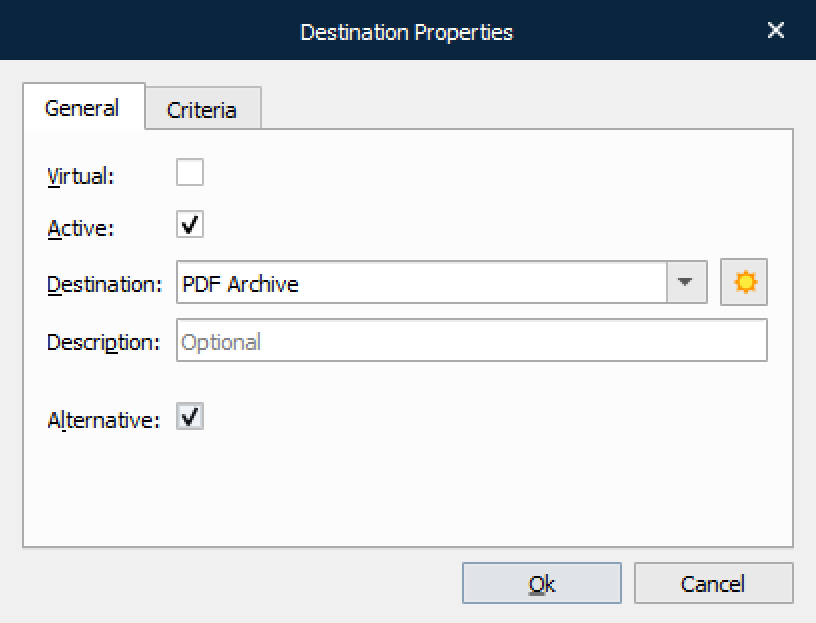
When a paused job is released by a user it is passed to the job destination(s) specified in the module. It is possible to mark a pre-defined destination as an ‘Alternative’. Alternative destinations are skipped unless the Lasernet Client user specifically chooses to release a job to them.
When a module (queue) is paused or scheduled, job tracking becomes available.
Scheduled Jobs
Unlike paused jobs, scheduled jobs are automatically released by the system from their paused state after a specified period. Alternative destinations are not configurable for scheduled jobs.
Succeeded Jobs
This queue is visible as soon as Lasernet Core successfully processes any jobs. Only metadata is stored for successful jobs, therefore there is no data to preview.
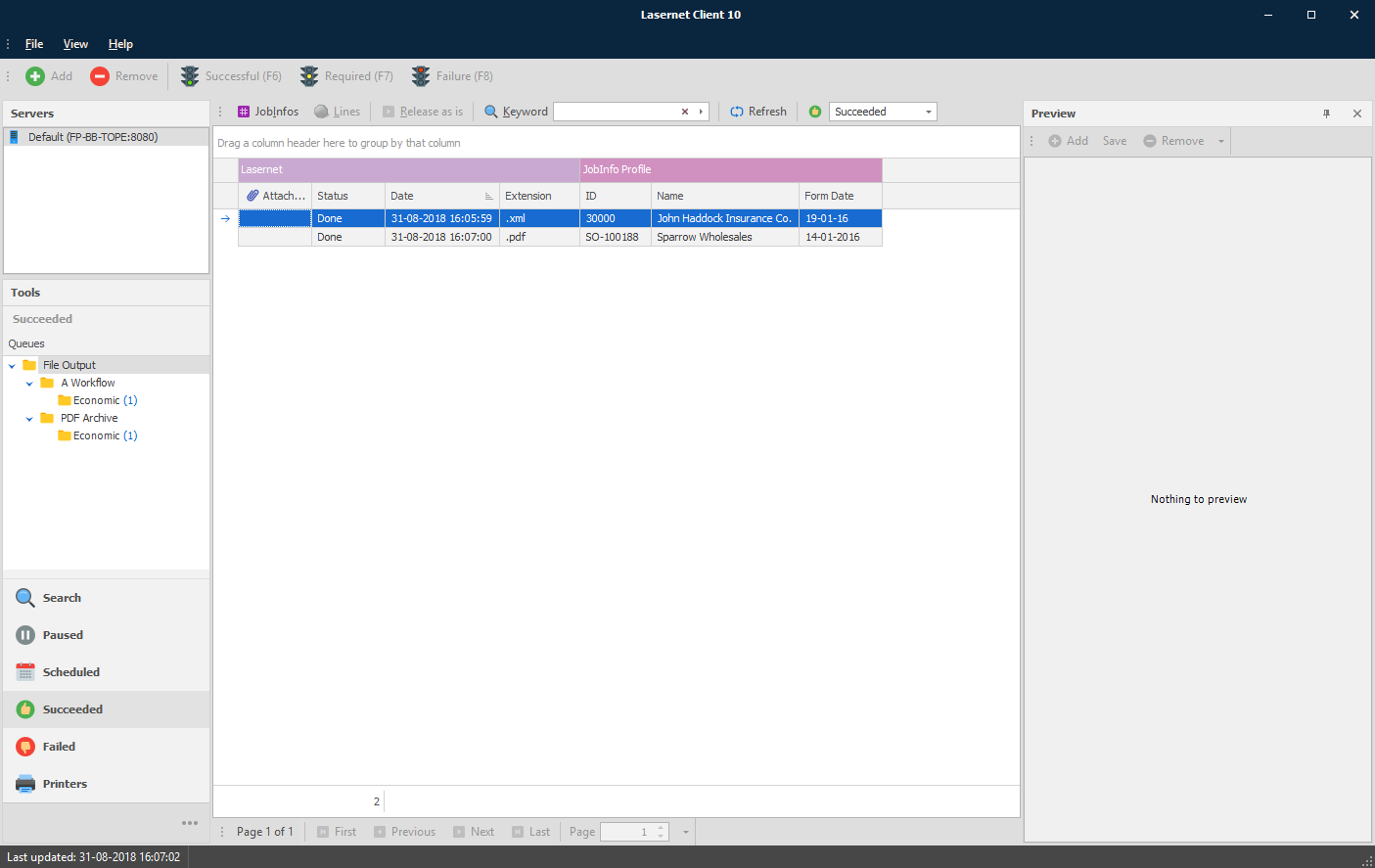
The server automatically maintains the Succeeded Job queue and as such you cannot manually remove jobs from it. However, you can define the period of time the server should keep successful jobs in the database for, before removing them.
Failed Jobs
If a job has failed in Lasernet Core it is often because communication cannot be established between an output module and the external environment (e.g. an email server). You can retry a failed job by selecting the queue or jobs you want to release and then click Release as is. Lasernet Core will process the job again from the same state as where the job failed and try to re-connect and send the job again.
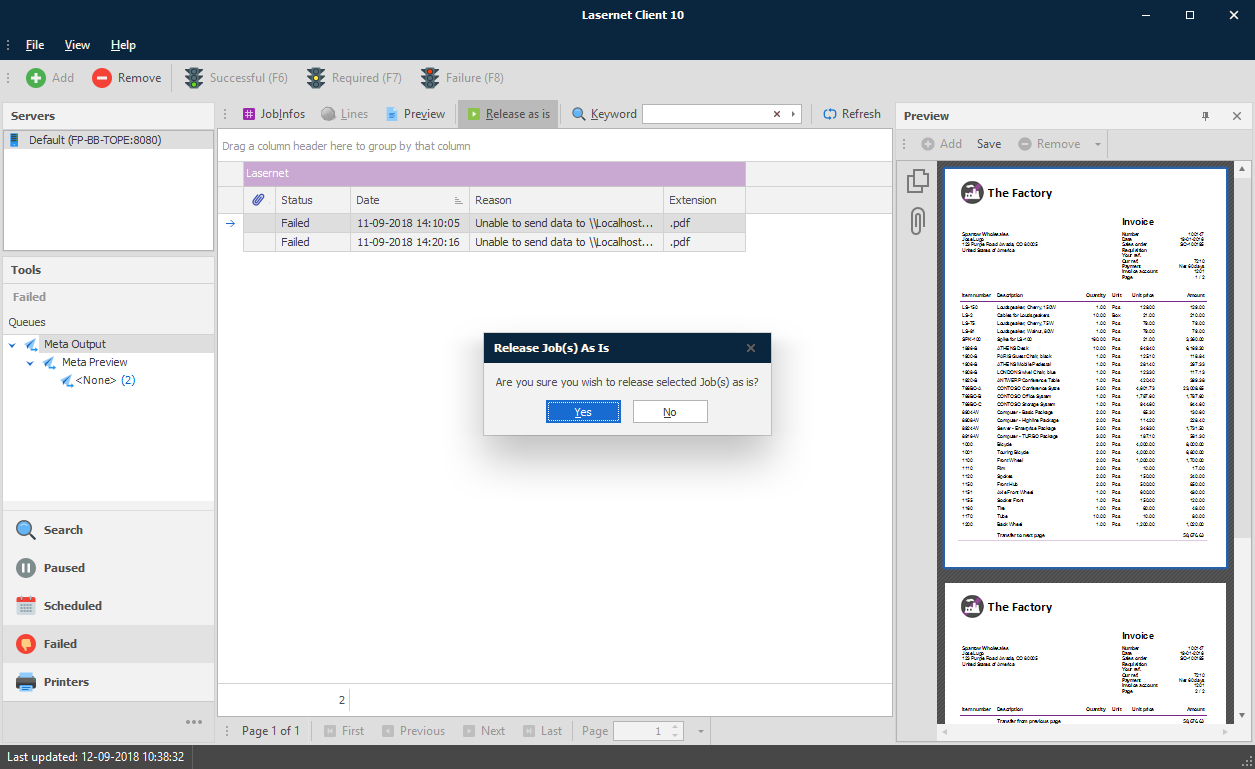
If the job is successful, it will be registered as a succeeded job and will be removed from the failed job queue.
Alternatively, click ‘Remove’ to delete jobs from the failed job queue.
JobInfo Profiles
JobInfo profiles can be used to display a list of relevant JobInfos in the Lasernet Client. Once configured, the key data is shown in columns for the job. JobInfo profiles can be used to show useful information such as invoice numbers or names and email addresses of clients, etc.
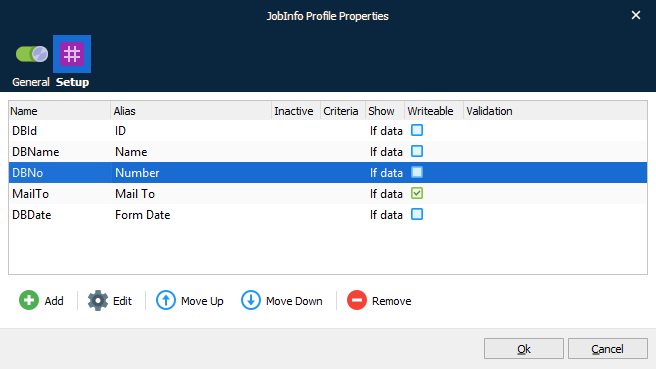
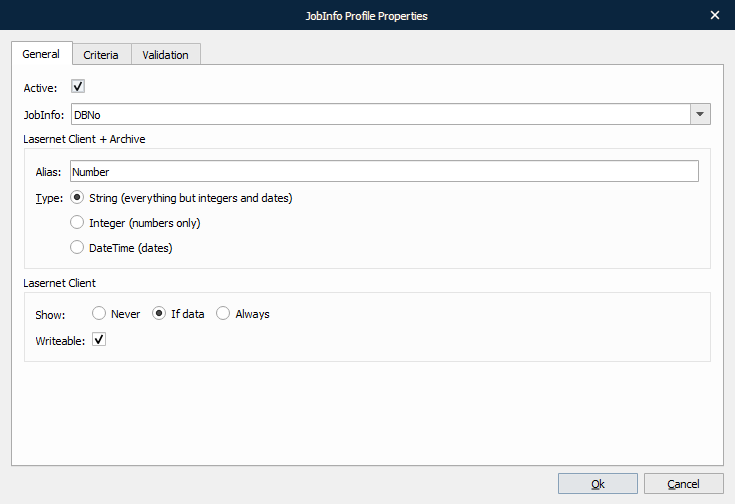
JobInfos do not always contain user friendly names, therefore it is possible to specify an alias if desired. The alias will show as a column name in Lasernet Client when documents are listed in rows.
Two types of JobInfos are supported and handled, these are: String and Integer.
The ‘Show’ property specifies whether or not a JobInfo should be shown as a column in the Client. As all stored JobInfos are searchable, it is not always necessary or desirable to make them visible in the client.
The Criteria tab can be used so that only JobInfos matching specified conditions are stored.
Job Tracking
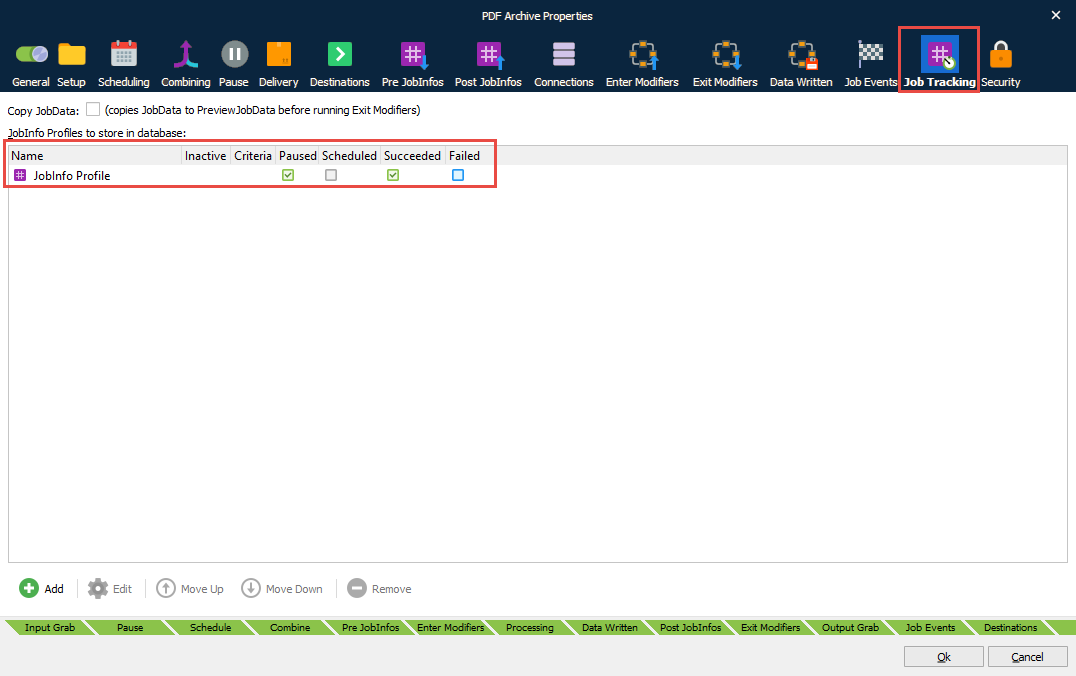
When a module is configured to pause (Pause tab) or to use scheduling (Scheduling tab), it is possible to specify which JobInfos should be stored for viewing later in the Lasernet Client. Job tracking for Archiving is only selectable if archiving is activated and configured in the server database settings.
Job Tracking is achieved by first creating one or more JobInfo profiles and then mapping them to the module on the Job Tracking tab. More than one JobInfo profile can be added to the same queue and a JobInfo profile can be used on several different queues.
Job Tracking is available for a wide range of job events, like Paused, Scheduled, Succeeded, Archiving and Failed. It is possible to use different JobInfo profiles based on criteria for all event types.
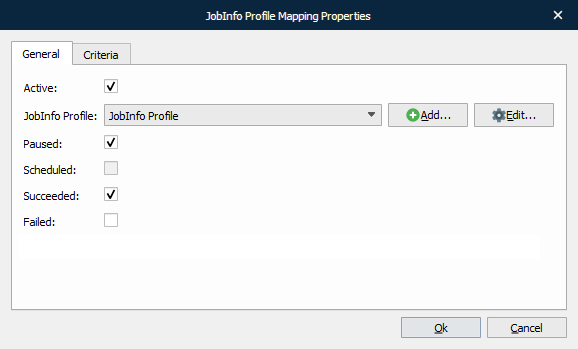
The image from the Lasernet Client below shows a sample scenario when using a JobInfo profile with a range of user defined JobInfos (metadata) for paused, succeeded and archived jobs.