Applies to: Lasernet Core 10
Creating a Form
OCR Forms cannot be designed without having business data to work with. This data needs to be stored in a text file in a shared location that is accessible to the OCR Editor, or can be opened from a paused queue in Lasernet Client.
You can create a new OCR form by following the relevant steps:
- Scenario 1 – Lasernet Core has converted and saved a text copy in a shared location.
Start OCR Editor. Go to File ► Grab file and browse for a valid text file.
- Scenario 2 – Lasernet Core has converted and saved a text copy in the internal database.
Start Lasernet Client. Select the Paused tab and double-click on any of the documents listed for the OCR Engine. The OCR Editor will open the document.
Note
When the text / grab file has been loaded you are ready to start creating an OCR Form.
Form Properties
In the Form properties you are able to manage the properties of your form.

Doc. Type Type of document. List retrieved from the OCR Engine. Field names belonging to this document type will be available in the form.
Sub Type Sub type for document. List retrieved from the OCR Engine. Field names belonging to this sub type will be available in the form.
Description: Description of the form. The text will be added as a value in the final output.
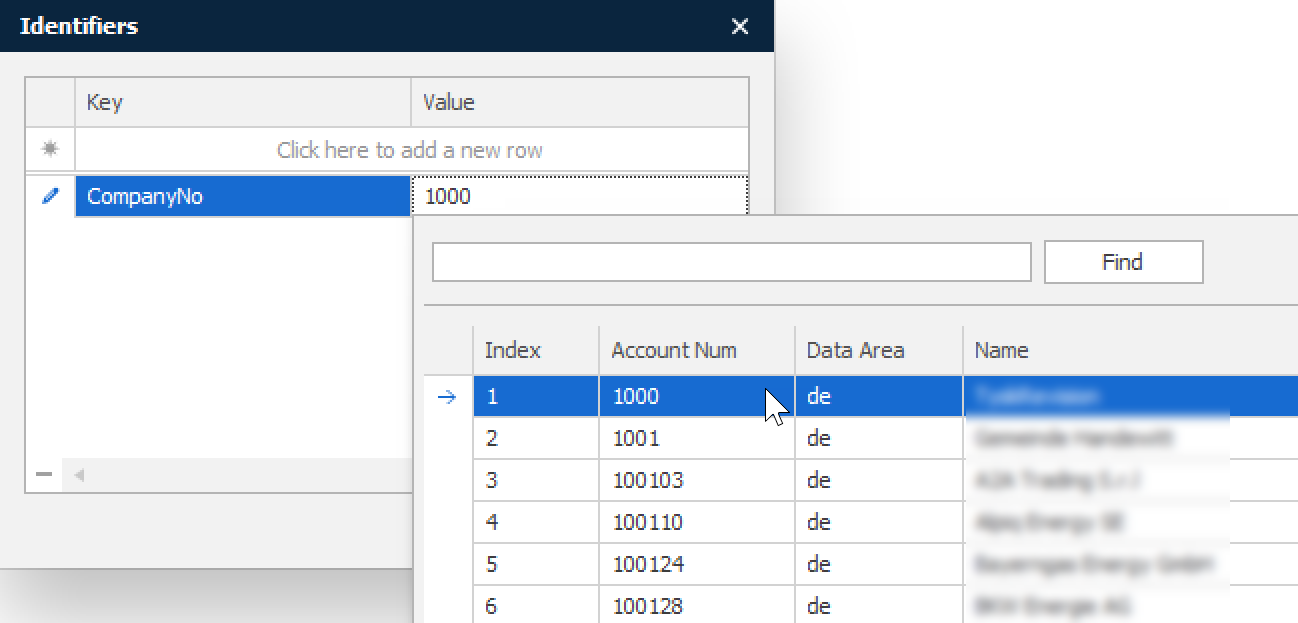
Identifiers: Identifiers are fixed field names and values that can be added to output data. Only characters from A–Z are recommended as valid key names.
Important
If the CSV file contains a parsing error due to an incorrect CSV format, a dialog will be displayed with a warning message and the line number saying: “Error parsing CSV file. Records with incorrect formatting will not appear in the list, but are still allocated an Index number.
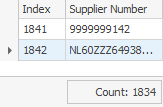
If there is mismatch between the highest index number and the total count number, please report the error to an administrator of the Lasernet Config Server. This can be caused by a corrupted CSV file.
Form Tools
Administrative tools are available in the ribbon bar. You can update, retrieve, administrate and view OCR Forms.

Update and Close See information about Update. The application will close after clicking.
Update Saves the OCR Form in the OCR Engine. Before an update, you must ensure that the OCR Form contains unique criteria. The OCR Engine will parse through the OCR Forms in the list index order. The first form with a criteria match will be processed. The order of the index is managed from the Form Lists tool.
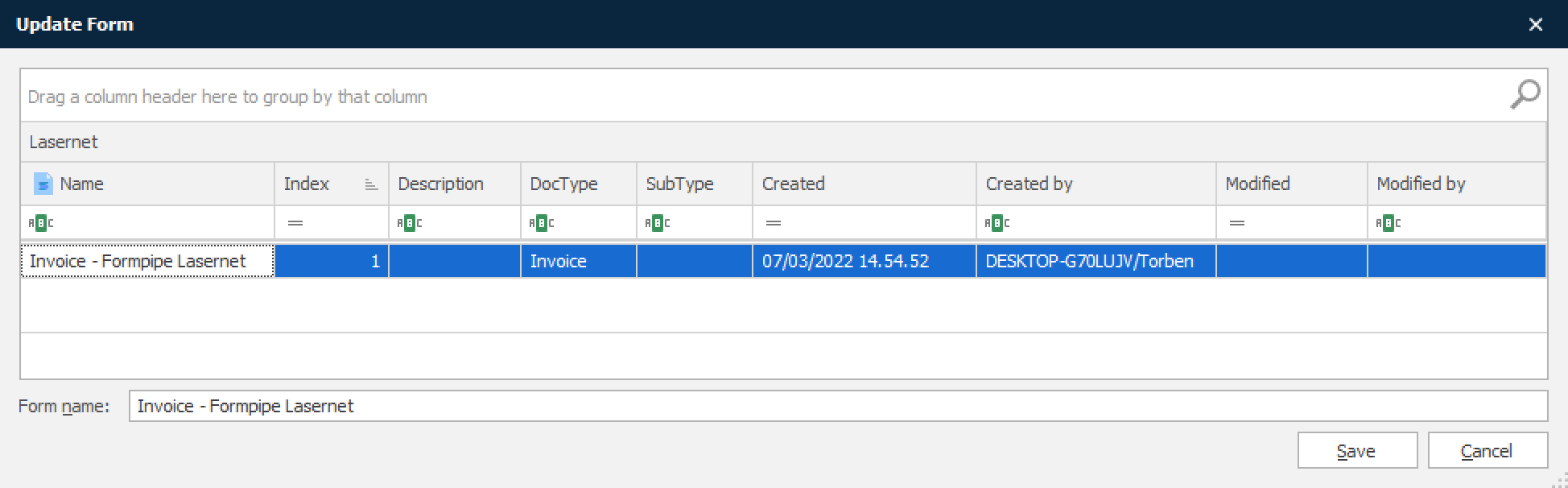
You can either save the OCR Form as a new document or overwrite an existing one.
Retrieve Retrieves an existing live OCR Form from the OCR Engine.
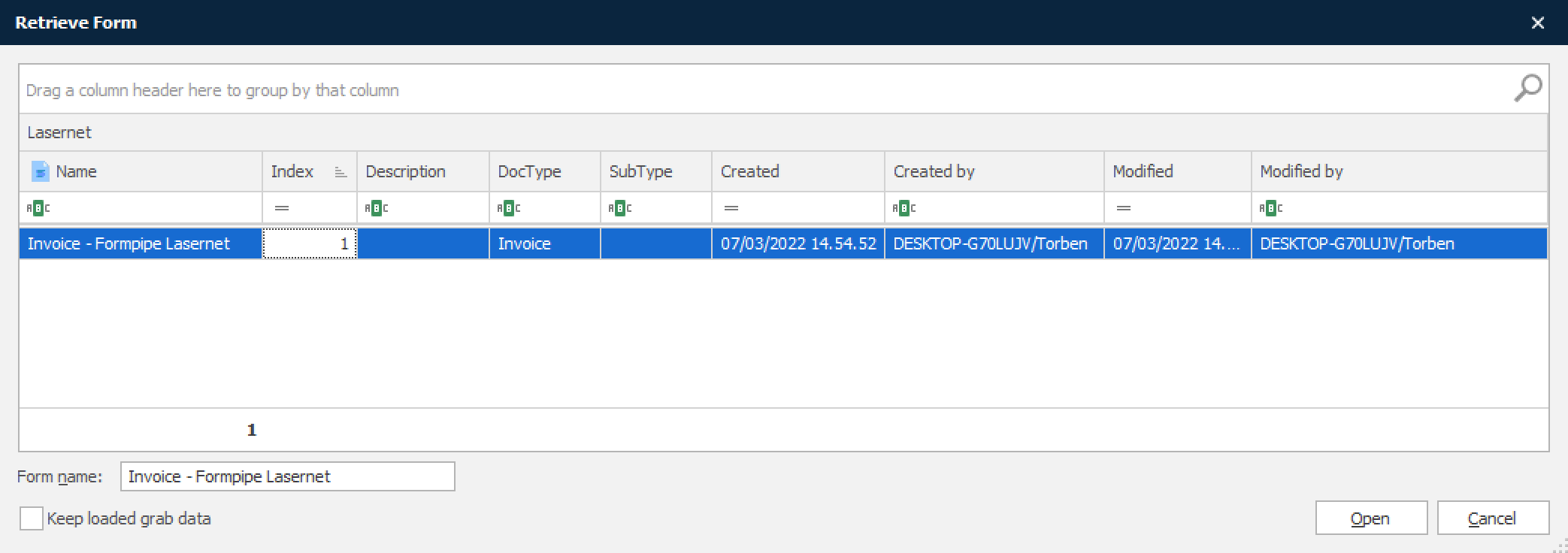
Click an OCR Form in the form list and you will be able to view and edit the settings. A form that is already open must be saved before retrieving a new form.
Select the Keep loaded grab data checkbox to use loaded grab data instead of last used grab data stored within the form at the last update.
Forms Lists the active OCR Forms already updated on the OCR Engine and running in live mode.
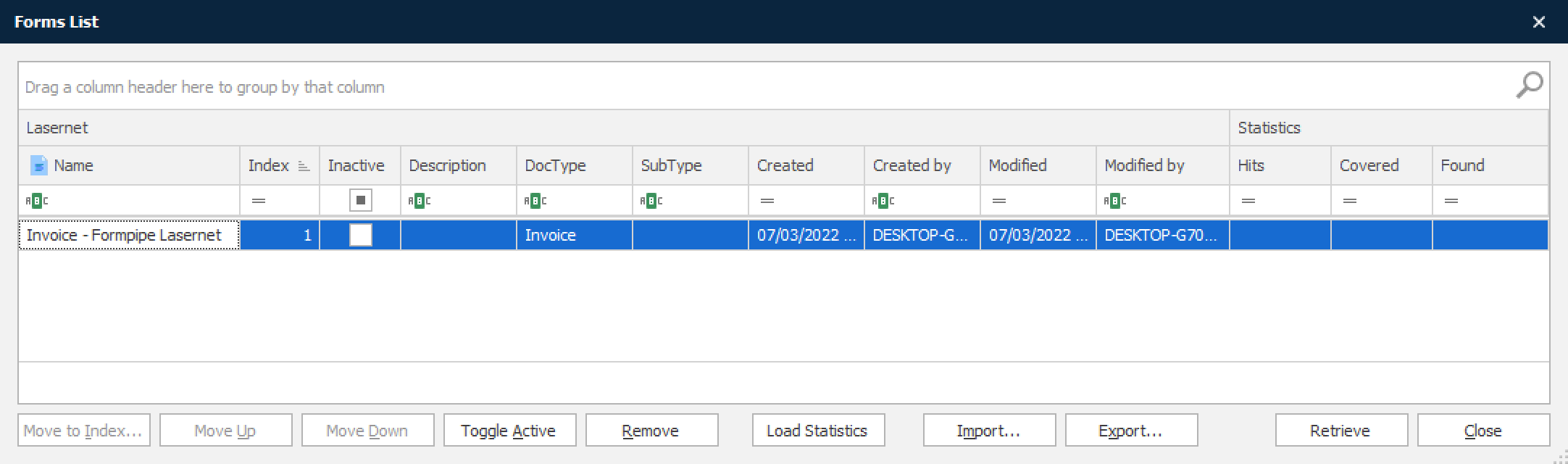
Forms can be moved up and down to change the recognition order or deleted from the form list in the OCR Engine. Forms are deleted immediately and removed from the live server. To save a copy, you must retrieve the form and use the File ► Save as function.
AutoCapture Forms A list of OCR forms automatically captured by the OCR Engine.
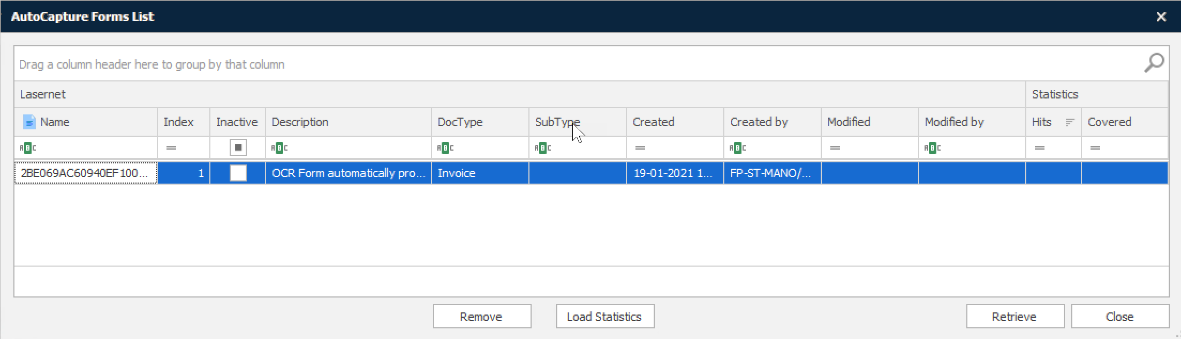
Opening auto captured forms makes it possible to Remove them or Retrieve these and edit and save them as real OCR forms.
View Output View a preview of the final output, in XML or Text mode according to the setting on the OCR Engine.
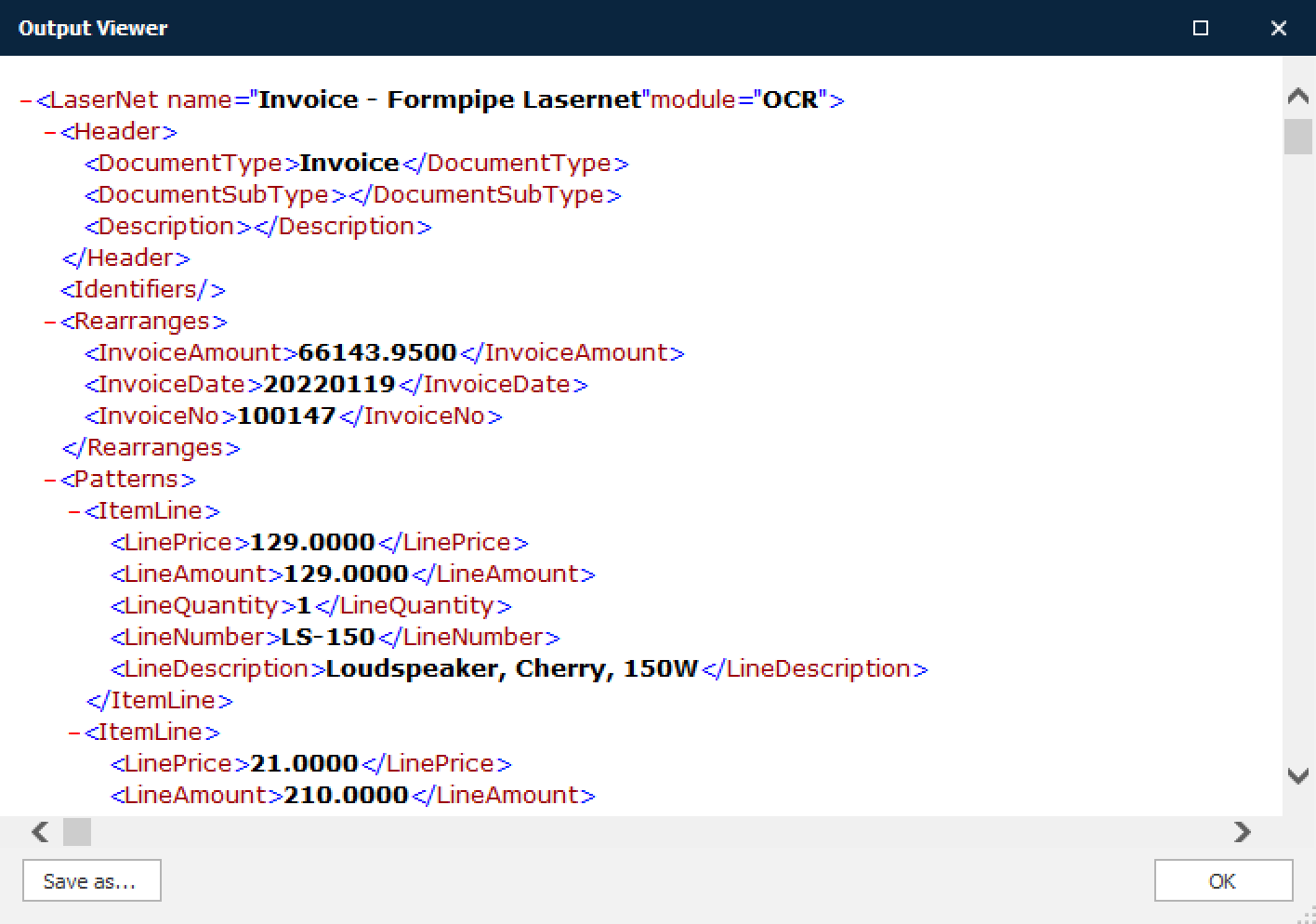
Click Save as… if you want to save a local copy of the XML. The output file can be opened in the Lasernet Form Editor or any other XML editor.
Field Properties
The OCR Editor toolbar includes various tools for defining Criteria, OCR Fields, Data Fields, Link Fields and Exceptions into the OCR Form output format.
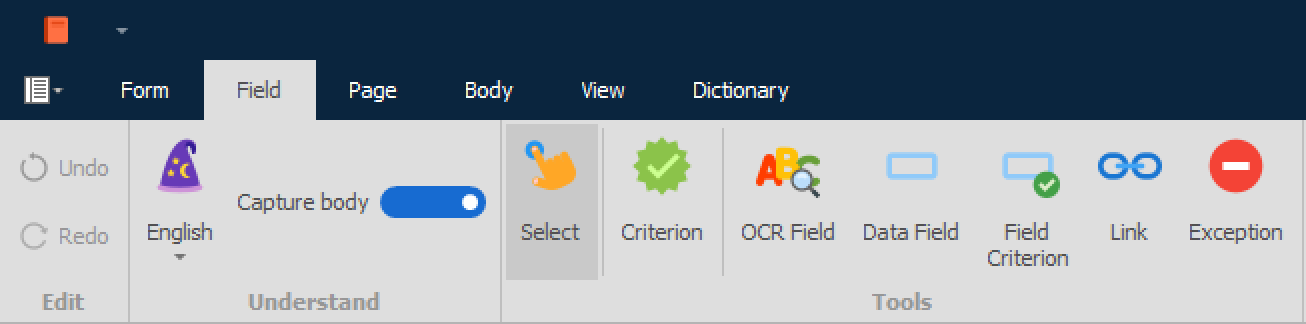
Understand To enable the Understand button, a dictionary must be available. Click the arrow icon and select a language from the drop-down menu. Click Understand to automatically create OCR Criteria, OCR Fields and Data Fields for words / labels in the form that match words found in the dictionary. By default, the solution is delivered with an English, Danish, Swedish, Norwegian and Finnish dictionary. Other languages must be maintained by the end user.
Capture body Slider to turn on and off the capture of item lines, in the body of the document, when clicking the Understand button.
Select Select an existing object by clicking it.
Criterion Manually select a criterion to tell the OCR Engine to scan for specific data strings and match the form. The full page will be scanned to detect the text string in any position. We recommended that you create several criteria for each OCR Form to ensure more accurate recognition. For example, document type, company name etc.
OCR Field Detects unique text strings in the document. An object will be created for the first text string in the document matching the OCR Field string (used in combination with Data Field and Link tool).
Data Field When marking a text string in the OCR Form, the positioning for the Data Field is fixed (by default) to a defined row and column. See OCR Field for more information. Several Data Fields can be linked to one OCR Field.
Link By using the Link tool you can draw a dotted line between an OCR Field and a Data Field, to define the relative positioning of the two objects. The Data Field will then be grabbed according to its relative position from the OCR Field.
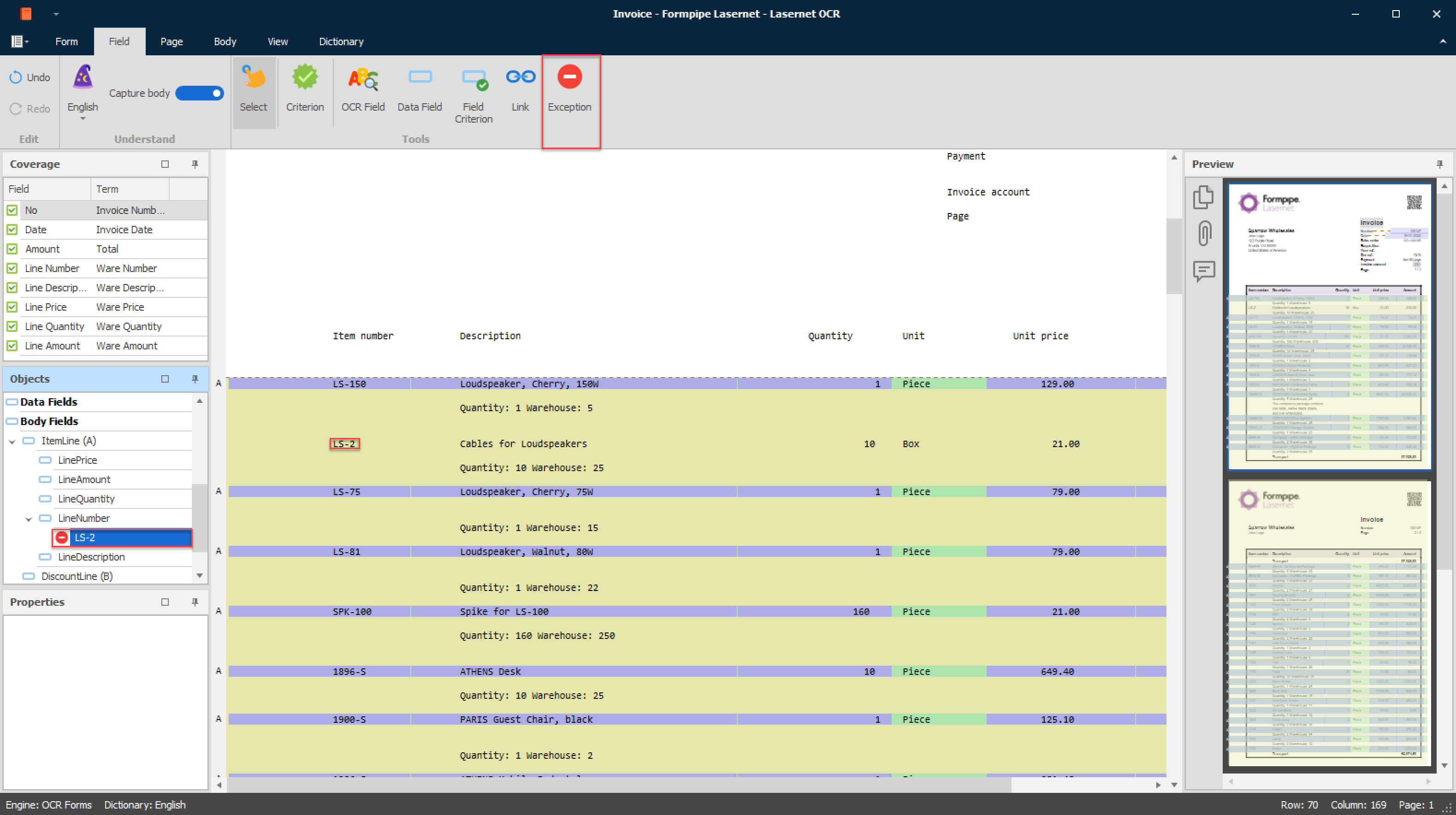
Exception Used in the body area as an exception for excluding patterns with specific text symbology. Exceptions use ‘CONTAINS’ as an operator when matching strings. Exceptions in the object list can be edited by pressing F2.
Selections
Each tool has a selection value showing the settings of the object.
Criterion A Criterion is marked as a dark grey object:

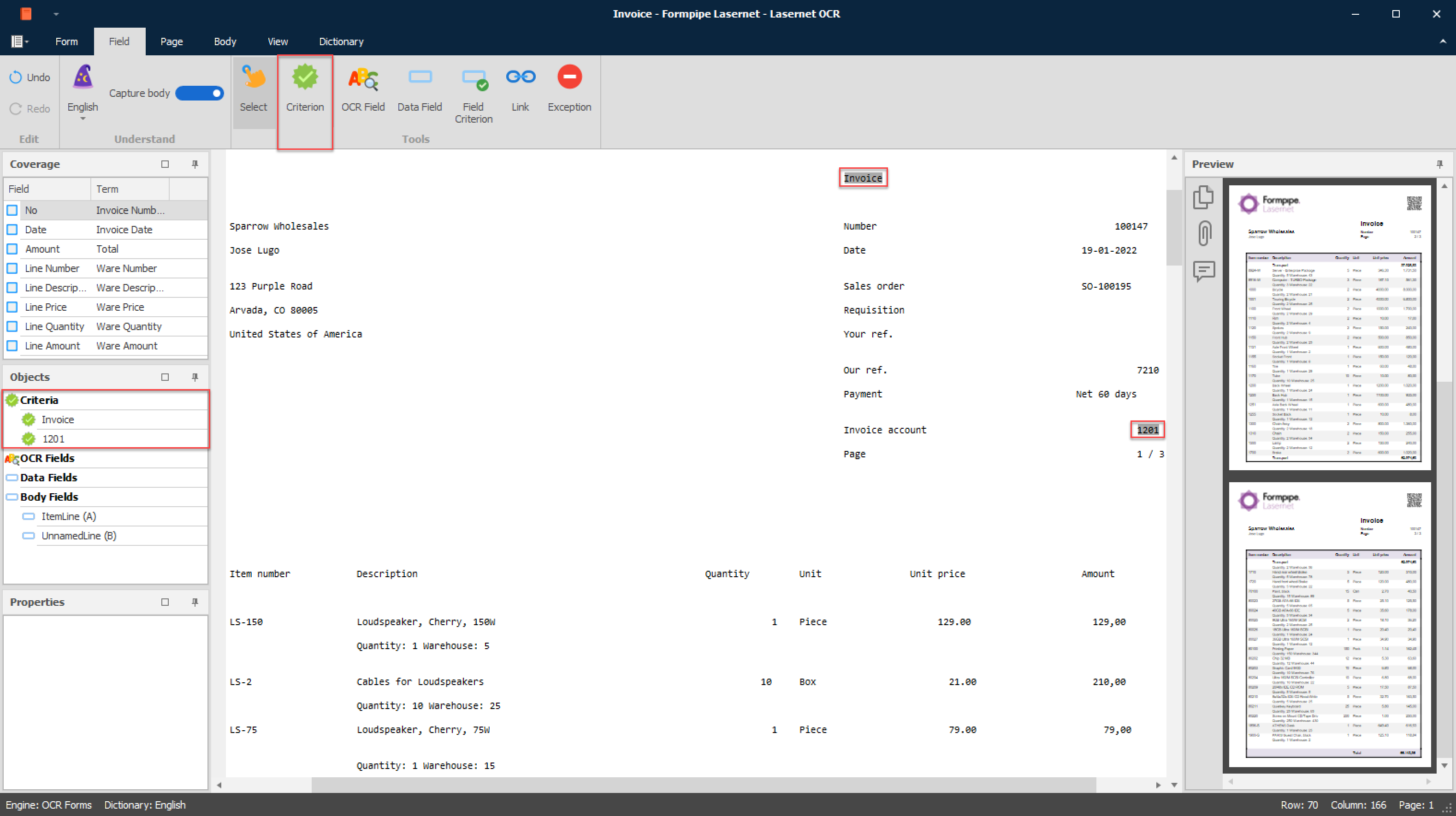
When selecting one of the objects, the selected field will show the value of the criterion in the following field:
Text Value of a criterion.
OCR Field An OCR Field is marked as a light grey object: 
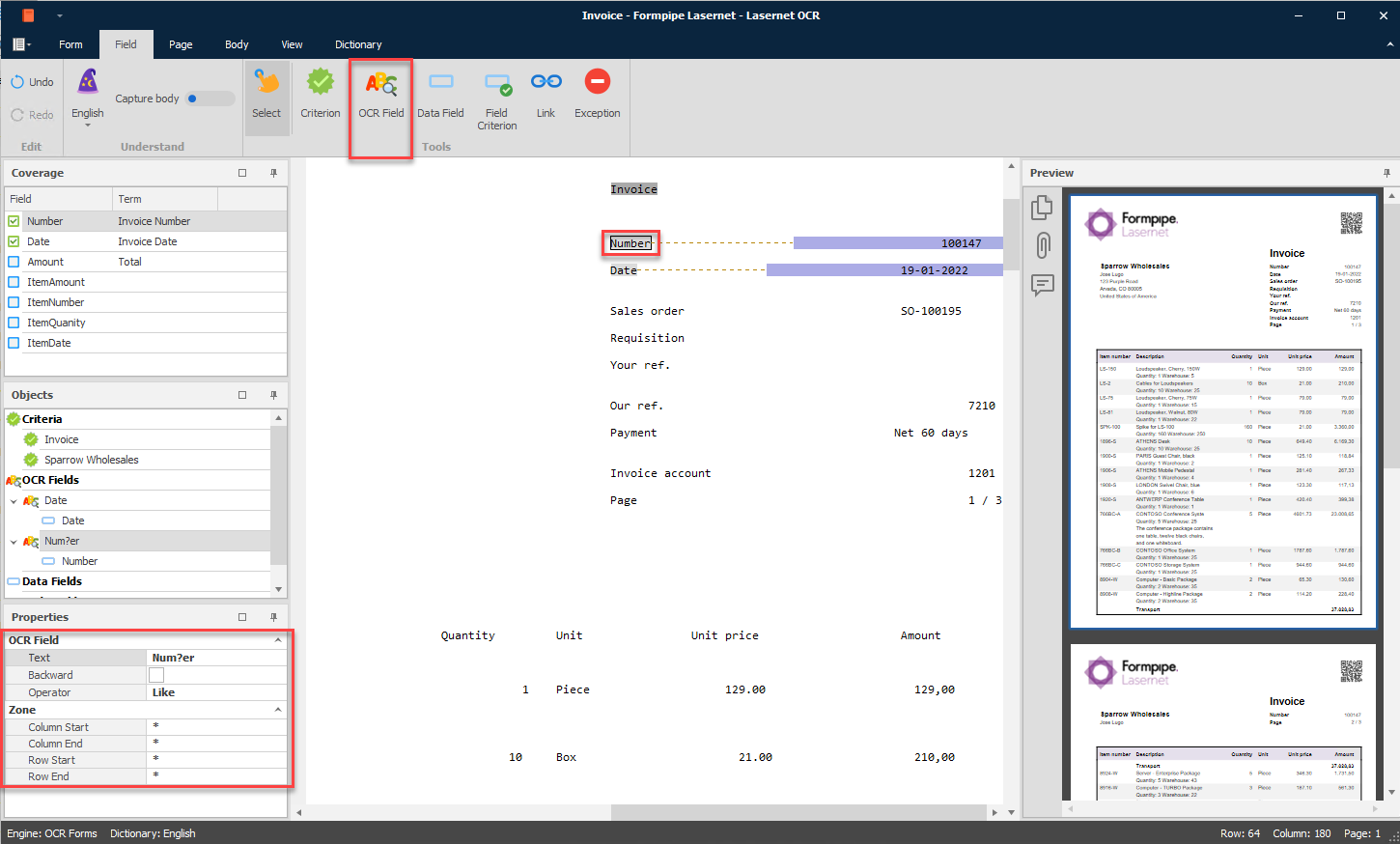
When selecting the object, the selection field will show the value of the OCR Field in the following field:
Text Value of an OCR Field. The value is used to find a text on a page and link the value with a Data Field. The value can contain an exact match and wildcards for pattern matching.
The pattern matching features allow you to match each character in a string against a specific character, a wildcard character, a character list, or a character range.
Common wildcard characters in a pattern match are:
? Any single character
* Zero or more characters
# Any single digit (0–9)
[charlist] Any single character in charlist
[!charlist] Any single character not in charlist
[A-Z] Any uppercase character between A-Z
[a-z] Any lowercase character between a-z
Note
Running a pattern match and the Like operator will have an impact on performance. We recommend using an Exact operator match if possible.
Backward If selected, the search direction is from bottom upwards. We recommend this for fields that are always present at the bottom of a document, for example, the total amount.
Operator Default value is set to “Exact” where wildcard matching is not supported. Alternative value is “Like”, which works in combining with wildcards in the text value.
Zone Per default a wildcard * defines that a search for an OCR Field runs for all pages in the document.
You can restrict your search to a user-defined area by adding values for column/row start/end, or you can use a mix of values and wildcards.
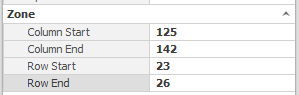
A yellow zone will surround the OCR Field in where the search text must appear. It is recommended that the size of the zone is larger than the text string for an improved search, especially for scanned documents.

Data Field A Data Field is marked as a blue object: 
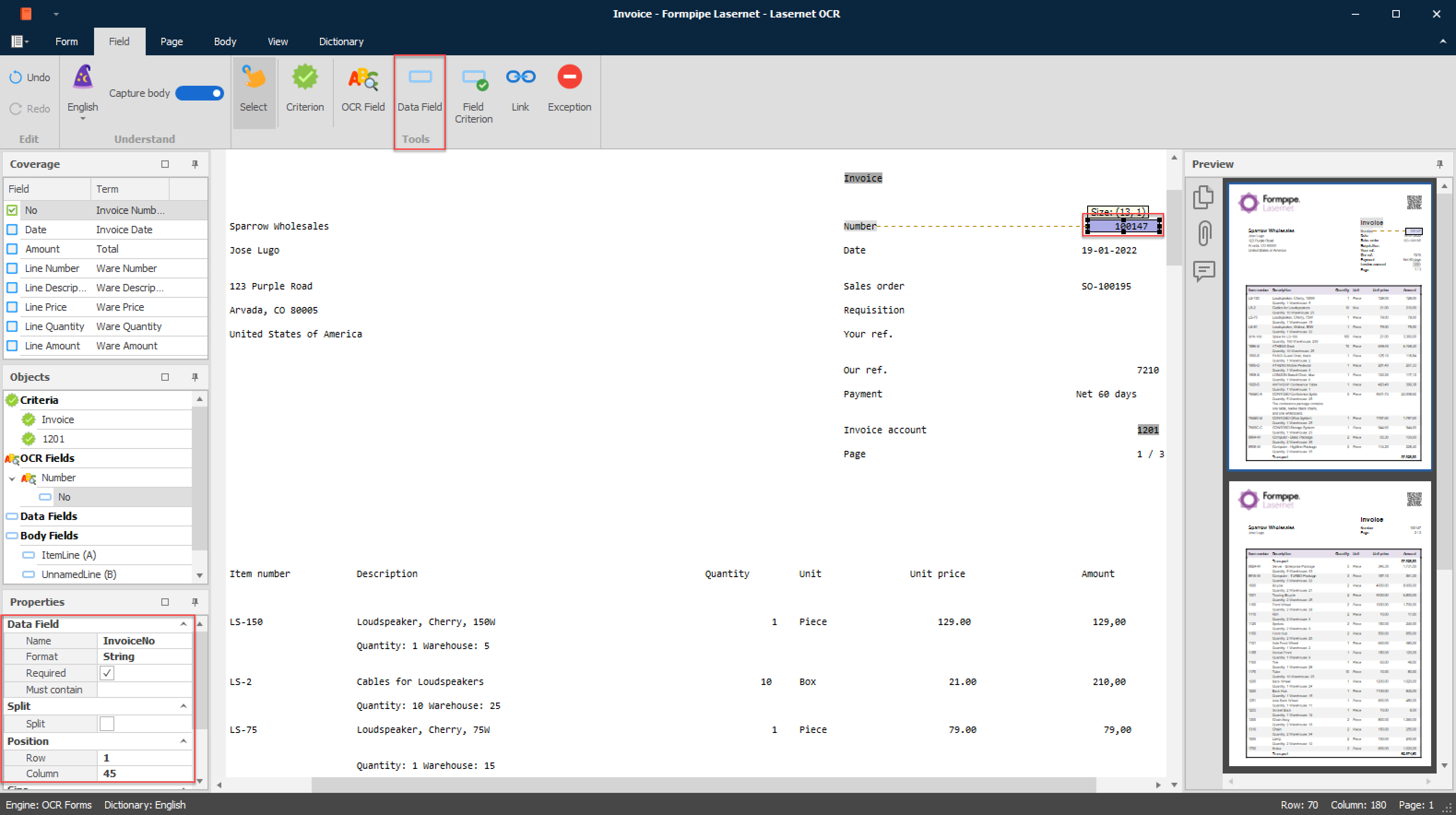
Name and Format are defined in the properties of a data field. If a data field is linked to an OCR field, the value of the row and column is in a relative position to the OCR field.
If the data field is not linked to an OCR field, the row and column values are in an absolute position to the start of the form data.
Objects List View
Data fields linked to an OCR field are listed as a child to a specific OCR field.
Data fields not linked to an OCR field are added to the list of general data fields.
Name Name of the field. The list of available field names is obtained from the document type, managed in the OCR Engine.
The Field Name and its value will be included in the output format created by the OCR Engine (also viewable from the Form ► Output View).
Format Name of the Regional Profile. The list of available profiles is retrieved from the Lasernet Core environment on start-up. A field can either be a string, number or date (see Field Names list). Numbers and Amounts must match what is specified in the current profile (via the Regional Profiles), to successfully convert them into the final output format.
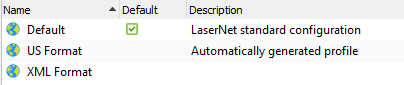
(An example of Regional Profiles created in the Lasernet Developer and accessible from the OCR Editor)
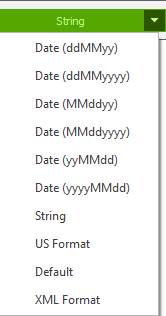
A range of predefined parameters for Dates and String are available.
The output result for a string field will be exactly as the data is presented in the document.
When using a Regional Profile for number and date formats, the separators specified in the Regional Profile must match the separators in the value of the field, otherwise the field will be ignored.
Required (1) Activated by default. This flags differently in the header/footer as opposed to the body.
Header/footer: If this setting is not active, the Field Name will not be represented in the output format.
Body: A valid value is required for the row to be included in output.
Text Used as an exact match of a Data Field. If a text string has been entered into this field only Data Fields containing this match will be captured. Wildcards are not supported.
Split If a Data Field contains two different kinds of data information, for example, a string and a number, or a number and a date, and there is no logical way of creating two Data Fields due to overlapping, the Split Field must be activated. This typically happens for two columns listed in the body area after a PDF or TIFF document is converted into Text.
Name (2) Name of the second field when running in split mode (works similarly to single Field Names).
The rule for splitting strings into two Field Names is that first Field Name contains the value of a date or a number, if represented in the string.
The second Field Name will contain the rest of the string.
If a number or date is not detected, both Field Names will be set as text strings. The splitter finds the first space character and adds the text string before it into the first Field Name and any character after the first space into the second Field name.
Format (2) Name of the Regional Profile for the second Data Field (works similarly to single Field Names).
Required (2) Activated by default. This flags differently in the header/footer as opposed to the body.
Header/footer: If this setting is not active the Field Name will not be represented in the output format.
Body: A valid value is required for the row to be included in the output.
Row / Column Position for a Data Field represented as rows and columns in a text document. Position of a Data Field is relative if linked to an OCR Field. If not linked, the position is fixed.
Link No selections are available for the Link tool. The tool is used for linking a Data Field with an OCR Field; a dotted line shows which fields are connected.

Exception No selections are available for the Exception tool. The tool is used in the body area as an exception for excluding patterns with specific text symbology. The value of an Exception is connected to a Data Field and is shown in the list view along with active objects in the OCR Form.
Body Properties
The OCR toolbar enables you to set up the body area so that a dynamic number of article lines can be detected and used in the final output format.
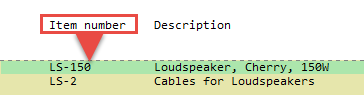
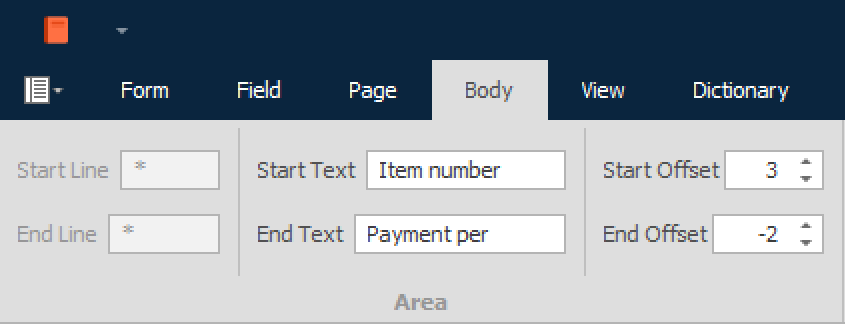

Start Line Set fixed number of lines from where the body area starts within the input data file. The start line number must be a positive numeric value. This value is only required if a fixed start text cannot be found.
End Line Set fixed number of lines where the body area ends in the input data file. The end number must be a positive numeric value higher than the start line number, or an asterisk (*) which means that the body stops at End of Page (as shown in the example). This value is only required if a fixed end text cannot be found.
Start / End Text The body area can have its own Start and Stop text criteria which gives you flexibility beyond just defining its location in an input data file, by ensuring the data also satisfies the criteria set.
Start / End Offset Used together with start criteria in the body area. The header (start) or footer (end) area can either be extended with a positive number of additional lines or decreased with a negative number of lines.
Page Properties
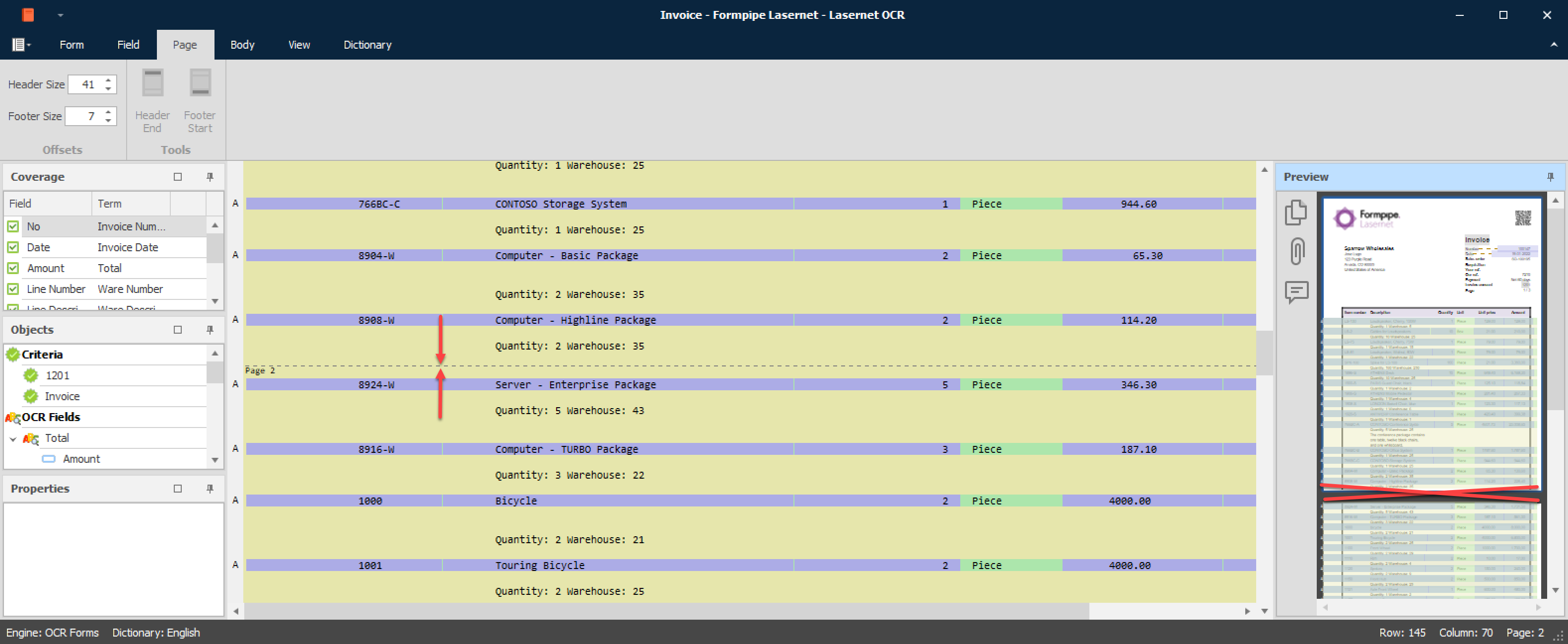
Each page will typically contain a header, body and footer. Very often the numbers of printed text lines, for the header and footer size, are defined with exactly the same size. In the Page tab you can define the size of the Header and Footer of the OCR Form.
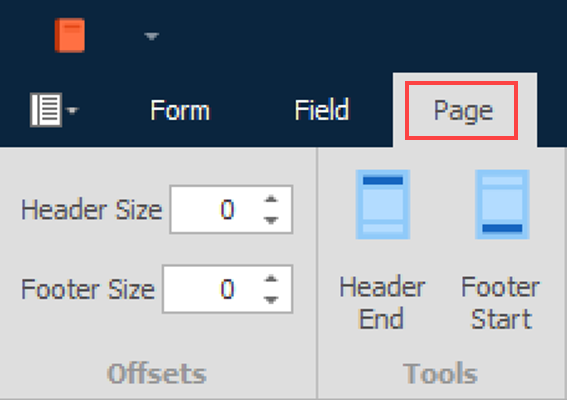
We recommend these settings are carefully considered, because important data can be lost if the defined size does not fit the form’s conditions. The benefit of removing headers and footers from middle pages in a document is easier maintenance of item lines.
Header Size The number of lines for header size; if the number of lines in the header is exactly the same for all pages you want to combine.
Footer Size The number of lines for footer size; if the number of lines in the footer is exactly the same for all pages you want to combine.
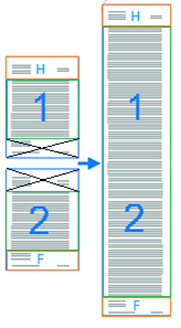
The effect will be that the following will be combined / converted into one grab file / job, in the illustration:
the header for the first incoming page
the body lines for all incoming pages
the footer for last incoming page
By default, the headers and footers for all pages will be visible in the data. This is not critical because the item lines are recognized as expected and the headers and footers in between are ignored.
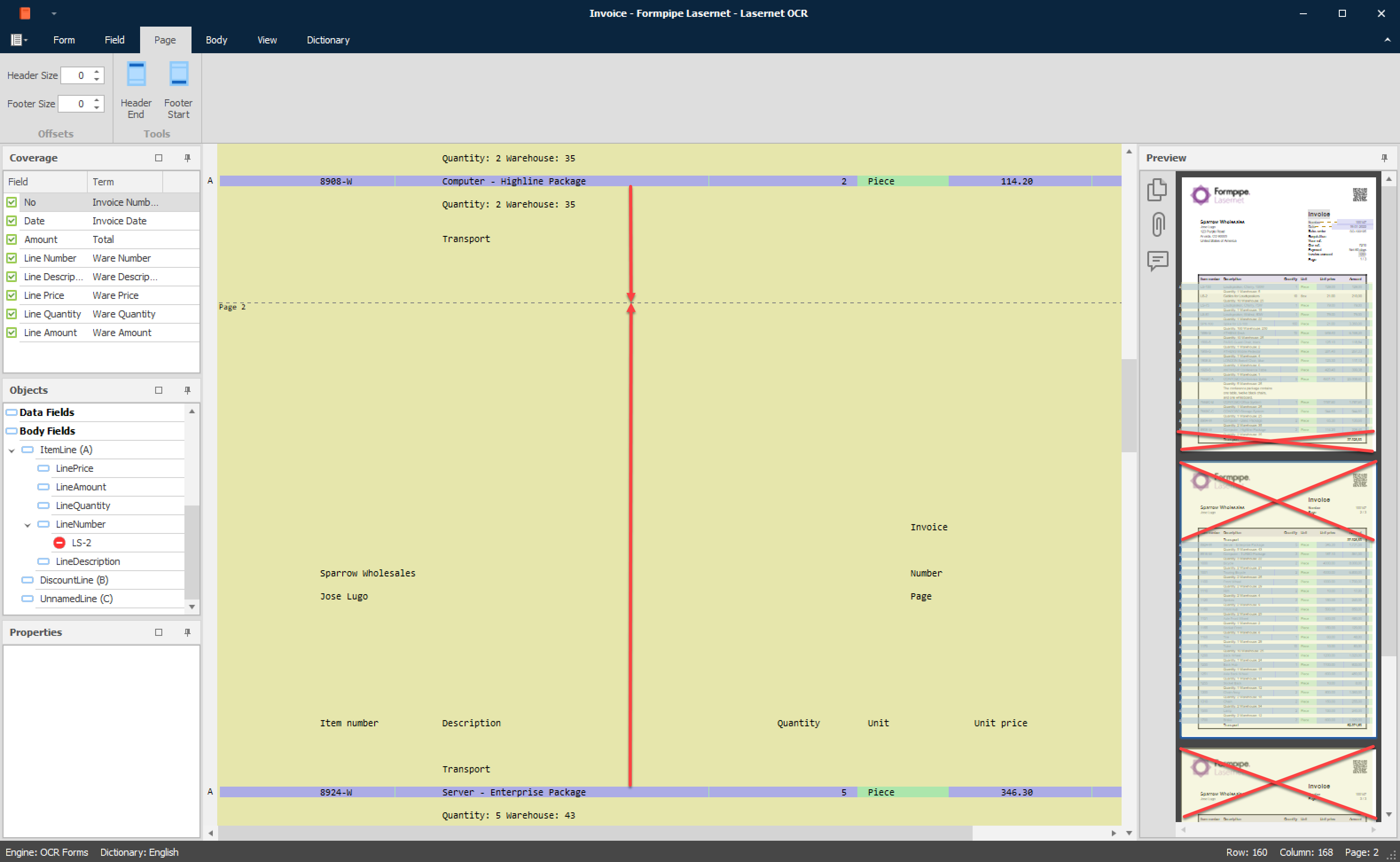
In this example, the Header Size is 29 lines and Footer Size is 9 lines. The pages are combined and only one header (first page) and one footer (last page) appear in data.
View Properties
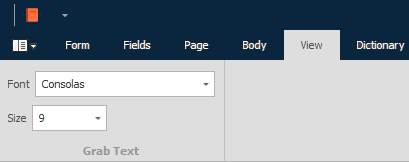
Set up the preferred font type for grab text.
Font Font character name. The default is Consolas.
Size Font character size. The default is 9.
Note
None of the settings will have effect on the final output. This is for viewing only.