Applies to: Lasernet Core 10
Create a Form
When you have added an OCR Engine to your project and a workflow to convert incoming PDF or TIFF files to a Text file, you are ready to start working with OCR Editor.
OCR Forms cannot be designed without having some current (or sample) business data to work from. This data needs to be stored in a text file on a share that is accessible to the OCR Editor, or saved in paused mode in the internal Lasernet Core database.
You can create a new OCR form by following these steps:
- Scenario 1 – Lasernet Core has converted and saved a text copy in a shared location.
Start OCR Editor. When the application is open go to File ► Grab file and browse for a valid text file.
- Scenario 2 – Lasernet Core has converted and saved a text copy in the internal database.
Start Lasernet Client. When the application is open, click the Paused tab and double-click on any of the documents listed for the OCR Engine. The OCR Editor will open the document.
In this guide we will set up an incoming invoice from a supplier named “Formpipe Lasernet”.
A PDF document is received by email and converted into a text format and paused by Lasernet Core.
The document is opened in the OCR Editor to map OCR fields and extract data for a workflow system.
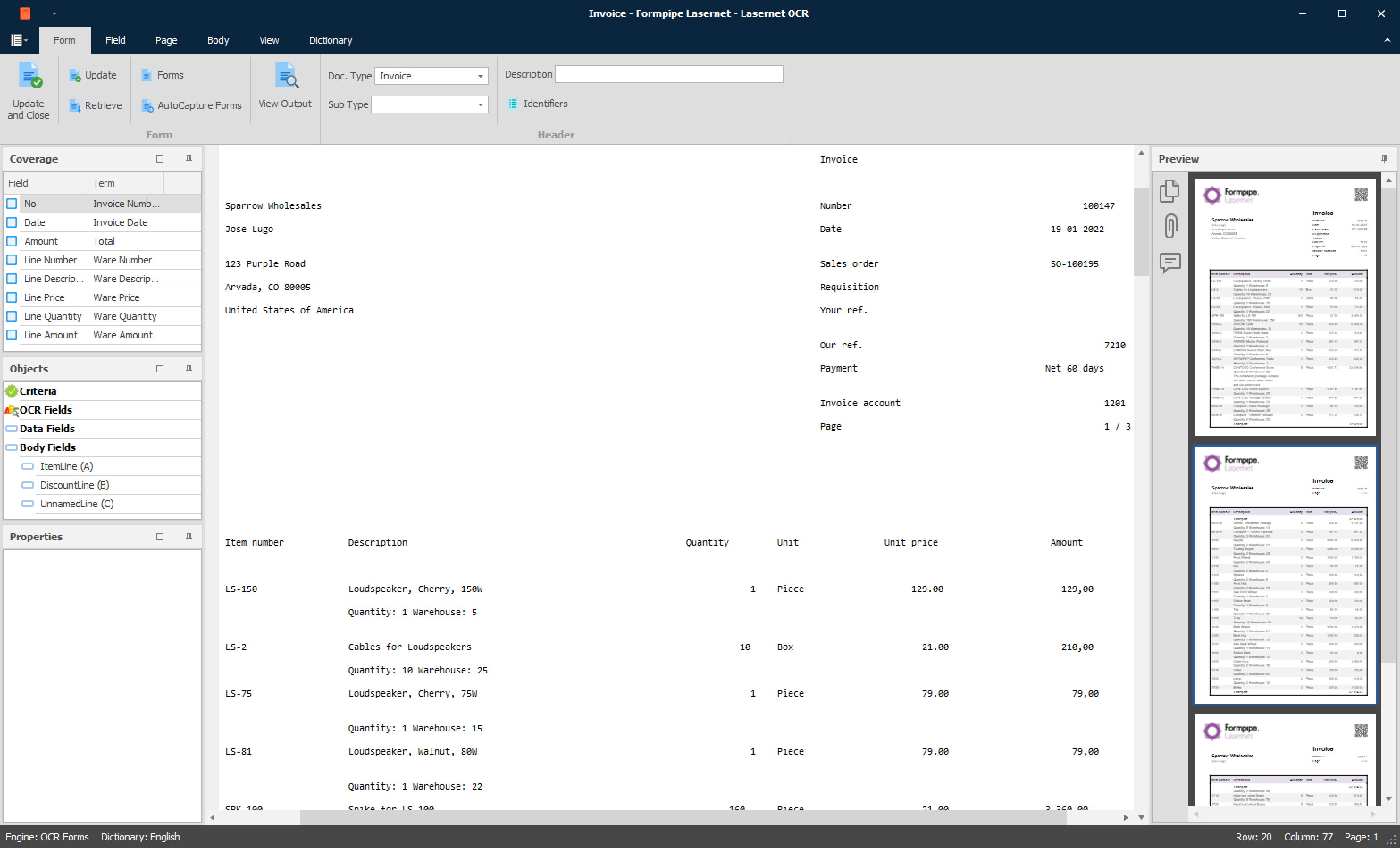
The PDF file will contain logos and graphical elements, but they are ignored and not needed to map the OCR fields. The key data (text) will be inserted in to rows and columns in a text file. The preview window will show a copy of the original PDF document.
Note
When the text / grab file is loaded in OCR Editor, you are ready to create an OCR Form.
Setting up Form Properties
Set up the form properties. Click the Form tab.

From the Doc. Type drop-down menu, select the proper document type. In this example, we have selected Invoice as document type and that the contents belong to the company called Formpipe Lasernet. A list of required OCR fields is defined in the OCR Engine for the invoice and they will now appear in the Coverage window as a kind of to do list.
Setting up Criteria
To successfully match an invoice from “Formpipe Lasernet”, we must set up a couple of unique criteria. In this example, we are setting up two criteria. One matching the document type “Invoice” and another matching the Invoice account “1201”.
Click Criterion and mark the form name “Invoice” by drawing a box in the text string. Then draw a second box around value “1201” for the invoice account.
Note
A criterion match can only match a single line of text.
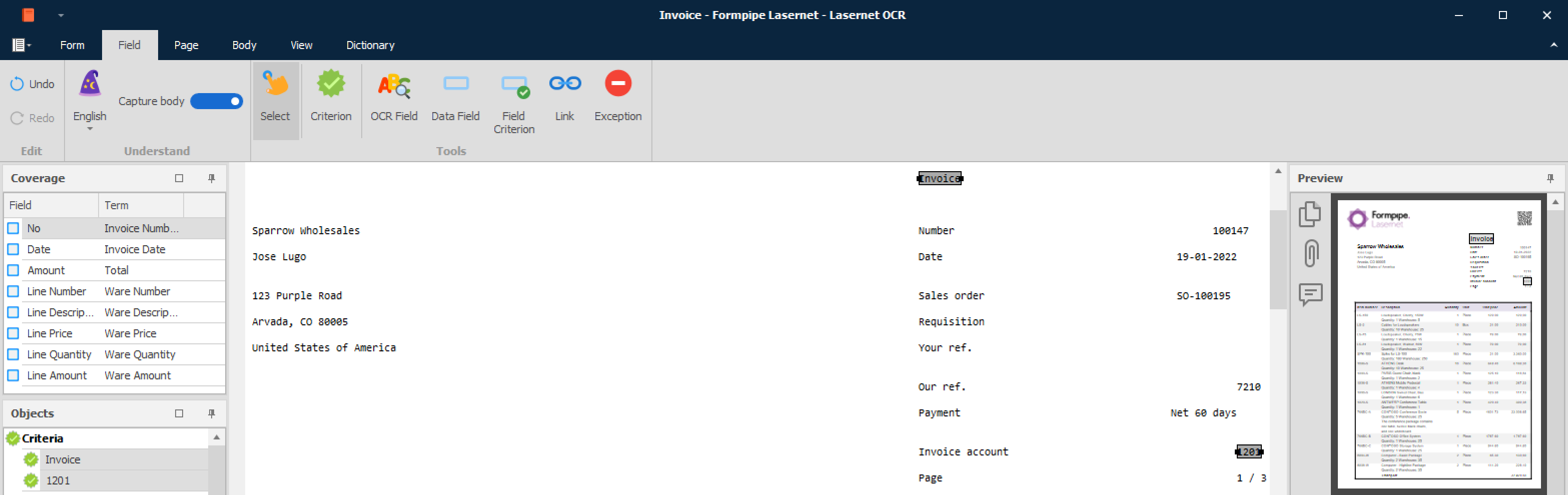
Two dark grey objects show how to match the OCR Form:


Documents that are processed through the OCR Engine and match the two strings will be identified as an Invoice from invoice account 1201.
Add additional criteria to provide greater differentiation between other processed documents. Matching only the word ‘Invoice’ would match any invoice from any supplier.
OCR Field
The next step is to set up the OCR and Data Fields. Select the Field band.
Firstly, you need to pick up the invoice number.
Select the InvoiceNo in the Coverage list:
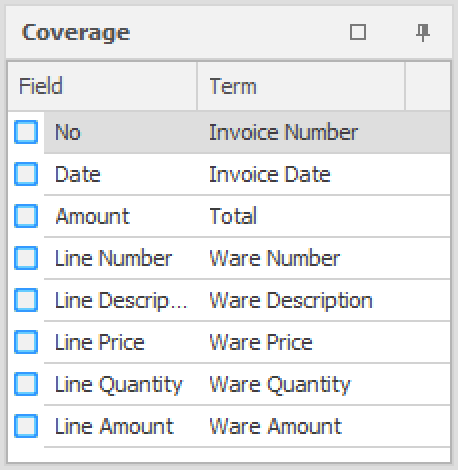
A wizard will guide you through the required selections for marking / selecting the OCR Field, Data Field, Field Name and Field Format.

Mark the first OCR Field, containing the Number, by drawing a box around the text string or double-clicking on the word.
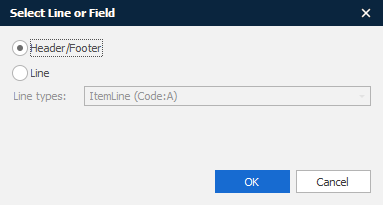
Select whether the Number exists in the Header/Footer or is a part of an item line. In this example, the label Number is positioned in the header. Click OK to confirm.

To mark the actual invoice number, click the Data Field and draw a box around the invoice number 100147.

When the Field Name is selected, the wizard will automatically close.
Note
The options in the wizard vary depending on the selected field types because a field format is required for date types and amounts.
Two new objects are created. The light grey one is the OCR Field, and the blue one is the Data Field. A dotted line between the two objects shows that they are linked together and that the position of the Data Field is relative to the position of the text string “Invoice No.”.
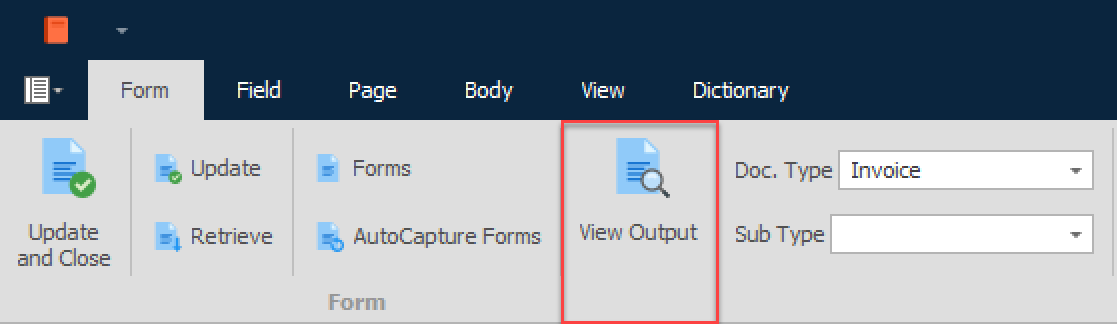
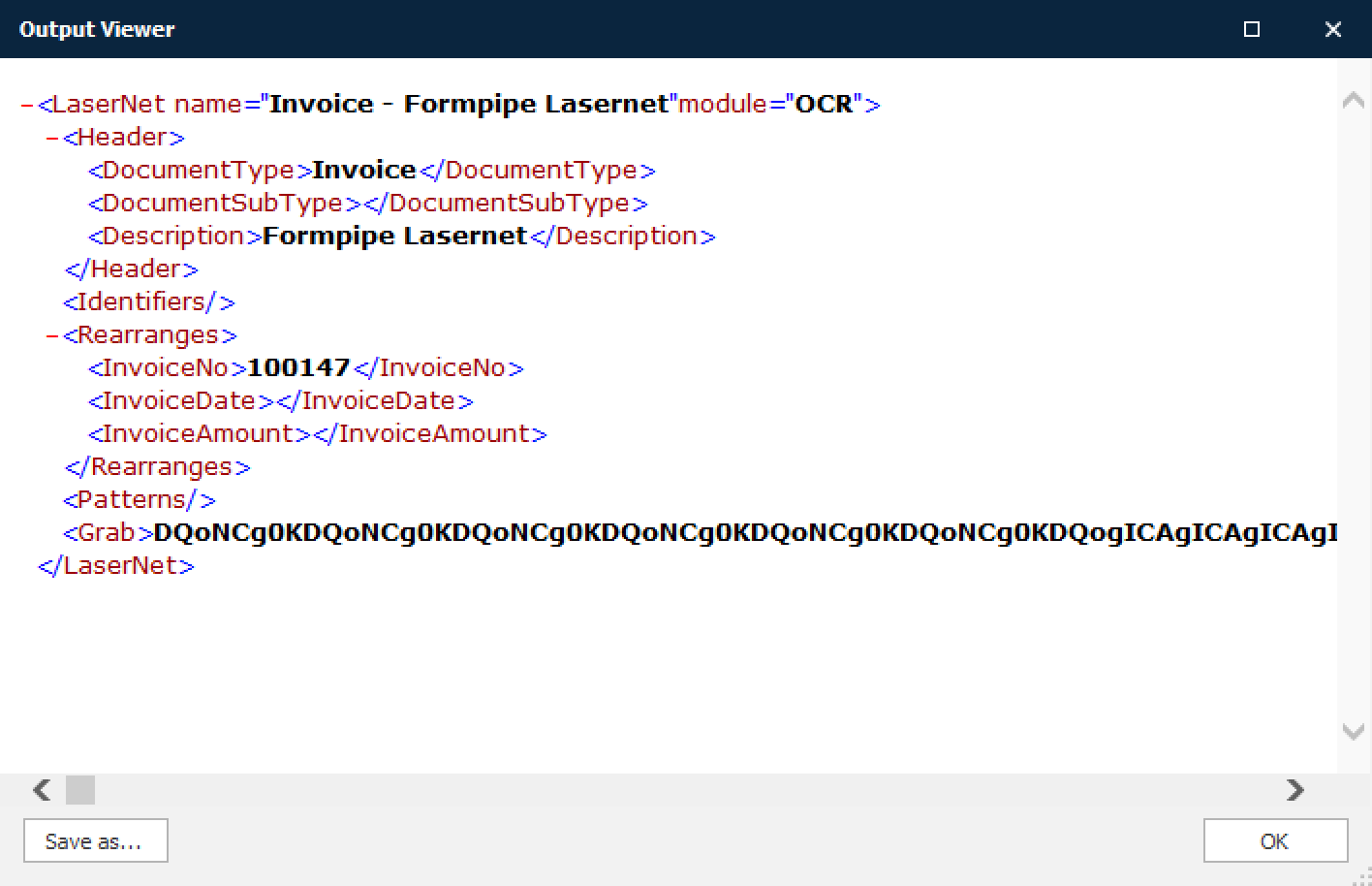
The first field is mapped for Formpipe Lasernet. If you want to view the result of the extracted data, select the Form tab and click View Output.
This is the preview result of the pre-defined XML format created by the OCR Editor.
The next step is to go through the other fields from the coverage list.

We will map the invoice date by starting the wizard from the Coverage window.
Click on the InvoiceDate field in the Coverage window and follow the same steps as in the previous example. Select text string “Date” and select InvoiceDate as Field Name. Mark “19-01-2022” as the value for the Data Field.
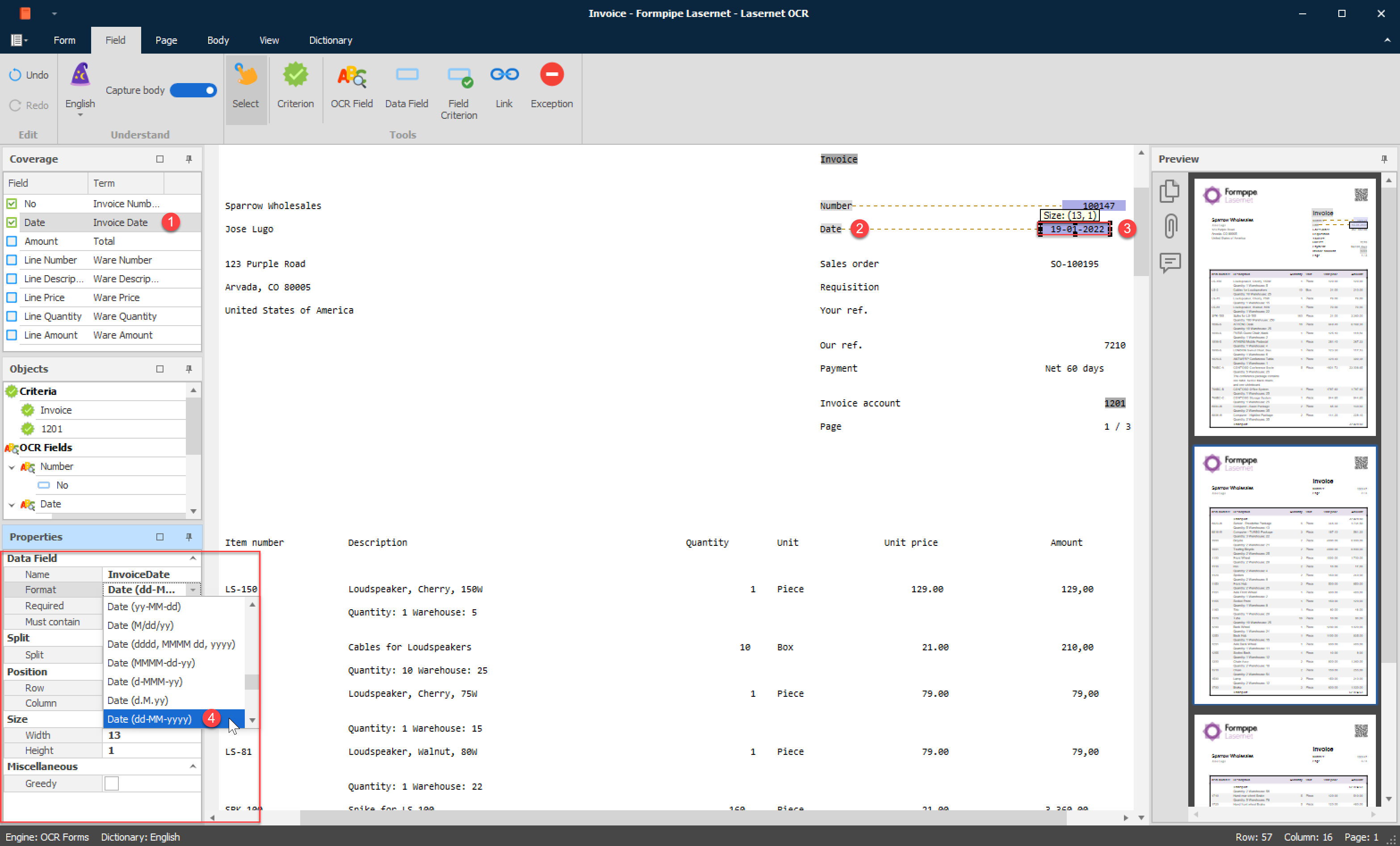
Two new objects are created; an OCR Field recognizing the Date string and a Data Field to capture the date value.
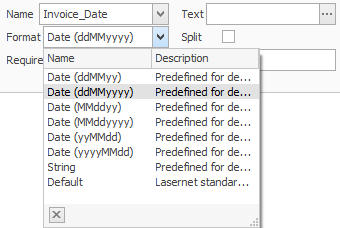
Set the proper data format for the Date field. In this example, the format must be set to ddMMyyyy to match 19-01-2022.
Two fields are now mapped. Go to the Form tab and click View Output.
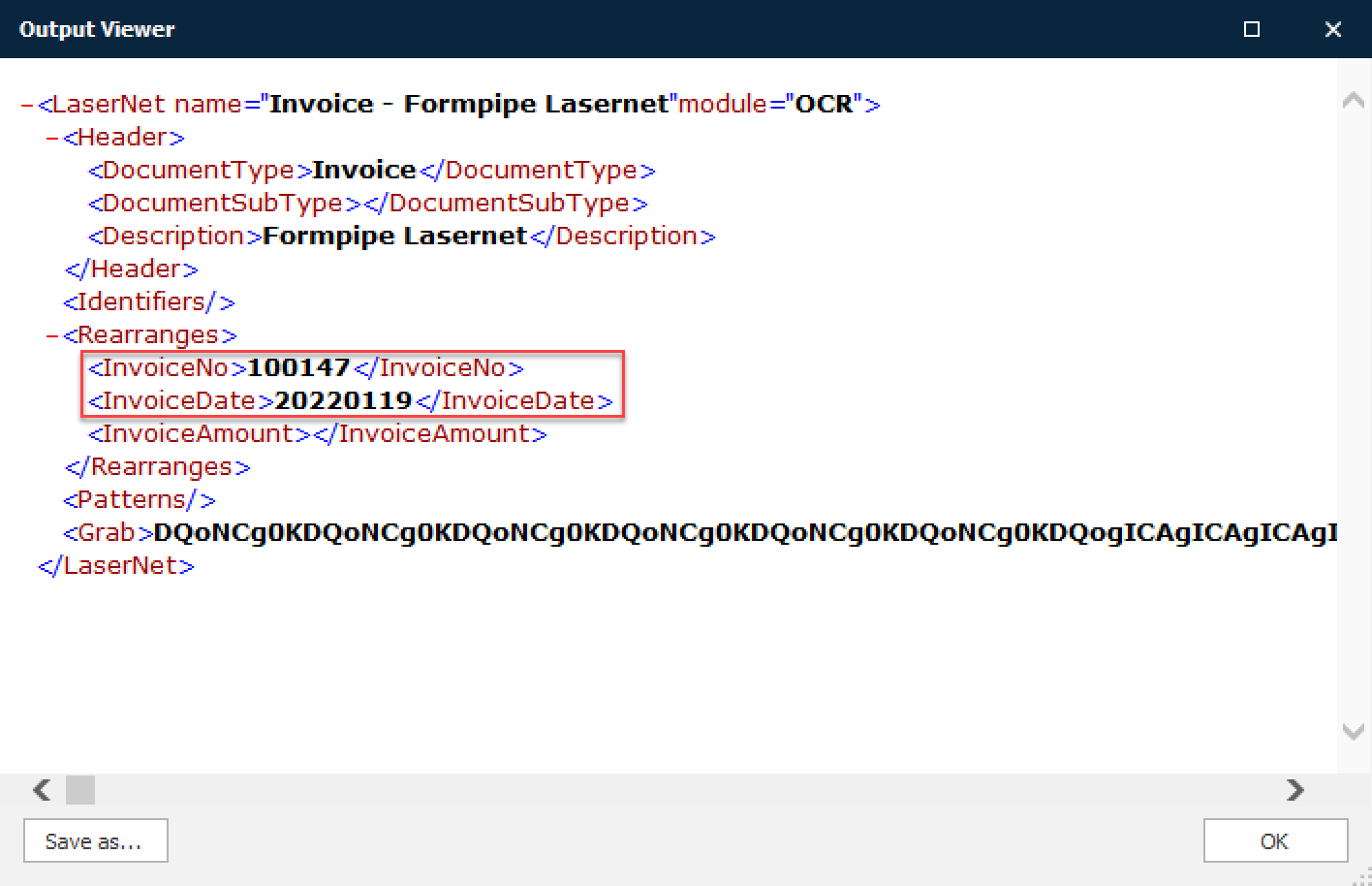
The date value is now added to the XML structure and converted to a standard format yyyyMMdd, which is the preferred date format for most workflow systems.
Finally, we will set up OCR and Data Fields to match the total amount of the invoice. The amount will be captured in a position relative to the text string “Total”.
Select the TotalAmount in the Coverage window and go to the wizard to create the OCR Field and Data Field. Set Field Format to a Number with 2 decimals.
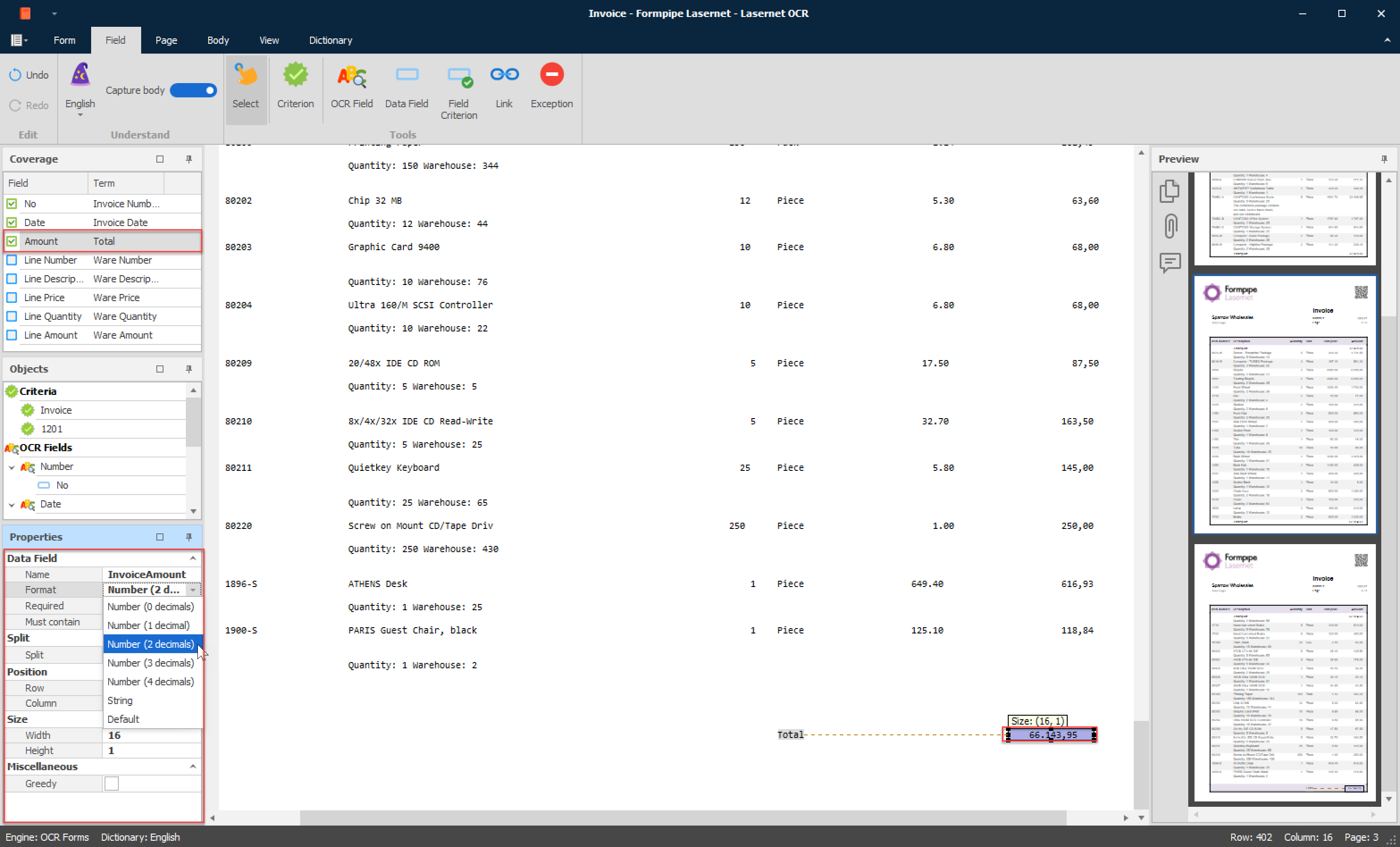
We have now added the total amount to the list of covered OCR Fields. Go to the Form tab and click View Output.
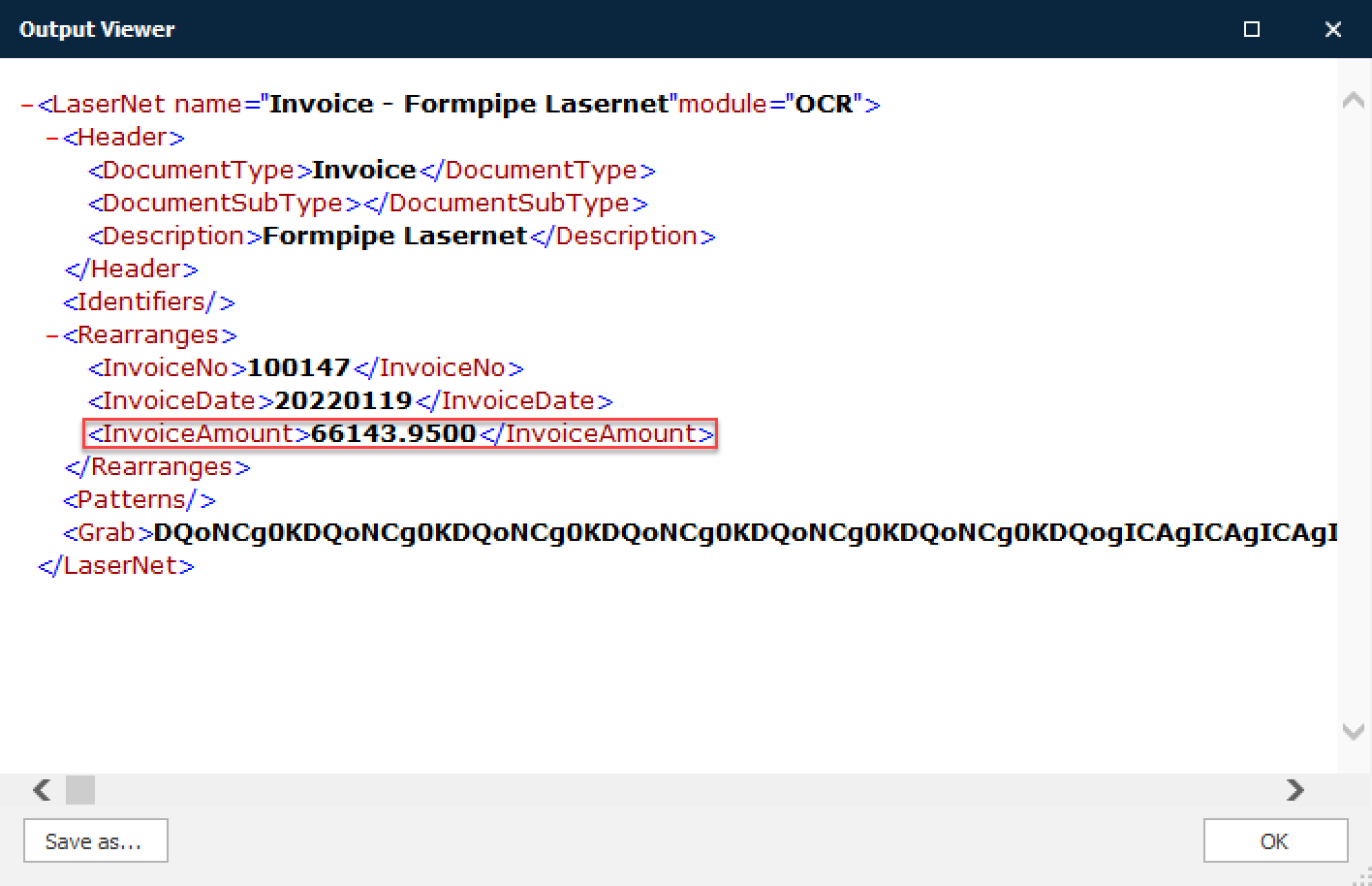
The value for the total amount is added to the XML structure as a standard number format with four decimals.
You are now ready to add the rest of the required fields to the OCR Form.
Covered Data Fields
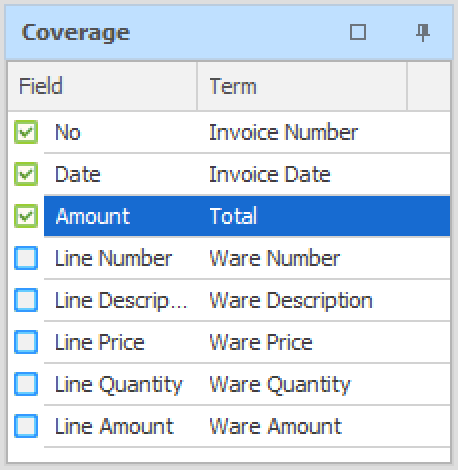
In the Coverage window, a check mark indicates the Data Fields that are covered in the form. This is a guideline to help you to cover all the required fields. The OCR Engine is still able to process OCR Forms even if not all of the fields are covered.
Creating the Body Area
The next step is to define the body area of the form to recognize the item lines and capture the data fields. OCR fields are not required in the body area; more complex algorithms are used to intelligently match the data fields instead.
Click the Body tab and set Start Line to 36, to define the start of the item lines.
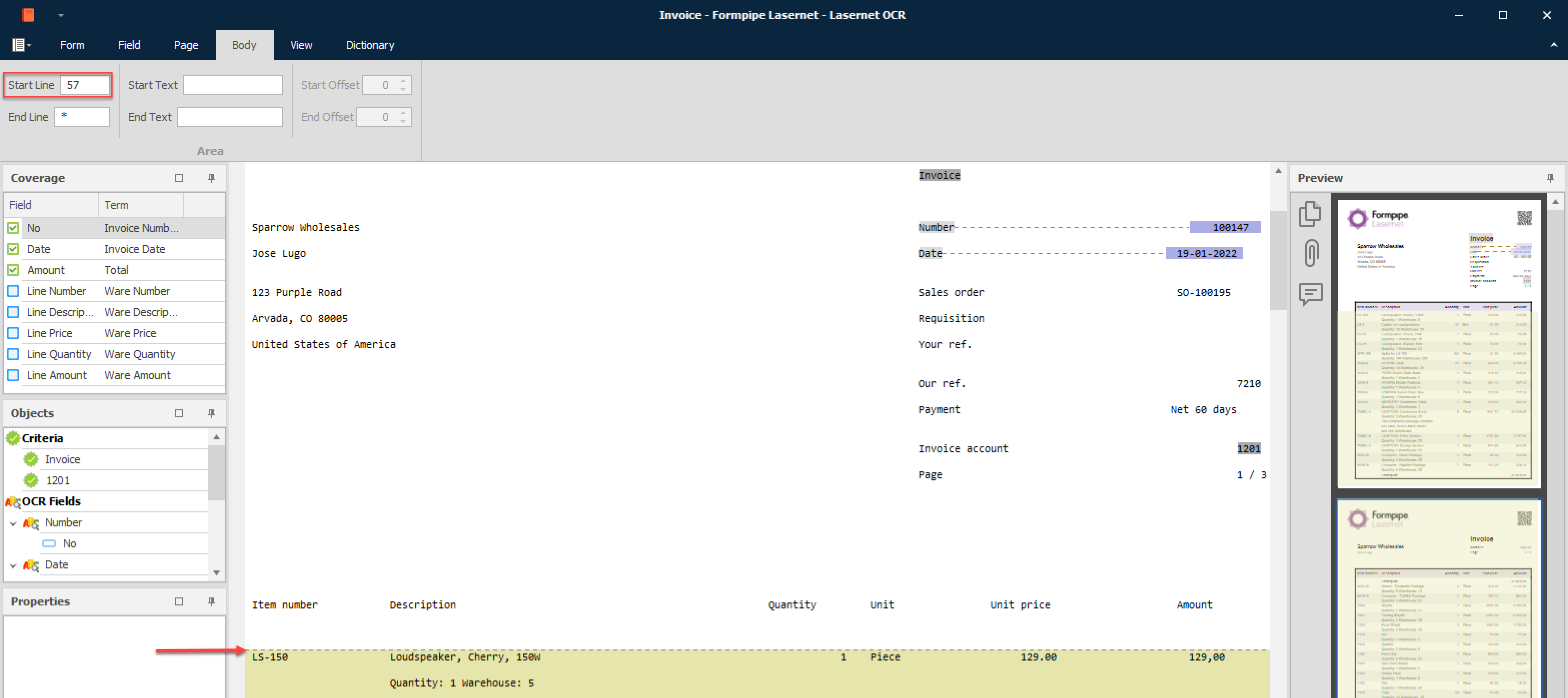
The end of the body can be set to either of the following:
a fixed End Line value
an End Text that marks the end of the body
In this example we will add value for the End Text string to define a body with a variable length. Type “Total” to locate the end of the body.
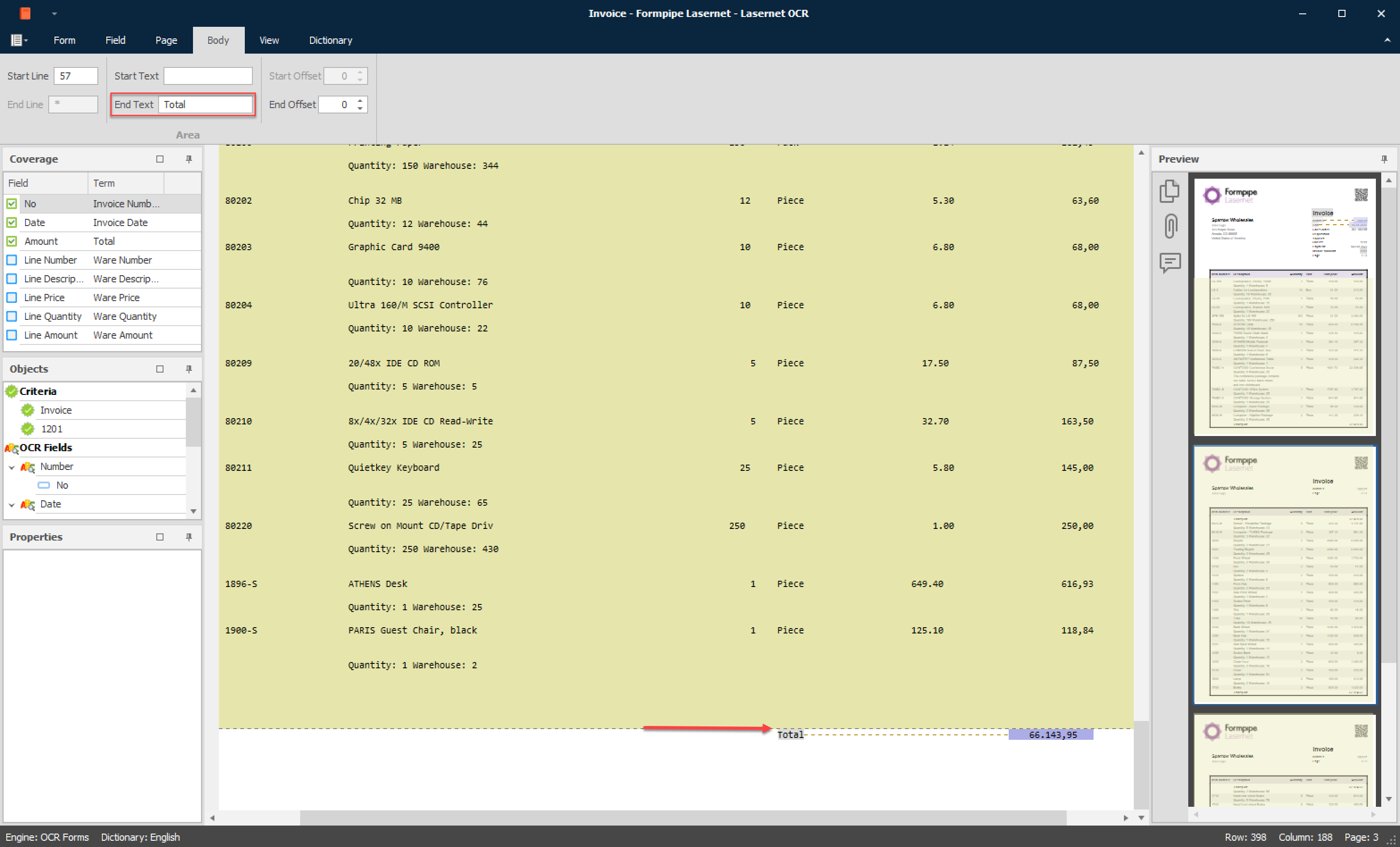
Additional settings to use an Offset relative to a Start Text or End Text value are also available. The values can be set to either a positive or negative value. An offset will include fewer or more lines in the body area relative to where the Start or End Text is located.
Note
For more information about Start/End Offsets, refer to Body Properties.
Data Fields in Body
Next step is to cover the Data Fields that appear in the body.
Select the Data Field tool or the Data Field name for Line_Amount from the Coverage window.

We recommend that you start capturing columns that contain numbers with decimals. The algorithms filtering the Data Fields and finding item lines are optimized for this purpose.
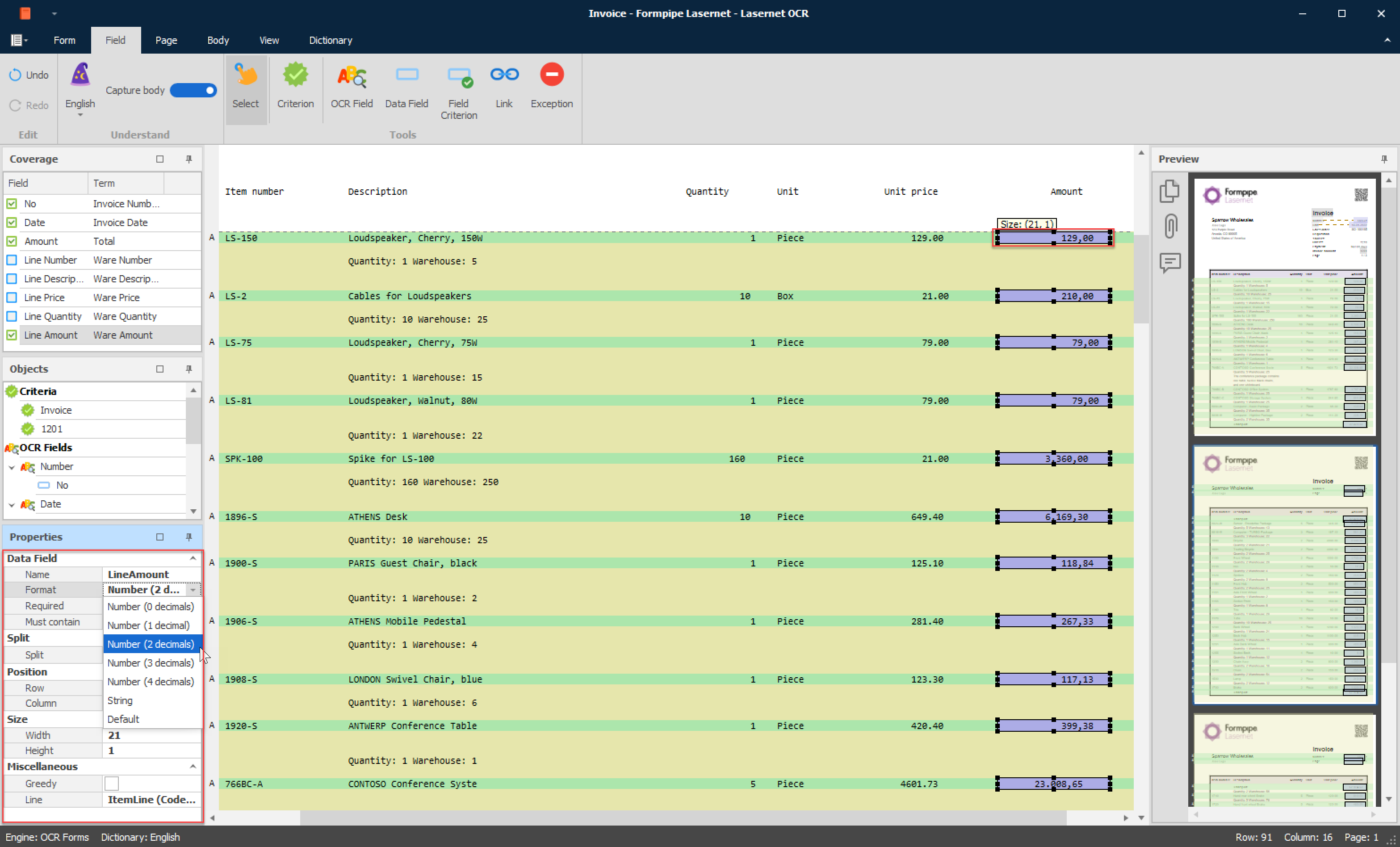
Because you do not need to create an OCR Field, you can select Mark or select Data Field in the wizard and then mark the column with the line amount. This type of Data Field is always located in a fixed column.

Draw a box around the value in the column and ensure that it is wide enough to contain the maximum number of characters possible for that column, otherwise data will get cut off or included in the wrong Data Field for other documents of same type.
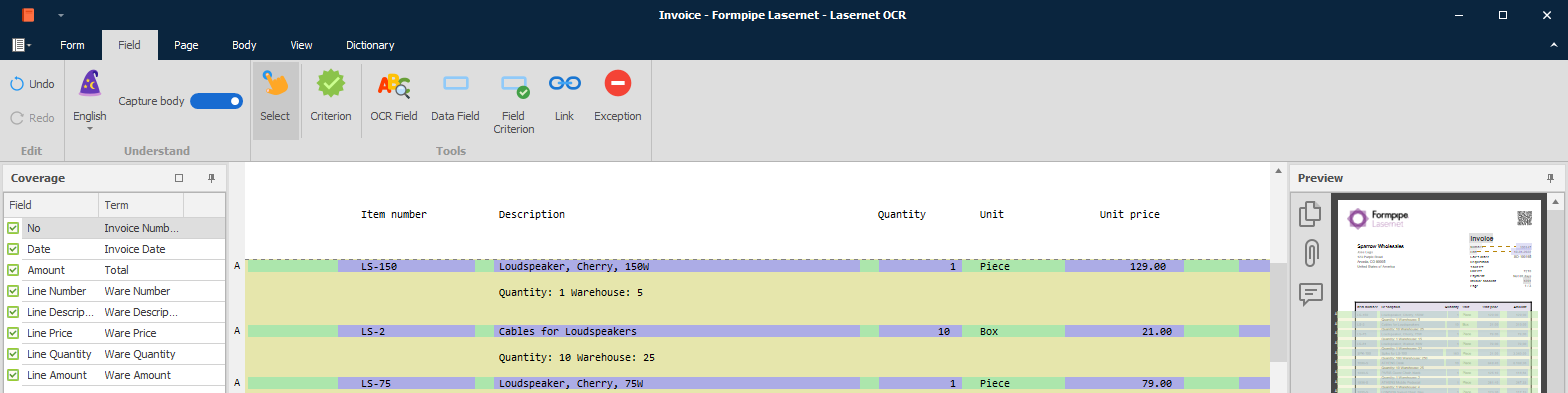
Next we cover the rest of the data fields from the coverage list, which are data fields with a mix of strings and numbers.
Name LineNumber
Format String
Required True
Size 23 characters

Name LineDescription
Format String
Required True
Size 61 characters

Name LineQuantity
Format Number (0 decimals)
Required True
Size 14 characters

If you are sure about number formats, you can always set the format type to string. The value will then keep the same format in output data.
Name LinePrice
Format Number (2 decimals)
Required True
Size 20 characters

Name LineAmount
Format Number (2 decimals)
Required True
Size 19 characters

All the required fields are now mapped for the invoice from “Formpipe Lasernet” and the form is ready to be updated to the server.
Additional Item Lines
Each item line with data you want to capture must be attached to a Line Type. It can be a line type configured in the OCR Engine in the Lasernet Core environment or you can assign a Data Field to UnnamedLine, which is a dummy line type always present in the OCR Editor.
If you have additional item lines, like a Quantity and Warehouse figures, you want to extract separately, you must have also an additional Data Field assigned to the line type QuantityAndWarehouse. Additional line types like this can be defined in the OCR Engine, in the Lasernet Core environment and selected afterwards in the OCR forms. In the XML output format, each type of item lines will be grouped individually.
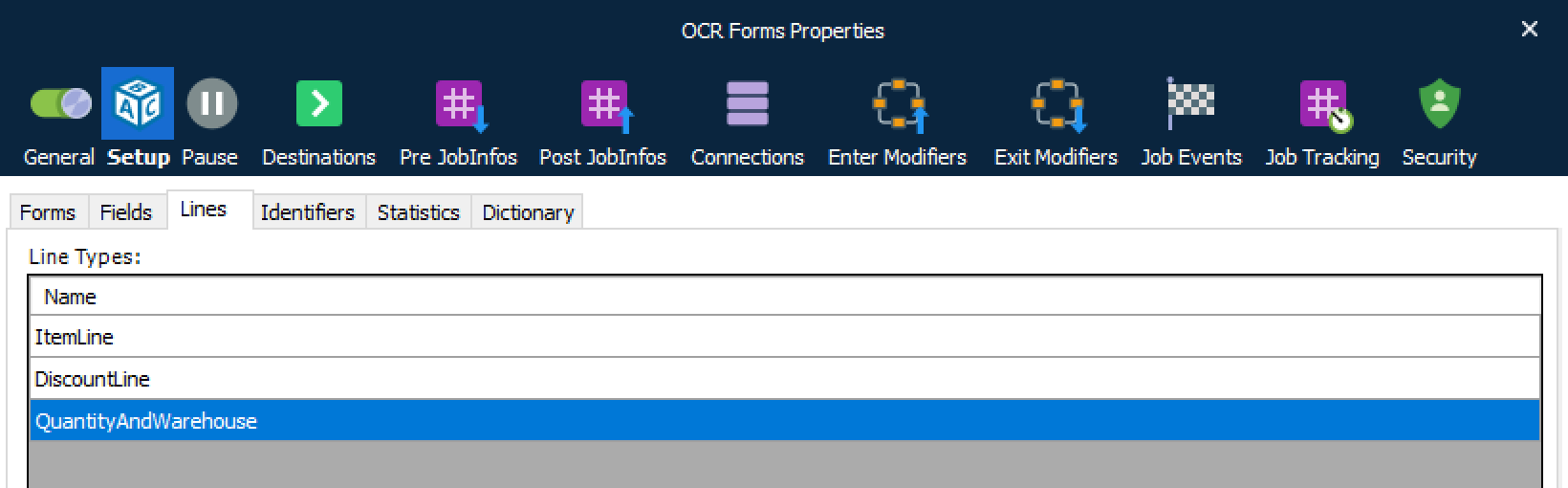
Here we have an example of four types of item lines, configured in the OCR Engine, including the system defined UnnamedLine, that is always present in the OCR Editor.
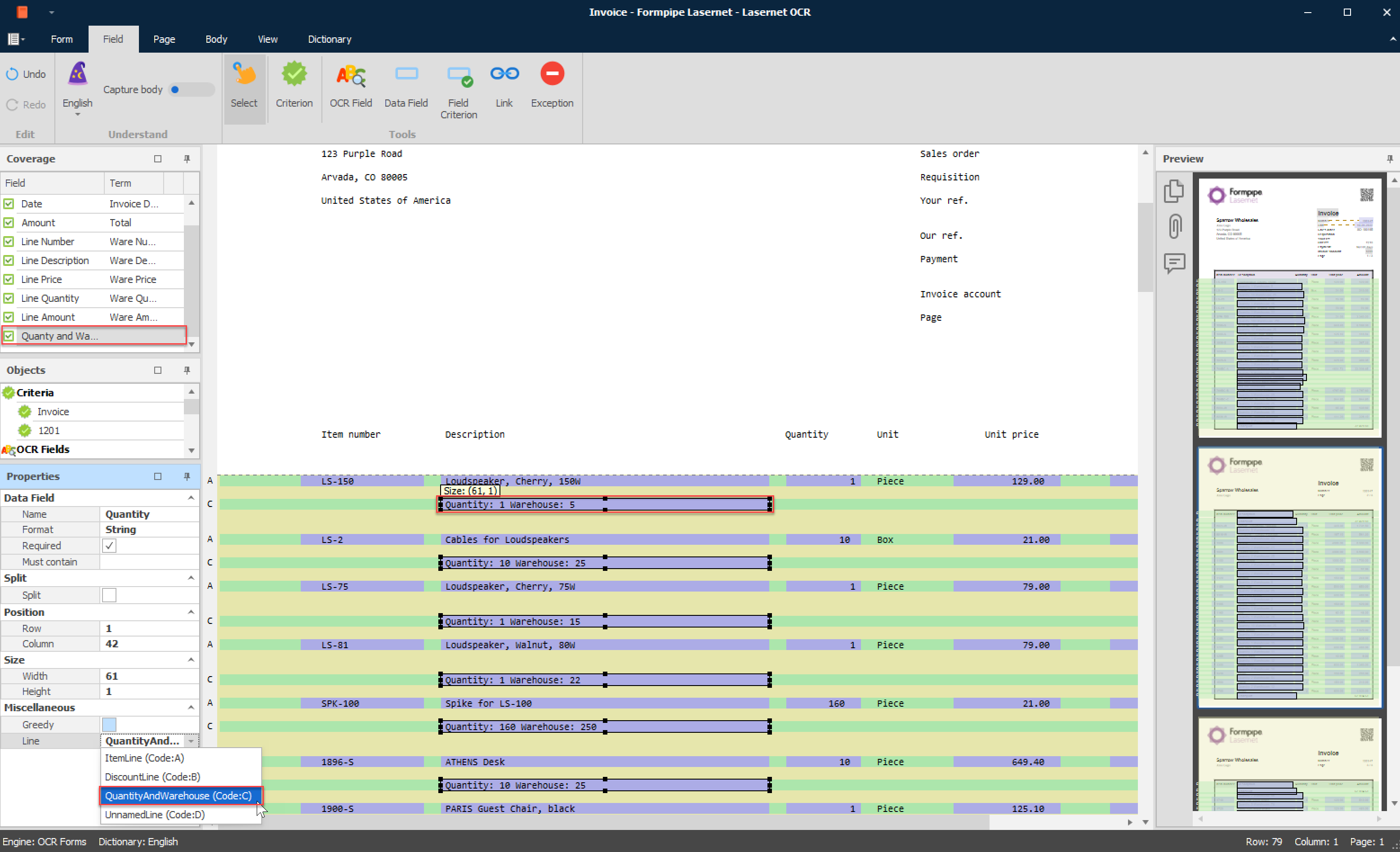
You must always find matches in the item lines to differentiate between individual type of item lines.
In the user interface you can see the difference between Line Types. In front of each line, you will find a letter (starting from A, B, C…). The letter will refer to which line type the pattern belongs.
View output
Go to the Form tab and click View Output.
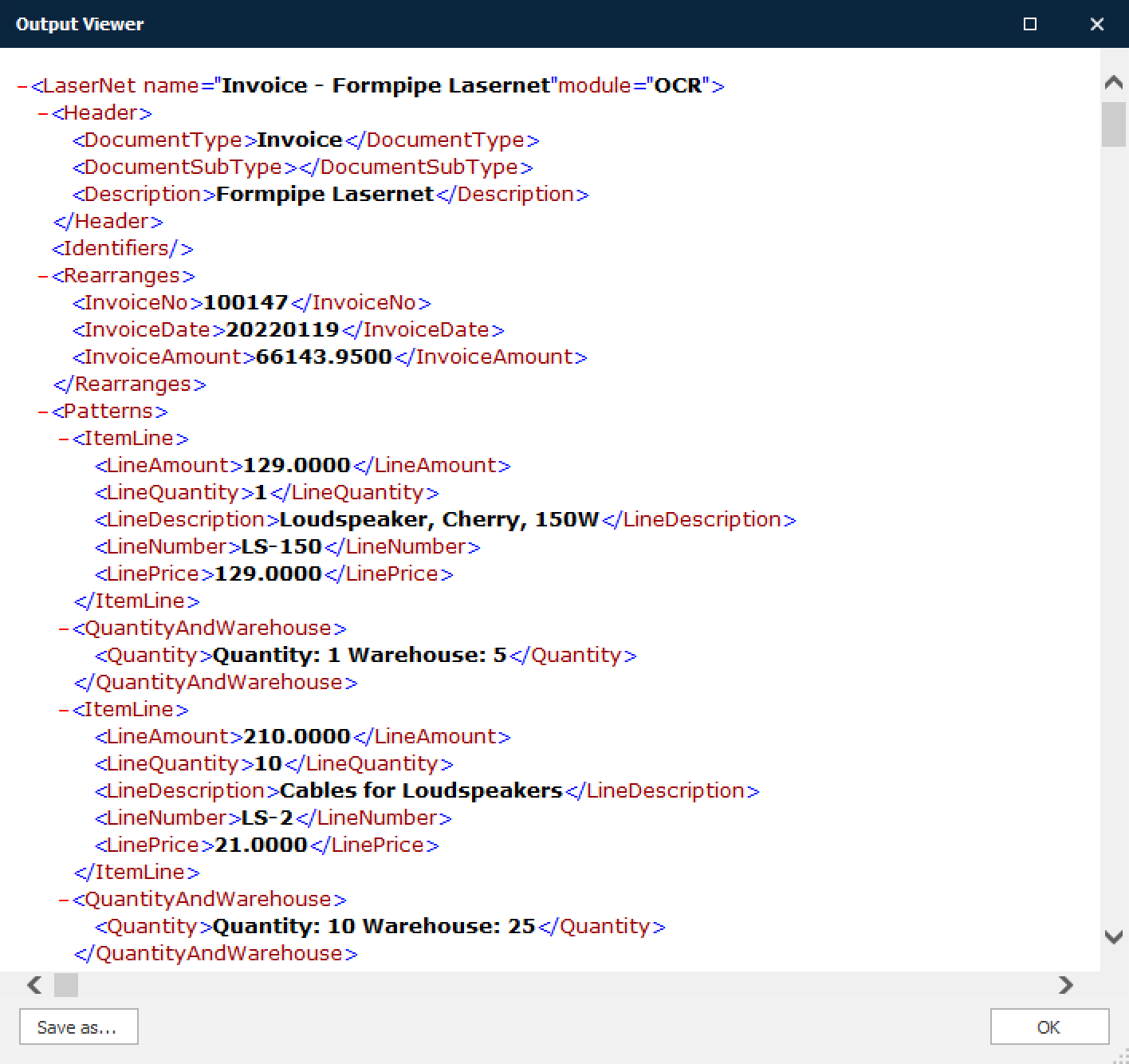
This is an example of the XML format created by the OCR Engine. All the mapped field names and values are included in the job.
Update OCR Form
When all the required fields are added to the OCR Form, you are ready to deploy the OCR Form to the Lasernet Core environment.
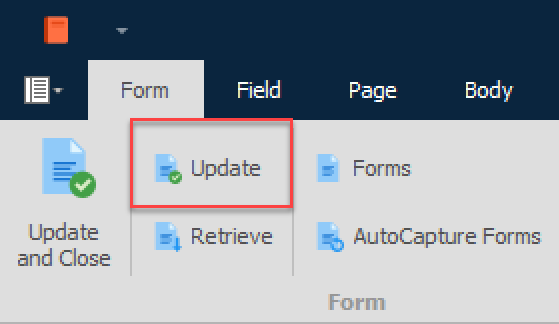
Select the Form tab and click Update.
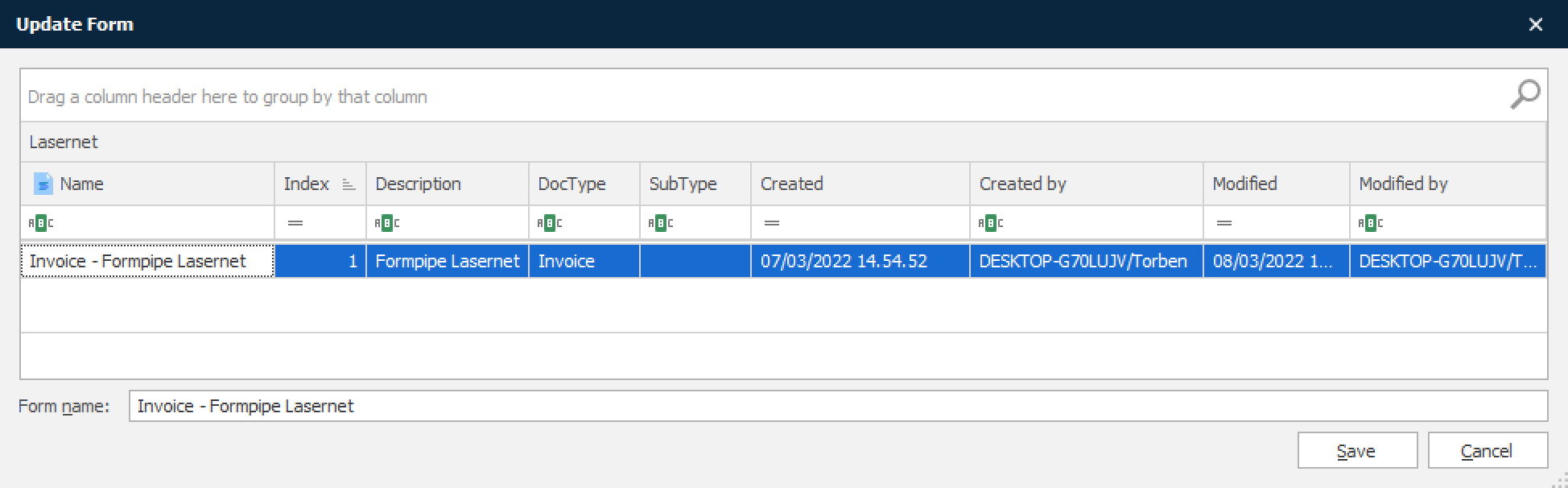
Type in a logical name for your OCR Form, usually the name of the invoice supplier - then click Save.
The OCR Form will be uploaded to the Lasernet Core environment and activated. Documents received by the Lasernet Core environment that match this document type and supplier name will be converted to an XML format that can be used by other modules in Lasernet Core or an external workflow system.
Retrieve OCR Form
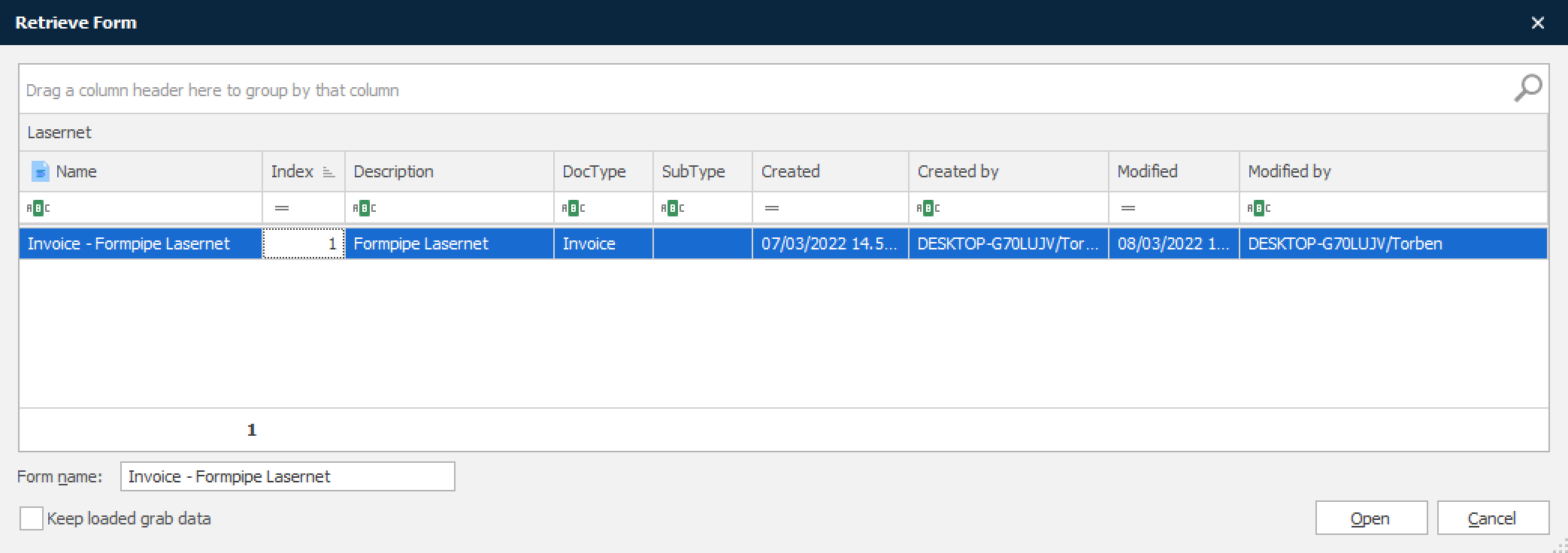
You can retrieve and edit an existing OCR Form from the Lasernet Core environment.
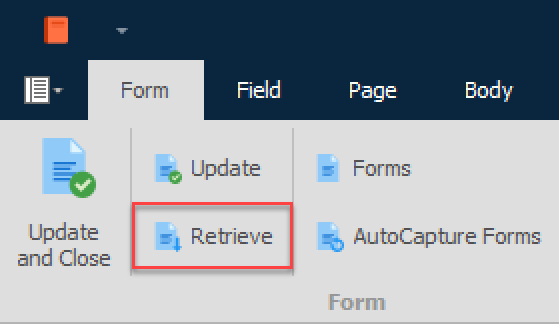
Select the Form tab and click Retrieve. Changes can now be made to the OCR Form and then be uploaded, with the new changes, to the Lasernet Core environment.
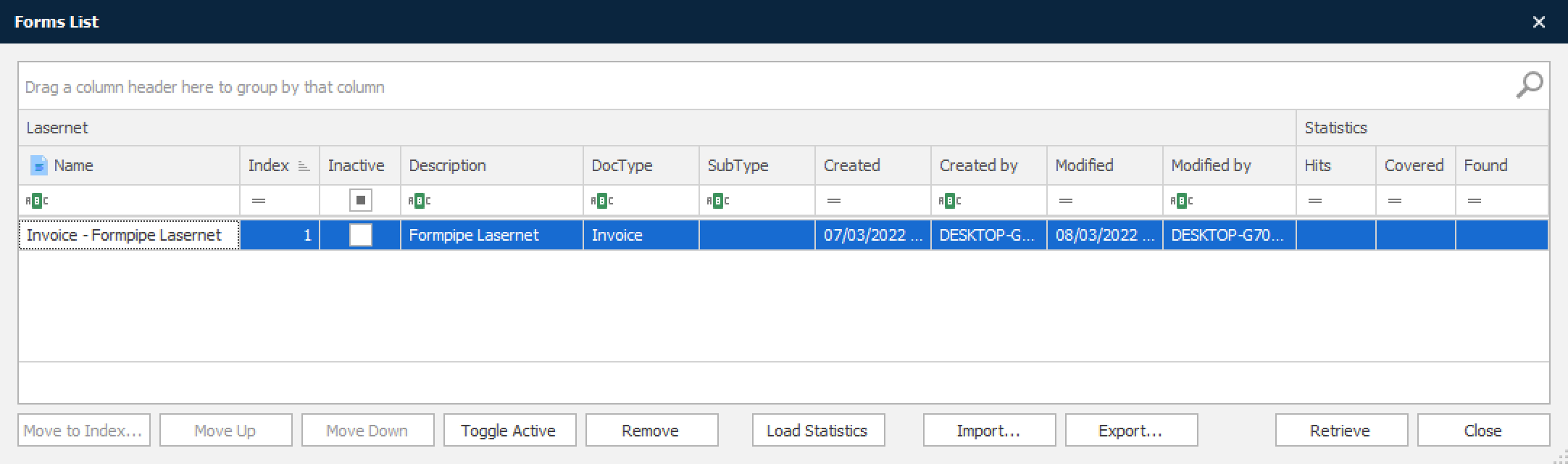
Forms List
Select the Forms List button for the following actions: view Created/Modified By, Move to Index, Remove discontinued OCR Forms and Import/Export OCR Forms between Lasernet Core projects.
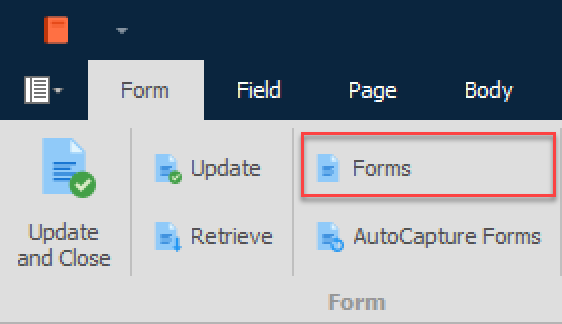
We recommend that you move regularly used OCR Forms to the lowest index number for the best performance. Documents are analyzed in index order and the first match for a form criterion will extract the OCR Fields based on the defined rules in the recognized form.
Mass input/export support
Select the Forms List dialog to Import or Export a single or multiple OCR Forms. Mark the OCR Forms in the grid and click Export. Select a temporary folder to which you want to export.
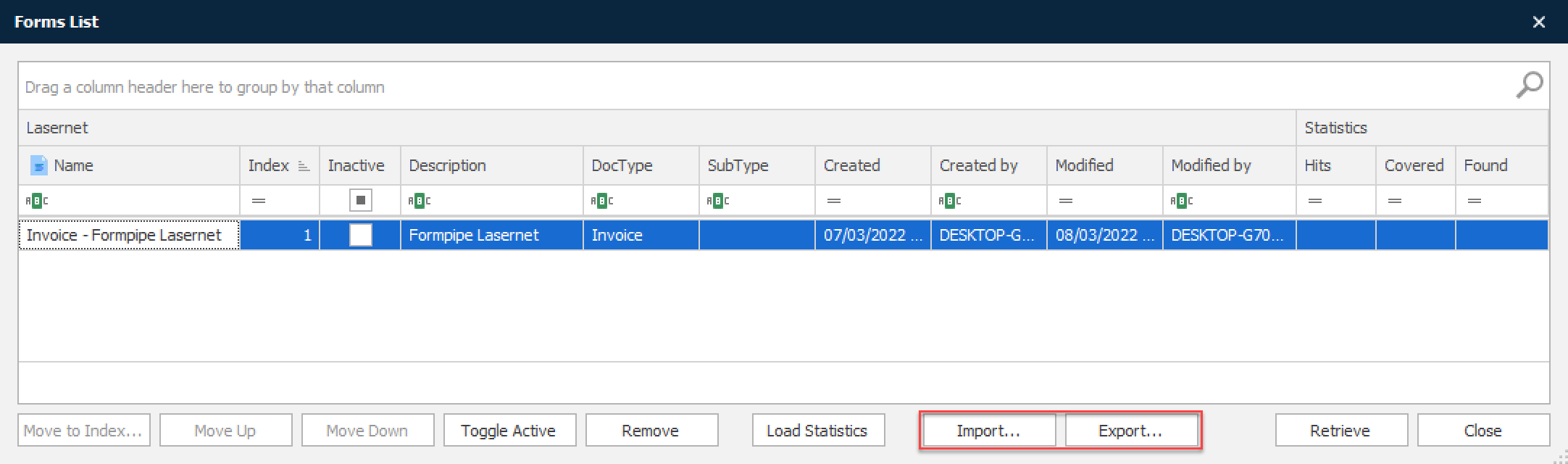
OCR Forms can be imported to other Lasernet Core projects. Open the OCR Editor application for another project and select the Import tool.
Browse to the folder to which the OCR Forms are exported. All the OCR Forms located in the selected folder will be imported. You must manually remove the files from the folder, before the import action, to exclude specific OCR Forms from being imported.
If the name of an imported OCR Form already exists, a new copy of the OCR Form is created. The new copy will be appended with an “_2” suffix.
During import, the OCR Forms will be immediately deployed to the Lasernet Core environment. It is not necessary to manually run the Update functionality afterwards.