Applies to: Lasernet Core 10
Lasernet Core is able to retrieve Windows printer queue status messages. These can then be used to help set up rules for redirecting a print file to another output module, if a network connection is down on a local printer or if toner is low, etc. This can help to minimise the number of failed jobs and provide redundancy when processing important print jobs.
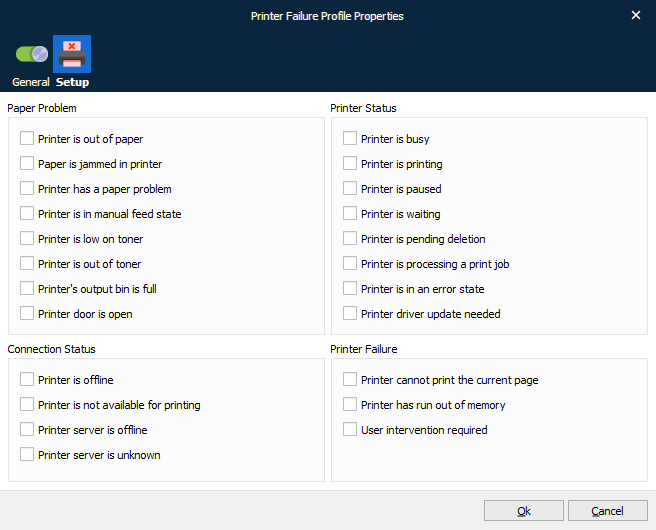
By default, none of the printer statuses are selected. Each status can be turned on or off.
The profile is stored with a user defined name and is accessible in the printer setup of the output printer (below the setting for the “External print timeout”).
If one of the Printer Failure settings is true, the job will fail and the error log message will include the reason for the failure. The highest priority failure for a job is the output module not connecting to the Windows printer. All other failures are considered secondary.
Status on a Printer Queue
When sending print jobs to a Windows print queue via the Printer Output module, Lasernet Core is able to obtain the status from the printer queue. By default, Lasernet Core will only check if the spool queue is available and only fail the job if the Windows printer queue cannot be reached.
Setting Up Rules for Failing Jobs
In the Printer Failure Profiles, you can set up unique rules for how print jobs should fail depending on the status of specific printers.
Go to Printer Failure Profiles  for adding, editing or deleting your profiles.
If you want to use different rules for failing jobs on individual printers, you can add several profiles containing the exact settings for each printer.
The image below shows an example printer failure profile that will only handle paper problems. In practice, a failure profile could be configured to handle any mix of the properties available.
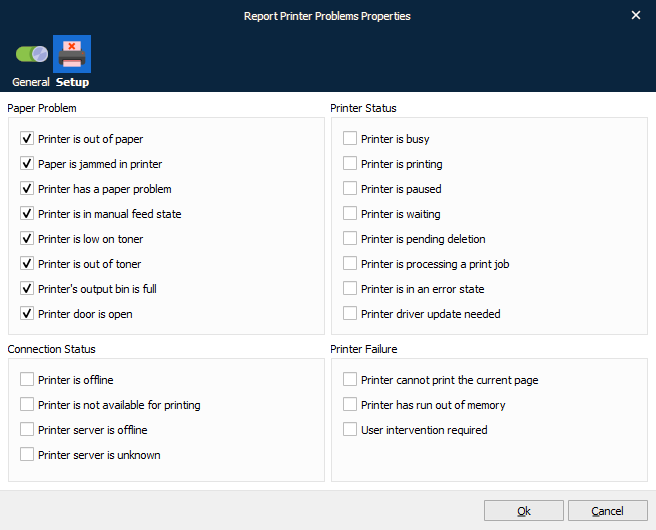
Click on any number of status types to create your failure profile and then click Ok.
We recommend using names which describe exactly how the profile behaves when failing a job. Alternatively, you could use printer names to help keep track of which profile is used for which printer module.
Status Types
Status types are grouped into four types of error:
| Paper Problem | Issues related to handling of paper in the physical printer. |
| Printer Status | Issues related to processing of jobs. |
| Connection Status | Issues related to connectivity. |
| Printer Failure | Issues related to internal failures in the physical printer. |
Caution
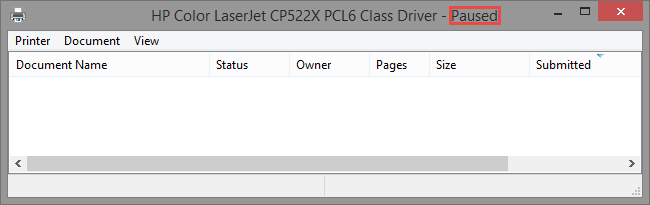
Lasernet Core is only able to obtain status messages from the Windows printer queue if the printer status has been reported to the Windows Spooler System.
Below is an example of "Paused" mode as reported to the printer queue.
Adding Printer Failure Profile
In the Printer Setup tab for the Printer Output module, you can define which Printer Failure Profile you want to make use of.
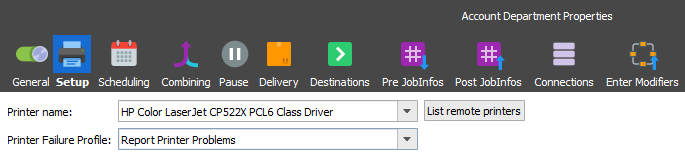
If the status message is true for the given Printer Failure Profile during printing, Lasernet Core will fail the job and store the error message in the JobInfo called PrinterFailureMessage.
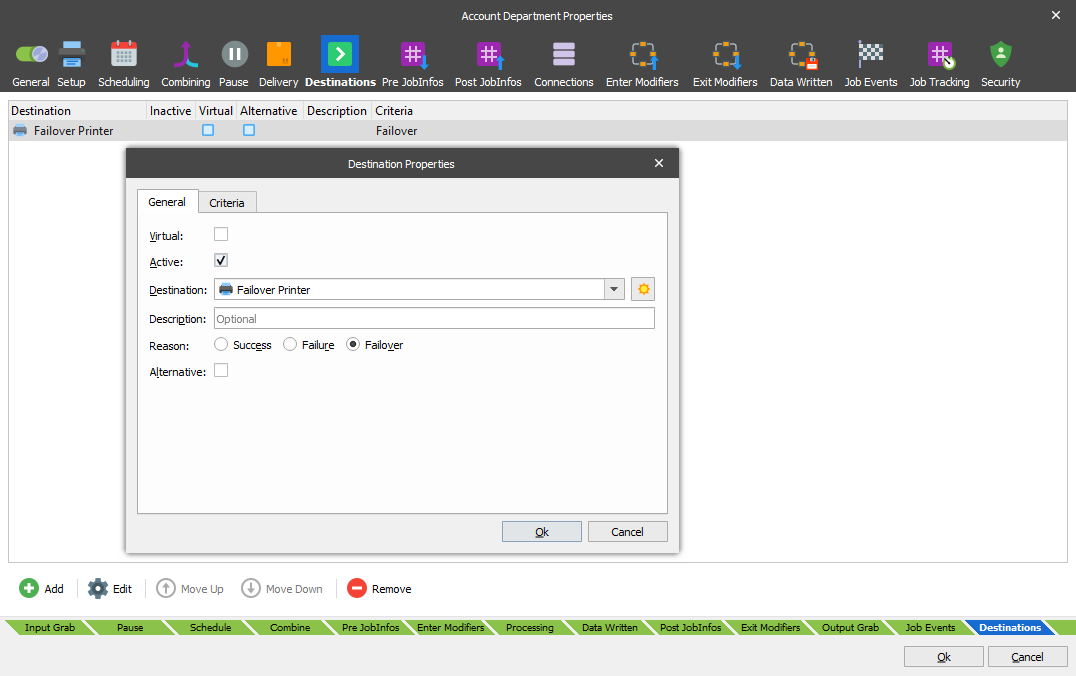
If the job fails and you want a print job to be redirected to another module, you can set up a failover destination on the printer module.