
You can transform text objects, rearranges, or images into clickable links to a URL.
Note
This functionality is supported only for PDF, PDF/UA, TIFF, and EMF sheets whose underlying format is EMF.
To do this, follow these steps:
Double-click the form item to open its Edit window.
On the Formats tab, select Active in the Hyperlink area.
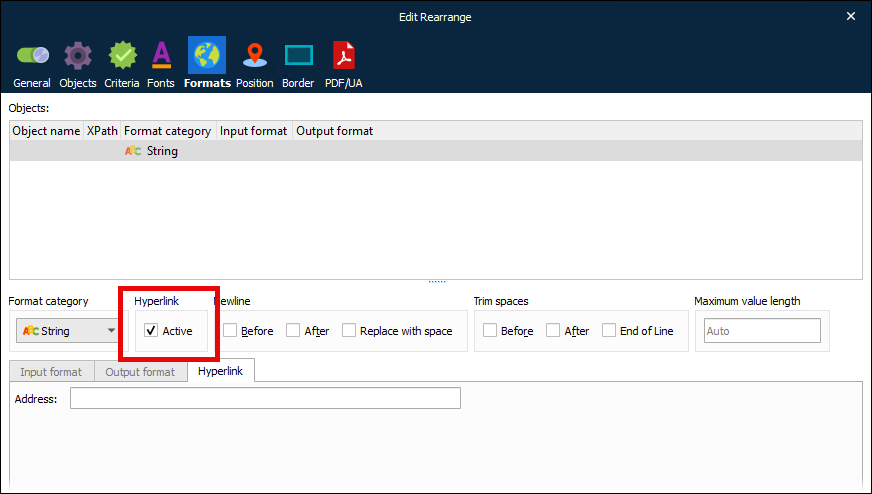
Refer to the information for the version of Lasernet Core that you are using.
Lasernet Core 10, Lasernet Core 11.0 and 11.1
The next step depends on how you want to specify the link destination:
Use the input data as the destination: Leave Address blank. For example, suppose the form item is a rearrange that takes data from a
<website>element in the input XML data and adds it to the form design with italic formatting. If the input XML contains<website>https://www.company.com</website>, the rearrange’s visible label in the output document will be https://www.company.com and it will be a clickable link tohttps://www.company.com.Specify a URL: Enter the URL into the Address box. In the output document, the form item will be a clickable link to that URL.
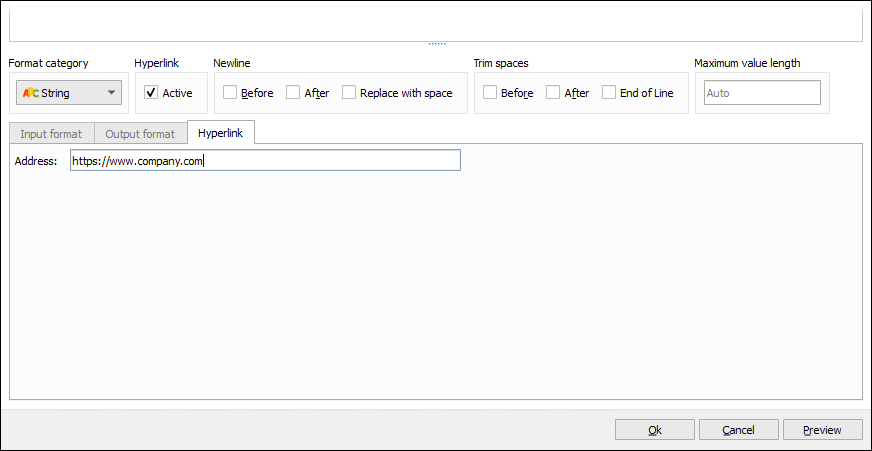
Tip
You can insert an embedded JobInfo as a part of the hyperlink to include a dynamic value as a part of the URL.
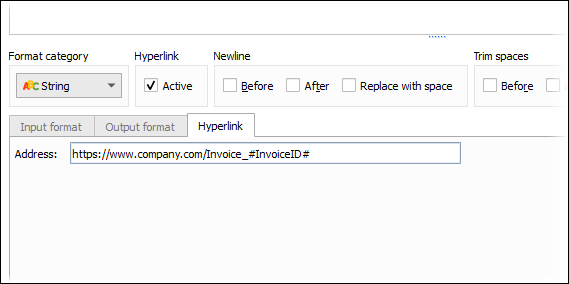
To insert the value of the current rearrange as a part of the hyperlink (through a JobInfo as shown above), change Object type to Script, then enter the following scripting code:
setJobInfo("InvoiceID", CurrentRearrange.text);CurrentRearrange.text;Lasernet Core 11.2 and later
The next step depends on how you want to specify the link destination:
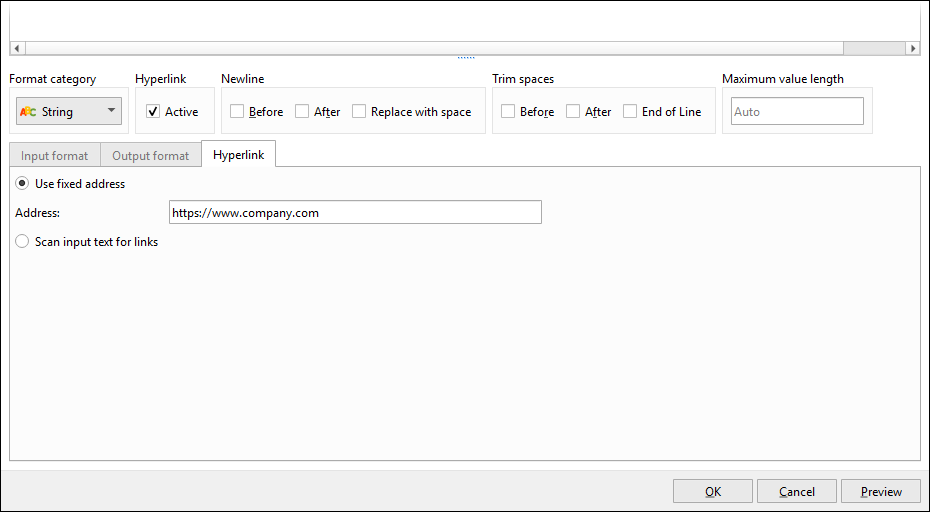
Use the input data as the destination: Click Use fixed address and leave Address blank. For example, suppose the form item is a rearrange that takes data from a
<website>element in the input XML data and adds it to the form design with italic formatting. If the input XML contains<website>https://www.company.com</website>, the rearrange’s visible label in the output document will be https://www.company.com and it will be a clickable link tohttps://www.company.com.Specify a URL: Click Use fixed address and enter the URL into the Address box. In the output document, the form item will be a clickable link to that URL.
Tip
You can insert an embedded JobInfo as a part of the hyperlink to include a dynamic value as a part of the URL.
.png)
To insert the value of the current rearrange as a part of the hyperlink (through a JobInfo as shown above), change Object type to Script, then enter the following scripting code:
setJobInfo("InvoiceID", CurrentRearrange.text);CurrentRearrange.text;The input data contains URLs that you want to become links: Click Scan input text for links. When this option is selected, Lasernet Core detects links in the input data and transforms them into clickable links in the output document. Lasernet Core can detect URLs, markdown links, and HTML links in the input data, which can be static text (for fixed-text objects) or dynamic text from incoming data (for rearranges).
Example
If the text content of a fixed-text object contains
Find us at https://www.company.com, <a href="https://solutions.company.com">Company.com Solutions</a>, and [Company.com Support](https://support.company.com)and the rearrange’s text style is italic, the rearrange’s visible text in the output document will be Find us at https://www.company.com, Company.com Solutions, and Company.com Support. Each link will be a clickable link to the destination specified in the input data.If the rearrange uses XML from the input data, some of the content must be encoded differently. In this example, a
<data>tag contains the text to use:<data>Find us at https://www.company.com, <a href="https://solutions.company.com">Company.com Solutions</a>, and [Company.com Support](https://support.company.com)</data>. The result in the output document is the same as the preceding fixed-text object example.Note
When Lasernet Core detects a URL, it will consider the URL to have ended when it encounters any of the following characters:
<
>
,
!
?
:
;
"
'
)
]
Whitespace
The end of the fixed text or rearrange text
For example, if the input data for a rearrange contains
Find us at https://www.company.com,, the rearrange’s visible text in the output document will be Find us at https://www.company.com, and the link’s URL will behttps://www.company.com; the comma will not be included in the link label or URL.If you know that the URLs in input data might include any of the characters listed above, use markdown links or HTML links in the input data instead of plain URLs.
Note
If a URL is followed by a . (period), the period is not included in the link’s URL or label.
Warning
If a URL is followed by multiple . (period) characters, all the periods except for the last one are included in the link’s label and URL.
For example, if the input data is
Find us at https://www.company.com..., the rearrange’s visible text will be Find us at https://www.company.com.. and the link’s URL will behttps://www.company.com..In this scenario, instead of plain URLs, use markdown links or HTML links because they enable you to separate the specification of the link from its surrounding text. For example:
Find us at [https://www.company.com](https://www.company.com)...Note
For PDF/UA documents, each link is a
<link>element in the structure tree.
Click Ok. The Form Editor modifies the rearrange.