Applies to: Lasernet Core 10
Create a Form
When you have added an XML Transformer Engine to your project, you are ready to start creating forms. To create a new XML Transformer form, proceed through the steps listed below:
In the left-hand corner of the Lasernet Developer main window, select the Forms developer tool.
On the Engines panel, select your XML Transformer Engine.
On the toolbar, click the Add button.
In the Form Properties dialog, provide parameters for your new form, and then click OK.
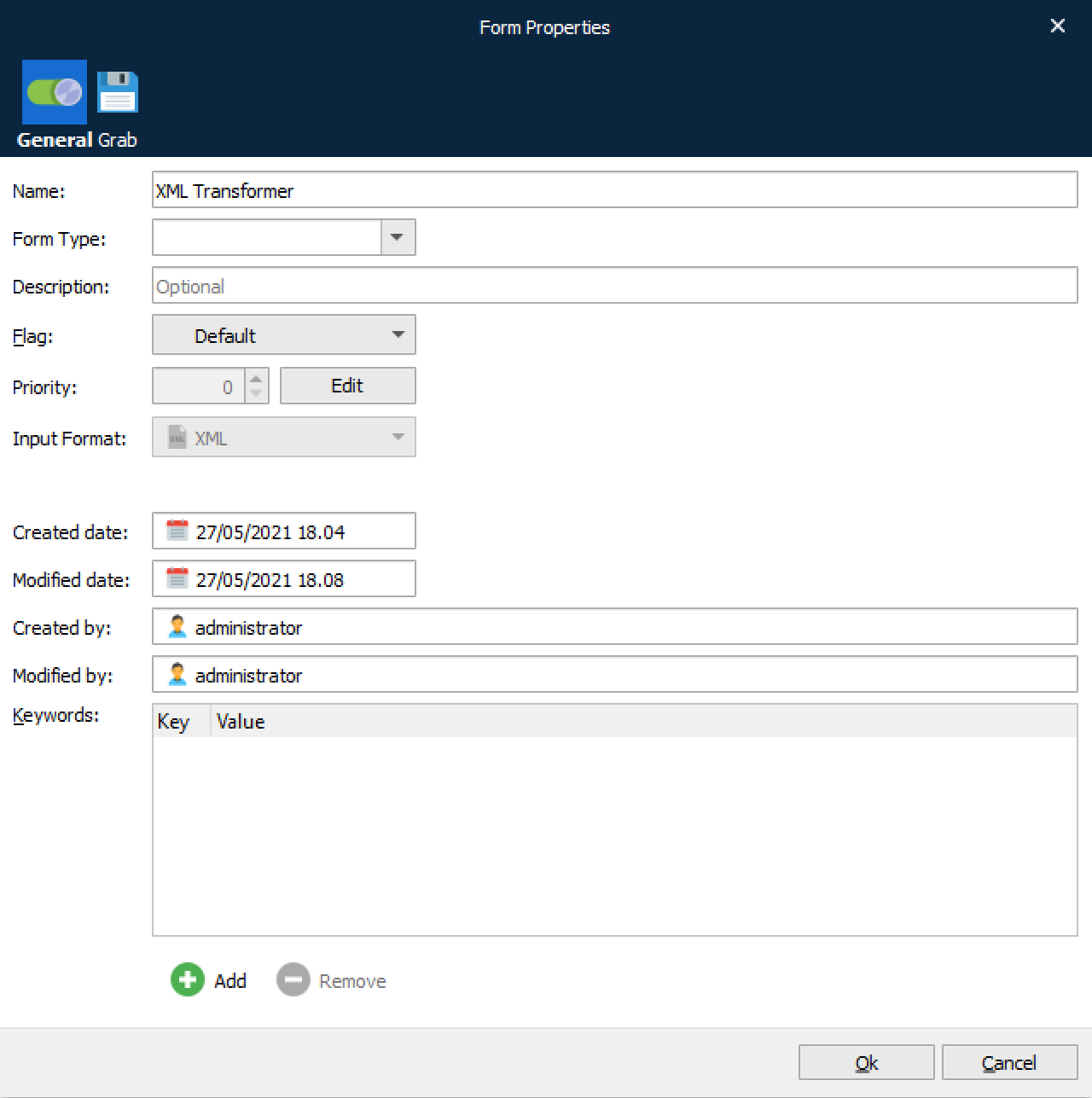
You can now start editing your new form by double-clicking it or by right-clicking it and then clicking Edit in the context menu.
When you add a new XML Transform form, a blank form automatically opens.
The form is initially empty, so you need to select a grab file.
Editor Options
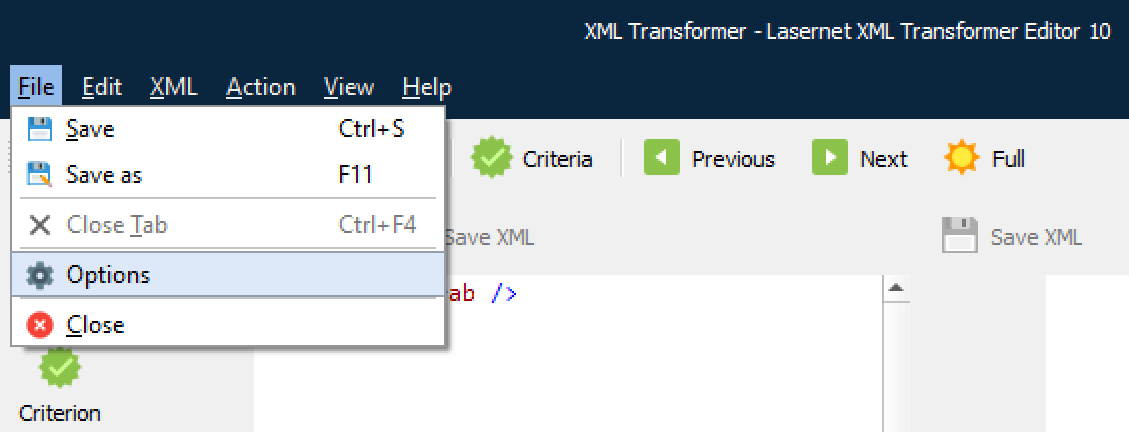
Once you have created at least one form, ensure that the Editor options are set as needed. You can access the Editor options by clicking Options on the File menu. The options defined affect all the configuration forms. You can change these options any time whilst working with the application.
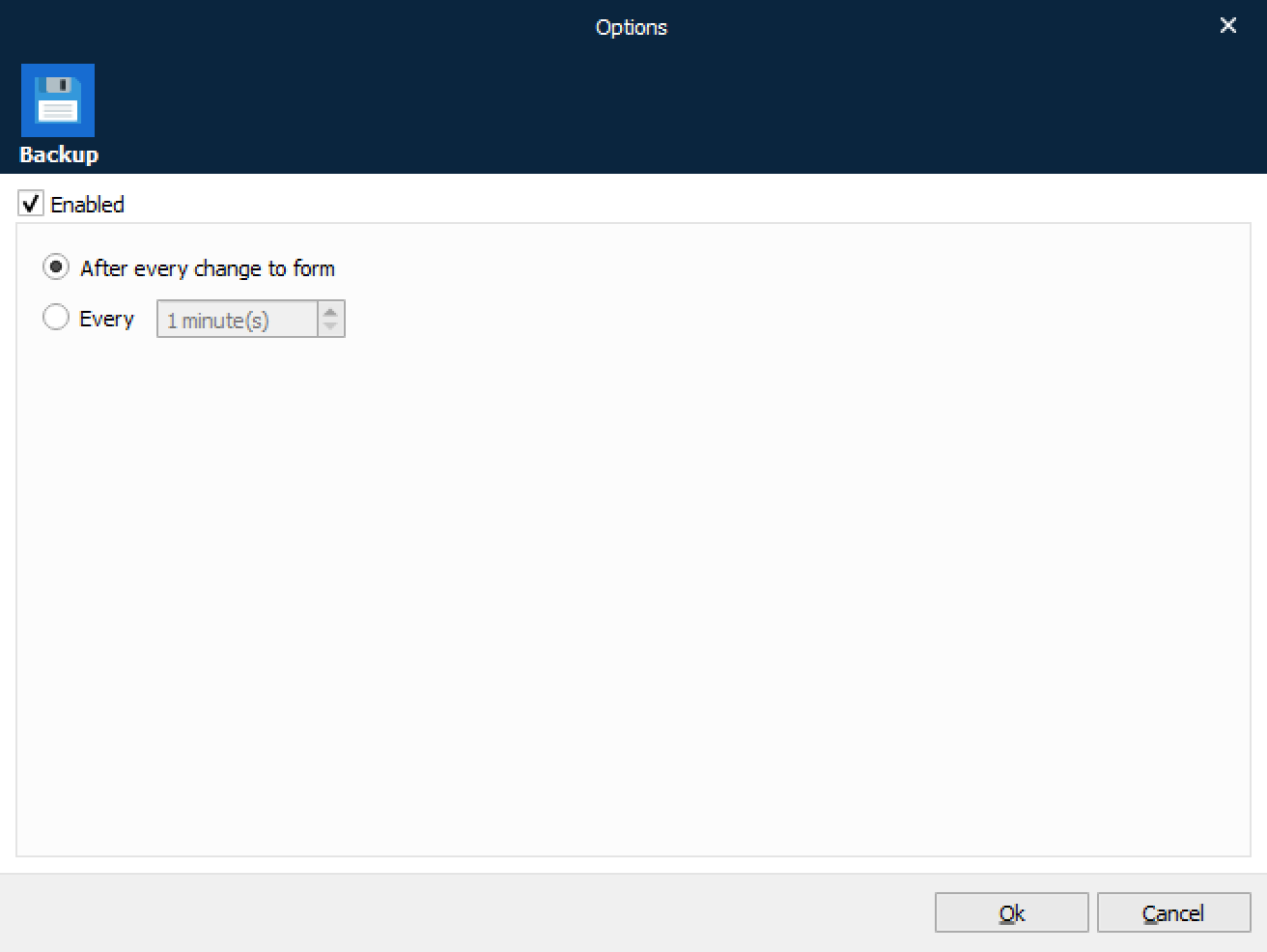
You can also define the Backup options. When managing the Backup options, you can enable or disable the continuous backup. If enabled, you can also define when the backup process occurs: after every change to a form or every specified point of time (e.g.: every 1-60 minutes).
Select a Grab File
To select a grab file, follow these steps:
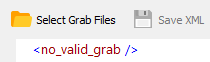
In the top right-hand corner of the form, click the Select Grab Files button.
OR
On the Menu bar, click XML, and then click Select Grab Files.
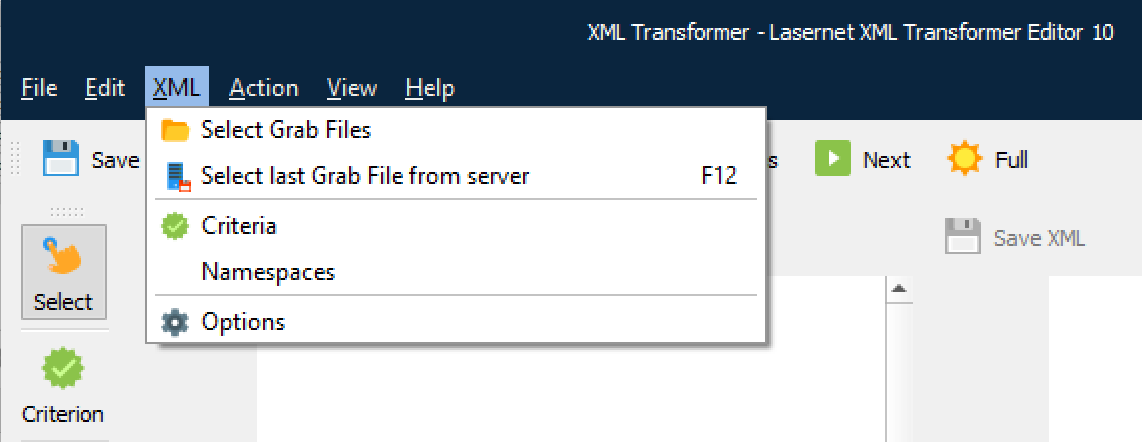
With the dialog displayed, select a grab file you wish to process and click Open.
Browse to the location on your computer where the relevant grab file is located. This is usually the Grab subdirectory of your configuration.
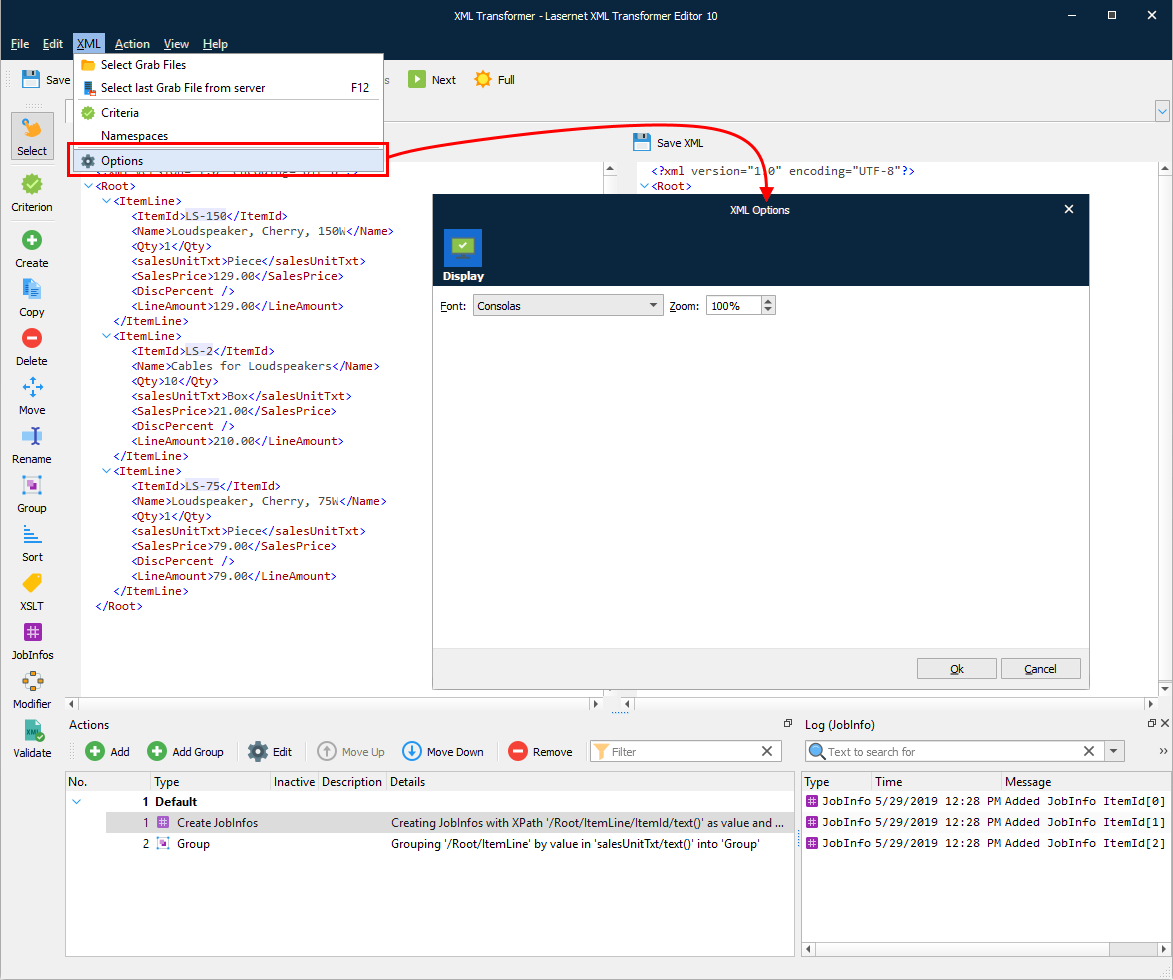
Once a grab file opens, you can change Font and Zoom for both input and output. To do this click ‘Options’ on the XML menu. With the dialog box displayed, set the required values, and then click Ok.
Define Criteria
You can use a grab file to define various criteria that your XML Transformer form will use to recognize input data files.
A criterion is used to look for key data in specific locations in a data input file to ensure that the right input file has been received. If no matches are found the file is not processed by the form.
To define a criterion, open a grab file. For more information on how to select a grab file, see Select a Grab File.
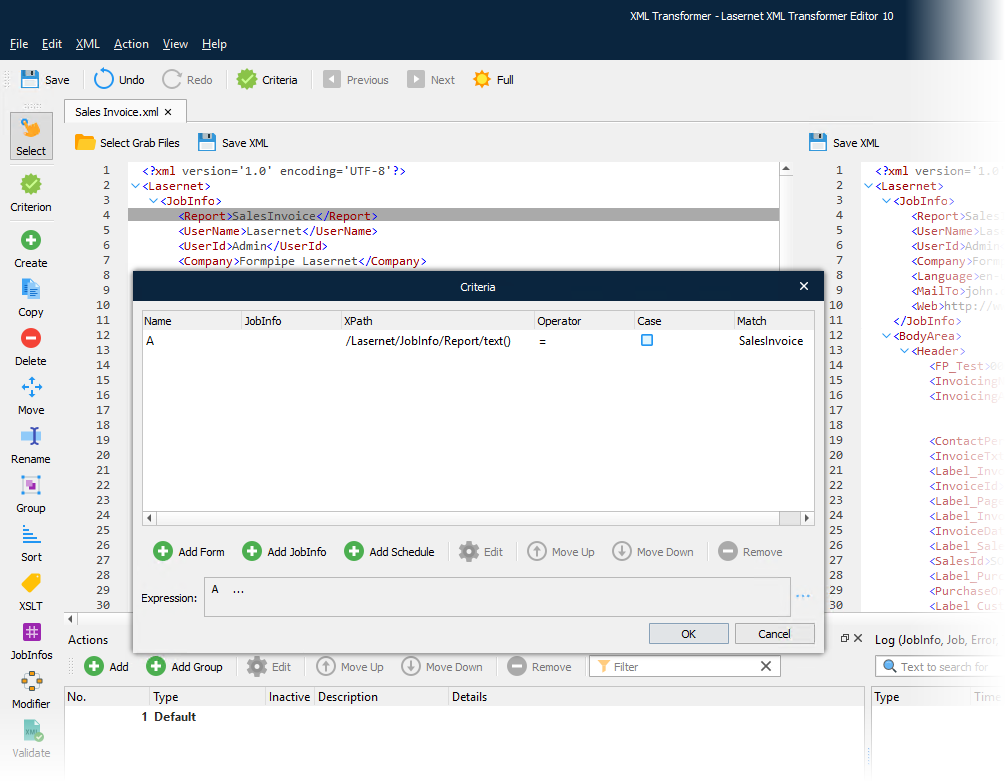
Once you have the grab file open, activate the Criterion tool and follow the steps below:
On the developer toolbar, click the Criterion button.

Once the cursor turns into a plus sign, click the node that you want to create a criterion on.
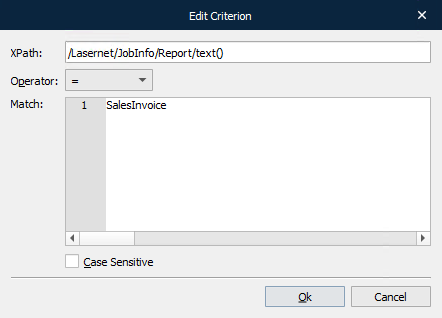
With the Edit Criterion dialog displayed, indicate the following parameters:
XPath;
Operator;
Match string.
Note: the parameters are automatically filled in. Modify them manually, if required.
Select the Case Sensitive check box, if required.
Once you are done, click OK. You can see the string highlighted in grey.
Edit Criteria
To edit the criterion, double click the string on which it has been created.
XPath
The name of the XML node, including the top node.
Operator
The following operators are available:
contains
- Returns true if the text data contains the match string.
not contains
- Returns true if the text data does not contain the match string.
=
- Returns true if the text data matches the match string.
<>
- Returns true if the text data does not match the match string.
Operators < <= > >=
- These operators try to convert the value of the text data and match string to numbers before comparing them. From here it is possible to make numerical comparisons. If at least one of the text strings is not converted to a number, a regular string comparison is performed.
like
- Returns true if the text data matches the regular expression.
not like
- Returns true if the text data does not match the regular expression.
exists / not exists
- You can choose whether a tagname exists within the XML input file or not by using the operators “exists” and “not exists” and leaving the match string field empty.
Match
The value (criterion) of the XML node.
Case Sensitive
If checked, the string will be case sensitive.
Manually Add Criteria
In addition, you can manually add a criterion. For the purposes of this guide, proceed through the steps listed below:
On the toolbar, click the Criteria button.
With the Criteria dialog displayed, click the Add button.
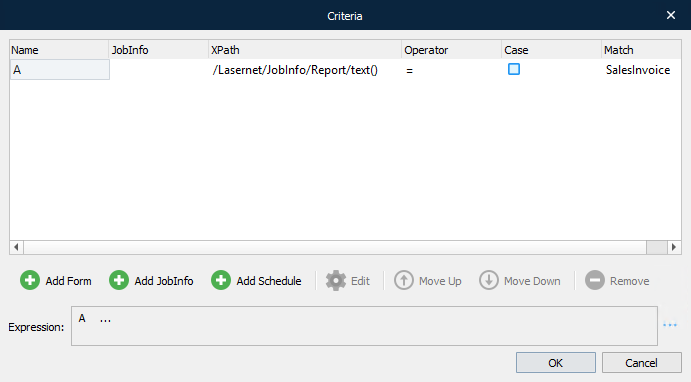
Repeat steps 3-5 of the previous instructions to specify parameters for the criteria.
Note: the parameters are not automatically filled in. All the fields of the Edit Criterion dialog are empty.
Schedule Criteria
You can include a Schedule in the list of criteria for a form. A Schedule criterion can only be added manually by clicking the Add Schedule button.
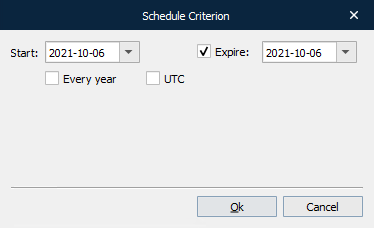
| Start | The date from which the criterion is true. Choose a date from the calendar. |
| Expire | If checked, this is the final date on which the criterion will be true. Choose a date from the calendar. |
| Every year | If checked, the criterion will be true between the specified Start and Expire dates (day and month) every year. |
| UTC | If checked, UTC time will be used instead of the server time. |
Other Controls
Alongside manually adding additional criteria, you can also add jobinfos, edit or remove existing criteria and change the order of the criteria using the Criteria dialog. Use the corresponding command buttons on the Criteria dialog to:
Add JobInfo: click the button to add a JobInfo.
Edit: click the button to edit the criterion selected in the grid.
Move Up: click to move the selected criterion up in the grid.
Move Down: click to move the selected criterion down in the grid.
Remove: click to remove the selected criterion from the grid.
Form Expressions
Within the Criteria dialog, you can define a form expression as a logical expression. Here are some examples of possible expressions:
A and B and C and D
(A or B) and (C or D)
(A or B) and not (C or D)
If no form expression has been defined, all criteria is true by default. The form expression field allows a high degree of flexibility when defining rules to be used when recognizing data input files.
JobInfo Criteria
You can include JobInfos on the list of form criteria. You can only add a JobInfo criterion manually by clicking the Add JobInfo button.
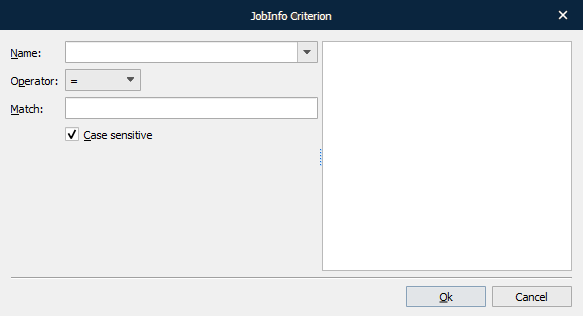
With the Edit JobInfo Criteria dialog displayed, define the following values:
| JobInfo Name | From the dropdown list, select the JobInfo which you want to work with. You can also manually type the name of one of your own JobInfos instead. |
| Operator | Select the type of operator to use. |
| Match string | Type the value to look for in the specified JobInfo. |
| Case Sensitive | Select the check box to activate the case-sensitivity rule. |
Save the XML File
While working with an XML file, you can save a local copy (either output or input data, or both) at any time, to preserve its current state. Click the Save XML button to do this. With the dialog displayed, specify the location and name for the file to be saved.