Applies to: Lasernet Core 10
You can print documents from most Windows applications to Lasernet Meta for adding jobs. In this chapter we will list the most common applications.
Microsoft Word, Excel etc.
From Microsoft Word you can use the print function to add the document in a Lasernet Meta Queue and convert it to PDF. Any of the queues added to your Lasernet Meta application, will be available as Windows print queue on your local computer, and prefixed with a Lasernet text to indicate that the print queue is connected to a Lasernet Meta application.

Select File 🡪 Save as type: DOCX, XLSX or PDF if you want Microsoft Word or Excel to generate Word, Excel or PDF formats for Lasernet Meta. Use the polling feature in Meta queue to pick up the files or manually add them to a queue. Meta data can be added to documents before being sent to the Lasernet Core environment.
Lasernet Meta Output module
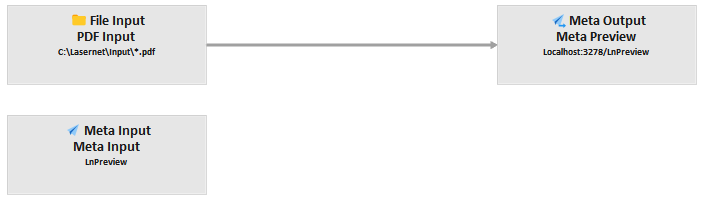
In the Lasernet Core environment you can configure the Meta Output module to send jobs to Lasernet Meta. You only have to define a host name, a port number and the name of the queue to send the job to.
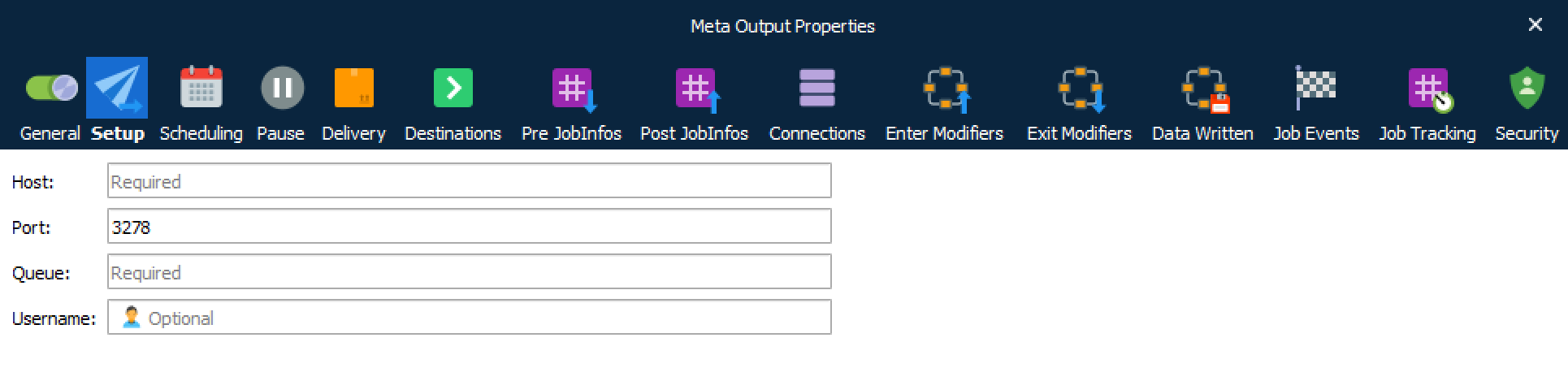
| Host | Name of Windows client running Lasernet Meta. An IP address is not supported. |
| Port | The port number used between Lasernet Meta Output (server) and Lasernet Meta (client). |
| Queue | Name of Meta queue to send job to. |
| Username | Name of Windows user to retrieve document. |
All the fields have JobInfo substitution support. Type the name of a JobInfo, surrounded by hash marks like #NameOfHost#, and the value of the JobInfo will be substituted with the value of the JobInfo.
Preview mode
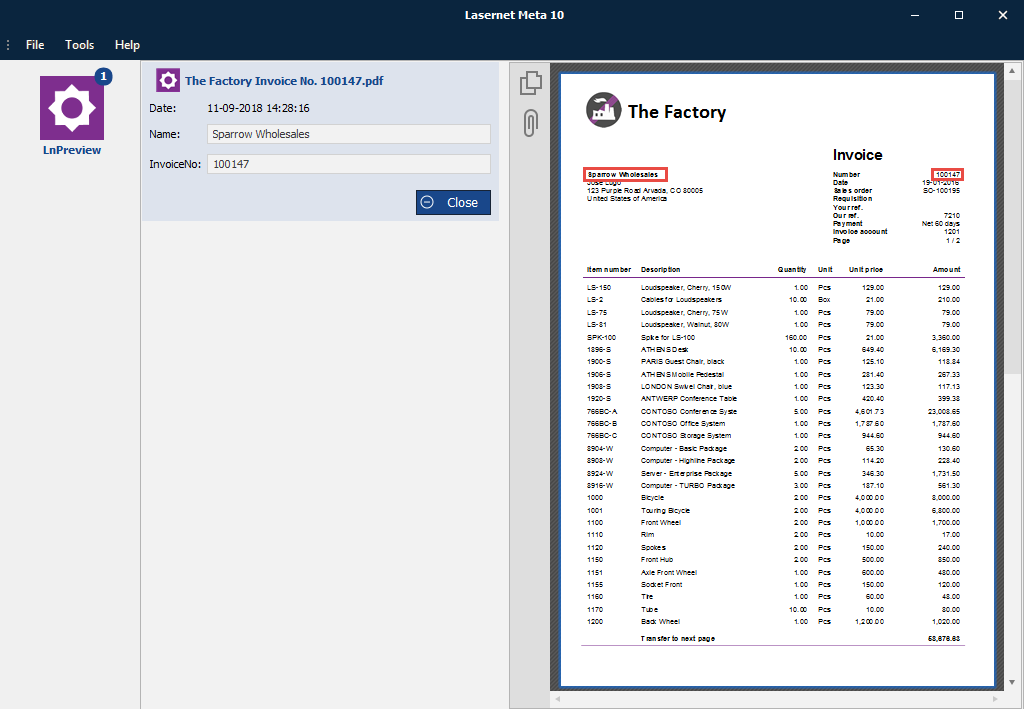
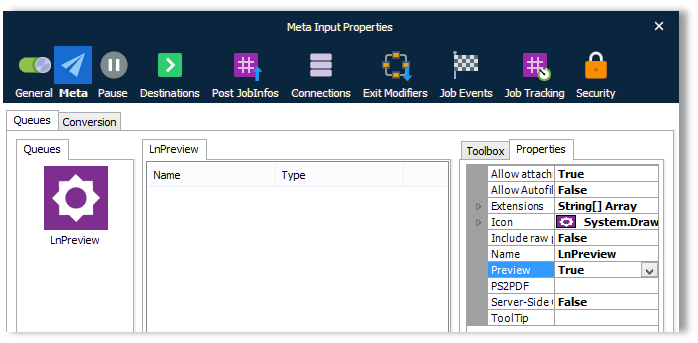
If you want Lasernet Meta to act as a preview tool and prevent the users to add Meta data and send jobs back to Lasernet Core in preview mode, you can set the Preview property to True in the Meta queue.
When a job has been sent from Lasernet Core to Lasernet Meta only the Close button will be enabled in the card. A Meta queue can contain more than one preview job. To remove a job in preview mode, click the Close (ALT+C) button.
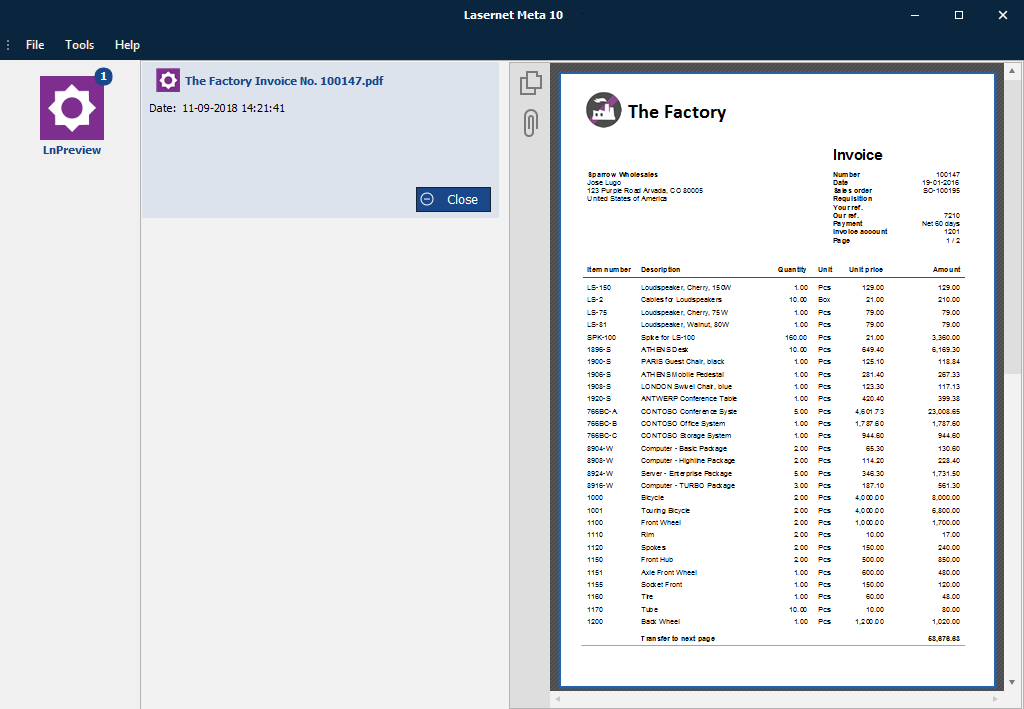
Preview with Meta fields
Add a list of Meta fields to the preview queue if you want the values of JobInfos to be viewed together with the document in Lasernet Meta
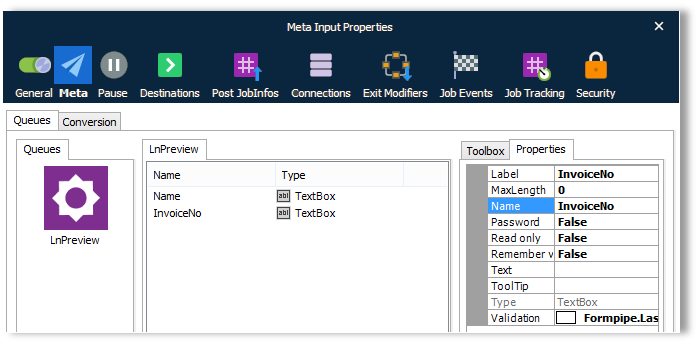
The values of the JobInfos, returned from the Meta Output module, must be assigned to JobInfos names equal the names of the Meta fields.
If they Meta field is not allowed to be edited by user in preview mode, you can set the flag Read Only to true, and the Meta fields will be read only when the document is previewed.