Applies to: Lasernet Core 10
The module is designed to provide a simple yet effective method for archiving documents and associated metadata to Autoform DM. As such the configuration process is relatively straightforward. There are two different ways that you can use the Autoform DM Upload Module. The first, and most common way, is as an output module, to archive a finished (processed) document. The second way, is as an engine to retrieve the DocumentID and DocumentRevision.
For more information on migrating your forms and builds from using JFinder to the Autoform DM Upload Module, please see the separate Migration Guide document which is available upon request. Users creating new forms from scratch may also find this document useful as it runs through some basic set up and configuration steps for archiving to Autoform DM.
Configuration
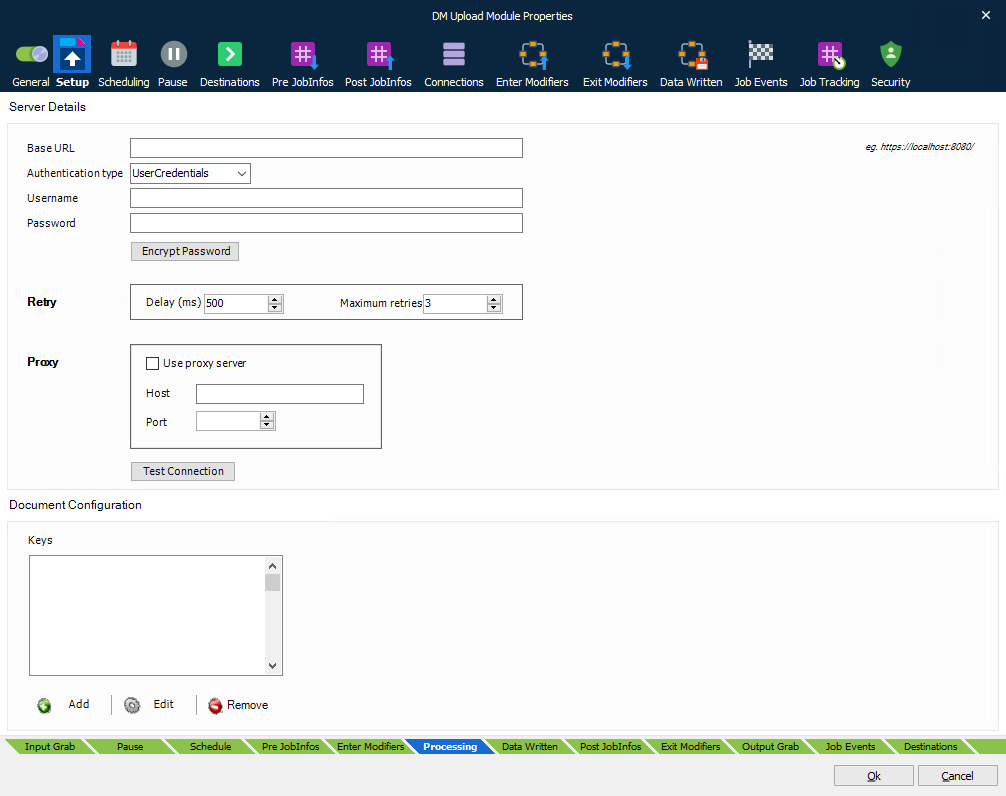
Server Configuration
Authentication Type
Note
Some dialog fields will change depending on the selected option.
There are three authentication options to choose from:
| UserCredentials | The default option. Authenticate requests using a username and password. |
| OAuth | For use when Autoform DM is configured for SSO, use a token obtained via a modifier to authenticate the request – requires no direct configuration in the module. See OAuth for more detail. Note: Requires Autoform DM 10.2 or later. |
| Apikey | Authenticate requests using an API Key generated by Autoform DM; this should be the preferred option unless using SSO. Note: Requires Autoform DM 10.0 or later. |
Depending on authentication scheme selected, the following configuration is available:
| Scheme | Option | Description |
|---|---|---|
| All | Base URL | URL Of Autoform DM Server. Can either be specified using servername, IP Address or environment variable (for more information, see Environment Variables) |
| All | Authentication Type | Select an option from the drop-down menu. |
| UserCredentials | Username | User with access to Autoform DM Server |
| UserCredentials | Password | Password for user |
| UserCredentials | Encrypt Password | Encrypt the provided Autoform DM server password in the environment (for more information, see Encryption) |
| Apikey | API Key | Enter the API Key generated by Autoform DM |
| Apikey | Encrypt API Key | Encrypt the provided Autoform DM API Key in the environment (for more information, see Encryption) |
Proxy Configuration (if required): For proxy configuration details, please consult your IT systems administrator.
| Use Proxy Server | Select the checkbox if you use a proxy server to connect to Autoform DM |
| Host | IP or Hostname of your proxy server |
| Port | Port number to connect to your proxy server |
Environment Variables
If you have a number of different environments (such as SIT, UAT & Live) which all archive to different Autoform DM Servers, you can use environment variables (ENV) instead of fixed values for the Base URL, Username and Password, in order to avoid having to change these values every time a build is moved between environments. To make use of this feature, use the following special values in the Server Configuration panel to point to your systems' environment variables table.
| Base URL | ENV[DM_BASEURL] |
| Username | ENV[DM_USERNAME] |
| Password | ENV[DM_PASSWORD] |
Ensure that your OS' System Environment Variables contains the corresponding entries from which the Autoform DM Module can extract these values. They should be added in the following format:
DM_BASEURL=
DM_USERNAME=
DM_PASSWORD=
e.g.
DM_BASEURL=http://testserver
DM_USERNAME=admin
DM_PASSWORD=thisisapassword
OAuth
This section applies if you selected OAuth as the Authentication type – this is only applicable when Autoform DM is configured for SSO (Single Sign-On) and authentication is performed against an external system rather than Autoform DM directly.
When selected, no further configuration related to authentication is done in the module, instead the Lasernet OAuth2 modifier is used to obtain the required token which the upload module will then use for requests.
Failure to correctly add the modifier will result in the Upload Module showing an error indicating this.
Also note that the ability to 'test the connection' will fail as this is not valid when this option is selected.
Follow the steps to enable the OAuth modifier – in order to complete this you will need a Client ID, a Client Secret, and a Token endpoint URL – these will be available based on the SSO configuration:
Select the Enter Modifiers tab on the Upload Module configuration
Click Add
Click Add… in the Choose modifier dialog
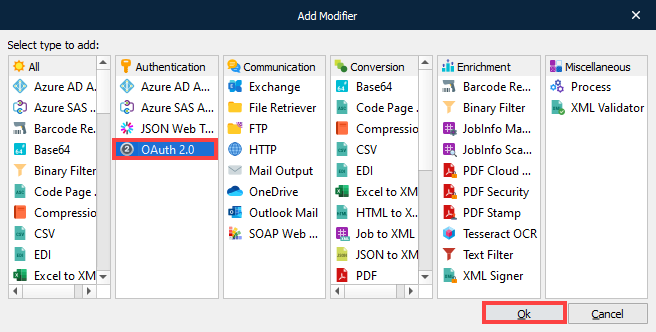
Select OAuth 2.0 in the Add Modifier dialog Authentication column, then click Ok
Select the Setup tab in the Modifier Properties tab
Select the Application (Client Credentials) radio button
Enter the Client identifier into the Client ID (iss) field. For example,
autoform-dmType the Client secret into the Client Secret field
Type the endpoint URL into the Token Endpoint field. For example,
https://some.auth.server/realms/some-realm/protocol/openid-connect/token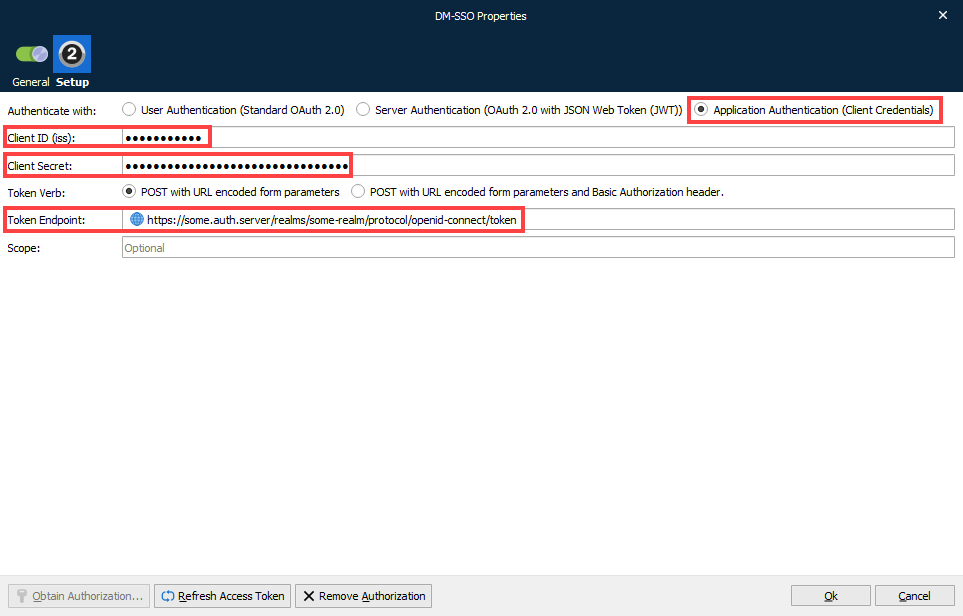
Click Ok
To verify the entered configuration is correct, click the Refresh Access Token button.
Note
To edit the properties, double-click the modifier, then click Edit… in the Choose modifier dialog.
Encryption
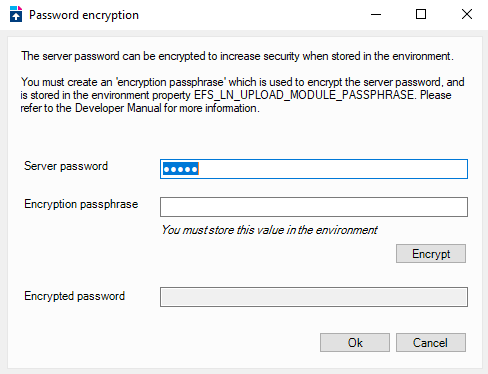
Whilst Lasernet Core stores the Autoform DM credentials in an encrypted form within the build, if you are using the Environment Variables functionality, we recommend that you encrypt the DM password before storing it in the environment. To encrypt the password within the module, follow the instructions below:
Make sure the password field in the server setup window, has the correct server password (not an environment reference)
Click the 'Encrypt Password' button, which will launch the Password Encryption dialog
Add an Encryption Passphrase to encrypt the server password
Follow the instructions on the screen and store the passphrase in the environment
Click Ok to encrypt the value and close the dialog
Now reveal the password field - you can see that it is encrypted. You can now put that value in the DM_PASSWORD environment variable and replace the value in the server password field with ENV[DM_PASSWORD]
Note
When adding the encrypted password to the environment, ensure that it is enclosed with ENC[ … ] (see example below) to signify that it has been (ENC)rypted.
DM_PASSWORD=ENC[]
EFS_LN_UPLOAD_MODULE_PASSPHRASE=
e.g.
DM_PASSWORD=ENC[rL+pR2yVTfUwXczqMwG10g==]
EFS_LN_UPLOAD_MODULE_PASSPHRASE=ln_test_passphrase
Document Configuration
The keys provided in the document configuration box represent the jobinfos on the form that will be picked up by the module and used for archiving. The module will also check the document definition in Autoform DM to ensure the keys are valid (bound) for that particular definition. If the key does not exist or is not bound, the upload will fail.
For the Autoform DM Upload module to run successfully the required keys must:
Be defined on the form
Be listed in Document Configuration area in the Autoform DM Upload Module
Be configured in Autoform DM and bound to the correct Document Definition.
Connect
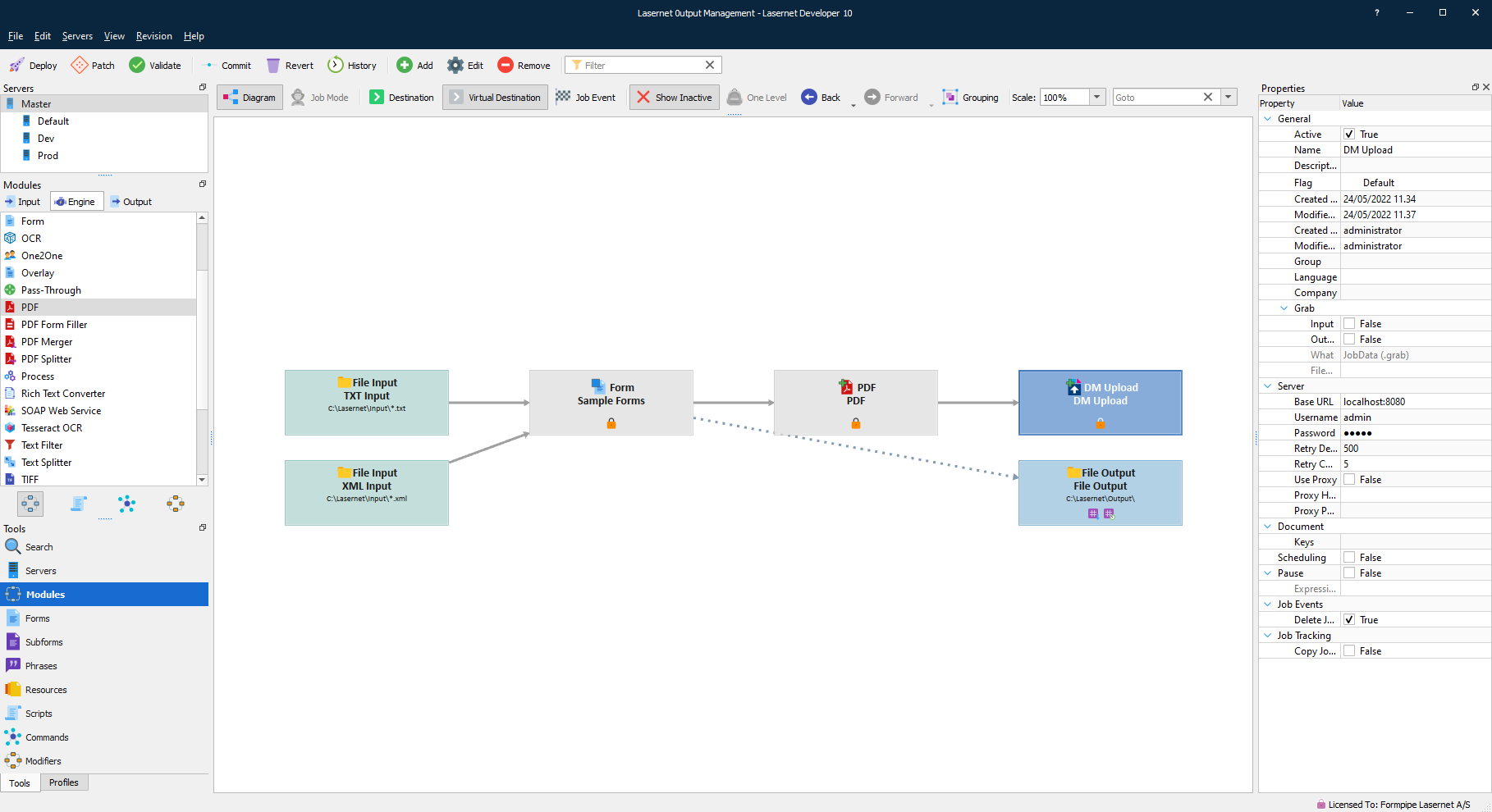
To make use of the newly configured Autoform DM Upload module, set it as the destination from the appropriate processing engine.
The example below shows the AUTOFORM Upload Module as an output destination for the PDF Engine.
Advanced Processes
Autoform DM Upload JobInfos
The following new JobInfos have been created to give greater control over the Autoform DM Upload functionality.
| JobInfo | Example JobInfo value | Default value | Description |
|---|---|---|---|
| DocumentDefinition | account-statement | (None) | Document definition name in Autoform DM |
| DocumentDateFormat | yyyy-MM-dd | System locale | Date format for the metadata keys to be archived with this document. This is the same as JFinder's PDMDFMT |
| DocumentUpdate | true | false | Whether to update a document based on matching Autoform DM ID or CUK (Customer Unique Key). Where set 'false' and an ID or CUK jobinfo has been used, the job will fail if a matching document already exists in the Autoform DM archive. This is the same as JFinder's PDMUPD. Note: The DocumentCUK or the DocumentID need to be specified when setting DocumentUpdate to 'true'. |
| DocumentAttach | false | true | This controls whether the document is archived, or just the metadata. This is the same as JFinder's PDMATT |
| DocumentID | 8458941655 | (Empty) | Autoform DM Document ID for an existing document to update |
| DocumentCUK | customer-123-stmt-2018-06 | (Empty) | Autoform DM Document CUK (Customer Unique Key) for an existing document to update |