Applies to: Lasernet Core 10
The Azure Storage input module is used to pull files from Blob Storage or messages from a Queue, at a defined interval via the Scheduler.
The setup of the module consists of two pages: Connection and Command.
Connection
In order to access the Azure Storage API, the module’s Connection properties must be correctly configured.
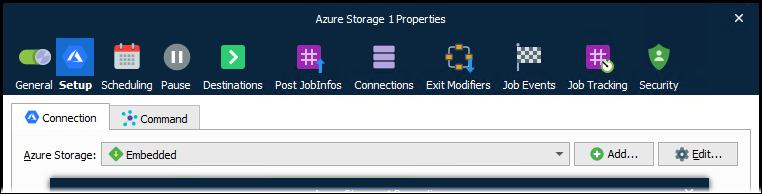
On the Connection tab, you have the following options:
Create an “embedded” connection: Embedded connection settings apply only to this module.
- To do this, select Embedded from the Azure Storage list, then click Edit to configure the connection.
Create a new global connection: Multiple modules in this Lasernet Core configuration can share the same “global” Connection item (to centralize management of connection configuration).
- To create a global Connection item, click Add beside the Azure Storage list.
Use an existing global connection
To use an existing global Connection item, select it from the Azure Storage list.
To edit its connection properties, click Edit.
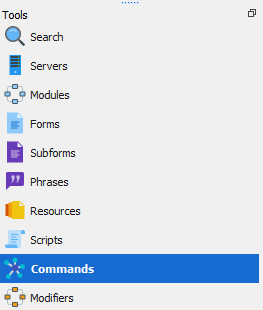
The image below shows a global Connection item in the Commands tool of Lasernet Developer.

For both embedded and global connections, Lasernet Developer displays a connection Properties window when you edit the connection.
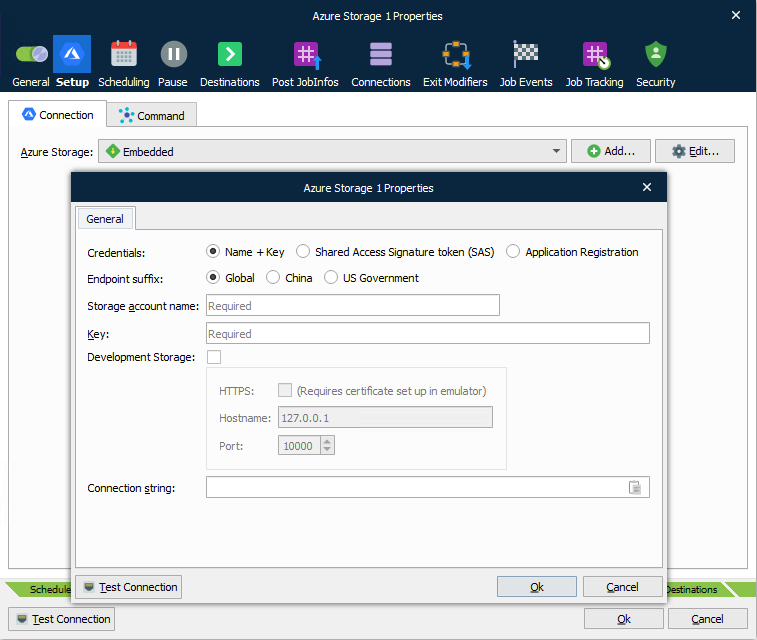
The module can use one of the following authentication methods:
Name + Key: Access key authentication. Requires a Storage account name and a Key.
Shared Access Signature (SAS): A signed URI that grants access to a specific Azure Storage resource.
Application Registration: Authentication based on managed application identities in Entra ID. Requires a Client ID and Client Secret (which are the application credentials that Lasernet Core will use to authenticate with Entra ID).
Each of these authentication methods has specific connection properties (described in the tables below).
Note
Global connections also have Name and Description properties to describe the Connection item itself.
Note
You can use JobInfo substitution in any connection property value (including SAS Token).
Tip
After you configure the connection, click Test Connection (in the bottom corner) to test the connection properties.
Name + Key
| Setting | Description |
|---|---|
| Endpoint suffix | Select the Microsoft cloud that hosts the storage account. Microsoft maintains separate clouds for data residency and regulatory compliance reasons. |
| Storage account name | All access to Azure Storage is done through a storage account. This account can be a general-purpose storage account or a Blob storage account specifically for storing objects/blobs. |
| Key | The access key used to authenticate Lasernet Core while calling commands. |
| Development Storage | If selected, the module connects to an Azure Storage emulator, which (for testing purposes) avoids the need for a real Azure Storage account. To use this feature, install an emulator such as Azurite, which Lasernet Core can use locally or remotely:
After installing Azurite, configure and run it. For more information about installing, configuring, and running Azurite, see Microsoft documentation. When Development Storage is selected, Lasernet Core generates a connection string that causes Lasernet Core to send Azure Storage requests to the emulator. If necessary, modify the following settings:
|
| Connection string | If you copy a connection string for a storage account to the clipboard, this Connection string property can interpret it and use its content to complete the Storage account name and Key properties. Click the Parse connection string on clipboard button at the end of the property box. |
Shared Access Signature (SAS)
| Setting | Description |
|---|---|
| Endpoint suffix | Select the Microsoft cloud that hosts the storage account. Microsoft maintains separate clouds for data residency and regulatory compliance reasons. |
| Storage account name | All access to Azure Storage is done through a storage account. This account can be a general-purpose storage account or a Blob storage account specifically for storing objects/blobs. |
Blob Container Queue |
The top-level container name or the name of the queue. The property shown here differs depending on the Type (Blob or Queue) selected on the Command tab of the module’s Properties window. This property is optional. If you do not supply the container or queue name here, you must supply it as a property of the command. |
| SAS Token | The SAS token generated for the storage account. |
Application Registration
| Setting | Description |
|---|---|
| Endpoint suffix | Select the Microsoft cloud that hosts the storage account. Microsoft maintains separate clouds for data residency and regulatory compliance reasons. |
| Storage account name | All access to Azure Storage is done through a storage account. This account can be a general-purpose storage account or a Blob storage account specifically for storing objects/blobs. |
| Tenant Domain | Click … (three dots) at the end of the value box to enter the tenant domain. |
| Client ID | The Application (client) ID of the application’s Entra ID app registration. Client ID identifies the app. |
| Client Secret | A client secret generated for that app registration. Client Secret is essentially the application’s password. |
Important
Application Registration authentication is not applicable to Azure Storage containers that are managed by Microsoft Dynamics 365 Finance and Operations.
Note
Implementing application registration authentication requires additional configuration in Entra ID (for the app registration) and for the specified storage account (to give that application identity permission to interact with the storage).
To do that configuration, an Azure administrator must follow the instructions in Configure Microsoft Azure to Support Lasernet Core Access to Azure Storage Through App-Registration-Based Authentication. As part of that process, the Azure administrator will supply you the client ID and client secret that will enable you to configure application registration authentication for Azure Storage modules in Lasernet Core.
Command
Select Blob to download from a container, or Queue to fetch messages.
| Blob | Files are downloaded from a specified Container. |
| Queue | Messages are fetched from a specified Queue. |
Files and messages are deleted when polled.
Blob
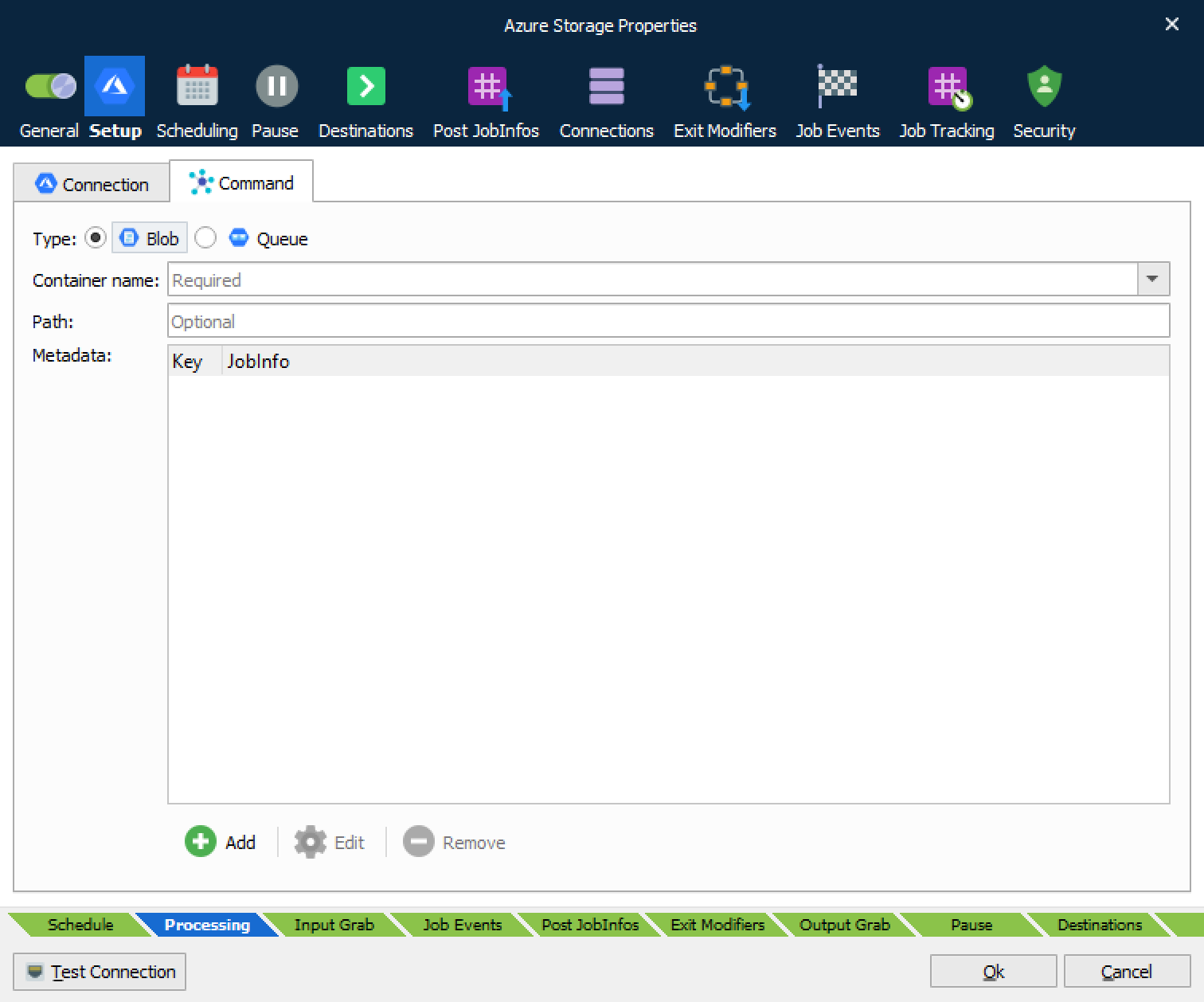
| Container name | (Required) The container where the BLOBs are located. |
| Path | (Optional) The path within container. |
| Metadata | Identify individual metadata fields (attached to the BLOB) that you want to be transferred to JobInfos. |
Queue
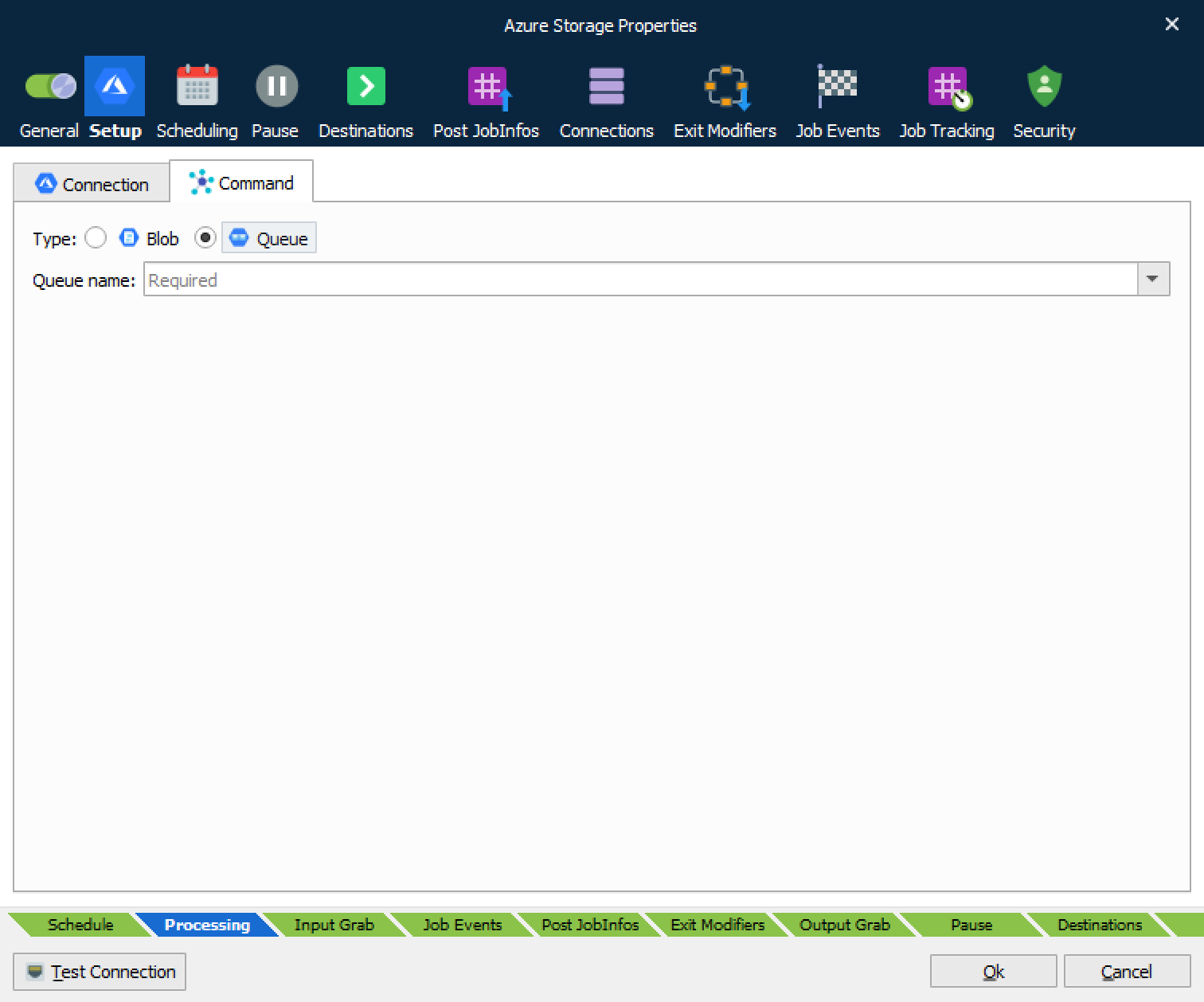
| Queue name | (Required) The queue name. |
JobInfos
The following JobInfos are set for Jobs created from messages:
| AzureStorageMessageID | GUID of the message. |
| AzureStorageMessagePopReceipt | A BASE64 encoded GUID. The value of PopReceipt is opaque to the client; its only purpose is to ensure that a message may be deleted with the Delete Message operation. |
| AzureStorageMessageDequeueCount | The DequeueCount element has a value of 1 the first time the message is dequeued. This value is incremented each time the message is subsequently dequeued. |
| Extension | The extension of the filename. |
| Filename | The name of the file without the path. |
| FilenameWithoutExt | The name of the file without the extension. |
| FullFilename | The name of the file including the path. |
| Filesize | The size of the file in bytes. |
| Mimetype | Content-type of the message. |