Applies to: Lasernet Core 10
Enables you to maintain different printer instances in different locations, via cloud or on-premises.
For optimal performance, depending on print load and available cores, we recommend that multiple printer services are added to the same print server. This enables you to separate print server queues into batches for larger printer jobs and on-demand for production labels.
Profiles are saved printer driver settings that are different from windows defaults in the Printer Properties dialog.
Print Servers
In Lasernet Config, click the  icon in the Tools menu.
The main area of the window lists all the configured print servers, organised into Cloud and On-Premises categories.
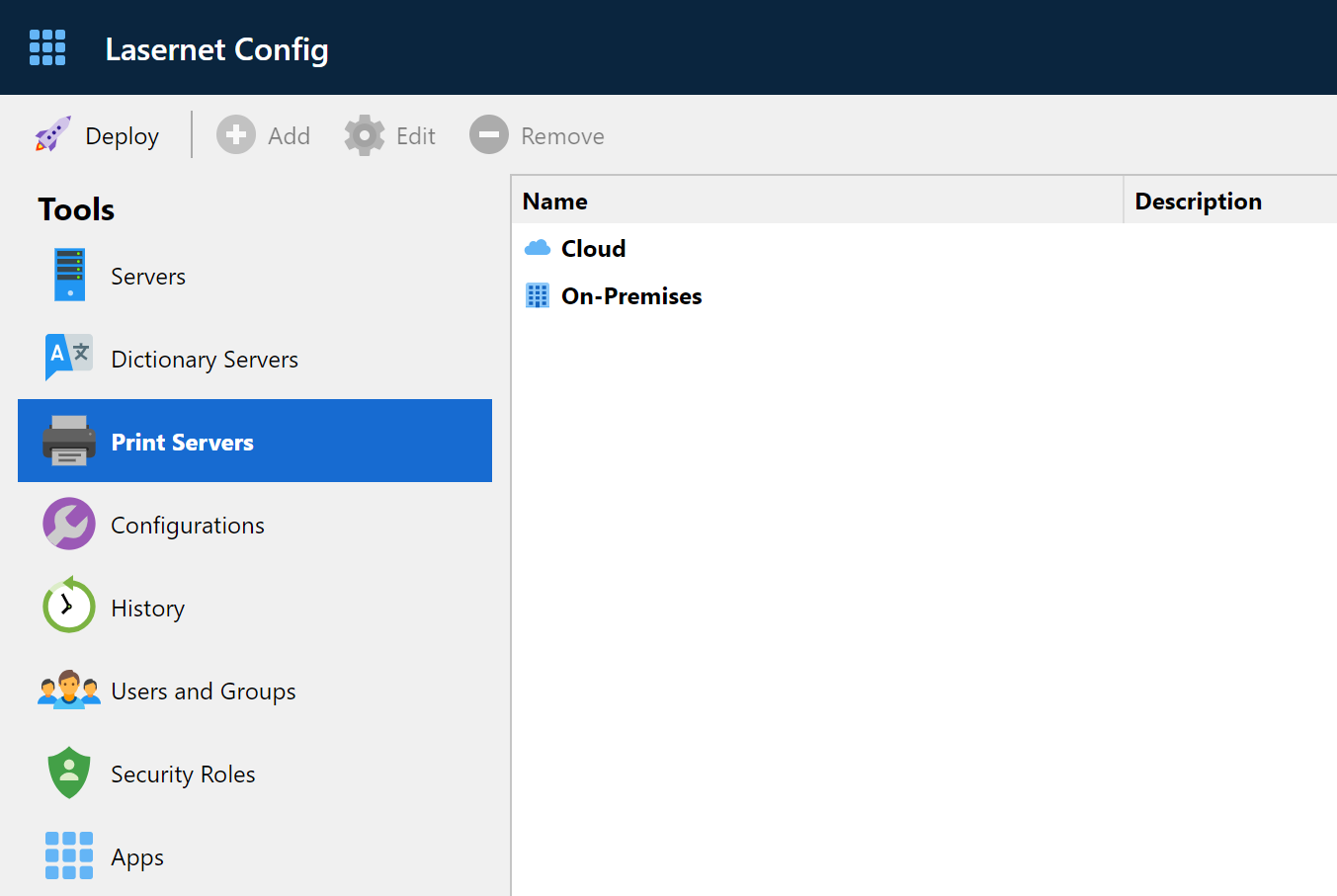
Click the  icon to configure and add a new print server.
Click the  icon to reconfigure the selected print server (alternatively, double-click print server).
Click the  icon to delete the selected print server.
Users and Groups
Note: This is an optional function to define users, group them and assign different permissions and security roles.
In Lasernet Config, click the  icon in the Tools menu.
The main area of the window lists all your configured users and groups, organised into the respective categories.
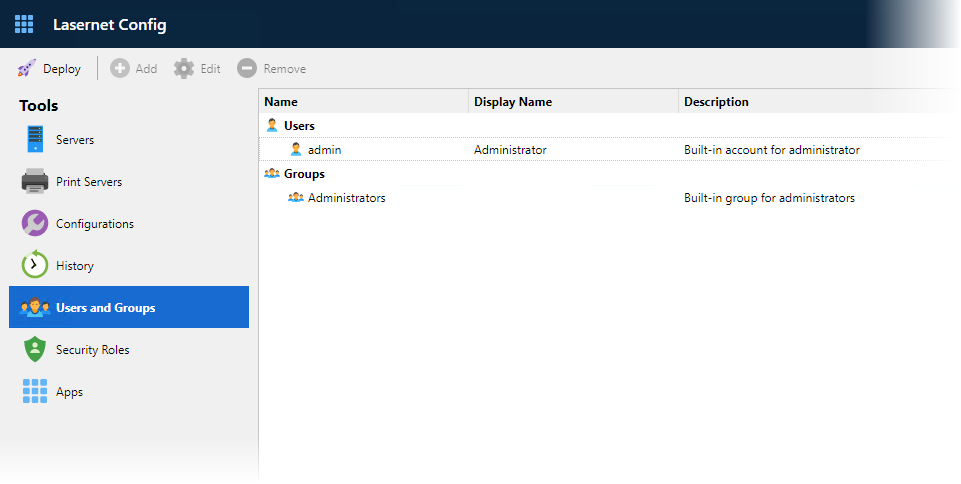
Click the icon to configure and add a new user or group (depending on what is selected).
Click the icon to reconfigure the selected user or group (alternatively, double-click print server).
Click the icon to delete the selected user or group.
Refer to the Config Server manual for more details about settings for Users and Groups.
Security Roles
Note: This is an optional function to specify permissions and security roles that are granted to different users and groups.
In Lasernet Config, click the  icon in the Tools menu.
The main area of the window lists Lasernet Core applications and their associated security roles. This list includes a Printer Service category.
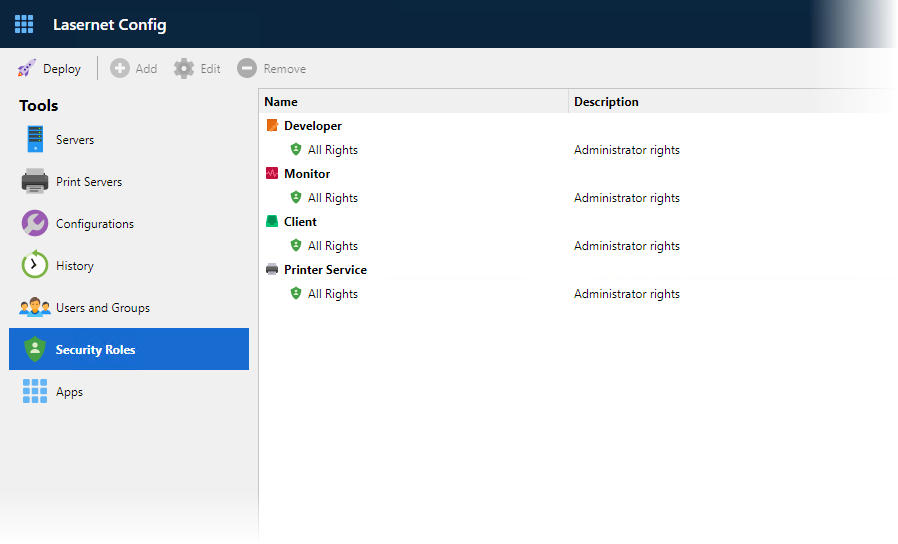
Click the icon to configure and add a new security role to the selected category.
Click the icon to reconfigure the selected security role (alternatively, double-click the security role).
Click the icon to delete the selected security role.
Configure Printer Service Security Roles
Select All Rights in the Printer Service category and either double-click or click the icon.
The Printer Service Role Properties dialog will be displayed. You can set the permission settings for different user groups for printers and profiles in the current instance.
Deployment Tab
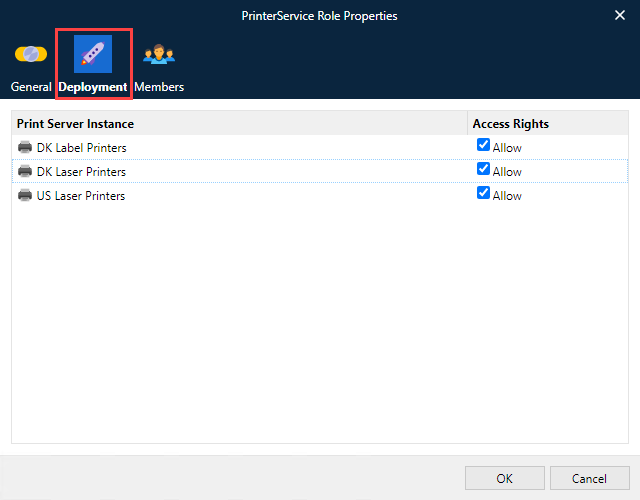
Check Allow to enable that printer to be accessed in Printer Service.
Members Tab
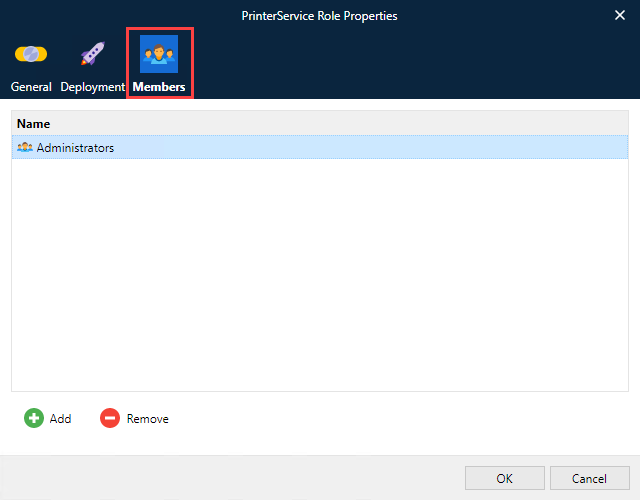
Click the  icon to select and add user groups, granting them access rights to use the Printer Service.
Click  to revoke access rights from the selected user group.
Note: If a user is a member of several groups, their access rights are a summary of all groups.
Print Server Properties Dialog
This dialog is displayed when you add or edit a print server.
Double-click in the listed printer profile or click Edit.
General
Enter your own memorable descriptions for the print server.
Cloud
On-Premises
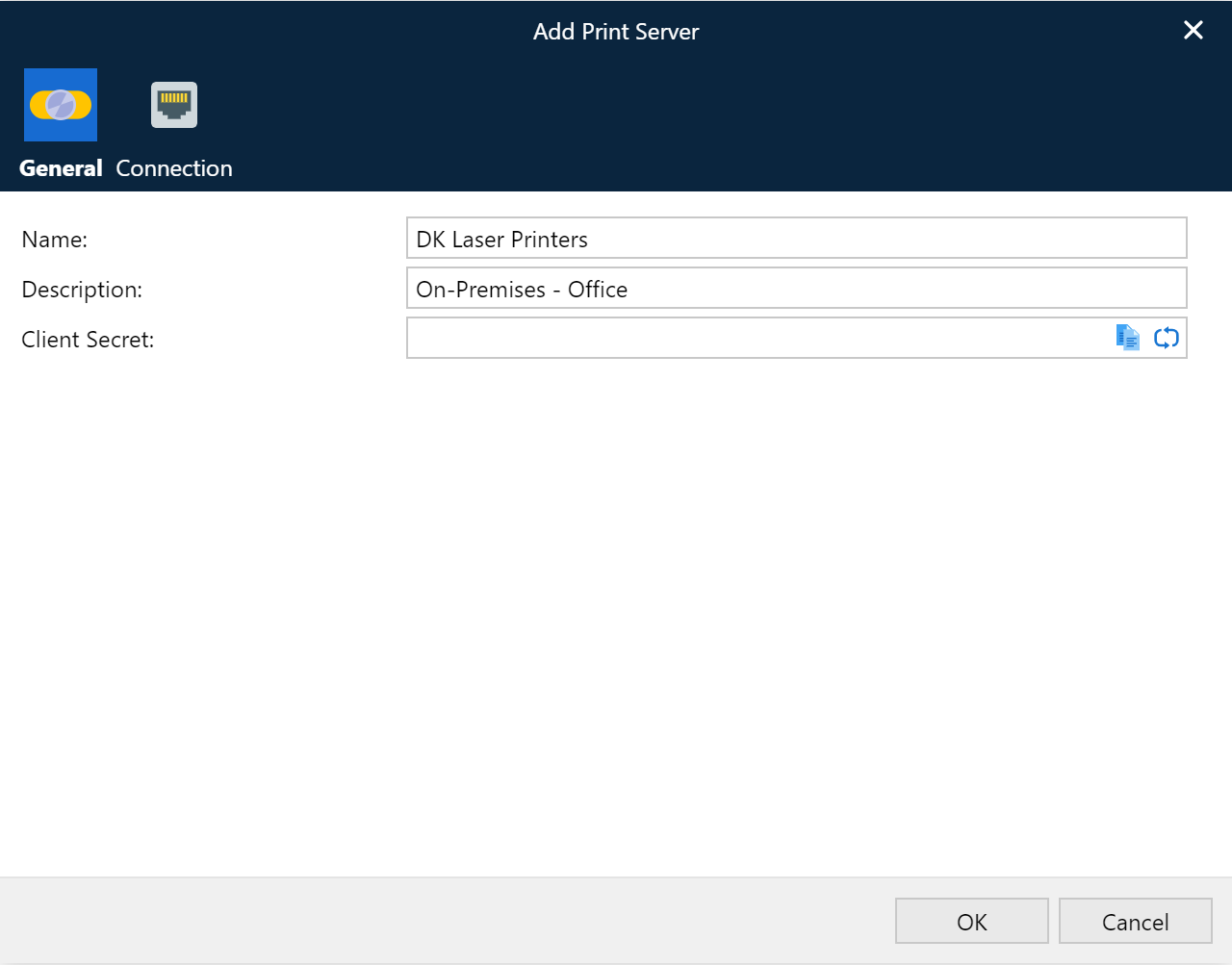
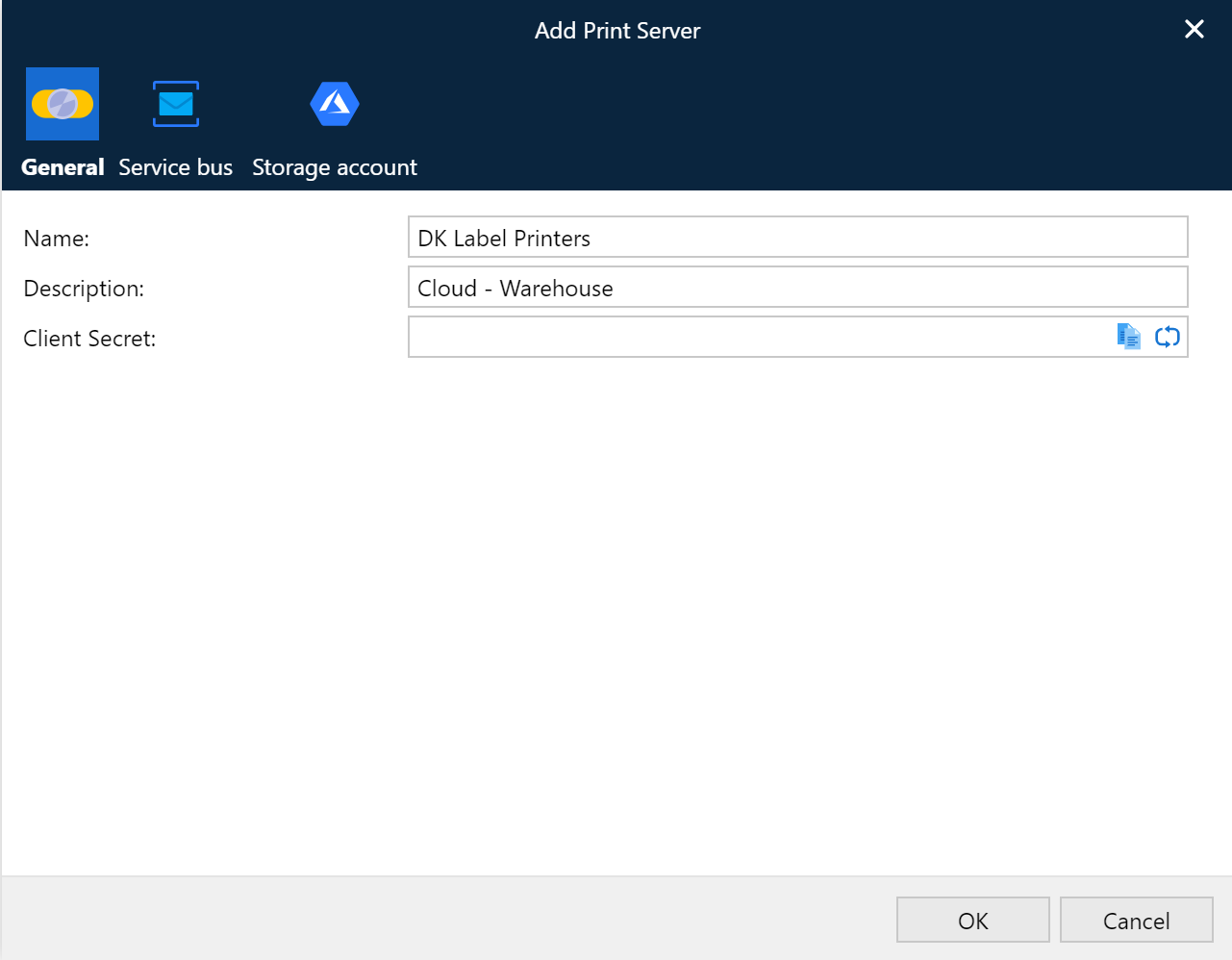
Name: The name that will be displayed to identify the print server.
Description: Custom description of the print server.
Client Secret: A unique character string used by Lasernet Core environments to authenticate a session with the Printer Service. Click the  icon in the field to generate a random client secret.
Notes:
Client Secret is used for both cloud and on-premises printing.
If your Printer Service is running and client secret is regenerated, you must log out of the Printer Service application, log in again and deploy your printers and printer profiles to update the client secret.
Cloud — Service Bus
Insert the endpoint and entity path for the Service Bus as defined in Microsoft Azure.
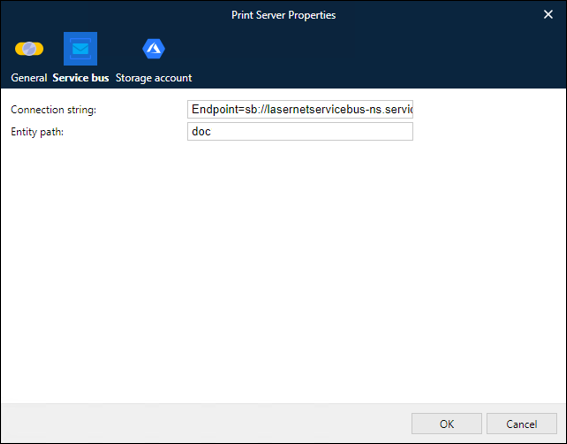
Connection String: The Service Bus endpoint connection string. Use the connection string that you noted in Shared Access Policies.
Entity Path: The name of the Service Bus queue that will be used (as noted in Queues).
Note: Separate printer servers should have individual Service Bus queues and entity paths; they should not share.
Cloud — Storage Account
The instructions for configuring authentication with the Azure Storage account depend on the authentication type (access key, app-registration-based, or Shared Access Signature (SAS) token) that Lasernet Core will use to access the storage. Refer to the relevant following section.
Connection String (Access Key)
If Lasernet Core will use access key authentication, click Connection String, then use the storage account container name and connection string (as defined in Microsoft Azure) that you collected when following the instructions in the Container Name, Storage Account Name, and Tenant ID and Access Keys sections of Configure Microsoft Azure for Lasernet Core Cloud Printing.
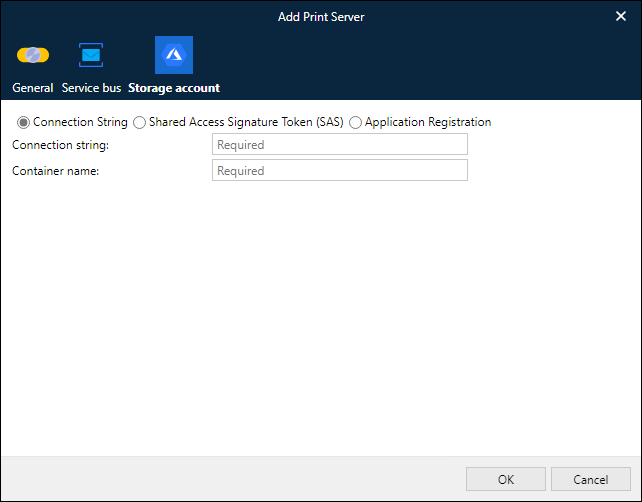
Connection string: The storage account connection string. Use the connection string that you noted in Access Keys.
Container name: A unique name to identify the container. Use the name you copied from the Azure Portal (see Container Name, Storage Account Name, and Tenant ID).
Application Registration
If Lasernet Core will use app-registration-based authentication, click App Registration, then use the app registration details and container name (as defined in Microsoft Azure) that you collected when following the instructions in the Container Name, Storage Account Name, and Tenant ID and Application Registration sections of Configure Microsoft Azure for Lasernet Core Cloud Printing.
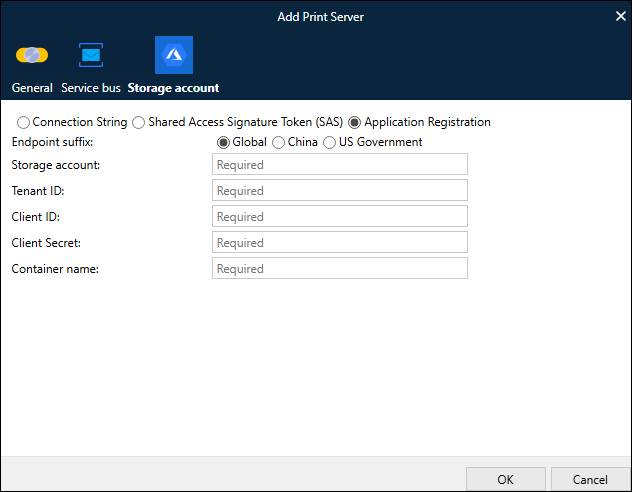
Endpoint suffix: Select the Microsoft cloud that hosts the storage account. Microsoft maintains separate clouds for data residency and regulatory compliance reasons.
Storage account: Use the storage account name that you copied from the Azure Portal (see Additionally For App-Registration-Based Authentication Only).
Tenant ID: Use the tenant domain that you copied from the Azure Portal (see Additionally For App-Registration-Based Authentication Only).
Client ID: Use the Application (client) ID (from the Azure Portal) of the app registration that Lasernet Core will authenticate as. See Application Registration.
Client Secret: Use a client secret (from the Azure Portal) for the app registration that Lasernet Core will authenticate as. See Application Registration. Note: This is not the same client secret that you entered on the General tab.
Container name: Use the name you copied from the Azure Portal (see Container Name, Storage Account Name, and Tenant ID)
Shared Access Signature (SAS) Token
If Lasernet Core will use a Shared Access Signature (SAS) to access Azure Storage, click Shared Access Signature Token (SAS).
The Overridable checkbox determines whether the Printer Service Output module can read Endpoint suffix, Storage account, Container name, or SAS Token from JobInfos when Lasernet Core sends jobs to the Printer Service app.
If Overridable is selected, and one or more of the following JobInfos exist when Lasernet Core processes a job, the values provided by the JobInfos that are present will override the values present in this Add Print Server window.
PrinterServiceAzureStorageAccountName
PrinterServiceAzureStorageContainerName
PrinterServiceAzureStorageSASToken
PrinterServiceAzureStorageEndpointSuffix
If the PrinterServiceAzureStorageEndpointSuffix JobInfo exists, it must contain one of the following values:
core.windows.net
core.chinacloudapi.cn
core.usgovcloudapi.net
If Overridable is selected, Endpoint suffix, Storage account, Container name, and SAS Token can each either be left as their default value or given values, depending on the behavior that you want to implement. This is because these settings are individually overridable. For example, you can enter values in the Add Print Server window for Storage account and Container name, leave SAS Token blank, and then ensure that Lasernet Core jobs contain the PrinterServiceAzureStorageSASToken and PrinterServiceAzureStorageEndpointSuffix JobInfos.
If Overridable is cleared, you must provide values in this Add Print Server window for Storage account, Container name, and SAS Token.
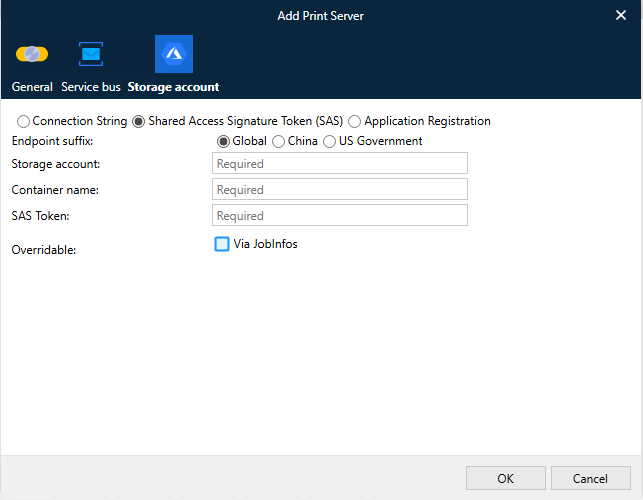
Overridable: See the information above.
Endpoint suffix: Select the Microsoft cloud that hosts the storage account. Microsoft maintains separate clouds for data residency and regulatory compliance reasons.
Storage account: Use the storage account name that you copied from the Azure Portal (see Additionally For Shared Access Signature (SAS) Authentication Only).
Container name: Use the name you copied from the Azure Portal (see For Access Key, App-Registration-Based, and Shared Access Signature (SAS) Authentication).
SAS Token: This is the SAS token supplied to you by the Microsoft Azure administrator. See the Shared Access Signature (SAS) section of Configure Microsoft Azure for Lasernet Core Cloud Printing.
On-Premises — Connection
Insert the host name for the local printer server running the Printer Service app.
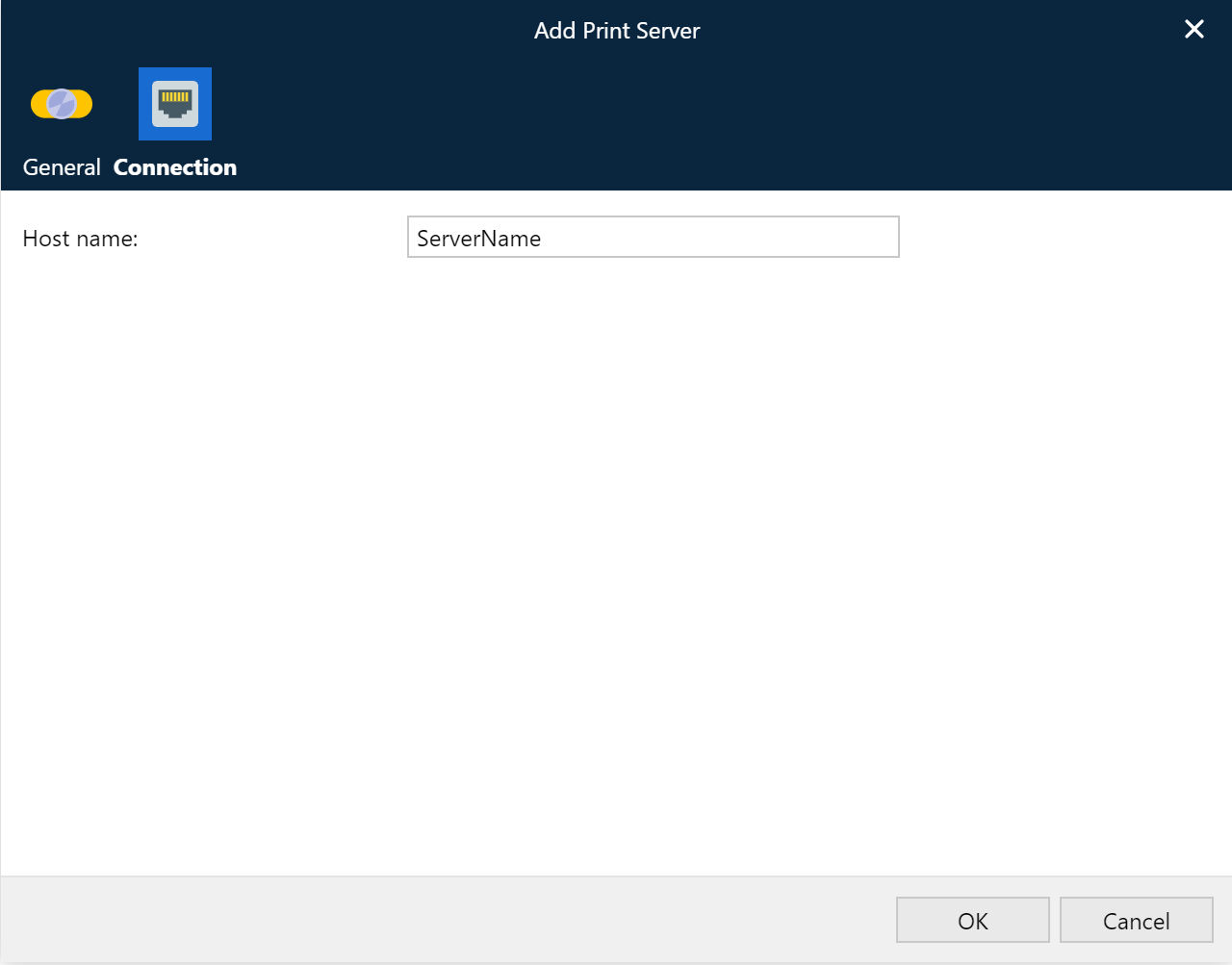
Host name: The name of server inserted as host name must be accessible via an open TCP/IP connection for the Lasernet Core environment / Printer Service module. The port number is 3278 and cannot be changed.