Applies to: Lasernet Core 10
Note: The instructions on this page apply only to Cloud printing.
You must set up the connections for the Microsoft Azure Service Bus and Storage Accounts. These must match with Lasernet Printer Service settings.
Locate the relevant settings using the navigation menu on the left.
Azure Service Bus
Locate the Azure Service Bus to be used by Lasernet Core and obtain the information mentioned in Shared Access Policies and Queues.
Shared Access Policies
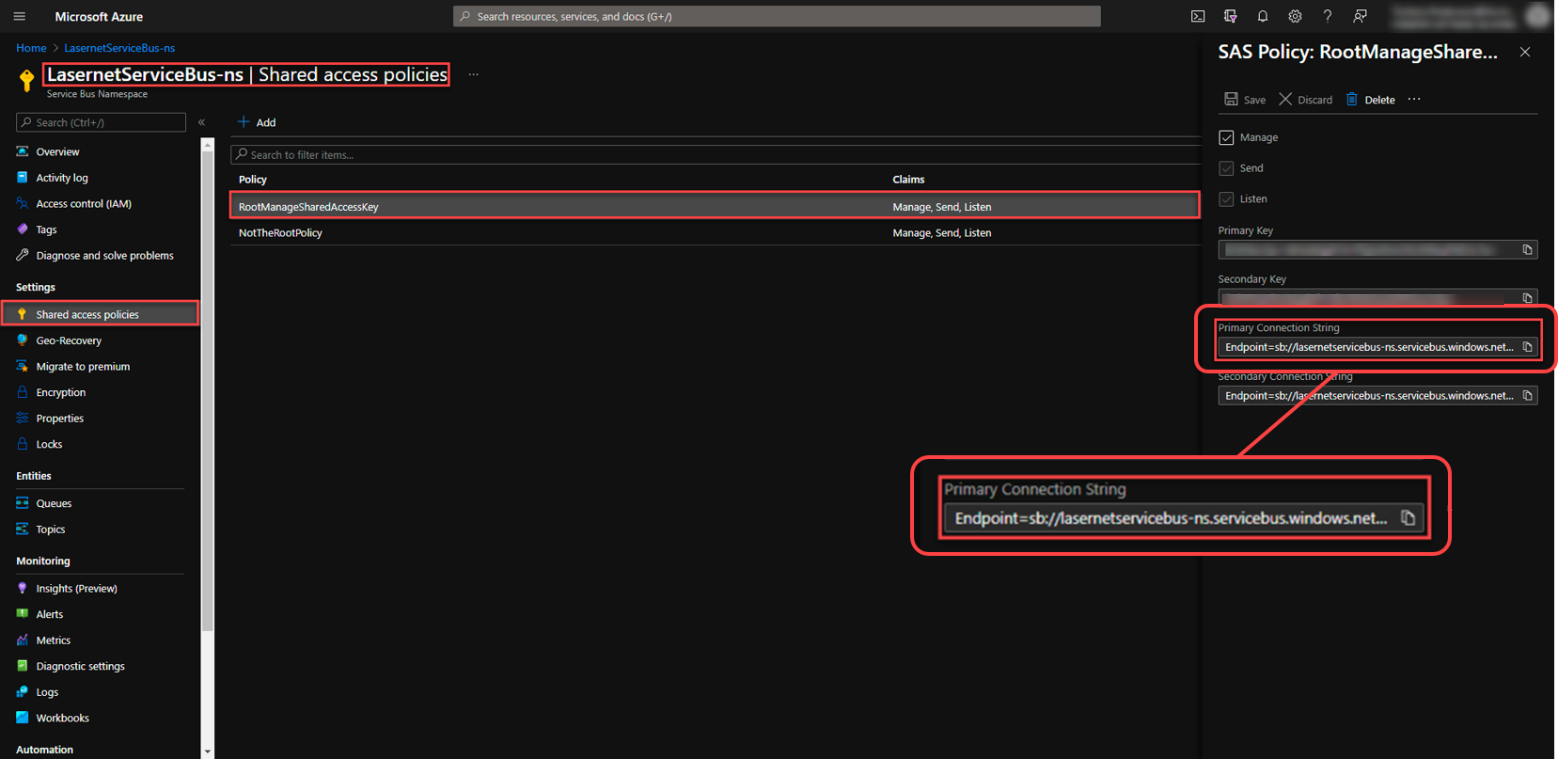
Click Shared access policies in the navigation menu.
The LasernetServiceBus RootManageSharedAccessKey is shown with permissions.
Note the Primary Connection String because you will use it when you configure the Service Bus connection in Lasernet Config (see Cloud — Service Bus).
Queues
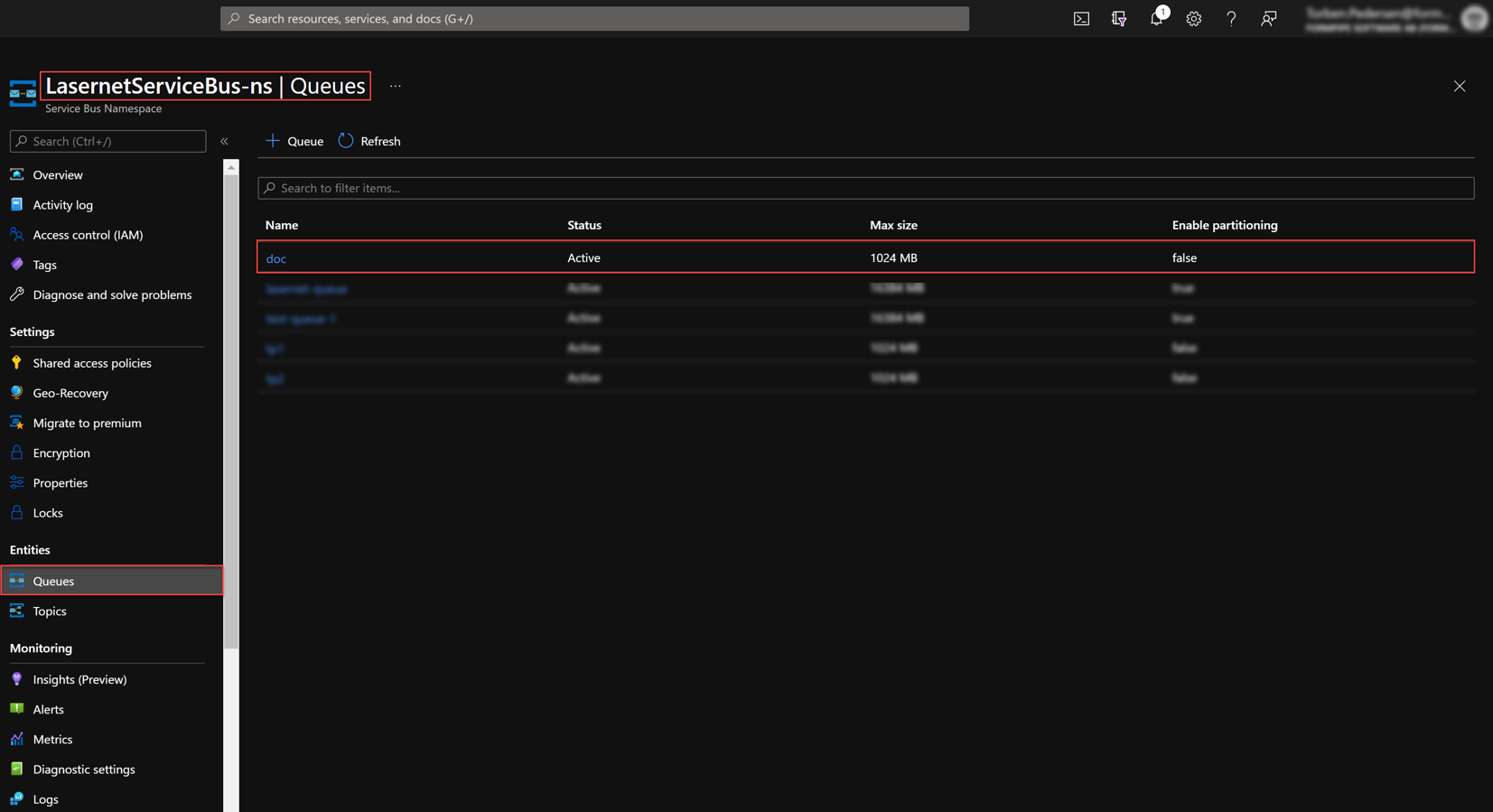
Click Queues in the navigation menu.
Note the Name of the queue that will be used. You will use this name (as the Entity Path) when you configure the Service Bus connection in Lasernet Config (see Cloud — Service Bus).
Azure Storage Account
Locate the Azure Storage Account to be used by Lasernet Core and obtain the container name (and, if using app-registration-based authentication, obtain the storage account name and tenant ID) as described in Container Name, Storage Account Name, and Tenant ID.
Then, depending on the authentication type that Lasernet Core will use to access the storage, collect the information mentioned in Access Keys, Application Registration, or Shared Access Signature (SAS).
Print jobs are temporarily stored in this container.
Container Name, Storage Account Name, and Tenant ID
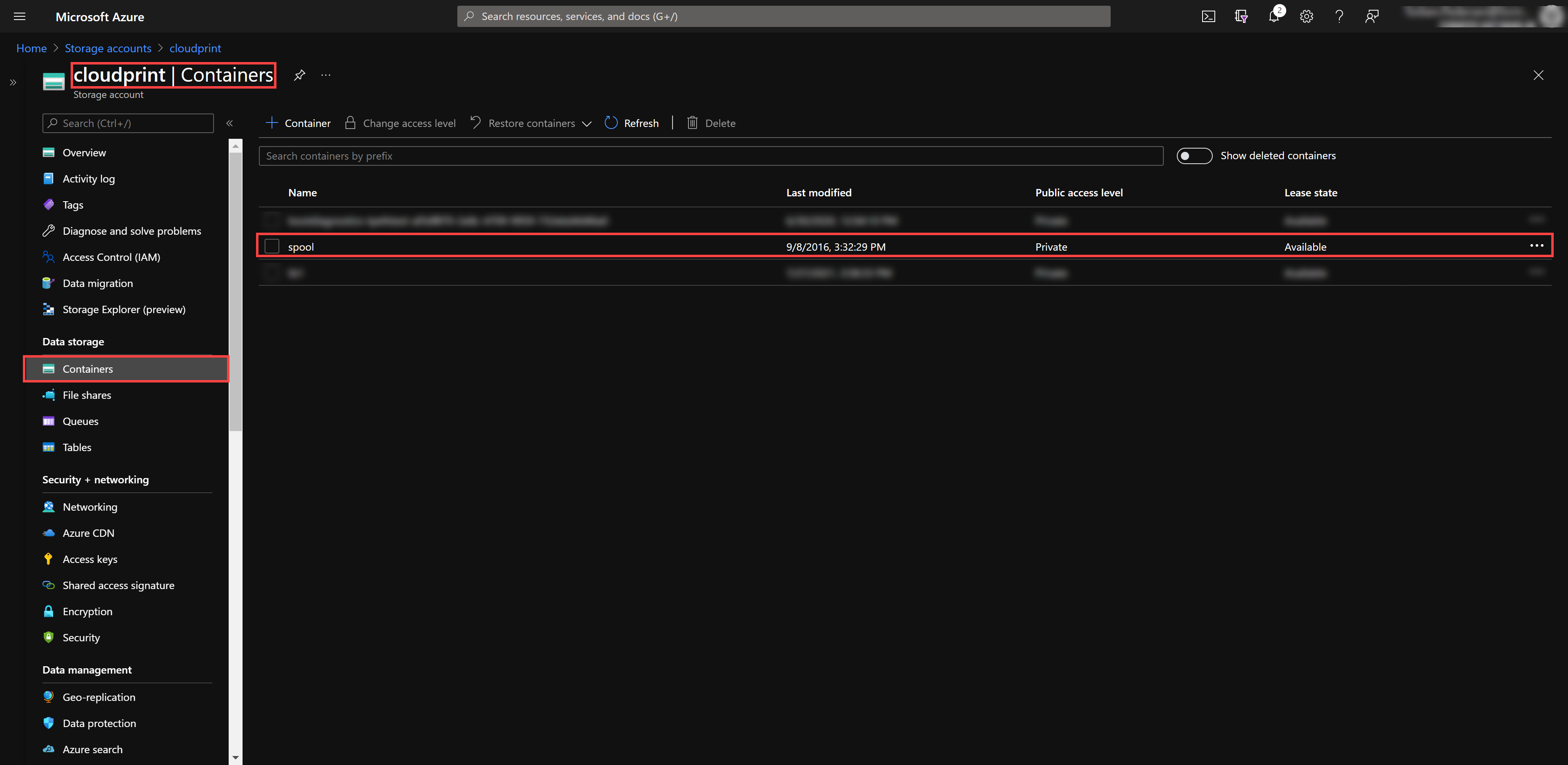
In the Azure Portal, click Containers in the navigation menu, then locate the existing container that Lasernet Core will use.
For Access Key, App-Registration-Based, and Shared Access Signature (SAS) Authentication
Note the container’s Name because you will use it when you configure the Azure Storage connection in Lasernet Config (see Connection String (Access Key), Application Registration, or Shared Access Signature (SAS) Token depending on the authentication type).
Additionally For App-Registration-Based Authentication Only
Note the name of the storage account (displayed in the top-left corner).
Also note the tenant domain (which is used as the Tenant ID when you configure Lasernet Core).
You will use these if (in Lasernet Config) you configure application registration authentication for the Azure Storage connection (see Application Registration).
Additionally For Shared Access Signature (SAS) Authentication Only
Note the name of the storage account (displayed in the top-left corner).
Access Keys
If Lasernet Core will use access key authentication to access the storage account, follow these steps:
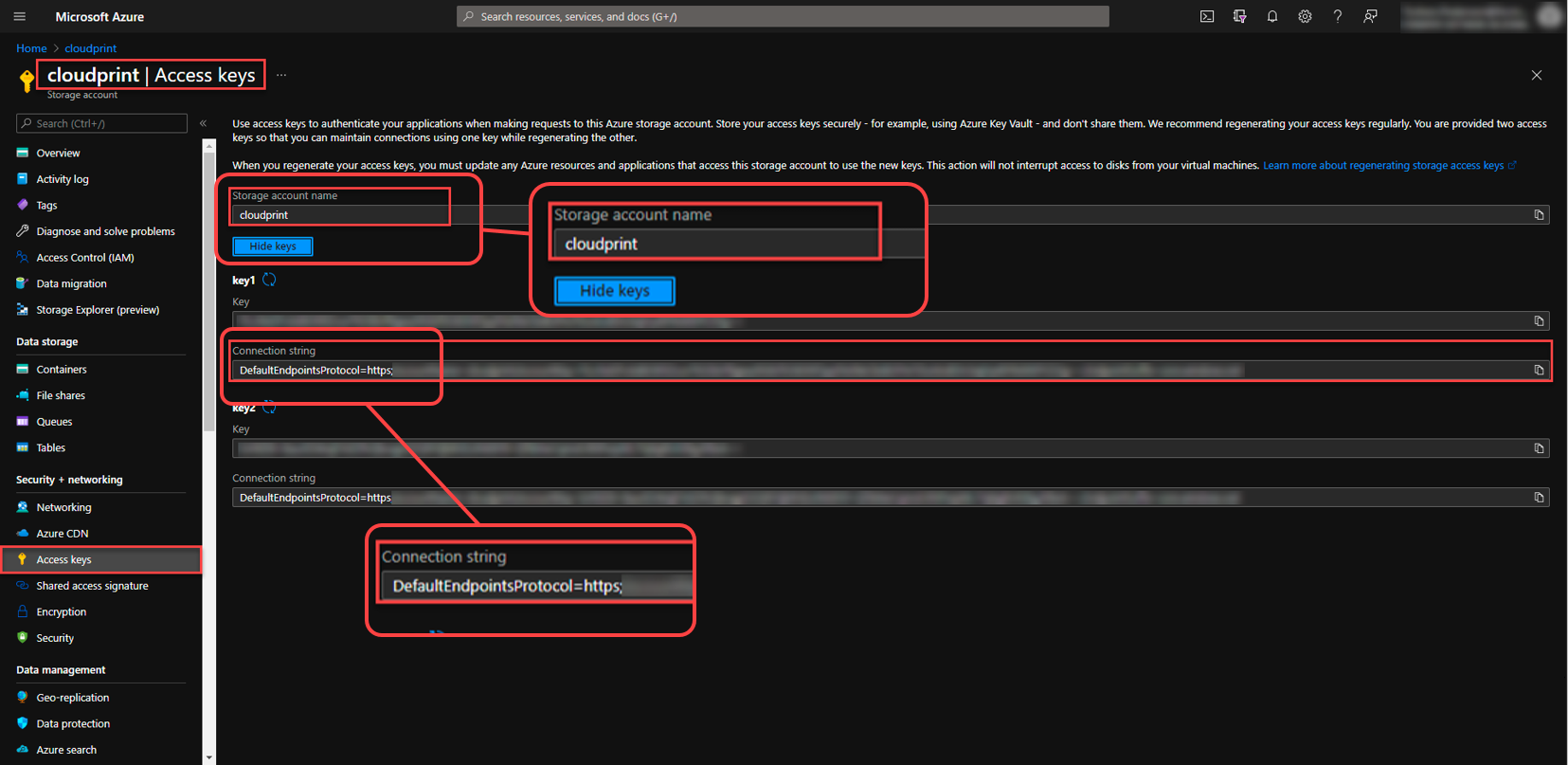
In the Azure Portal, click Access keys in the navigation menu.
Locate the Storage account name to be used by Lasernet Core.
Copy the Connection string because you will use it if (in Lasernet Config) you configure access key authentication for the Azure Storage connection (see Connection String (Access Key)).
Application Registration
If Lasernet Core will use app-registration-based authentication to access the storage account, an administrator of the relevant Microsoft Azure tenant must create an app registration to represent Lasernet Core, configure that app registration (including generating a client secret for it), and then configure the storage account to allow Lasernet Core to access it.
Request the app registration’s client ID and client secret from the Microsoft Azure administrator.
Important: This authentication method is not applicable to Azure Storage containers that are managed by Microsoft Dynamics 365 Finance and Operations.
Note: Information for Microsoft Azure administrators to describe the specific configuration changes that they must make to the app registration and storage account is provided separately to this guide. See Configure Microsoft Azure to Support Lasernet Core Access to Azure Storage Through App-Registration-Based Authentication.
Shared Access Signature (SAS)
If Lasernet Core will use a SAS to access the storage account, an administrator of the relevant Azure Storage account must generate an appropriate SAS token for Lasernet Core to use.
The SAS token must be specified for Lasernet Core to use in one of these two ways:
Directly specified in the print server’s SAS Token setting (in the Lasernet Config web app).
Provided by the PrinterServiceAzureStorageSASToken JobInfo in the jobs that Lasernet Core processes. This method applies if the Overridable checkbox is selected (on the Shared Access Signature Token (SAS) tab of the print server’s settings in the Lasernet Config web app).
If using the first method, request the SAS token from the Microsoft Azure administrator.
If using the second method, appropriately design the Lasernet Core configuration to set the value of the PrinterServiceAzureStorageSASToken JobInfo to the current SAS token value (when Lasernet Core processes a job).
The print server’s Storage account setting can be overridden by PrinterServiceAzureStorageAccountName JobInfo. The Container name setting can be overridden by PrinterServiceAzureStorageContainerName.
For information on how to configure this authentication option (including implementing the overriding of settings), see Shared Access Signature (SAS) Token.
Note: Depending on organizational security policy, the SAS token might often change. For this reason, it might be more practical for Lasernet Core to retrieve the SAS token and then supply it in the PrinterServiceAzureStorageSASToken JobInfo, rather than require a Lasernet Core administrator to update the SAS token specified in a print server’s settings (in the Lasernet Config web app) when the SAS token changes.