
Applies to: Lasernet Core 11
Exporting and importing individual objects between configurations is only recommended between the same major versions of Lasernet Core. This is due to the possibility of configuration formats changing between versions.
If moving configurations between major versions of Lasernet Core, you must import a full configuration, which will migrate objects to the Lasernet Core 11 format. Then, you can export and import individual objects.
Note
As an experimental feature, Lasernet Developer does not prevent the import of objects in an older format. However, results are not guaranteed.
Note
Printer Profiles are not objects and, therefore, cannot be seen in the object list when using File > Export Objects. However, Printer Profiles are linked to the Printer Output objects for which they were created. When you export a Printer Output object, any associated Printer Profiles will be included with that object, making them available when you import the printer into another configuration.
You cannot select individual printer profiles under the printer object when exporting. All associated printer profiles will be included in the
.lnobjectxexport file.
Export Objects
There are two ways of exporting objects from a Lasernet Core configuration.
Export an Individual Object
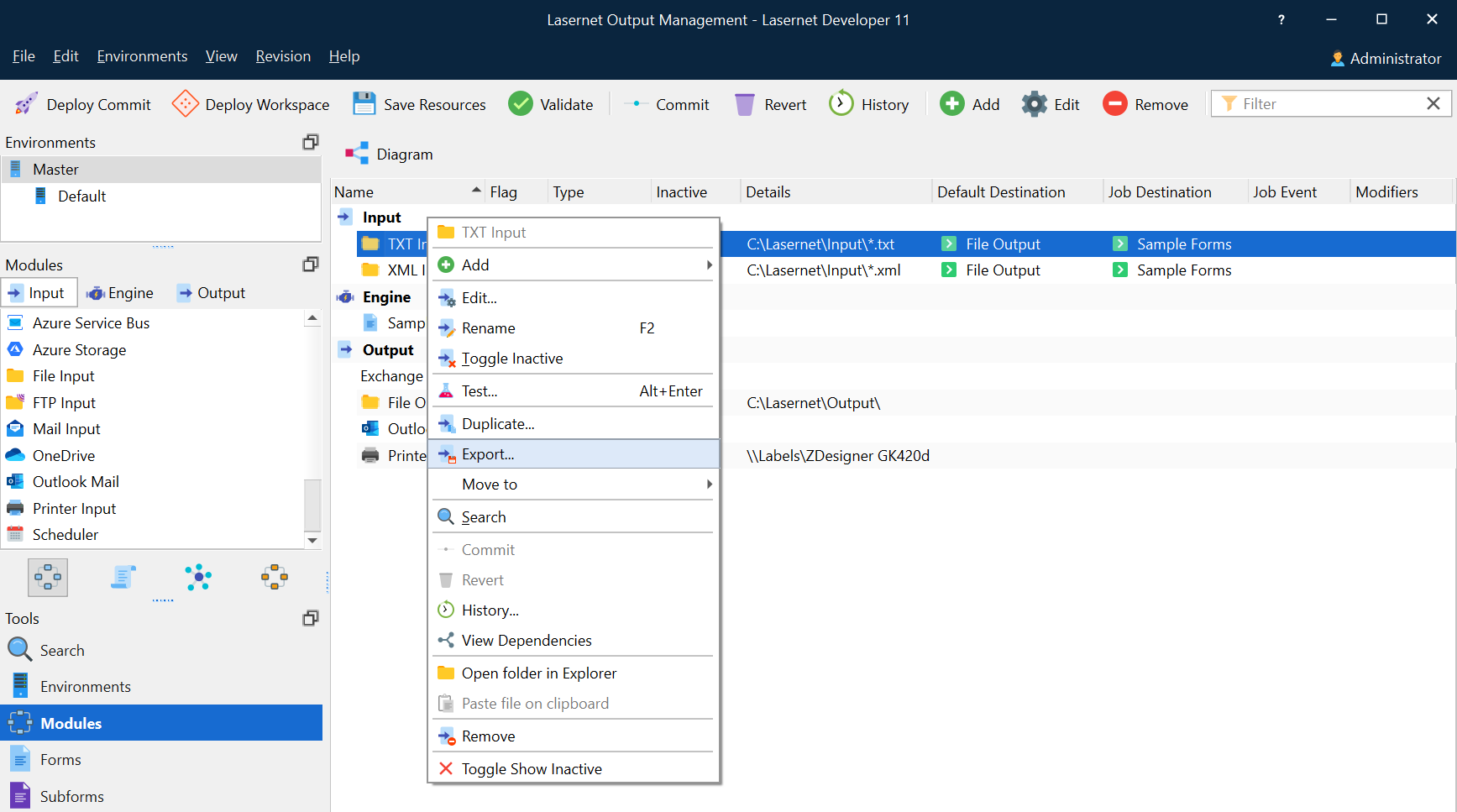
Right-click an object, then click Export. The Export Objects window opens.
Note
If the object that you right-click has dependent objects, they will also be selected in the Export Object(s) window.
Export Multiple Objects
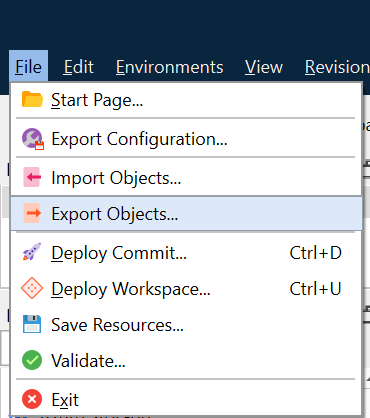
From the File menu, select Export Objects. The Export Objects window opens.
Use the Export Objects Window
In the Export Objects(s) window, select one or more objects to export. When you are ready to export items, you can complete the export.
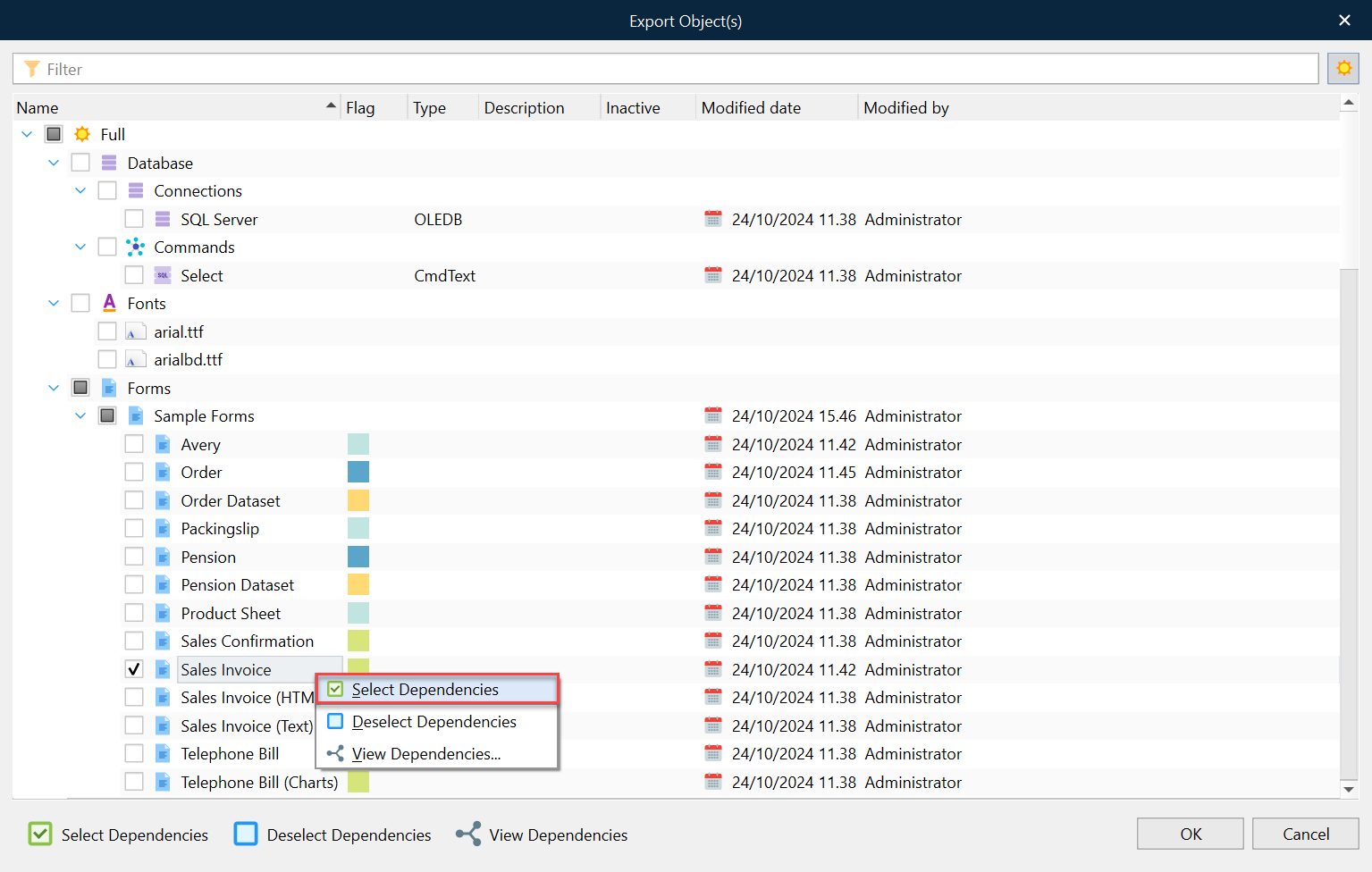
You can select forms or modules by selecting the relevant checkbox. Depending on the level of the list that a particular checkbox is at, it will select:
All objects in the configuration.
A group of objects.
An individual object.
Before you export, you might want to ensure you have selected all items that are dependent on the selected items, or you might want to analyse the dependencies of the selected objects. For more information, see Dependency Walker.
Dependency Walker
In the Export Object(s) window, right-click an object to display the following options:
Select Dependencies: Lasernet Developer automatically selects all dependent objects.
Note
Lasernet Developer will not show:
More than one level of dependencies.
References used by script functions.
References from JobInfo substitution.
DataType profiles used from Web Server input.
Database Connections added to SharePoint module.
Deselect Dependencies: Lasernet Developer deselects the previously selected dependencies.
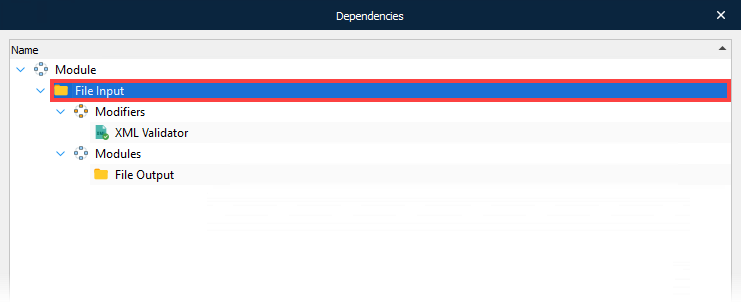
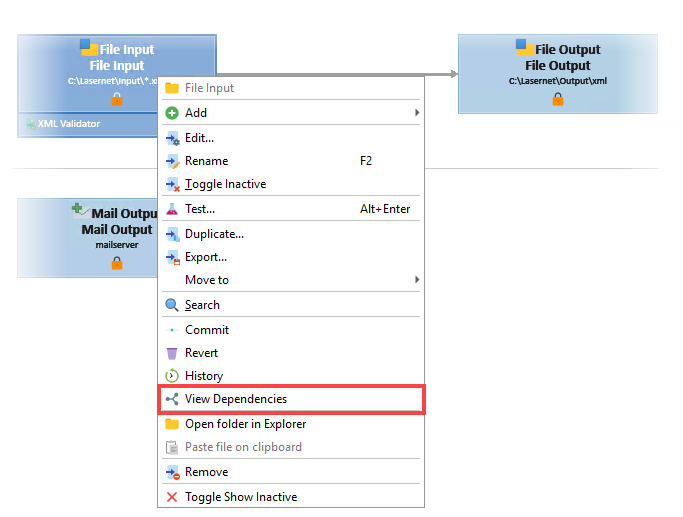
View Dependencies: Displays all dependencies to the selected object.
Tip
You can view the dependencies of a module or a form when you are browsing them in Lasernet Developer.
To do this, right-click a module or form, then click View Dependencies.
Complete the Export
After you have selected objects to export, click OK.
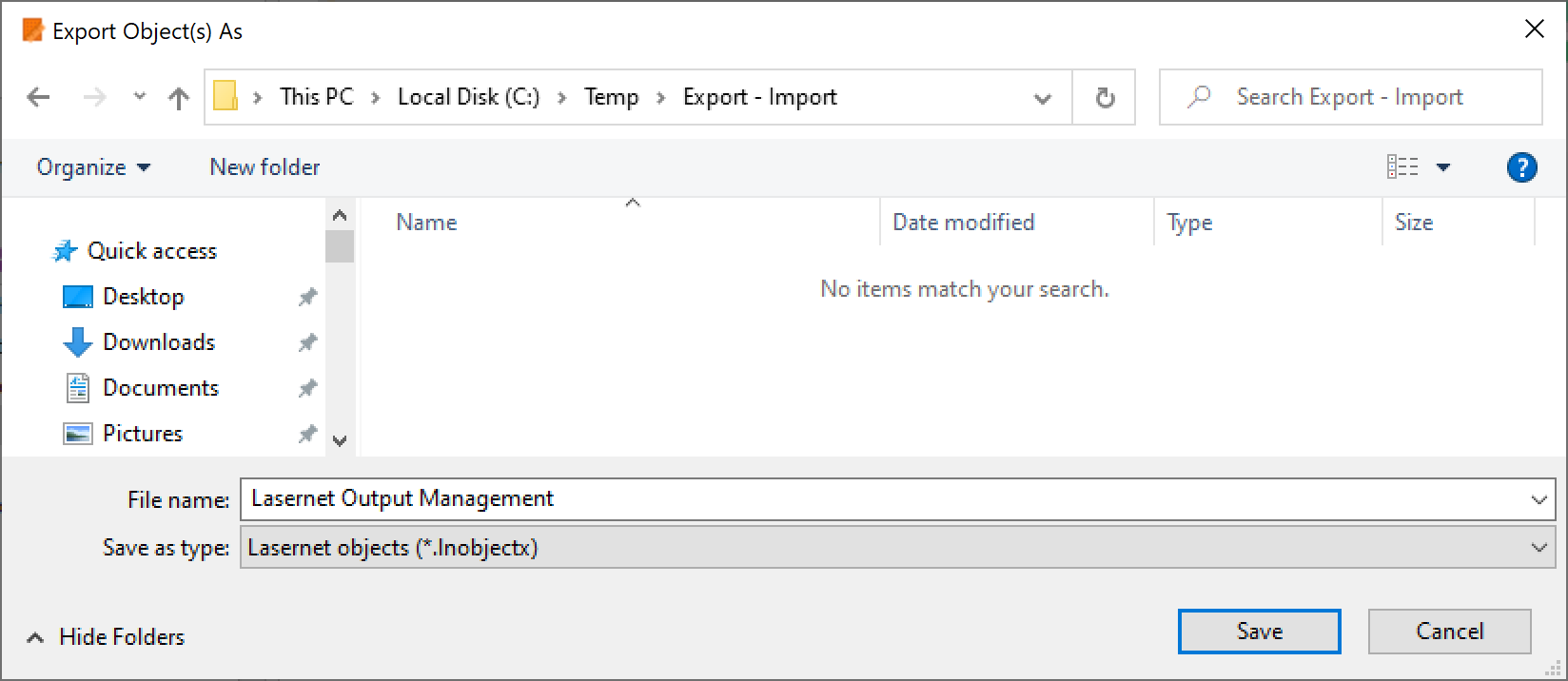
In the Export Object(s) As window, select a drive and a folder to export the objects to. Type a new file name or use the name of the configuration (default value). The extension of an exported package of objects is .lnobjectx. Then click Save.
Import Objects
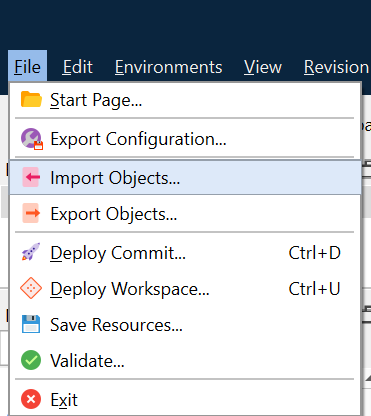
To import objects from an .lnobjectx file into the currently loaded Lasernet Core configuration, click the File menu then select Import Objects.
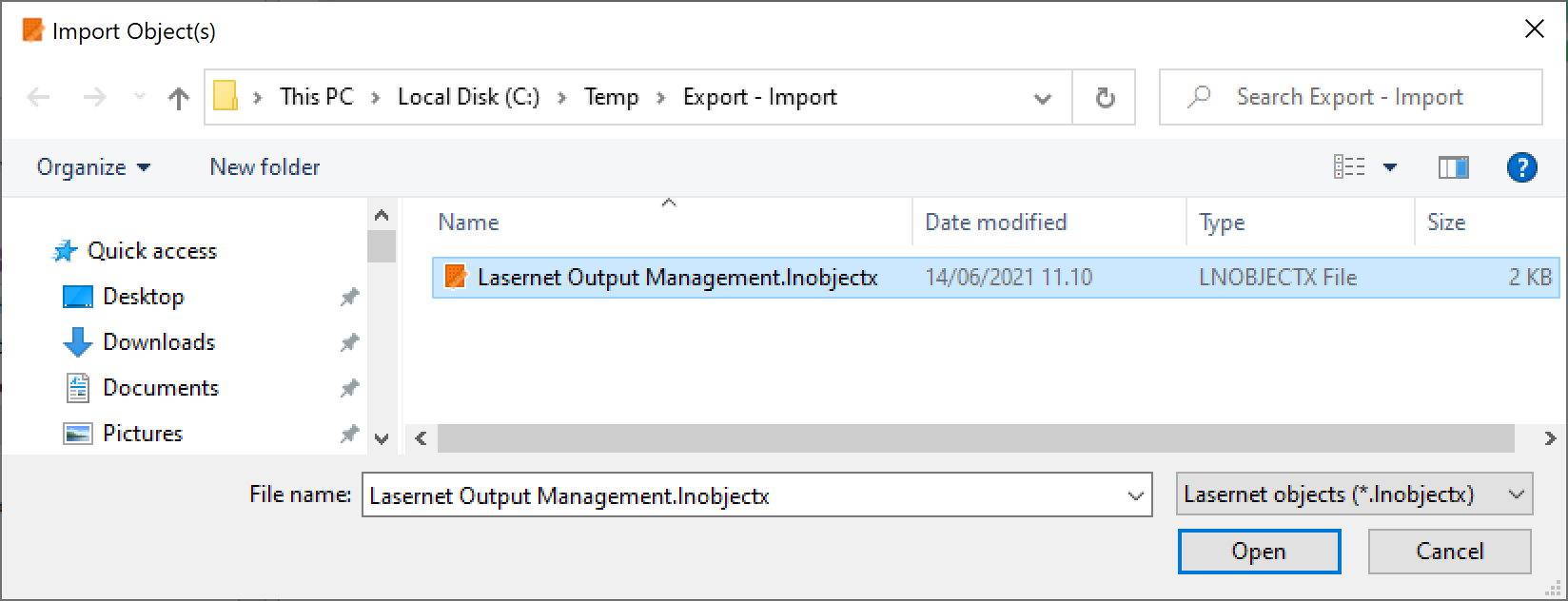
In the Import Object(s) window, select the .lnobjectx file to import.
Next, in the Import Object(s) window, you can select to import all available objects (Full), or you can select specific objects to import.
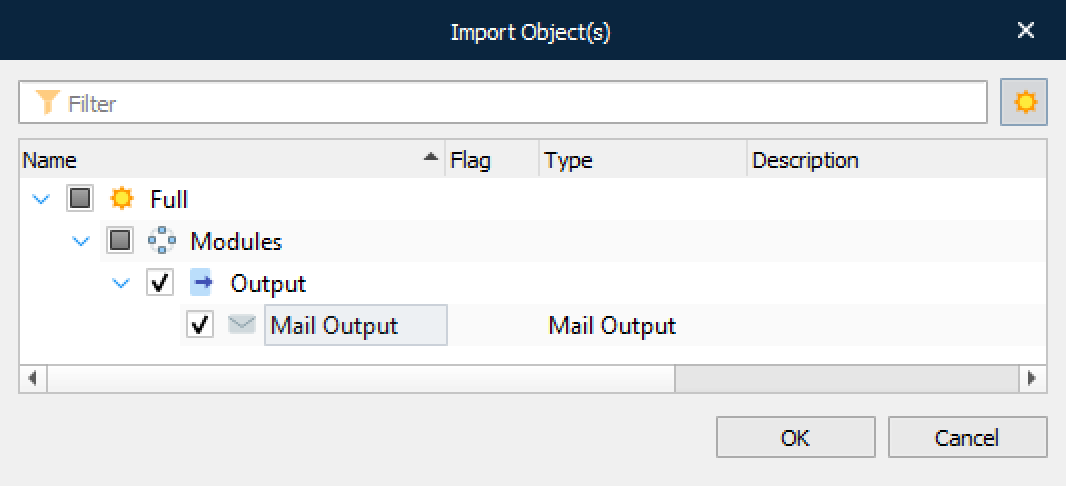
While importing, a progress window is displayed.
Note
Imported objects are linked to the Master environment.
If the object name already exists, a prefix _1 will be added to the object name.
Modified fields are cleared, and created fields are updated with the current date, time, and user.
Export and Import of Database Commands
When importing a Database Command object, the setting for Connection Name will be lost and Deleted! will appear there instead. You must manually assign it to an existing database connection object in your setup. This is because the connection is not imported with the original GUID and it is assigned a new one instead (meaning the command refers to an unknown connection).