Applies to: Lasernet Core 10
Getting started – Lasernet Client
To open a paused job saved by the OCR Engine, the Lasernet Client needs to be installed on the same computer as the OCR Editor.
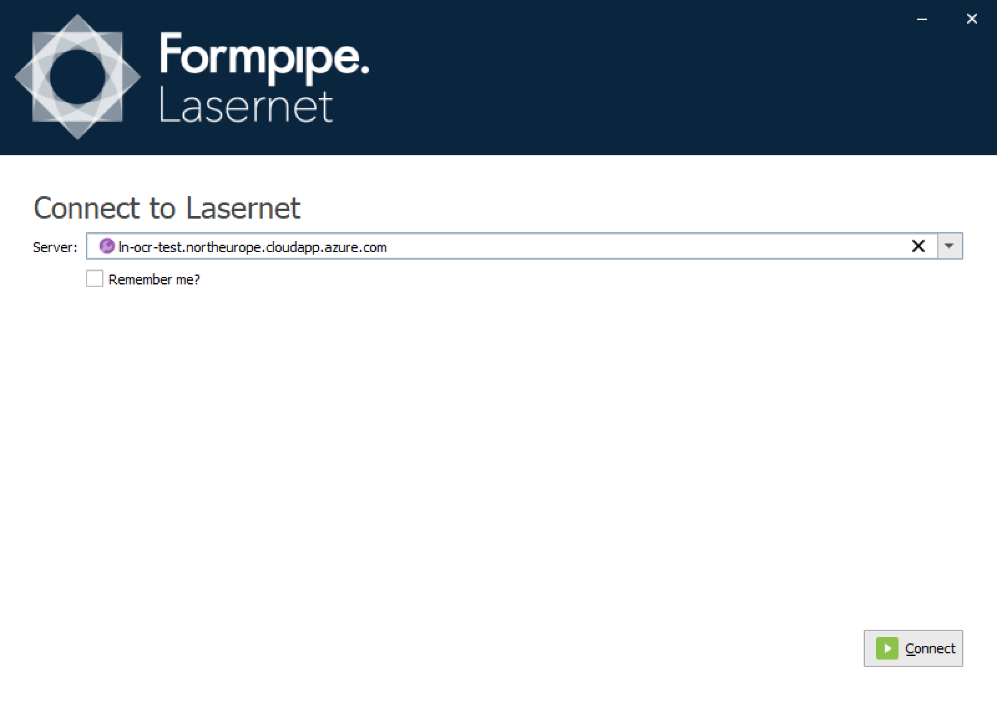
Before you can retrieve the paused job, connect to a Lasernet Config Server.
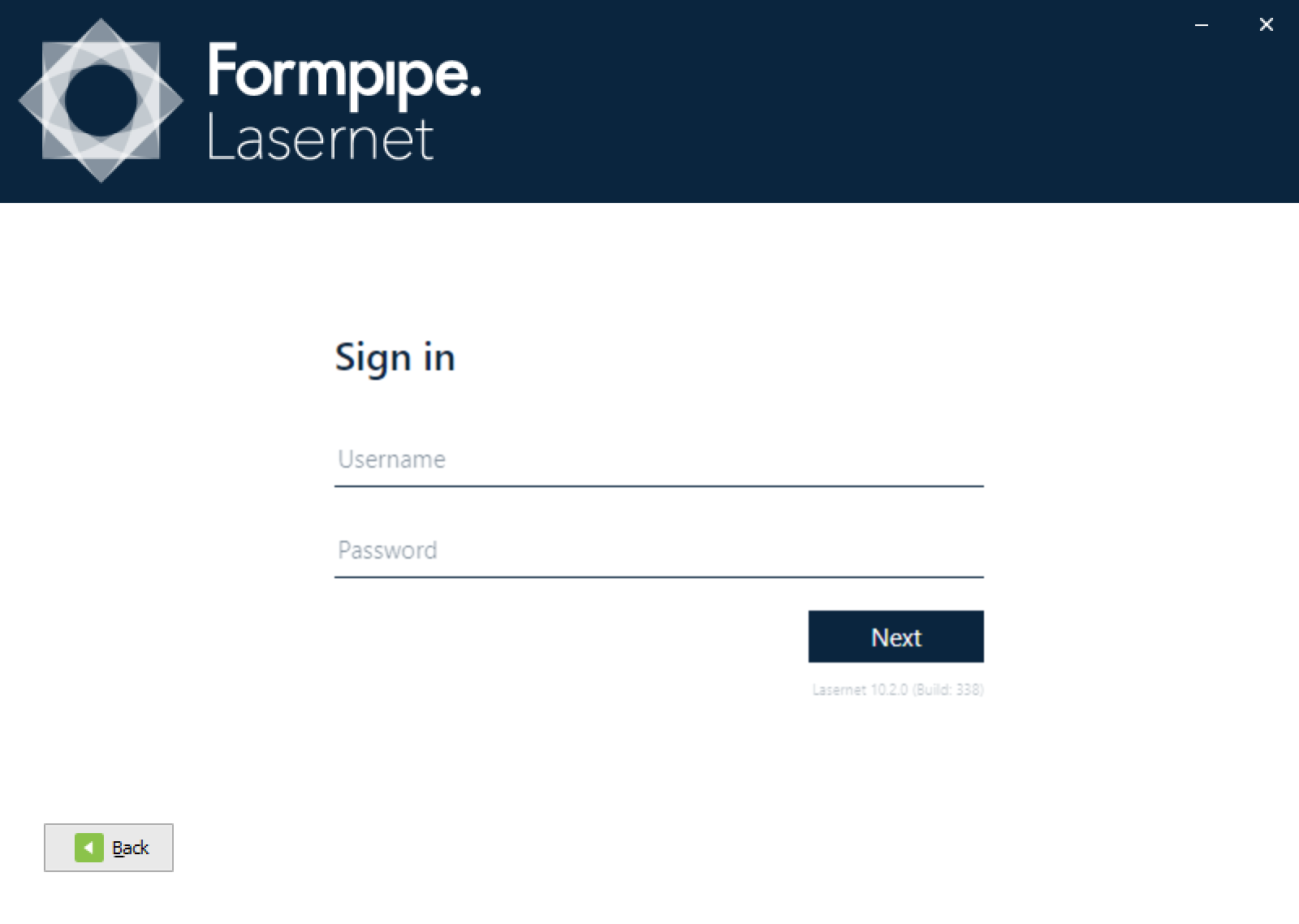
Sign in with your credentials.
Select a server instance from the Lasernet Core server.
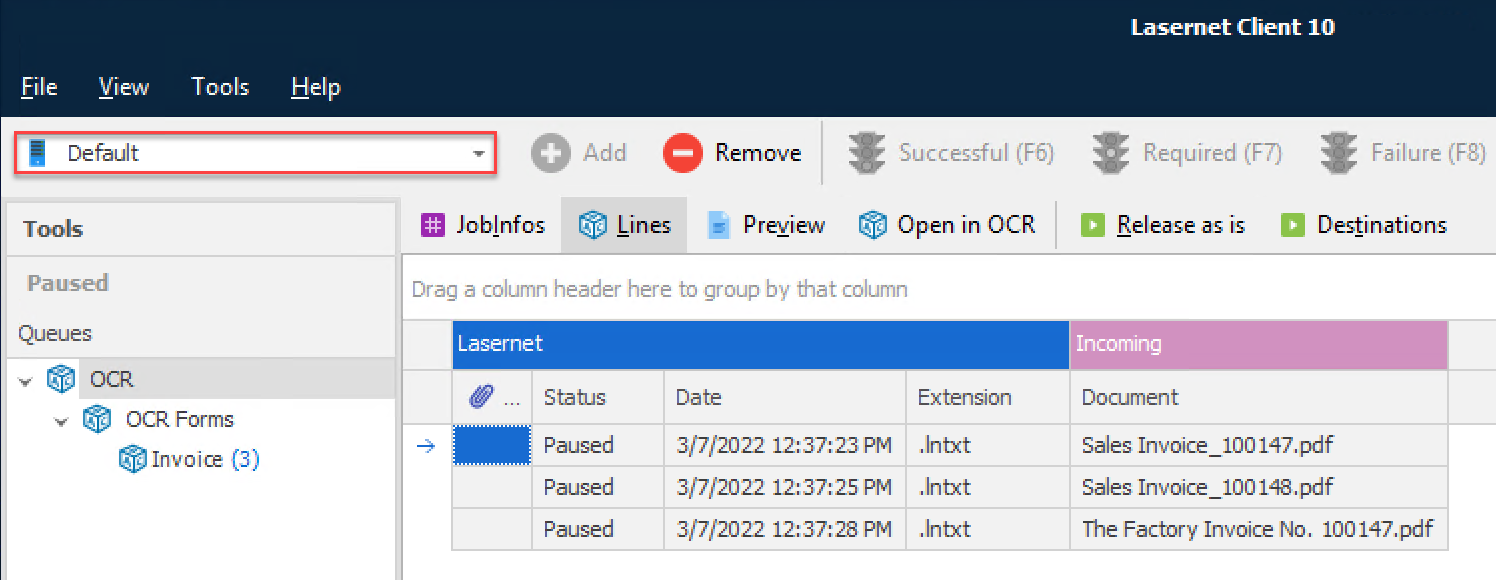
You can now view the paused jobs stored by the OCR Engine and edit them in OCR Editor.
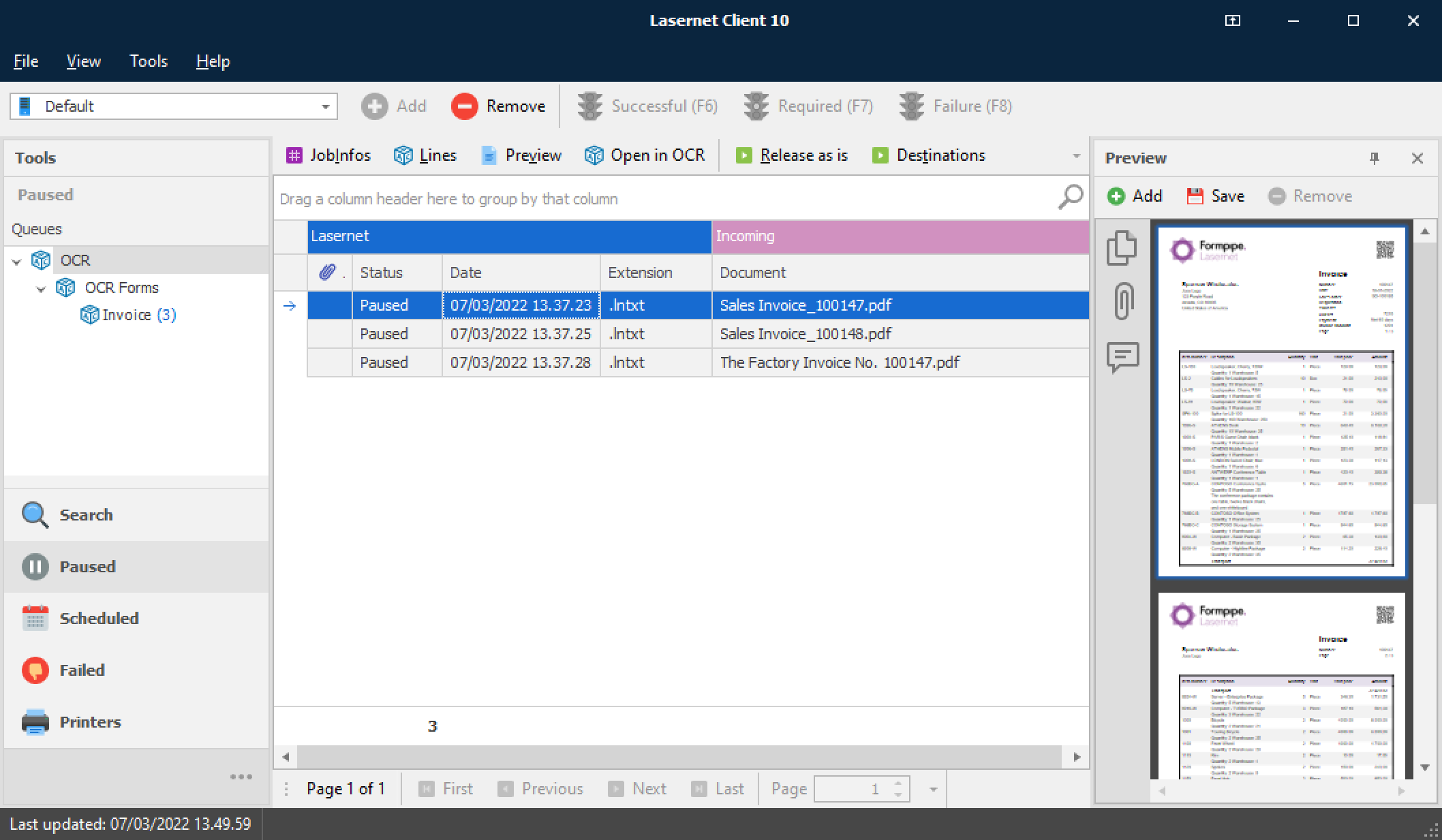
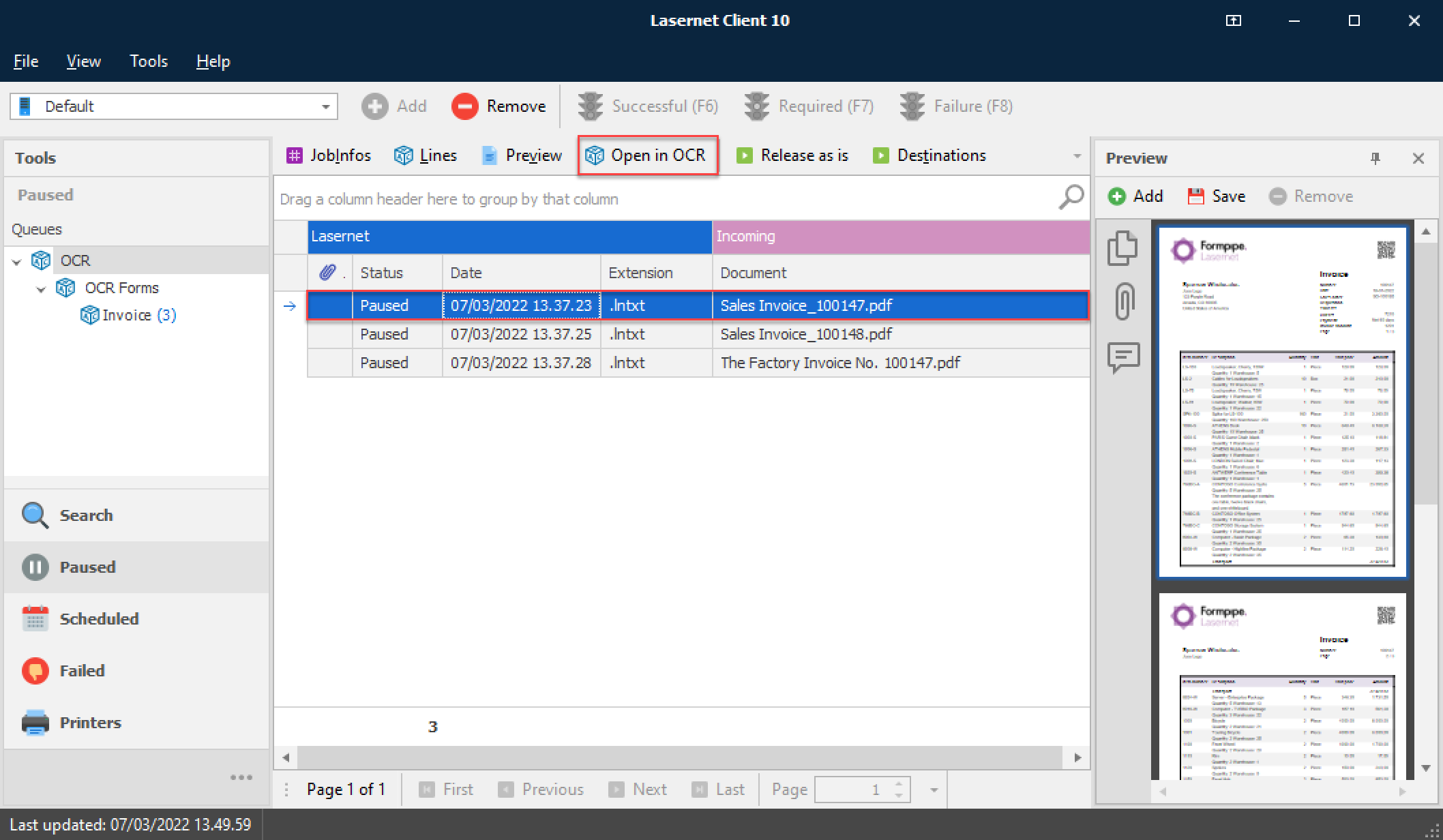
Select Paused documents and click Open in OCR to create an OCR form.
If you want to retry/release a paused job, first select the row, then right-click on it and choose Release as is. If the job is recognized by the OCR Engine (for example, if you have finished setting up an OCR form for it), it will be removed from the queue and forwarded to a Job Destination added to the OCR Engine in your Lasernet Core configuration.
Getting started - Lasernet OCR Editor
Start the OCR Editor by selecting a document that is already paused in the Lasernet Client (if any) and click Open in OCR.
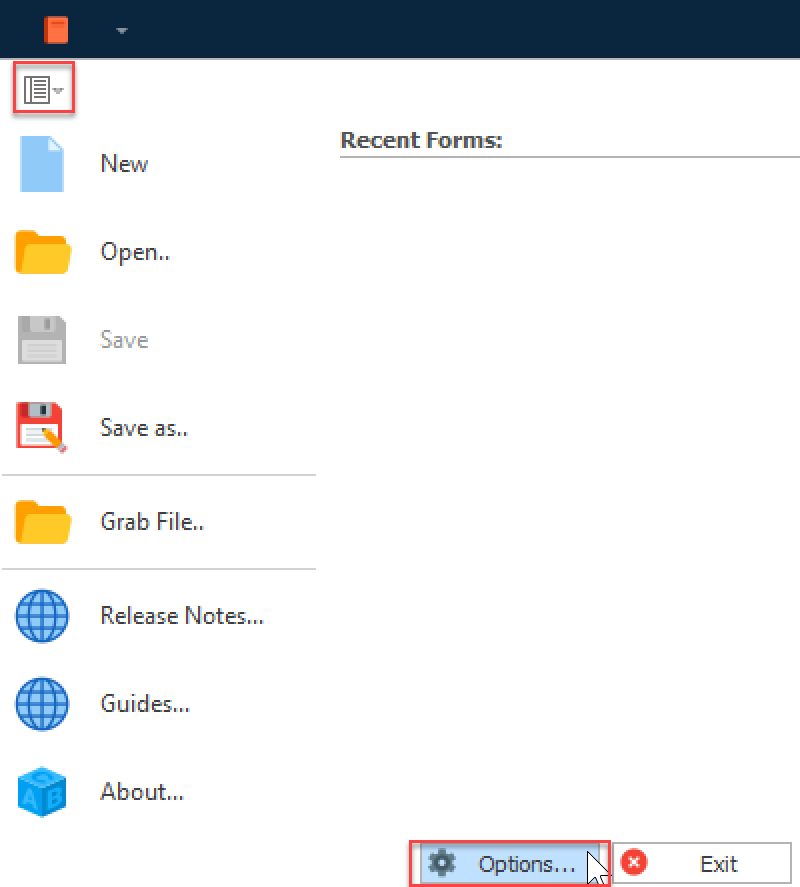
When you have logged in to the OCR Editor, go to Options ► Misc. tab and activate your preferred tools.
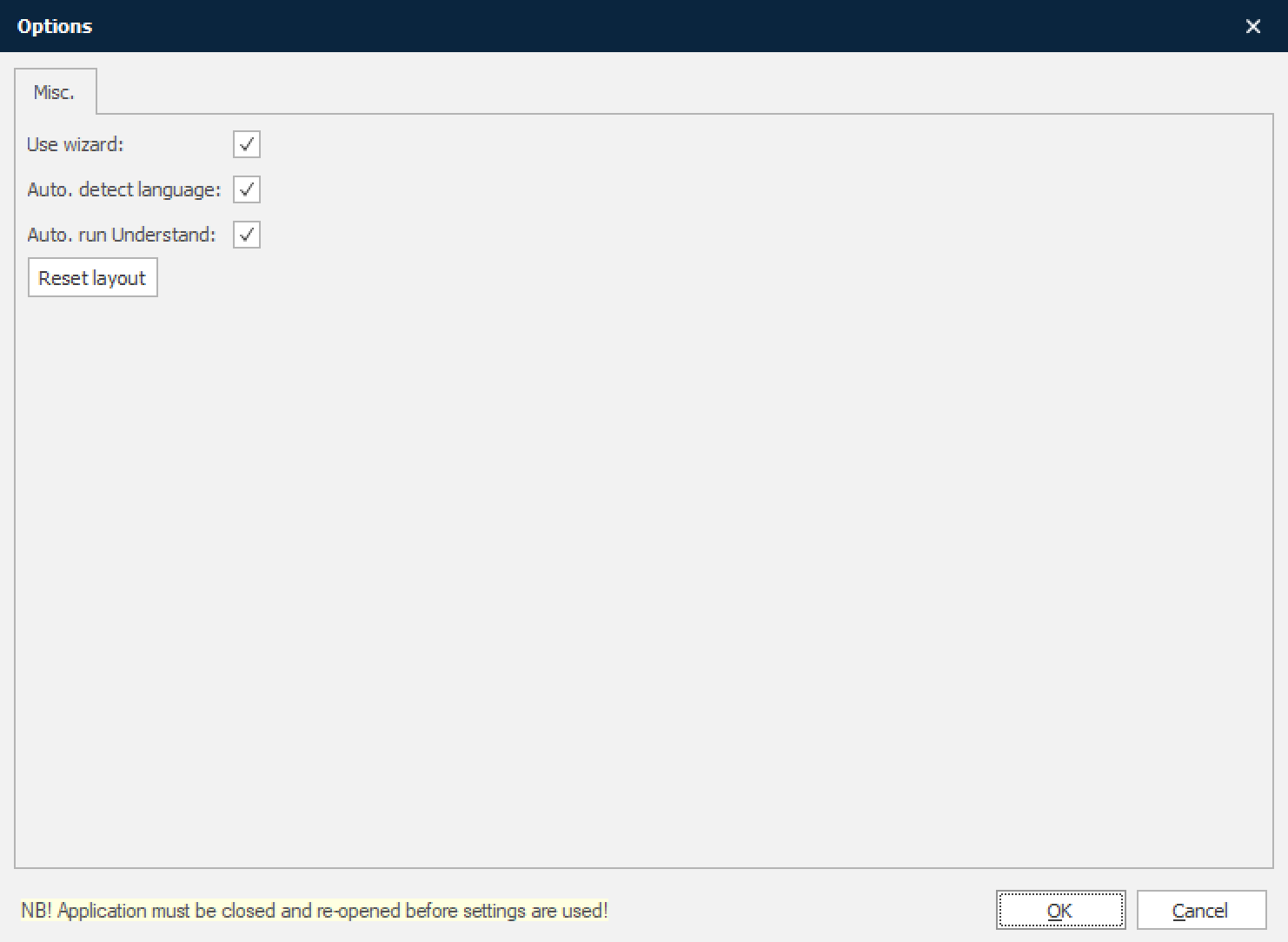
Wizard is a tool that will guide the user to capture OCR Fields in documents via a built in wizard.
Auto. detect language will analyze the language of the document and automatically set a regional profile for date and number formats, if found.
Auto. run Understand will auto capture all possible OCR Fields, as the first step when a document has been opened by the OCR Editor and if the dictionary is activated on the Lasernet Core environment.
Open OCR Editor direct
Starting the OCR Editor, without the Lasernet Client, you must first Connect to Lasernet Config Server.
Sign in with your credentials.
Select a server instance and an OCR Engine.
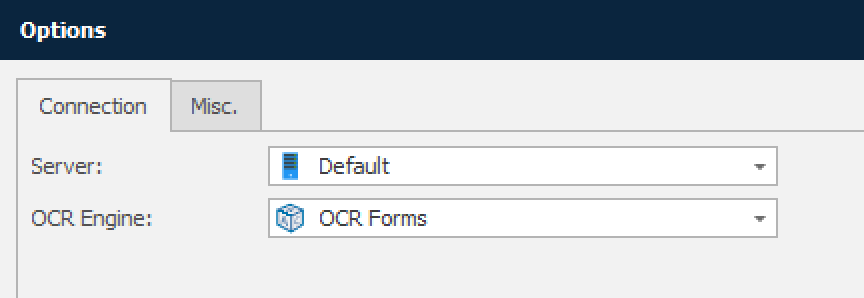
Server The server name on which Lasernet Core is running.
OCR Engine Logical module name defined for the OCR Engine. Multiple OCR Engines are supported on the same server.
The user interface
The user interface consists of a window showing text data extracted from PDF or TIFF documents. Only the input view is needed for OCR Editor because the output format is already pre-defined (compared to the Lasernet Form Editor, where both the input and output format must be defined manually).
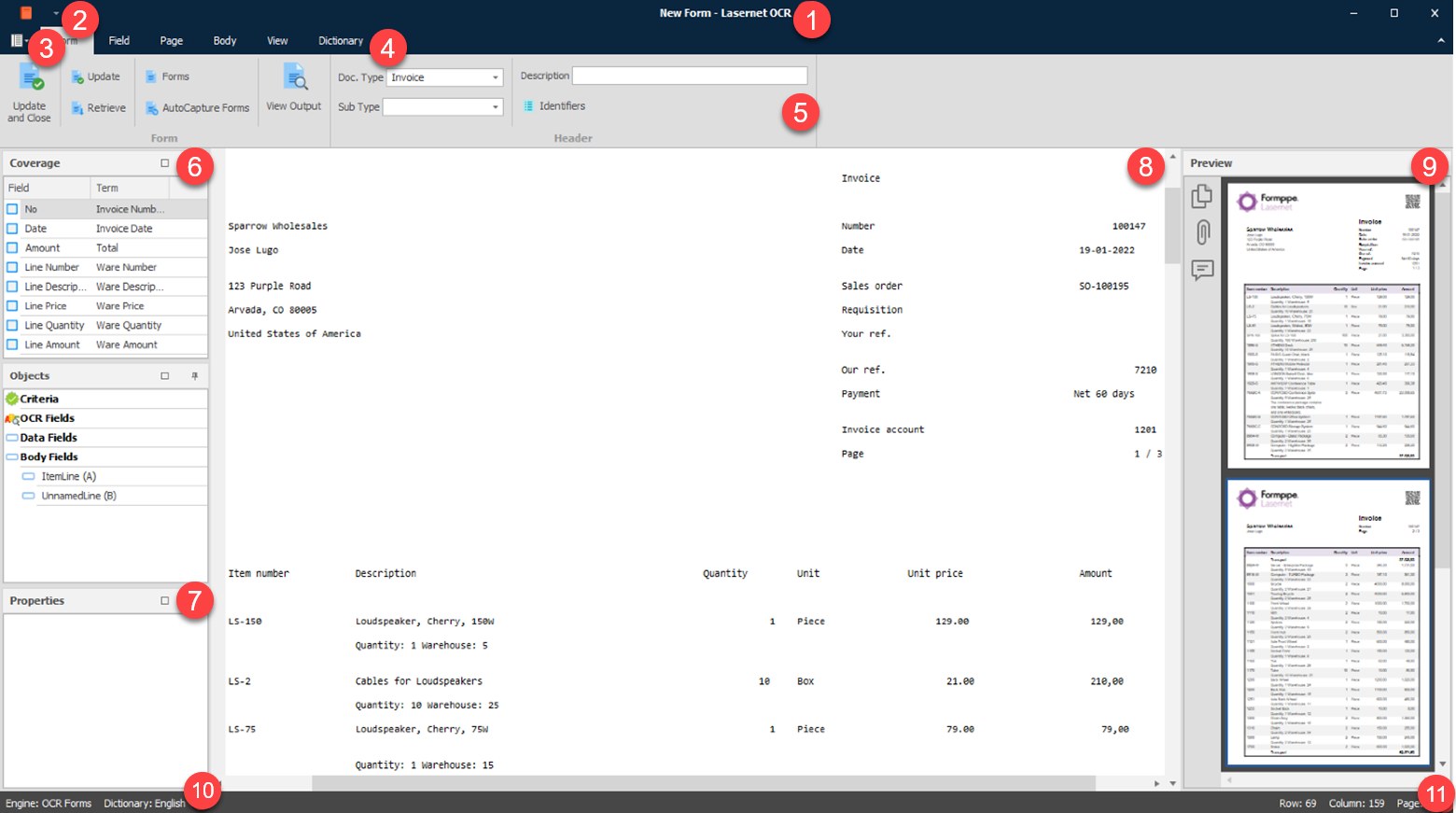
Form name (1)
The name of the form. If no name has been given, it will be named “New Form”.
Dictionary (2)
Enter Dictionary mode. Add and manage terms and aliases to understand forms.
Options (3)
Set the Options for the OCR Editor – edit connection and user credentials, enable/disable the wizard for creating OCR Fields.
Menu bar (4)
You can access all the application functions and options through the various menu headings.

From the File menu you can Open, Save and create New OCR Forms. Grab files can be loaded into an existing form and the Options for the application can also be set.
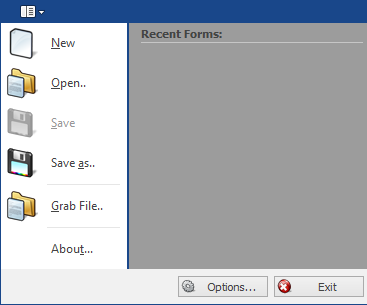
Recent forms can be opened from the Recent Forms list.
If you want to load a form that has been saved on the server, we recommend that you open it via the
Form ► Retrieve functionality. This is because the path is not shown in the Recent Forms list so it is possible to accidentally use an old, temporary or locally-stored version of the file instead.
Menu settings (5)
Settings for form, field, body and view options.

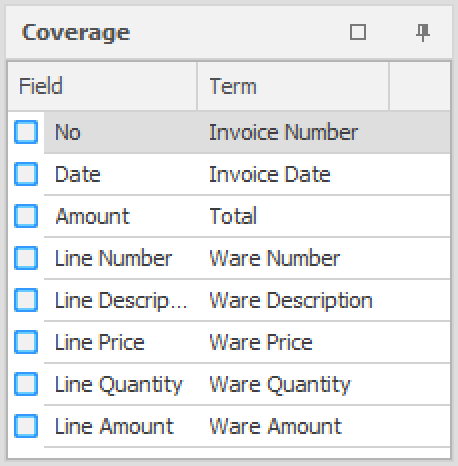
Coverage (6)
A list containing available Data Fields for the document type defined in the OCR Form. Activated Data Fields indicate that the field is already included in the OCR Form.
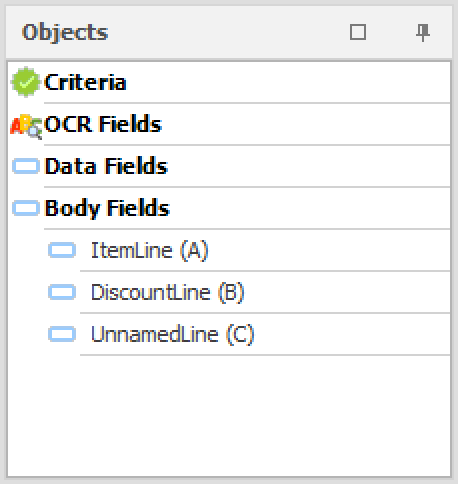
Object list (7)
A list containing objects added to the form. The list includes Criteria, OCR Fields, Data Fields and Body Fields.
Design View (8)
Document (JobData) represented in text format.
Preview (9)
A preview of the incoming PDF document (contents of the JobInfo PreviewJobData if it exists).
OCR Engine and Dictionary (10)
The name of the OCR Engine to which the application is connected, and the default dictionary language.
Row and column (11)
Positioning for selected object.