Applies to: Lasernet Core 10
Note
We recommend that you install the Lasernet Server and Lasernet Web Client applications on the server.
Note
The Lasernet Server requires Microsoft .NET 4.5 and will not allow you to run the Lasernet Server 10 Setup Wizard without Microsoft .NET 4.5 already being installed on the computer.
Note
Please manually download and install Microsoft .NET 4.8 framework, if notified by installer, before installing Lasernet Core 10. A server reboot is required after the installation.
Installation
Welcome
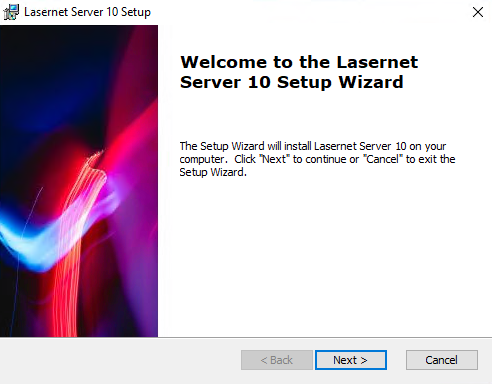
Click Next to continue.
Select Installation Folder
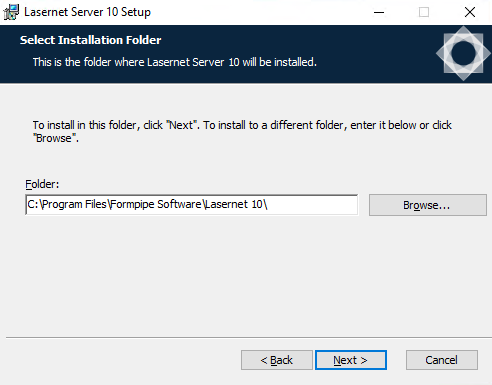
Choose the path for the installation folder and click Next.
Select Optional Features
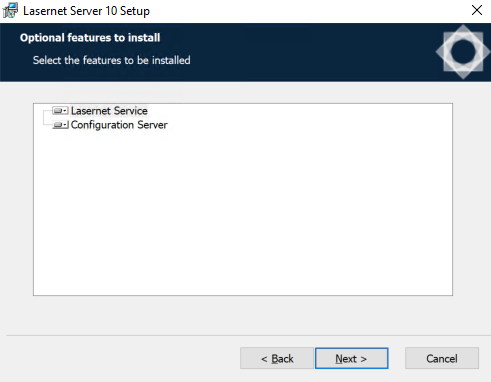
Click to expand the nodes and view or select optional features.
Note
We recommend the default settings.
Click Next.
Ready to Install
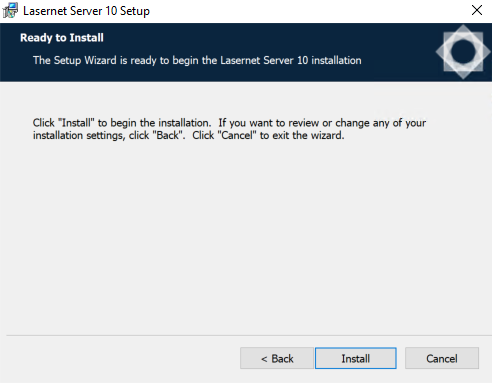
Click Install to begin the installation process.
Installing Files
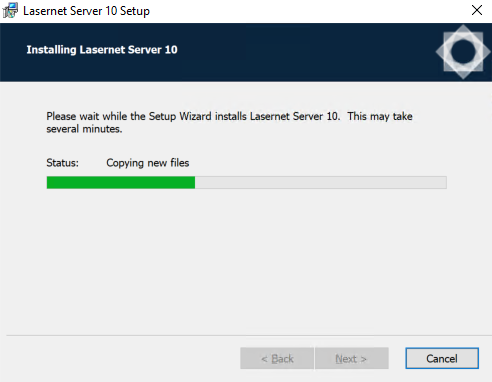
Please wait while Lasernet Server is installed, or click Cancel to abort.
Installation Complete
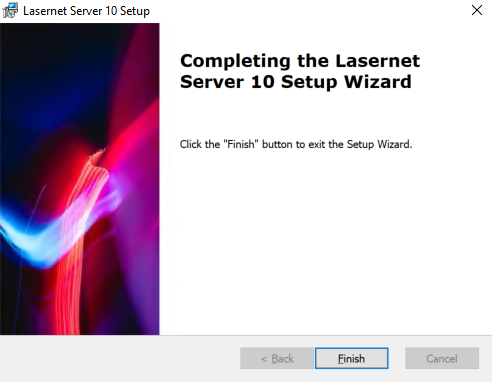
Click Finish to close the installer.
Note
With the Lasernet Core 10.2 release, Lasernet Launcher has been removed. You can access Lasernet Core modules in the Start menu or via desktop shortcuts.
Licensing
Add Server License Instance(s)
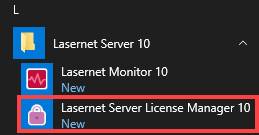
Go to the Start menu and open Lasernet Server License Manager.
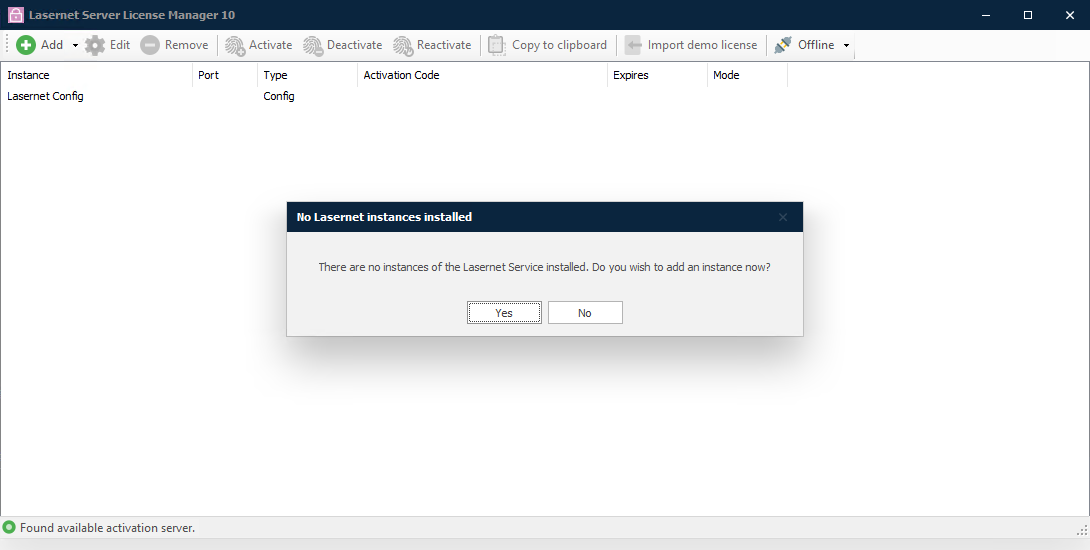
Note
A prompt is displayed because there are no instances of Lasernet Service installed.
Click Yes.
Add and activate the required license(s).
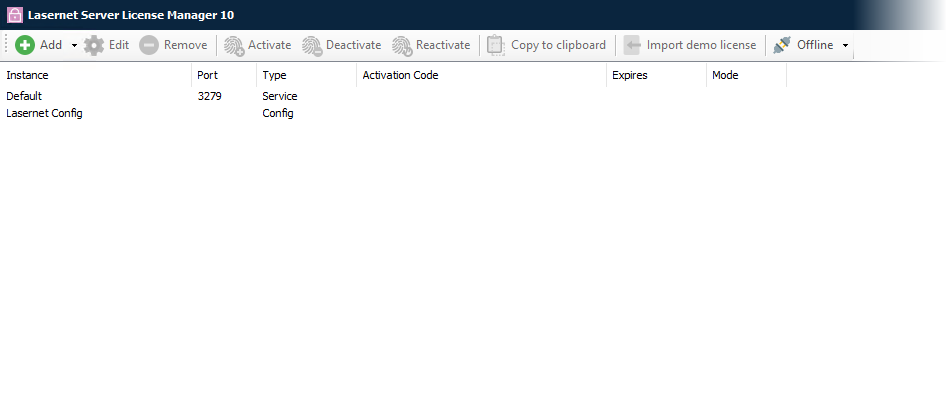
Lasernet Server License Manager
The Lasernet Server License Manager is used to administer your licenses for Lasernet Server. The application also allows you to add and remove Lasernet Core service instances.
Important
License activation is bound to the name and domain of the machine on which Lasernet Core is installed. If the computer name or domain is changed, the license will stop working. It will also not be possible for you to deactivate your license if you change the name and/or domain of your machine. Before renaming your machine, you must deactivate your license.
If you forget to deactivate your license before changing the name and/or domain, you must restore the machine and domain name to the one used to activate your license. Then you will be able to deactivate your license so you can activate it again after the name change.
Activation codes
The license code is used to activate your license on a machine. You will receive separate codes for each Lasernet Server you have purchased.
The activation code will allow you to install Lasernet Server on a single machine.
Note
A Lasernet Server activation code will start with the letters “SRV-“, followed by 8 groups of 4 characters each.
Add service instance
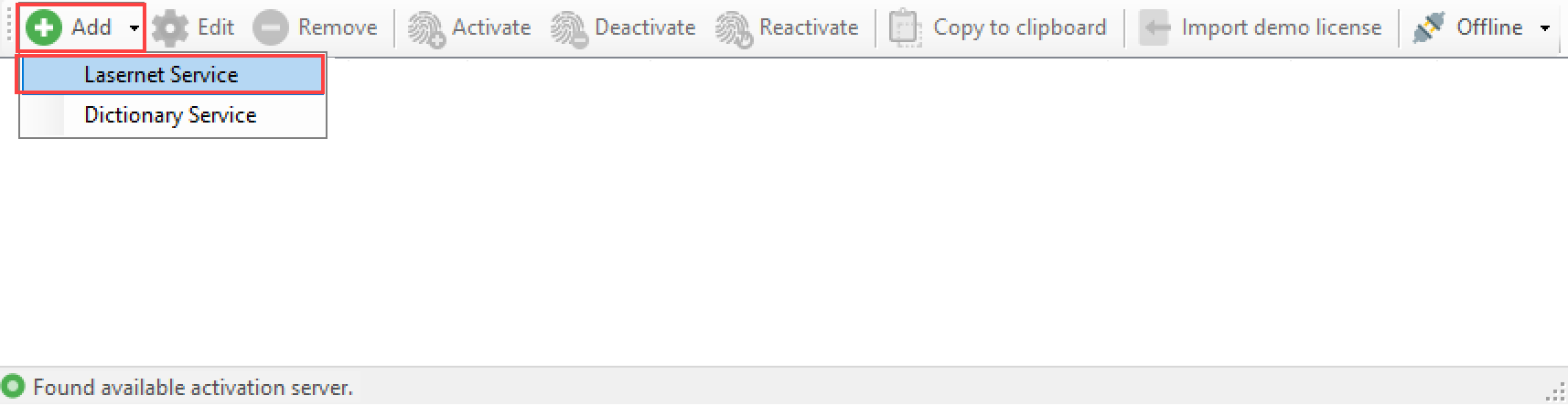
Lasernet Core service instances are not added automatically by the installer. To add one manually, start the Lasernet Server License Manager, click the Add button, then click Lasernet Service.
Type an instance name and free port number that is not already in use by other applications running on the same server. We recommend that you name your Lasernet Service instance with its primary function, so that it is easy to identify. For example, “Default”, “Prod”, “PreProd”, “Development” or a company or location ID.
The port number has to be unique and not used by other Lasernet Core service instances or applications running on the same server. The default port is 3279.
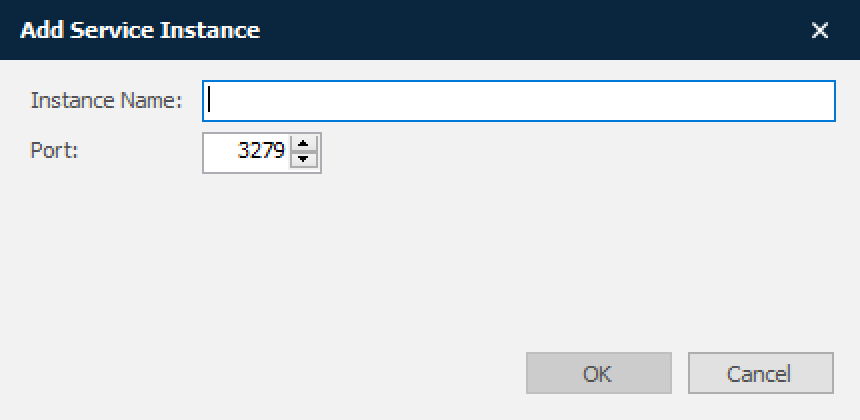
Click OK to accept the settings.
For Lasernet Core Services you will be prompted to insert an activation code. A valid Lasernet Server activation code starts with SRV and contains 8 groups of 4 characters each, for example, SRV-BMDS-SUGX -ABCD-EFGH-IJKL-MNOP-QRST.
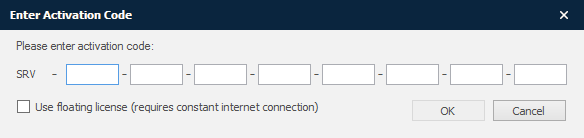
Check the Use floating license option if you are using a primarily cloud-based system that has a constant internet connection. The license is updated and renewed at regular short intervals. Should the server go down and become unable to perform a renewal, the license is then made available for a failover server to use, to ensure minimal disruption in service.
Unless you have properly configured your cloud systems for high availability, we recommend that you use a static license.
If you do not enter a valid activation code and then cancel the window, the service will be installed with the selected instance name and port number, but will not be able to process any jobs.
When the activation code has been accepted, you will be able to view the list of activated instances:

and services in Windows:

To protect your activation code, part of it is obscured with asterisks. If you want to see the activation code in full, right-click on the instance in the Lasernet Server License Manager and click Copy to clipboard.
Depending on the license type you can add between one and five instances of the Lasernet 10 service, each requires a unique port number. If support for additional instances is needed, please contact a Lasernet Group representative for more information.
Lasernet Dictionary Service
It is also possible to add a Dictionary Service at this stage. To learn more about the Dictionary Service, please refer to the Lasernet OCR guide. The Lasernet OCR 10 application must also be installed. The Dictionary Service does not require an activation code.
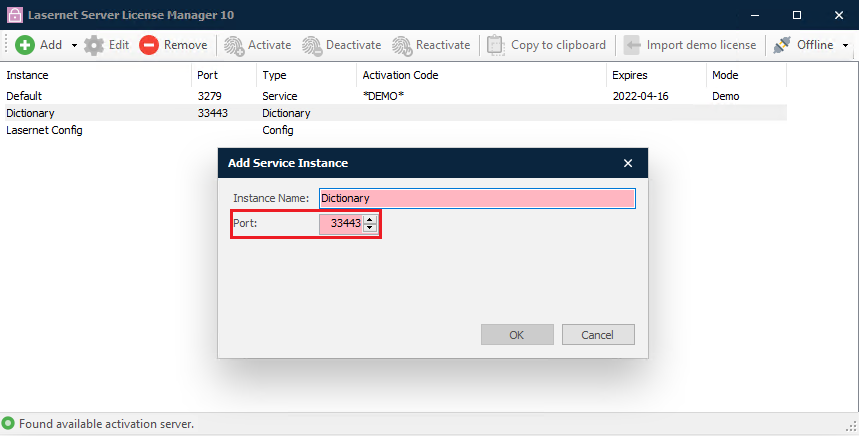
The Dictionary Service is optional for the Lasernet Core Input Management solution. The dictionary is recommended for the Lasernet OCR Engine to automatically extract data from business data in multiple languages.
Note
The default port number for Dictionary Service is 33443 running SSL. Dictionary Service must be configured to use the same port number as defined in the Lasernet Config Server.
Online activation
The Lasernet Server License Manager can be used to add new instances of the Lasernet Service at any time or to activate, deactivate or reactive an activation code for existing instances when needed.
Select the instance you want to activate and click the Activate button in the toolbar.
A valid Lasernet Server activation code starts with SRV and contains of 8 groups of 4 characters each, e.g. SRV-Z7J3-3VUS -ABCD-EFGH-IJKL-MNOP-QRST.
Note
An Internet connection is required to activate Lasernet Server. Once activated, an internet connection is no longer required.
When the activation code has been entered, click OK to activate your license.
When the activation code is accepted, the instance of Lasernet Service 10 will be running with the modules and packages attached to your license.
Important
If you want to move the software to another computer, you must first deactivate your license before uninstalling and then reinstalling on another computer.
Online deactivation
Start the Lasernet Server License Manager.
Select the Lasernet Service instance that you want to deactivate. Click Deactivate in the toolbar to remove the license.
Note
You must deactivate your license before moving Lasernet Core to another machine/server, or before changing the name or domain of the server. You will not be able to activate Lasernet Core using your activation code, if the same activation code has been used to activate Lasernet Core on another server.
Note
To deactivate your Lasernet Server, Internet access is required throughout the deactivation process.
Online reactivation
If you decide to upgrade your Lasernet Core server with additional modules and packages, you will receive a communication stating which packages and modules are now included in your license. This communication will contain the same activation code as your previous license.
In order to benefit from the new features available in your license, you need to reactivate it. Select the relevant Lasernet Service instance and click Reactivate in the toolbar.
Offline activation/deactivation procedures
See Activate and Deactivate Licenses Offline for information about offline licensing procedures.
Development vs. production environments
We recommend that you install and run your Lasernet Core development and production services on individual servers.
By default, Lasernet Config 10 server connects to an embedded installed Microsoft SQL Server 2017 LocalDB database to store configurations, revisions and deployment history log.
The database and repository for the Lasernet Config Server are installed in here:
C:\ProgramData\Formpipe Software\Lasernet 10\Config\Default\Databases
We recommend that you back up this folder and highly recommend that you upgrade to a Microsoft SQL Server standalone edition in an enterprise environment for best usability, performance and scalability.
You can use the Lasernet Server License Manager at any time to migrate the Lasernet Configuration data from the Microsoft SQL Server 2017 LocalDB to the Microsoft SQL Server, which is recommended for a production environment.
Select the Lasernet Config instance, click Edit and SQL Server Standalone with the required connection, authentication and database settings.
More information about how to configure the Lasernet Config Server is available in Get Started with Lasernet Config Server 10.