Keep requires an activated license for use in a production environment.
If an activated licence is not available, you can put Keep into evaluation mode, where it will continue to work for 30 days before requiring an activated licence to function. We recommend using evaluation mode for out-of-hours upgrades where a new licence has not been requested in advance, or for test environments that are cleared down on a regular basis, as well as for evaluation purposes.
For standalone and clustered installs, only a single activated license is needed. The license is tied to the database used by Keep and it is perpetual. However, if any of the following changes are made, the license is invalidated and you must contact Lasernet Support:
Upgrading Keep to a newer version
Switching database provider
Renaming the database
Moving the database to another server
If you have been provided with a demo license, it will normally have a fixed expiry date built into it. After this date, Keep will cease to function until either an additional demo license is obtained or a fully activated license is installed.
Note
The invalidation conditions above also apply to demo licenses.
In the case of an invalidated or expired license, evaluation mode can still be activated. Doing this will give you enough time to request a new license from Lasernet Support.
Evaluation Mode
Evaluation mode can only be triggered once per license activation. This means that after an evaluation period has ended, the only way to continue using the software is to obtain an activated license. When an activated license is applied to Keep, evaluation mode is reset and is available again for use at another time.
Using evaluation mode on a new install of Keep temporarily activates all common components and features (see the Default Licence Values table). Using evaluation mode on a previously activated version of Keep will temporarily activate only those components and features that were originally available on the old license.
Default License Values (New Install)
Feature | Value / Limit |
|---|---|
concurrent.client.connections | 9999 |
concurrent.licensing.mode | false |
concurrent.ocr.users | 0 |
concurrent.web.users | 9999 |
enable.destructive.document.operations | true |
enable.documentdeletion | true |
enable.documentimporting | true |
enable.editDocument | true |
enable.editablefields | true |
enable.multipleprinting | true |
enable.sqlapplication | true |
enable.uncompressedstorage | true |
webservices.v2 | true |
Enable Evaluation Mode
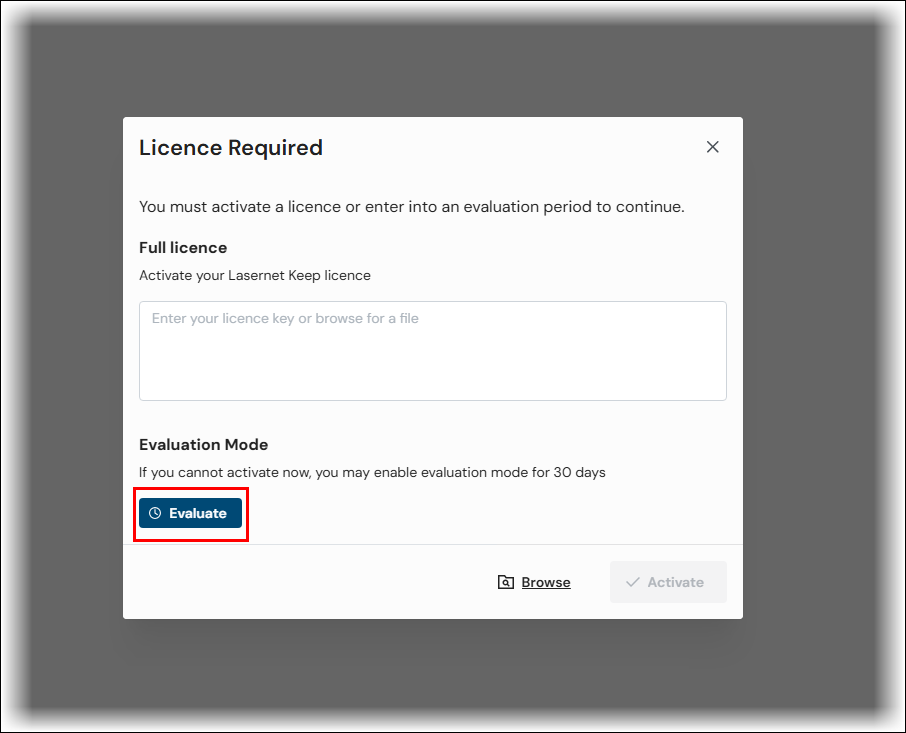
To enable evaluation mode, first log in to Keep. For new installations, the step can only be performed using the admin account. If you do not currently have a valid license, you will be automatically redirected to the licensing page.
If evaluation mode is available, click Evaluate.
Evaluation Mode Expiry
After you activate evaluation mode, Keep will be fully functional for 30 days. When the evaluation mode expires, you will no longer be able to use Keep until you activate a valid license.
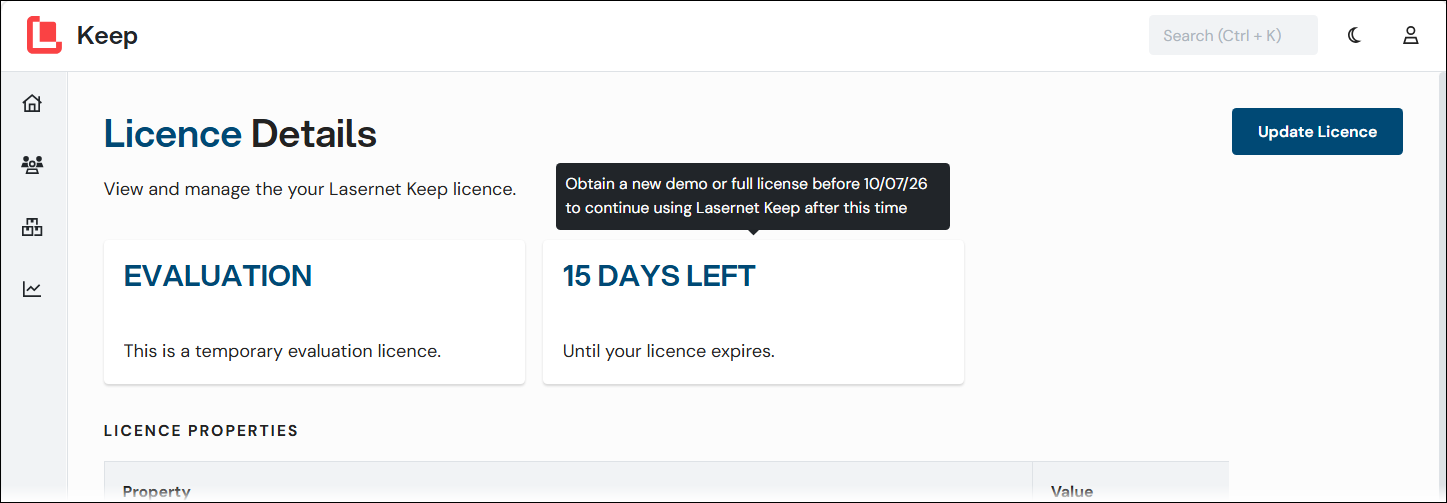
The license expiry countdown is displayed on the Licence Details page (Settings (in the admin menu) > Licence Details). To see the expiry date, hover the mouse pointer over the Days Left tile.
Note
The Keep login screen indicates that Keep is currently in evaluation mode.
Apply a License to Keep
To apply a full license to Keep, you must get a license, and then install and activate it.
1. Get a License
Contact Lasernet Support to get a license if you do not have one, or if you need to update your license, or if your evaluation copy of Keep has expired and you want to continue using it.
2. Install the License
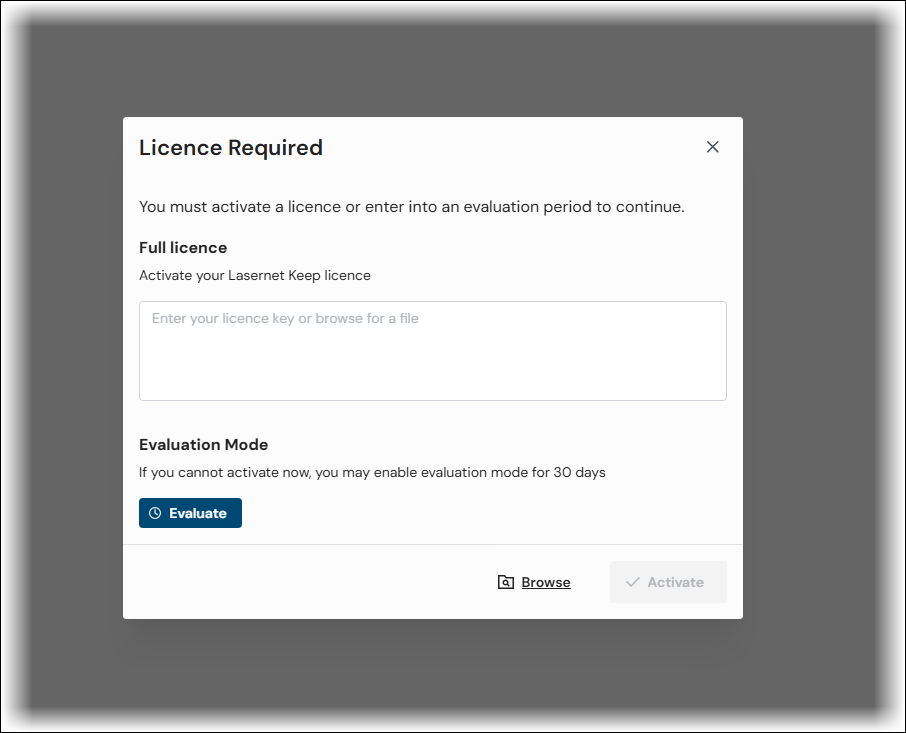
On the Licence Required page (that Keep displays after the admin user logs in for the first time), use one of these methods to apply a licence to Keep:
Copy and paste the contents of the license file into the Enter your licence key area.
Click Browse, select the license file, then click Open.
3. Activate the License
You can activate the license automatically or manually.
Automatically Activate the License
Click Activate to activate the license automatically. Keep will contact the licensing server to activate the license.
Manually Activate the License
If Keep cannot automatically activate the license (for example, if the server cannot contact the licensing server), it will display a Licence Error. Licence needs to be activated manually message. The Licence Required page will display controls for the manual activation method.
.png)
The manual activation process is:
Copy the license activation code displayed and send it to Lasernet Support.
Lasernet Support manually activate the license and send you a new activated license.
Enter the received license key into the Enter your licence key from Formpipe here box. In this scenario, Keep does not need to contact the licensing server.
Click Activate. Keep is now fully licensed.
Tip
If you are unable to follow this process at the current time, send Lasernet Group the activation code and then click Evaluate to enter evaluation mode and complete the manual licensing process later. You can follow the Update a License process to apply the activated license that you later receive.
Update a License
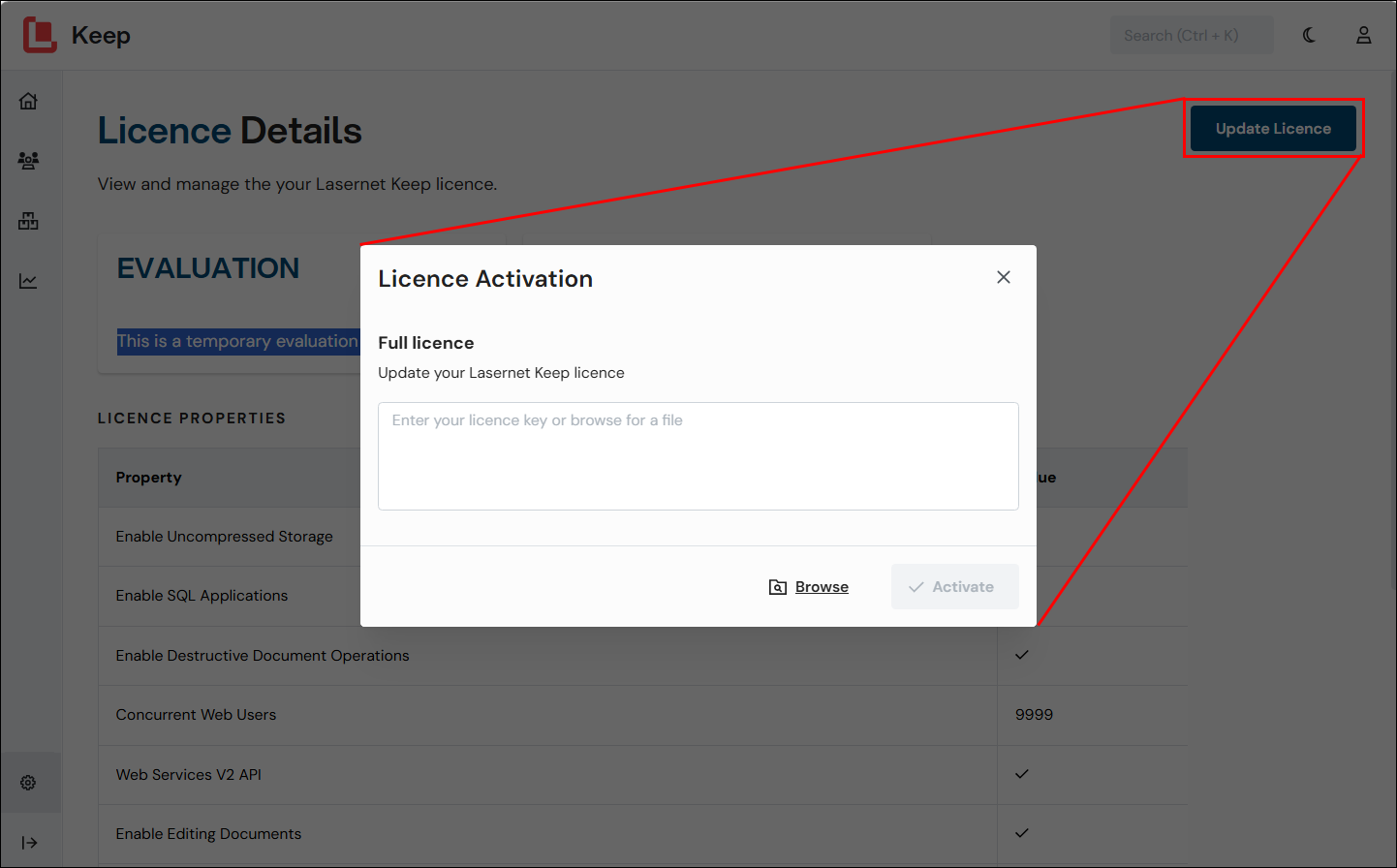
To update your Keep license, log in to Keep as an administrator, then navigate to the Licence Details page (Settings (in the admin menu) > Licence Details). On this page, you can see the details of your currently installed license, and you can upload a new one.
Click Update Licence. Provide the license as described above in Install a License.
Updating the Keep license works the same way as installing a new license, except it will replace the currently used license.