

Applies to: Lasernet Core 10.12.1 and earlier
As a result of our renaming from Formpipe to Lasernet Group, we updated the Microsoft Azure app registrations that underpin the user-based authentication for the OneDrive, Outlook Mail, and SharePoint modules in Lasernet Core 10. Due to these changes, if your Lasernet Core configurations use any of the affected modules, you must upgrade to Lasernet Core 10.13.3 and then update and redeploy those configurations.
Note for Users of Lasernet Core 10
If your Lasernet Core 10 version is between 10.0 and 10.12.1 (inclusive) and your configuration contains an affected module, but you do not follow the steps in this article, your Lasernet Core system will stop working on the 1st April, 2027.
Note for Users of Lasernet 9 and Earlier
This issue also affects Lasernet 9 and earlier versions. If your Lasernet version is Lasernet 9 or earlier and your configuration contains an affected module, you must upgrade to Lasernet Core 10.13.3.
Affected Modules
If your Lasernet Core 10 workflow contains any of the modules listed below, you must follow the steps in this article:
Input
OneDrive input
Outlook Mail input
Output
OneDrive output
Outlook Mail output
SharePoint output (only if the module connects through Graph API and user-based authentication. Modules that use Graph API and application authentication are not affected)
Summary of the Change
The OneDrive, Outlook Mail, and SharePoint modules are each linked to a dedicated app registration in Microsoft Azure. To function, these modules must be able to access the relevant app registration.
In Lasernet Core 10.12.1 and earlier, these modules are linked to app registrations in the Formpipe tenant (in Microsoft Azure). However, following our renaming from Formpipe to Lasernet Group, we cannot guarantee that access to the Formpipe tenant will continue indefinitely.
To overcome this issue, we have created replacement app registrations in the new Lasernet Group tenant. These app registrations will remain available in the future. Lasernet Core 10.13.3 contains updated OneDrive, Outlook Mail, and SharePoint modules that link to these new app registrations.
If your Lasernet Core 10 system uses an affected module, you must upgrade to Lasernet Core 10.13.3. Then, you must update your Lasernet Core configuration to use the updated versions of these modules. After you have tested the updated configuration, you can deploy it to your Lasernet Core servers.
Determine Whether Your Workflow Contains an Affected Module
To determine whether this issue affects your Lasernet Core system:
Go to https://portal.azure.com/.
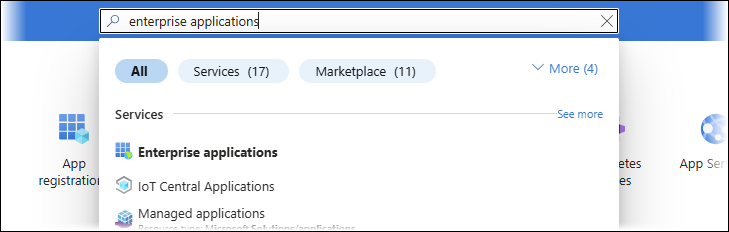
In the search bar at the top of the Microsoft Azure Portal, search for enterprise applications.
Select Enterprise applications from the search results.
In the Manage part of the left-side menu, click All applications.
Filter the app list on Application ID to determine whether it contains the Lasernet SharePoint, Lasernet OneDrive, or Lasernet Outlook Mail app from the Formpipe tenant.
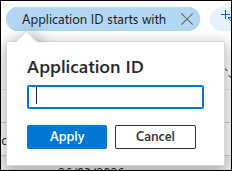
If the page already contains an application ID filter, you can modify it:
Else, you must create a filter:
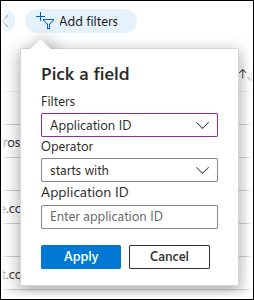
Filter the list on the following application IDs, which belong to apps in the Formpipe tenant. First, filter on the Lasernet SharePoint application ID and note whether the filter returns any results. Then, modify the filter to match the Lasernet OneDrive application ID and note whether any results are returned, and then do the same for the Lasernet Outlook Mail application ID.
Lasernet SharePoint: 0e1b17a3-b5e9-44a8-921e-d75d3988e8e4
Lasernet OneDrive: b1efe5b9-b1c2-4981-9f92-a729c75a5d16
Lasernet Outlook Mail: 3f8549d9-f0fc-461c-b1f5-46f6262fc9b6
When you create a filter, Azure Portal applies it to the app list.
.png)
Interpret the filter results:
If all three of these filters return no results, your Lasernet Core system has never used these modules.
Important
If this is the case, your system is not affected by this issue and you can ignore this article.
If at least one of these filters returns a Lasernet OneDrive, Lasernet Outlook Mail, or Lasernet SharePoint app that is accompanied by the icon shown in the following images, your Lasernet Core system has previously used these modules or is currently using them.



To confirm that your workflow is currently using one or more of these modules, load your Lasernet Core configuration in Lasernet Developer and check whether the workflow displayed in the Modules tool uses any of the affected modules. If it does, follow the configuration update process.
Note
Do not remove the Formpipe app registrations until you have completed the configuration update process.
After you have updated your Lasernet Core configuration, you can remove the Formpipe apps from your tenant.
The Update Process
The update process involves upgrading Lasernet Core and updating your Lasernet Core configuration, testing the updated configuration, and then deploying it to production environments.
To achieve this, follow these steps:
Upgrade to Lasernet Core 10.13.3. You must upgrade Lasernet Server and all client applications such as Lasernet Developer and the Lasernet Printer Service app. For upgrade instructions, see the Lasernet Core Upgrade Guide.
Note
If you are a hosted customer, the Lasernet Cloud team will carry out this update for you.
Load your Lasernet Core configuration in Lasernet Developer.
For every affected module in the workflow defined by the configuration:
Open the module’s Properties window.
Reauthorize the module (refreshing the access token is not sufficient). The Lasernet Administrator user must carry out this step. The method depends on the module:
OneDrive: On the Setup tab, click Remove Authorization (if the button is available), then Obtain Authorization, and follow the authorization process.
Outlook Mail: On the Setup tab, click Remove Authorization (if the button is available), then Obtain Authorization, and follow the authorization process.
SharePoint: On the Setup tab, click Remove Authorization (if the button is available), then Obtain Authorization, and follow the authorization process.
Note
The SharePoint list in a SharePoint output module contains connections that are either:
Embedded, meaning that the connection is defined within that SharePoint module and can be used only by that module.
Defined in the Connections list in the Commands tool in Lasernet Developer. These connections can be used by any SharePoint module in the workflow defined by the Lasernet Core configuration.
If the SharePoint module uses an embedded connection, follow the “obtain authorization” instructions below this Note box.
Else, if the SharePoint module uses a connection defined in the Commands tool, you can either follow the “obtain authorization” instructions below this Note box, or you can edit the connection in the Commands tool (and use the Obtain Authorization and Test Connection buttons in the connection’s Properties window). Regardless of how you edit the connection, your changes are available to every SharePoint module that uses the connection.
On the Setup tab of the SharePoint module’s Properties window, click the Connection tab.
From the SharePoint list, select the SharePoint 365 connection that the module is using.
Click Edit.
In the connection properties window, click Obtain Authorization.
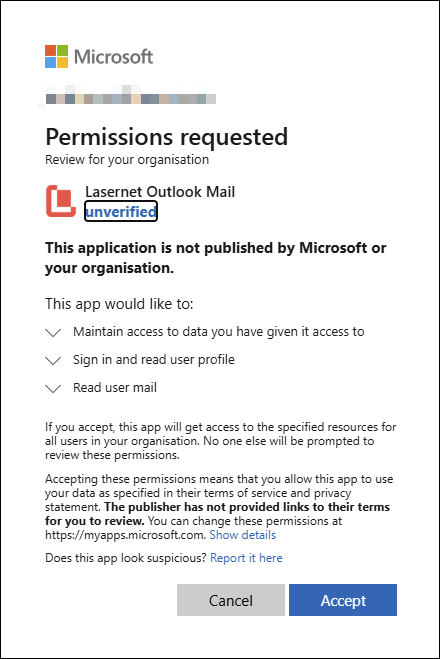
As part of the authorization process, grant the new app registration access to your organization’s tenant.
Note
Depending on your organization’s Microsoft Azure configuration, this part of the process might require an Azure administrator to approve the access request. In this scenario, follow these steps:
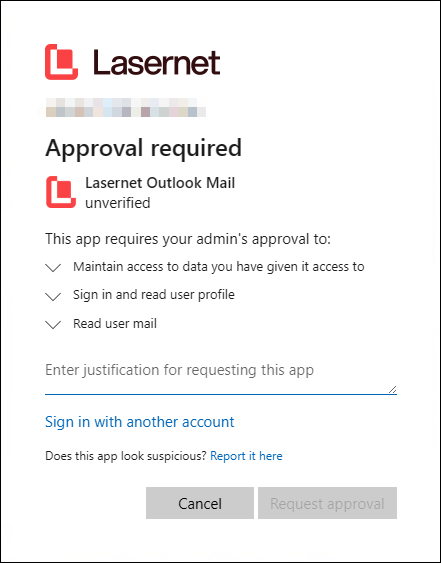
Request admin approval for the access request:
Enter a justification for the request.
Click Request approval.
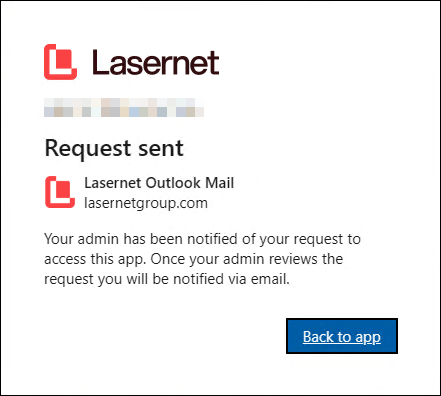
Azure will confirm that the request has been sent:
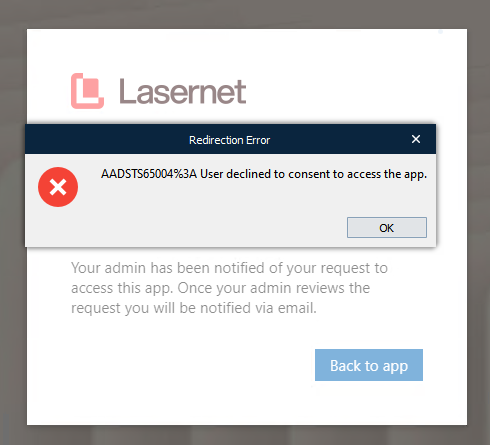
If a Redirection Error message is displayed, click OK.
The Azure administrator must approve your request in the Azure Portal.
In Lasernet Developer, click Obtain Authorization again, and then follow the authorization process.
SharePoint module only: After the authorization process completes, click Test Connection.
Delete
C:\ProgramData\Formpipe Software\Lasernet 10\Service\Instance\Retainer. If you are a hosted customer, the Lasernet Cloud team will carry out this update for you.Patch the updated configuration to a test Lasernet Core server. Thoroughly test the updated modules.
When the configuration is verified as working, commit your configuration changes. The Lasernet Administrator user must carry out this step.
Deploy the new configuration revision to the production Lasernet Core server. The Lasernet Administrator user must carry out this step.
Now that your Lasernet Core configuration has been updated, you can remove the Formpipe apps from your tenant.
Remove the Old Apps from your Tenant
After you have performed the upgrade process steps and verified that Lasernet Core is working with the new modules, you can remove the old apps from your tenant.
To do this, follow the process described in Determine Whether Your Workflow Contains an Affected Module to find the Formpipe apps. Use the provided application IDs to verify that the listed apps relate to the Formpipe tenant, and then delete them.