
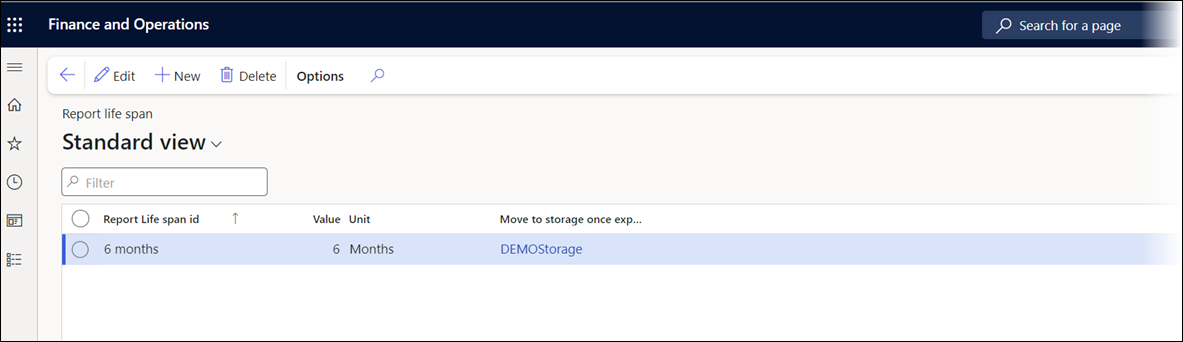
The Report life span setting can be defined either systemwide (Lasernet > Setup > Report life span) or at the report level (Lasernet > Common > Reports).
The available operations are:
Process archive life span
Copy
Move
Cleanup
Adjust archive connection


These operations are useful for moving files between different types of storage/archive or from Azure to OnPrem or OnPrem to Azure.
It is also possible to move files between different types of Azure Storage, such as to low-cost Azure Storage (Azure Cool Storage/Azure Archive Storage).
Process Archive Life Span
The Process archive life span option enables the definition of the life span and determines when files should be moved to alternative storage.
To access the Process archive life span pane, follow these steps:
Navigate to Lasernet > Setup > Administration > Connections.
Click Perform operation and then click Process archive life span.

PARAMETERS | Details |
|---|---|
Only files located in storage | Select a storage (connection) to which files are to be moved. Once the files are moved, records in the Lasernet archive get a reference to the alternative storage. |
Only files that supposed to be moved to storage | (Optional) Select a storage. Files are moved to this storage only if it is the same storage as specified in Lasernet > Setup > Report Life span. Files are moved to the storage after expiring.
|
CONDITION | Details |
|---|---|
File name filter | (Optional) Specify a report name or a part of the report name (prefix filter). |
OPTIONS | Deatils |
|---|---|
First calculate how many files will be affected | Specify whether to calculate the number and size of the files, with the option to cancel (Yes/No status). The cancellation option allows skipping the update of the references in the Lasernet archive and does not allow moving files to an alternative storage. |
Maximum files to process | Specify the maximum number of files to process. |
Overwrite existing files | Specify whether to overwrite existing files (Yes/No status). |
Once their expiration date has passed, documents are moved to alternative storage. The current system date is used to calculate the expiration date.
The Report life span value defined in Lasernet > Setup > Parameters > General is used for all reports unless Report life span is specified for a specific report.
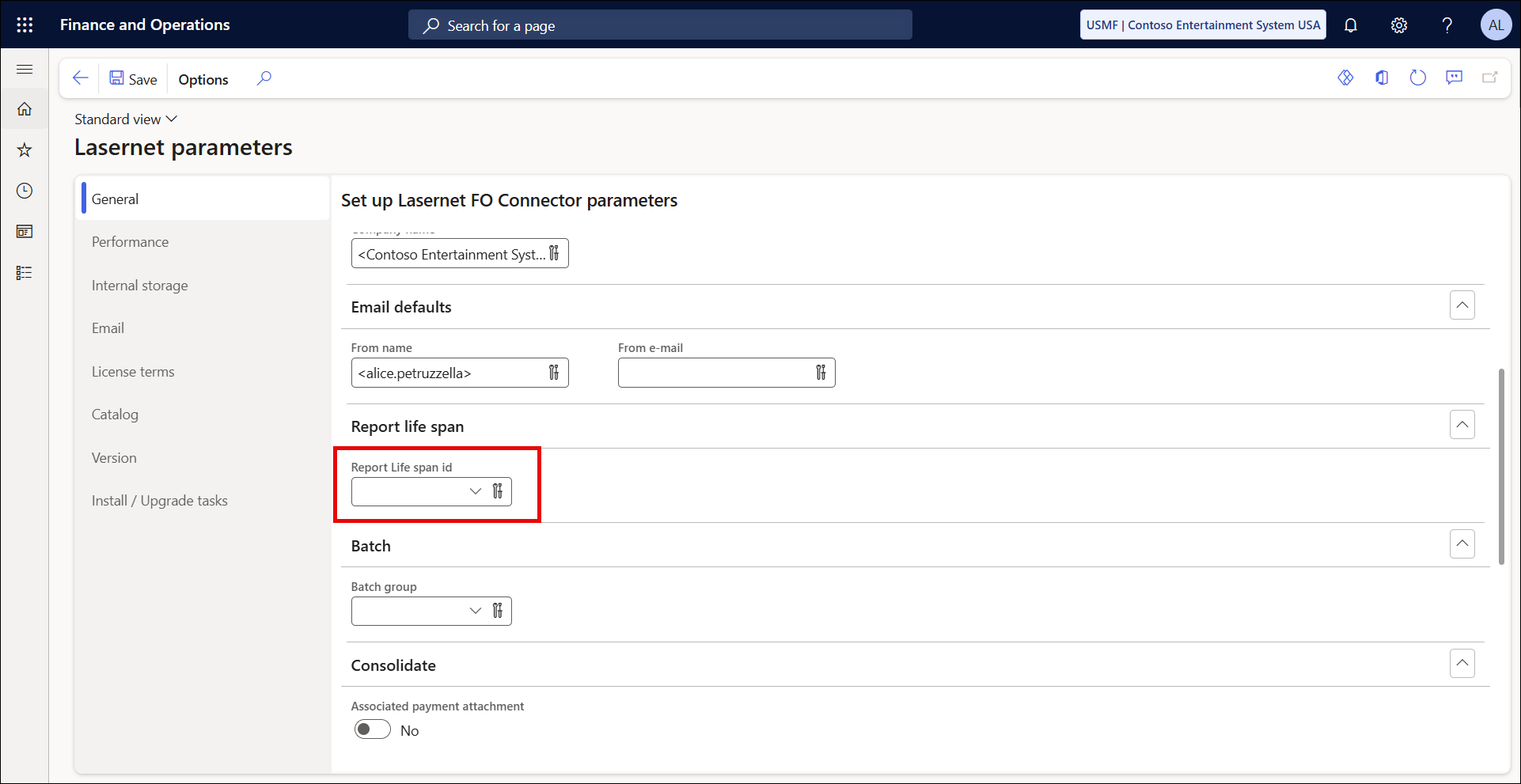
To define Report life span for a specific report, navigate to Lasernet > Common > Reports > Archive.

Archive Copy Files
To access the Copy functionality, follow these steps:
Navigate to Lasernet > Setup > Administration > Connections.
Click Perform operation and then Copy.

PARAMETERS | Details |
|---|---|
From storage | Define a storage (connection) from which files are to be copied. |
To storage | Define a storage (connection) to which files are to be copied. |
CONDITION | Details |
|---|---|
File name filter | Specify a report name or a part of the report name (prefix filter). (Optional) |
Load files older than | Specify a date from which files are considered older. |
OPTIONS | Details |
|---|---|
First calculate how many files will be affected | If the status is set to Yes, the program calculates the number and size of the files. To cancel, set the toggle to No. The cancellation option skips updating the references in the Lasernet archive and does not allow moving files to alternative storage. |
Overwrite existing files | Specify whether to overwrite existing files by setting the toggle to Yes/No. |
Skip archive update (may break link to archive) | Specify whether to skip updating the entries/records in the Lasernet archive by setting the toggle to Yes/No. This option also uses the date from the storage, and no data related to the Load files older than option is in the Lasernet archive. |
Maximum number of files to process | Specify the maximum number of files to process. |
Archive Move Files
To access the Move functionality, follow these steps:
Navigate to Lasernet > Setup > Administration > Connections.
Click Perform operation, then Move.

PARAMETERS | Details |
|---|---|
From storage | Define a storage (connection) from which files are to be copied. |
To storage | Define a storage (connection) to which files are to be copied. |
CONDITION | Details |
|---|---|
File name filter | Specify a report name or a part of the report name (prefix filter). (Optional) |
Load files older than | Specify a date from which files are considered older. |
OPTIONS | Details |
|---|---|
First calculate how many files will be affected | If the status is set to Yes, the program calculates the number and size of the files. To cancel, set the toggle to No. The cancellation option skips updating the references in the Lasernet archive and does not allow moving files to alternative storage. |
Overwrite existing files | Specify whether to overwrite existing files by setting the toggle to Yes/No. |
Skip archive update (may break link to archive) | Specify whether to skip updating the entries/records in the Lasernet archive by setting the toggle to Yes/No. This option also uses the date from the storage, and no data related to the Load files older than option is in the Lasernet archive. |
Maximum number of files to process | Specify the maximum number of files to process. |
Archive Delete Files
To clean up Azure Storage, the process must be set up. This can be done in the Delete files pane.
Navigate to Lasernet > Setup > Administration > Connections.
Select a storage connection.
Click Browse > Action, and select Cleanup from the dropdown to open the Delete files pane.


PARAMETERS | Details |
|---|---|
From storage | Define a storage (connection) from which files are to be copied. |
To storage | Define a storage (connection) to which files are to be copied. |
CONDITION | Details |
|---|---|
File name filter | Specify a report name or a part of the report name (prefix filter). (Optional) |
Load files older than | Specify a date from which files are considered older. |
OPTIONS | Details |
|---|---|
First calculate how many files will be affected | If the status is set to Yes, the program calculates the number and size of the files. To cancel, set the toggle to No. The cancellation option skips updating the references in the Lasernet archive and does not allow moving files to alternative storage. |
Overwrite existing files | Specify whether to overwrite existing files by setting the toggle to Yes/No. |
Skip archive update (may break link to archive) | Specify whether to skip updating the entries/records in the Lasernet archive by setting the toggle to Yes/No. This option also uses the date from the storage, and no data related to the Load files older than option is in the Lasernet archive. |
Maximum number of files to process | Specify the maximum number of files to process. |
Delete archive records if files do not exist | Specify whether to delete any entries in the Lasernet archive for which no corresponding file exists. |
Batch bulk size | A best practice is to perform the cleanup process by defining the batch task. Lasernet FO Connector enables you to specify the Batch bulk size value, which identifies how many entries/records to include in each batch task. This option is recommended if you experience slow performance when cleaning up Azure storage with a high volume of records. |
