In this walkthrough, you will learn how to rearrange data from the XML input to the output. Rearranging data refers to the process of defining how data contained in the input grab file is represented and manipulated in the final form.
When added, an output rearrange acquires a default font and font size. Alternatively, Lasernet applies the last used font and size. The height and width of a rearrange is automatically calculated based on the number and height of lines, and the length and size of the text.
Walkthrough
Before you start, download and import the attached 03.Add a new Rearrange configuration in Lasernet Developer. Then, navigate to the Forms section and open the Sample form.
Follow these steps:
Select the Rearrange tool from the Developer toolbar.
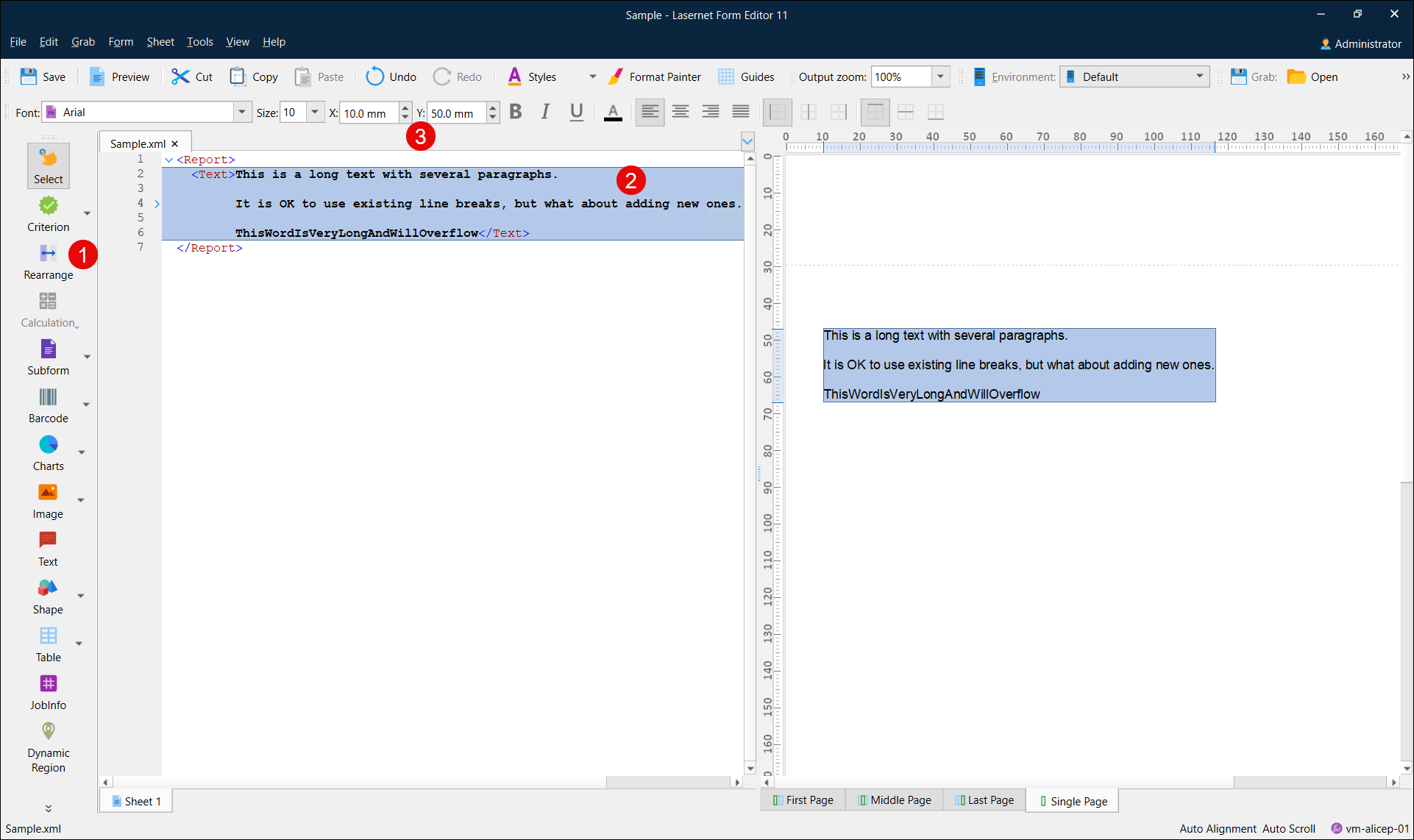
Select the
/Report/Textinput node.Set X to 10.0 mm and Y to 50.0 mm from the Property bar to specify the left position of the Rearrange. The Y position is a baseline of the first line in the rearrange.
Double-click the object in the output view to open the Edit Rearrange dialog, or right-click the object and then select Position in the context menu.
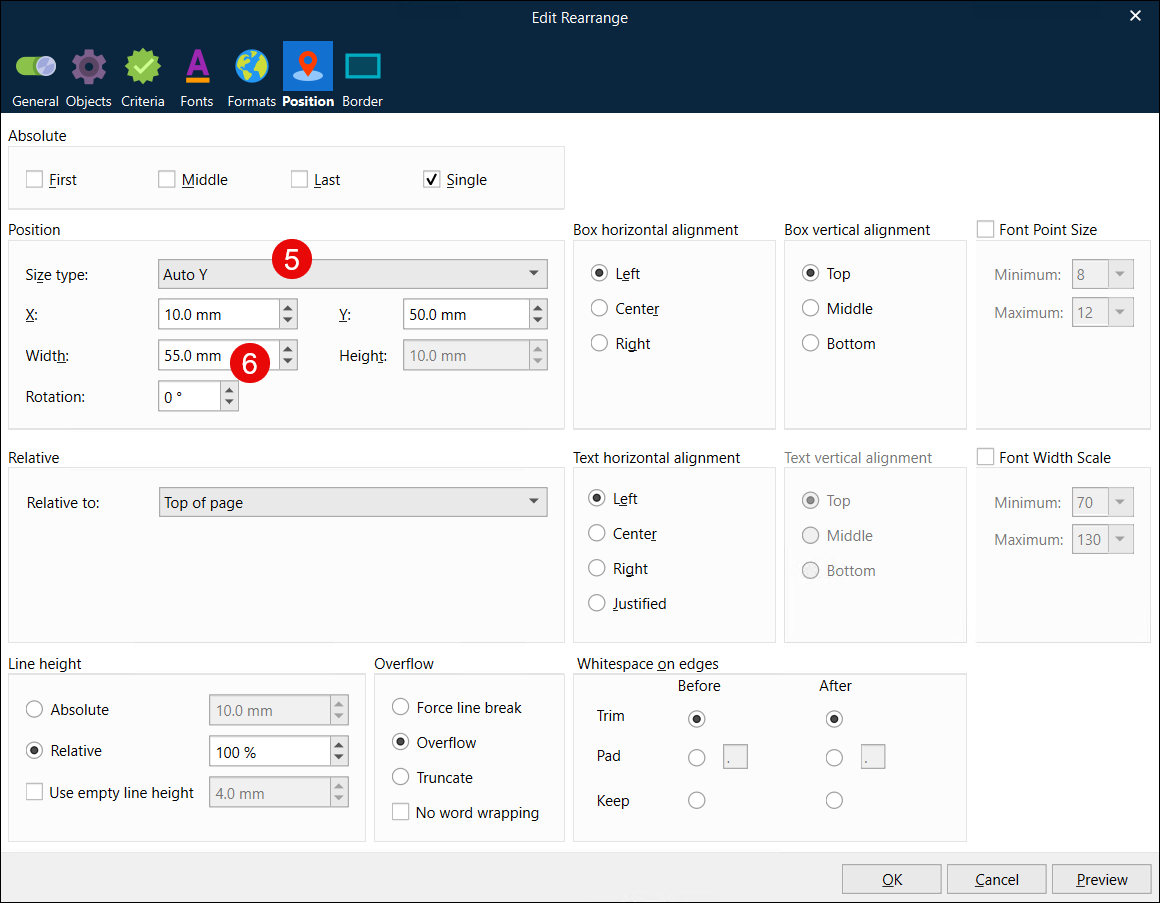
Open the Position tab and set Size type to Auto Y.
Set Width to 55.0 mm, then click OK to apply the changes.
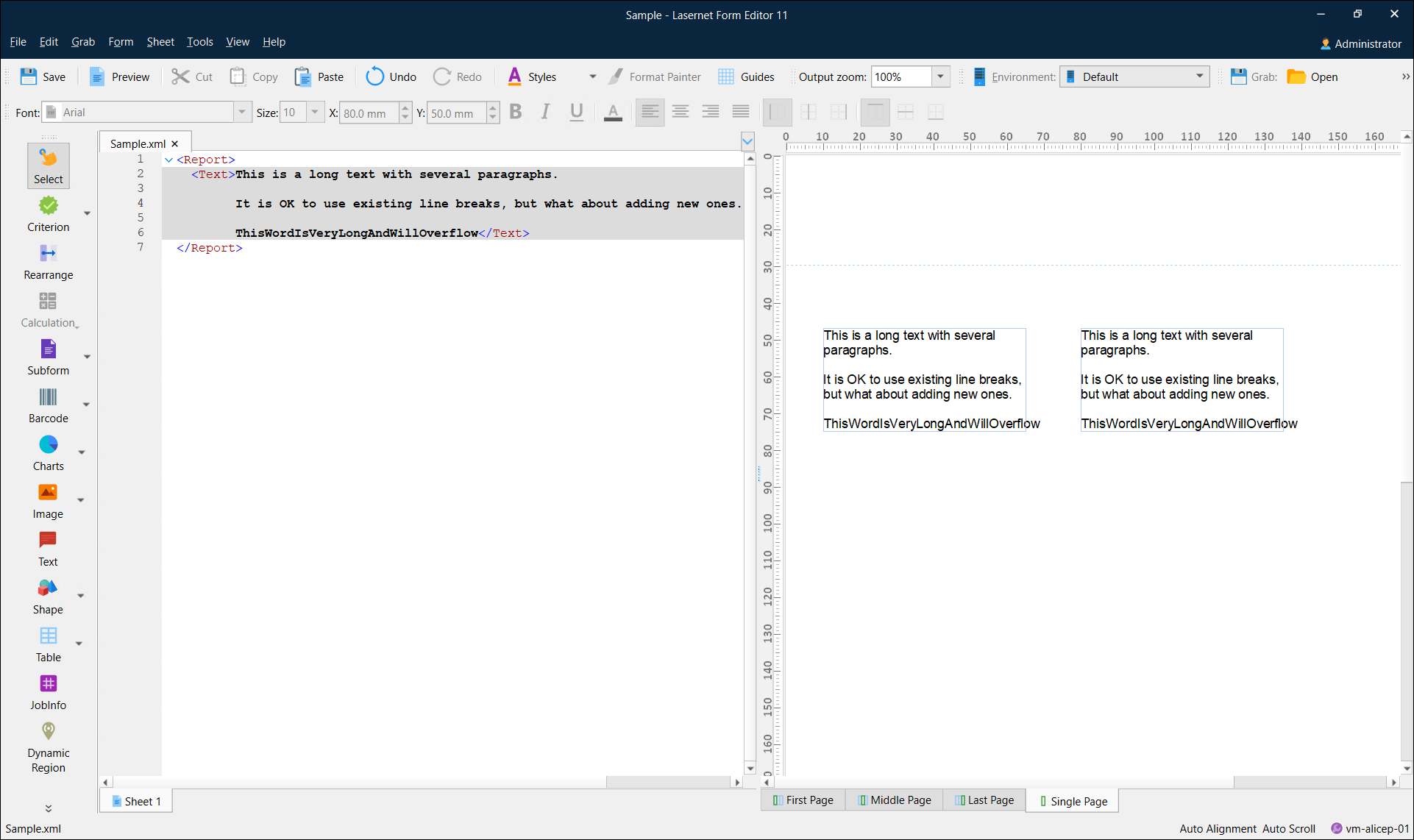
The width of the rearrange is now defined. If the last word of the text does not fit within the rearrange width, it will show outside the box frames by default.
Right-click the rearrange, then select Copy in the context menu. Alternatively, on the Menu bar, click Edit, and then Copy.
Paste the rearrange from the clipboard. To this end, right-click anywhere in the output view and then select Paste in the context menu. Set the position of the new rearrange as follows: X to 80.0 mm and Y to 50.0 mm.
Note
If you paste an object via the Menu bar commands, it will be pasted on top of the copied object. Two objects with the same contents in the same position contain a text string that is darker than the other objects.
Open the Edit Rearrange dialog for the new rearrange and then open the Position tab.
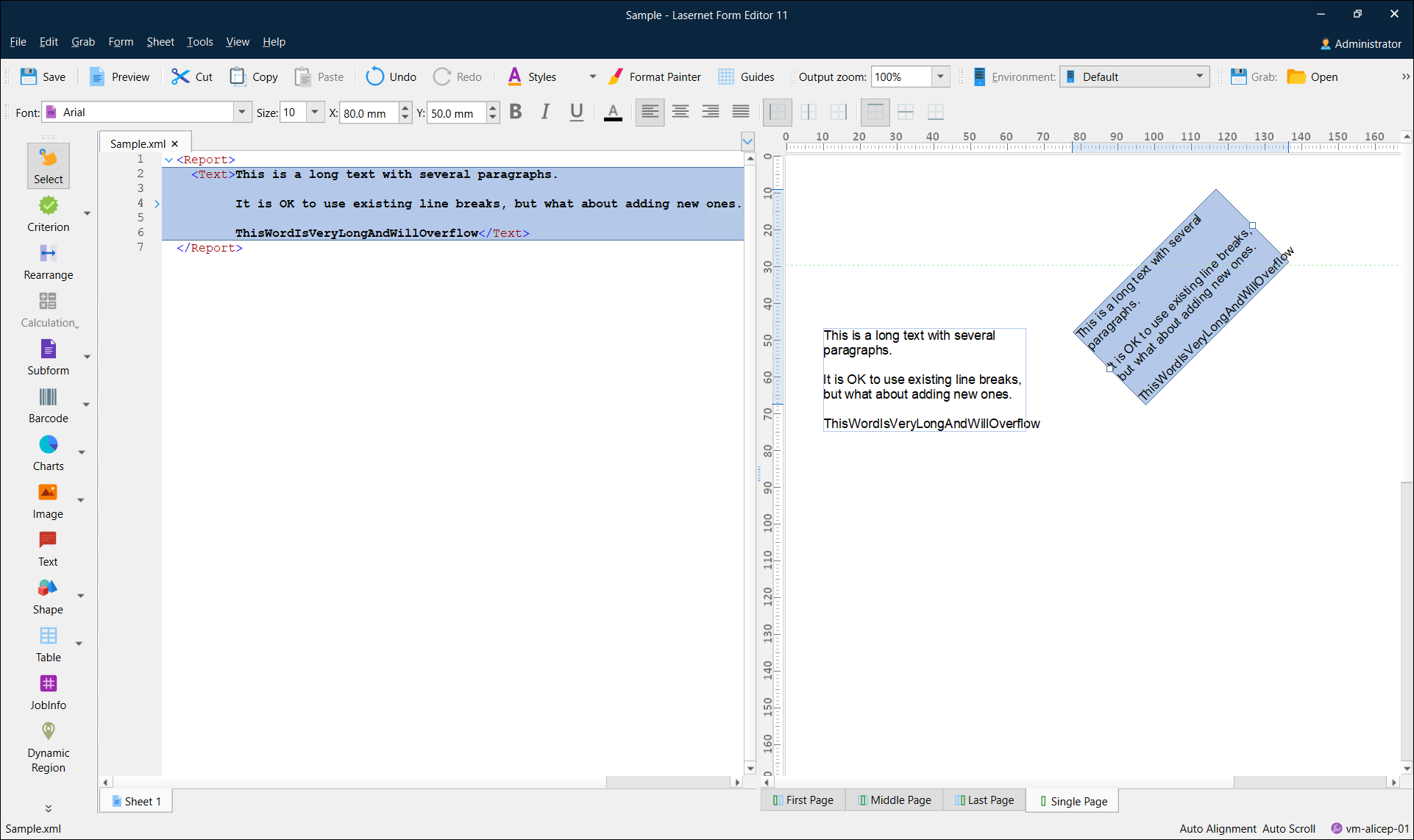
Set Rotation to 45°.
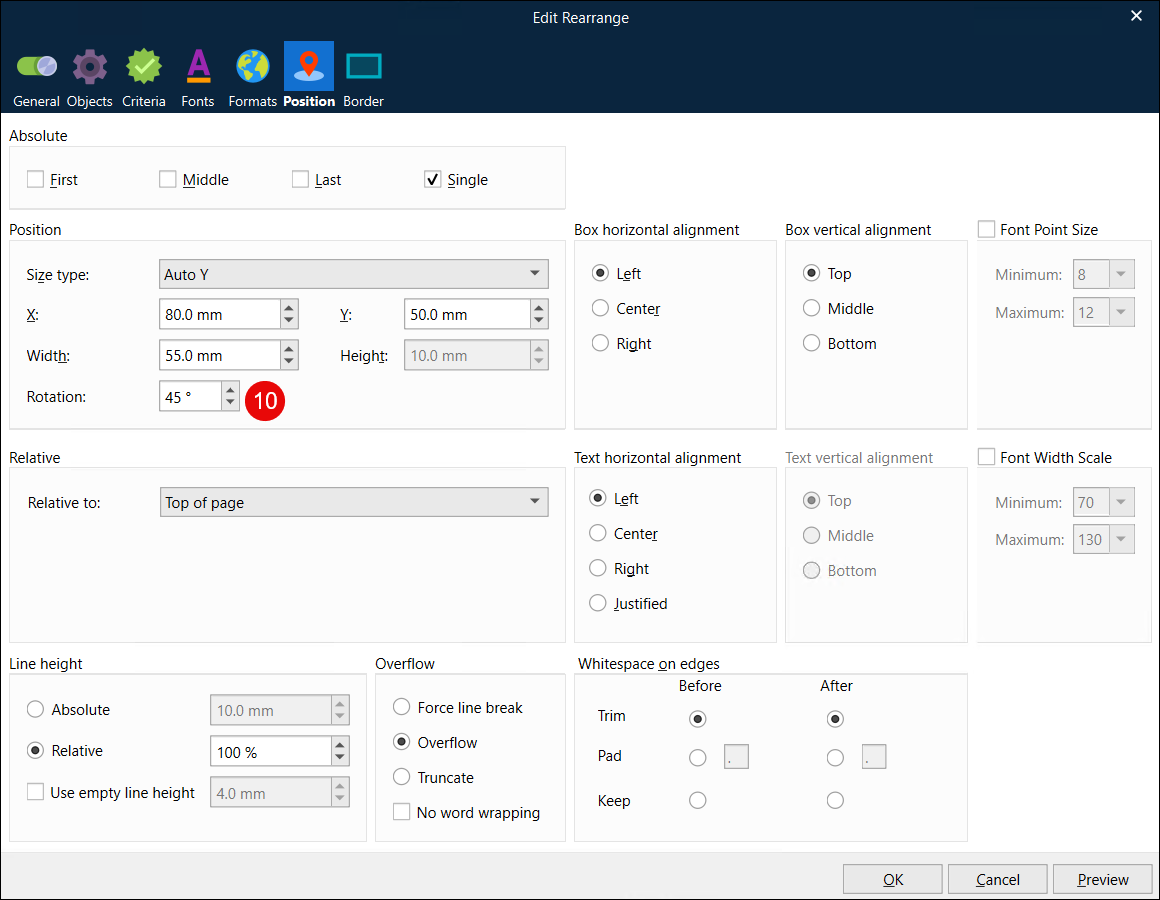
You have added a text rotation to the rearrange: