In this walkthrough, you will learn how to create a new form and design a report by using XML as input data. You will also set up the required criteria to recognize the form.
The form criteria are used by the form engine to locate key data in specific locations within the input data and recognize a form in the form list.
Note
If no criteria are specified for a form, the form is not processed.
Walkthrough
Download and import the attached 02.Add New Form with Criteriaconfiguration in Lasernet Developer. Then, follow these steps:
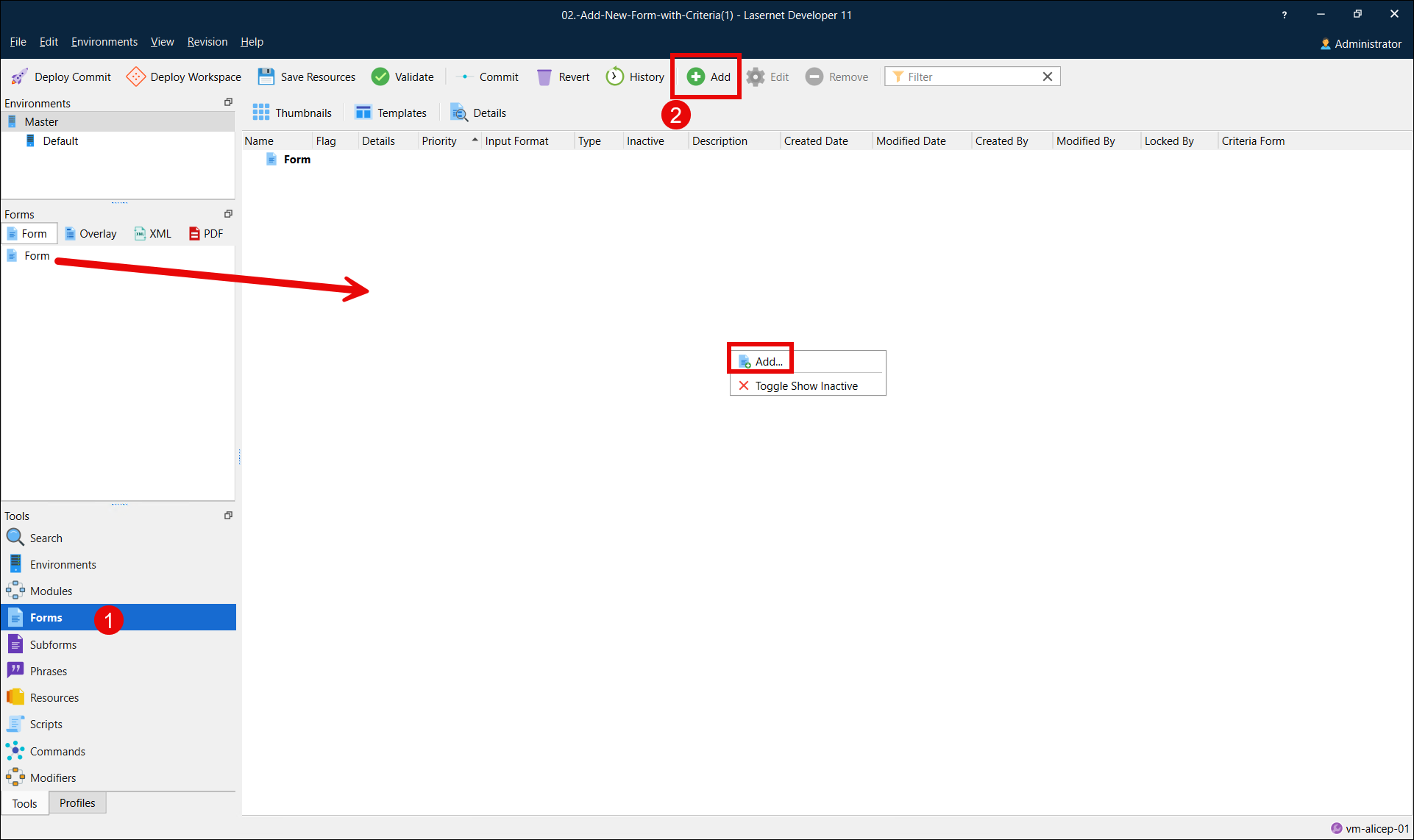
Select Forms from the Tools panel to open a form area.
Click the Add button on the top toolbar. Alternatively, drag the Form item to the form area, or right-click inside the form area and select Add from the context menu.
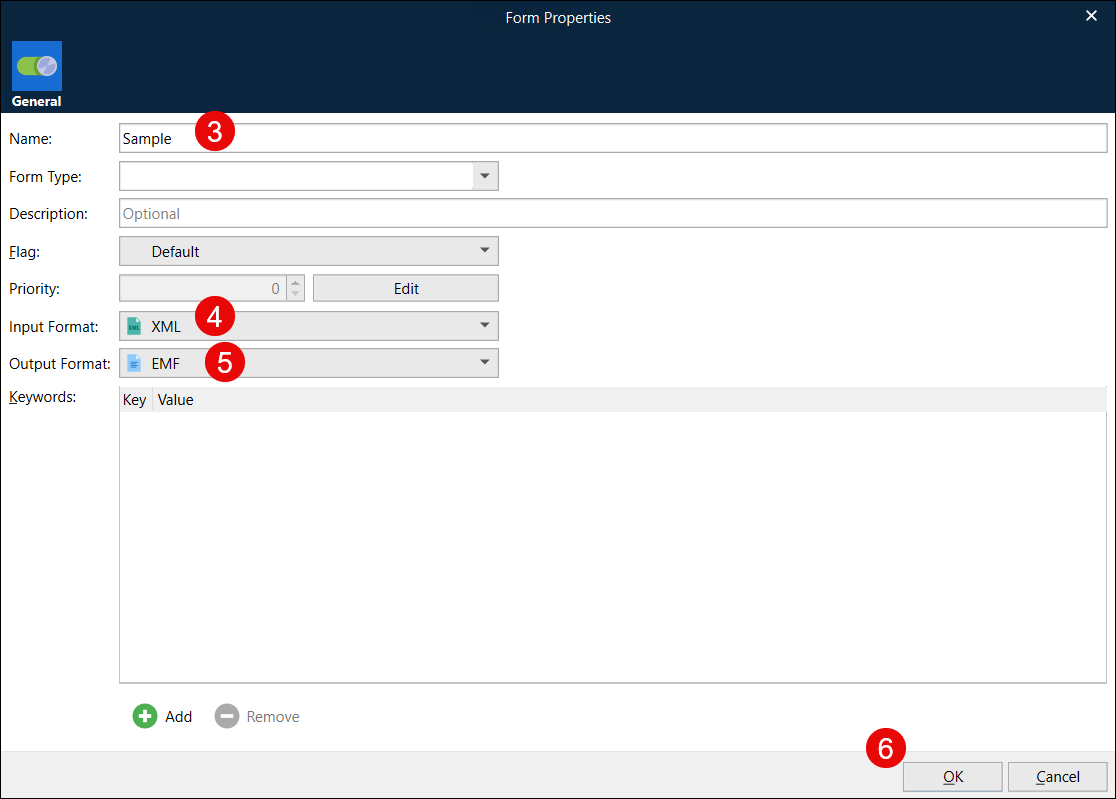
Enter the name of the new form in the Name field.
Select XML as the Input Format.
Select EMF as the Output Format.
Click OK to confirm changes.
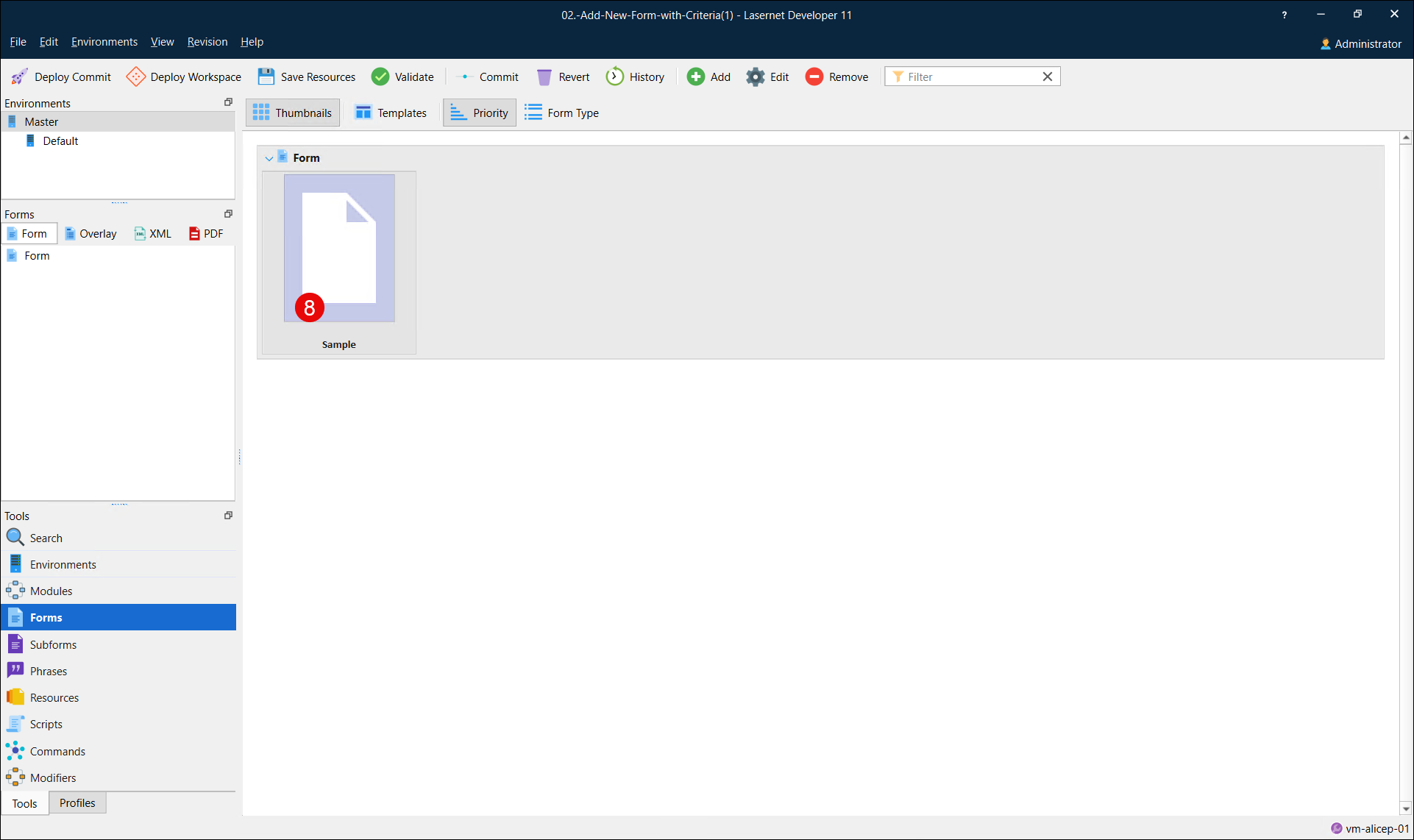
Click the Thumbnails button to view the forms as thumbnails.
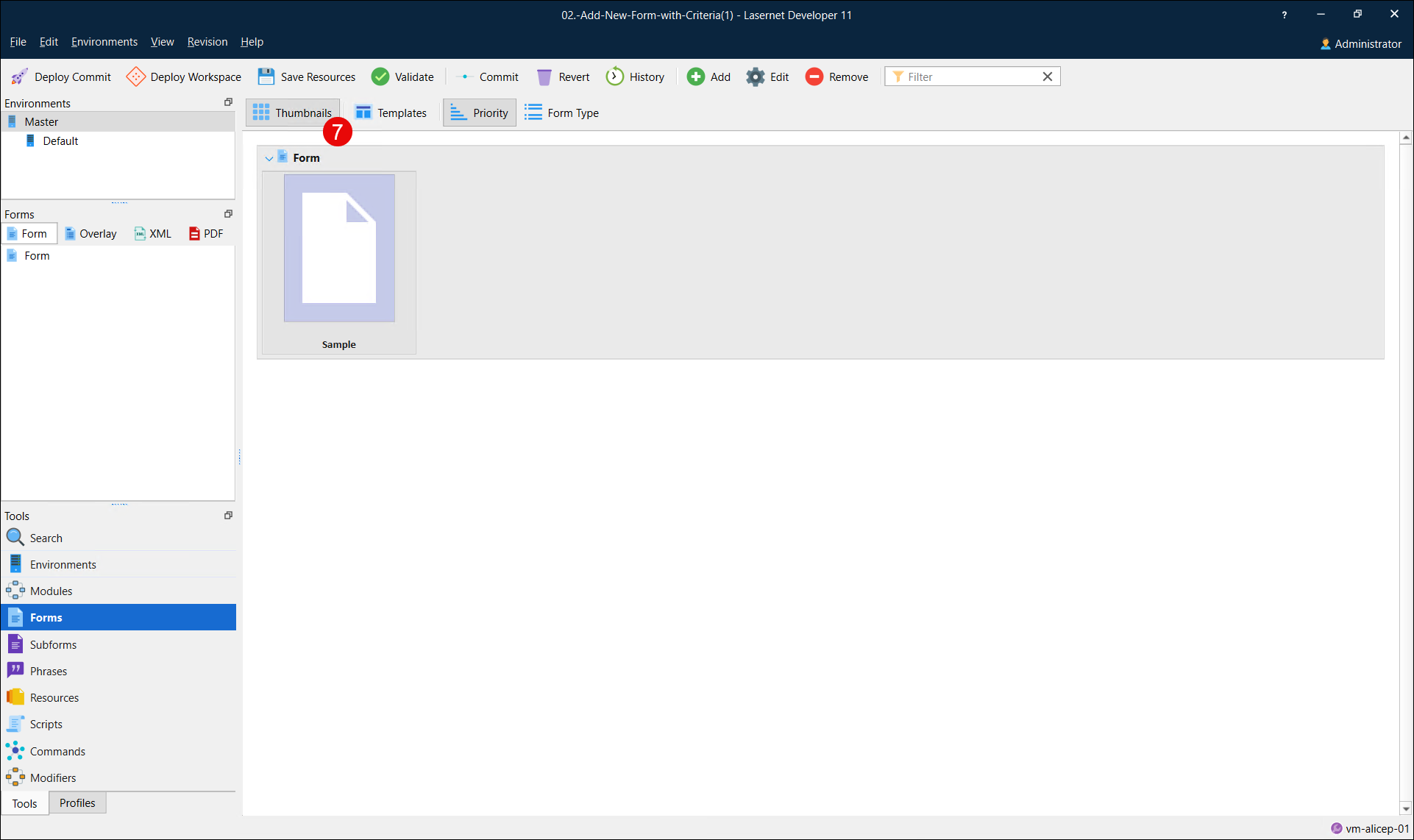
Double-click the form to open the Form Editor.
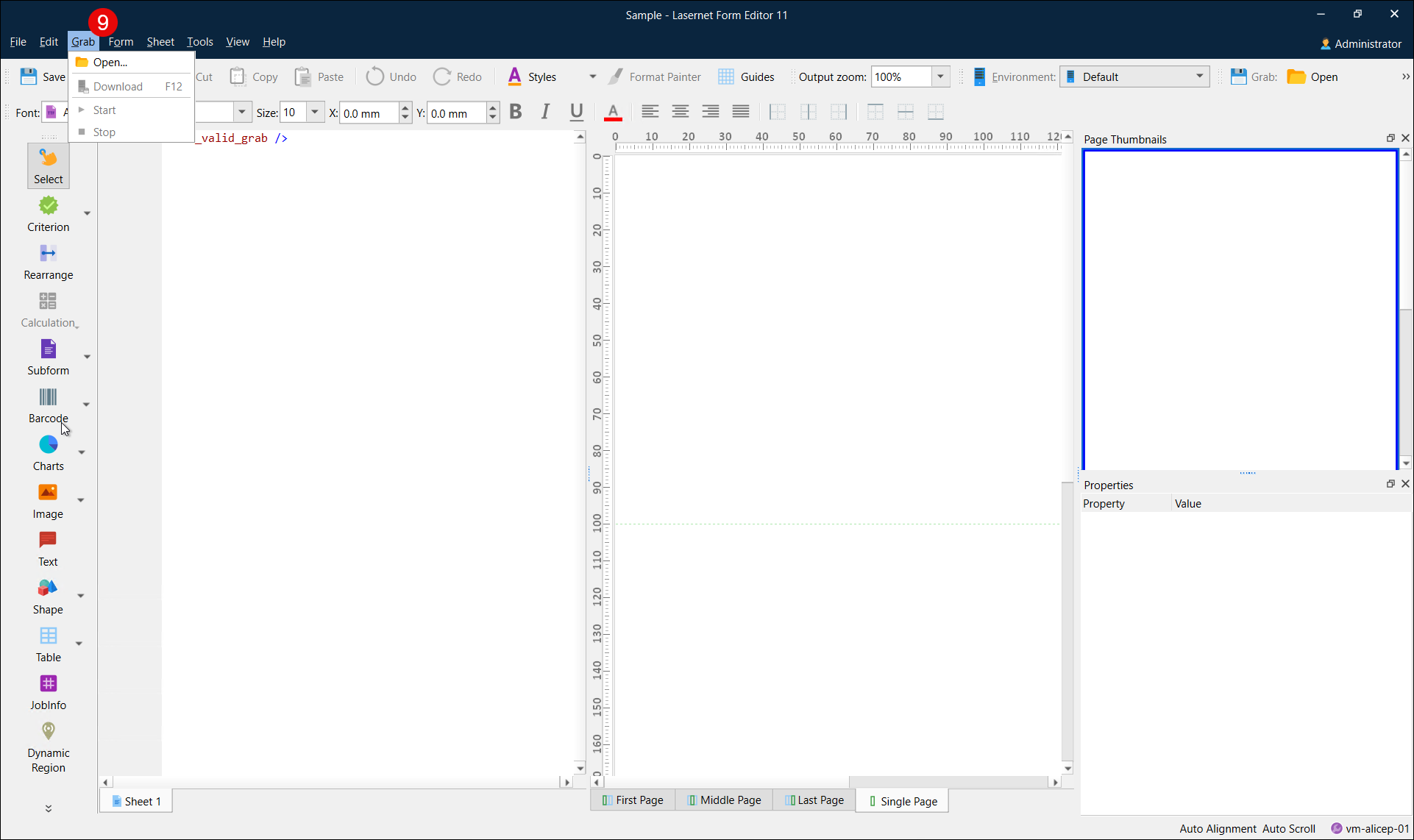
Before you can set up a new form, you must open a grab file, which will show in the input view window of the Form Editor. A grab file contains the output data as delivered from the application for which you want to create a report.
Click Grab and then select Open.
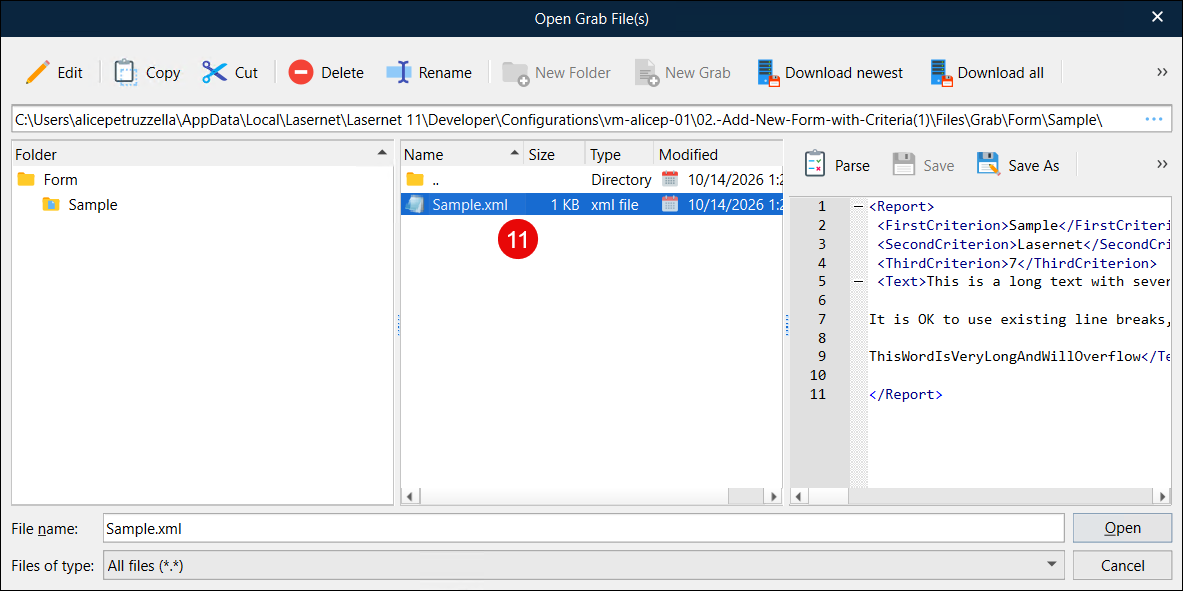
Browse to the directory where the relevant grab file is located. This is by default the
Grabsubdirectory of your configuration.Select the
Sample.xmlfile and then click Open.
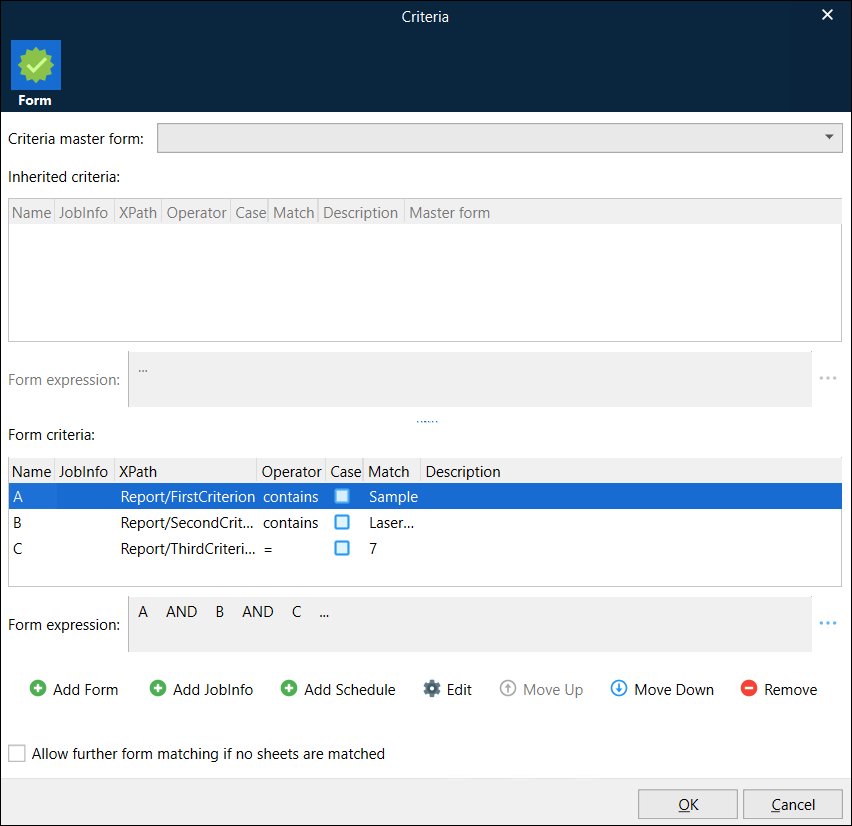
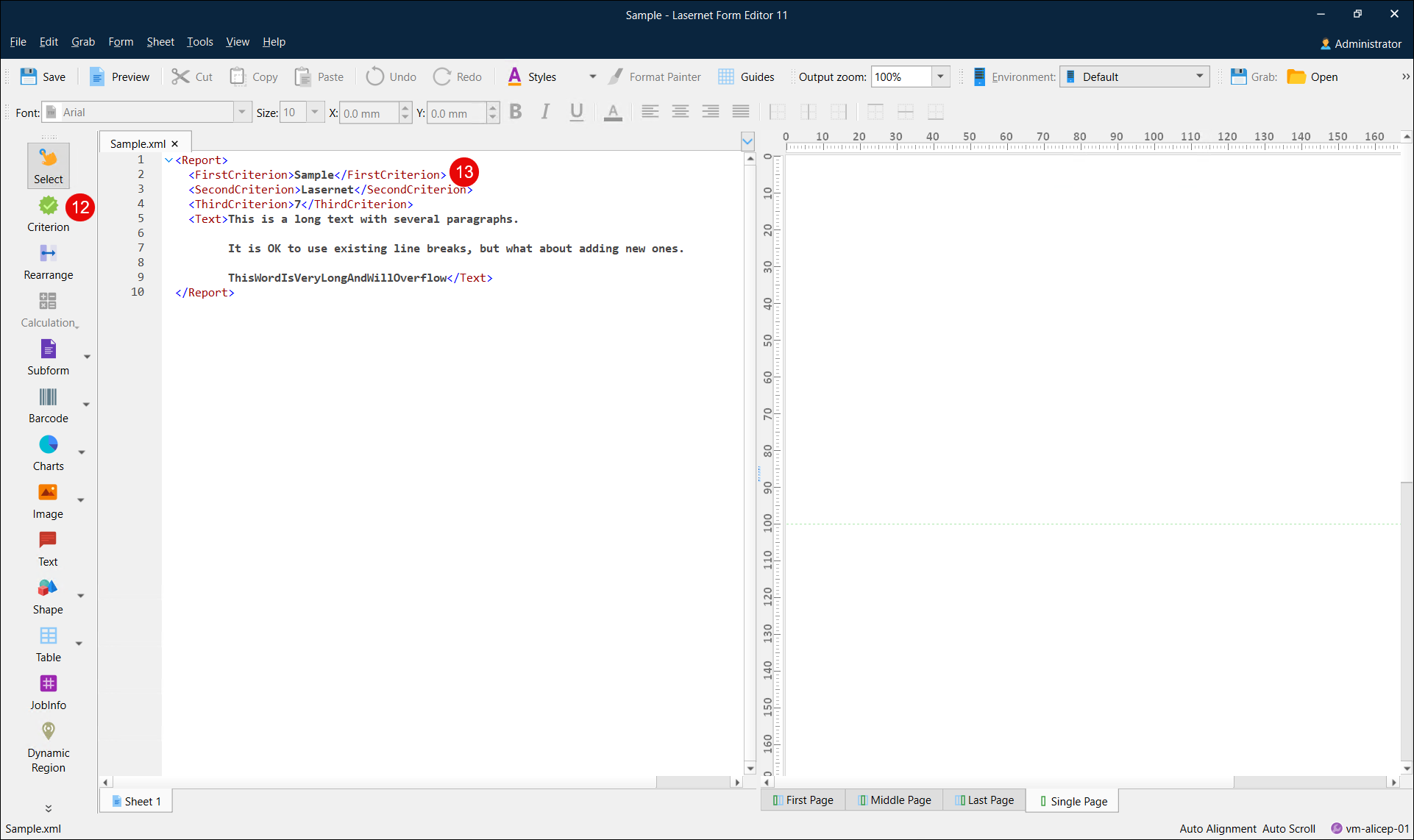
You can set up criteria in the Form Editor input using the Criterion tool and then selecting an XPath. You can also manually add a criteria with the help of the Criteria dialog. You can access this function by clicking Criteria on the Form menu.
Select the Criterion tool from the Developer toolbar to set up the first criteria. Alternatively, add the criteria manually by selecting Criteria from the Form menu. You can use one or more criteria so the form engine can recognize and process the form.
Select the
<FirstCriterion>element in the input data.
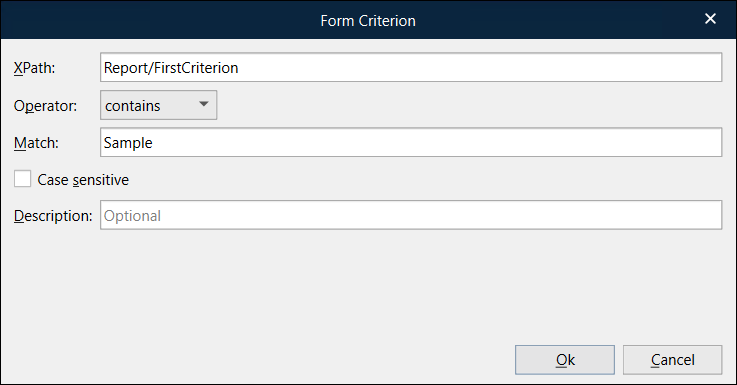
Accept the default settings for the selected XPath, which is Report/FirstCriterion, as well as the Match value, which is Sample. Select the operator needed to match a value from the Operators drop-down menu, which in this case is contains.
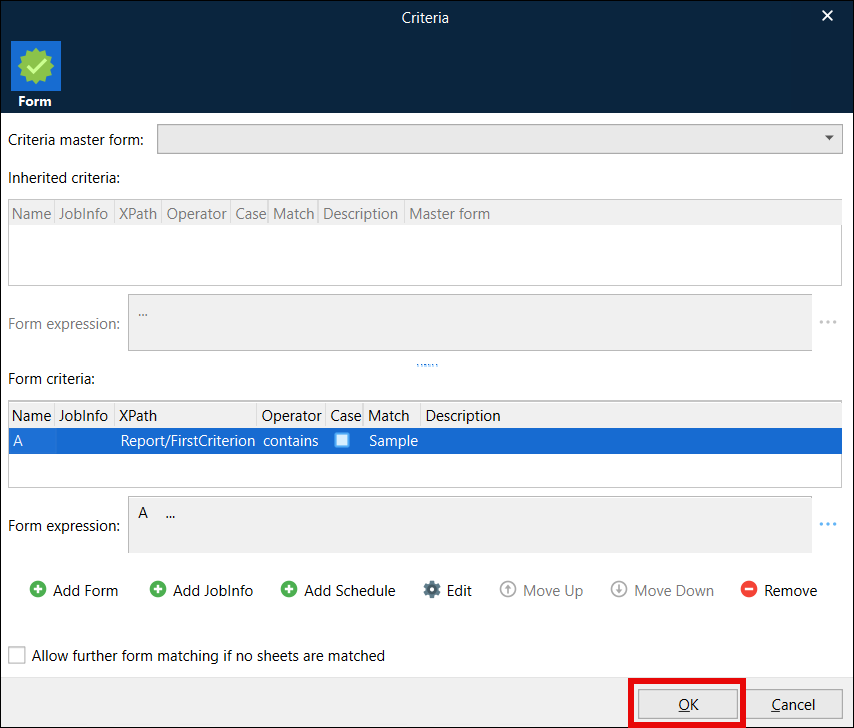
Click OK in the Criteria dialog that opens.
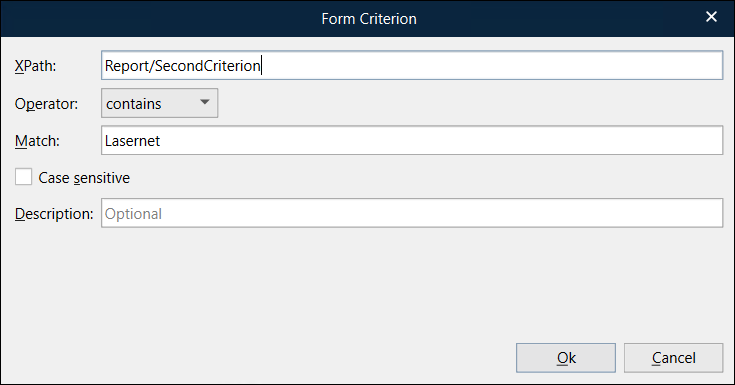
Repeat steps 13–16. Select
<SecondCriterion>and set the contains operator to match the Lasernet value.
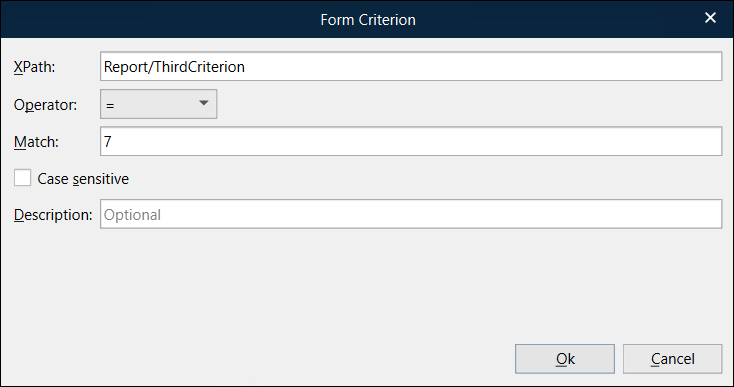
Repeat steps 13–16. Select
<ThirdCriterion>and set the = operator to match the 7 value.
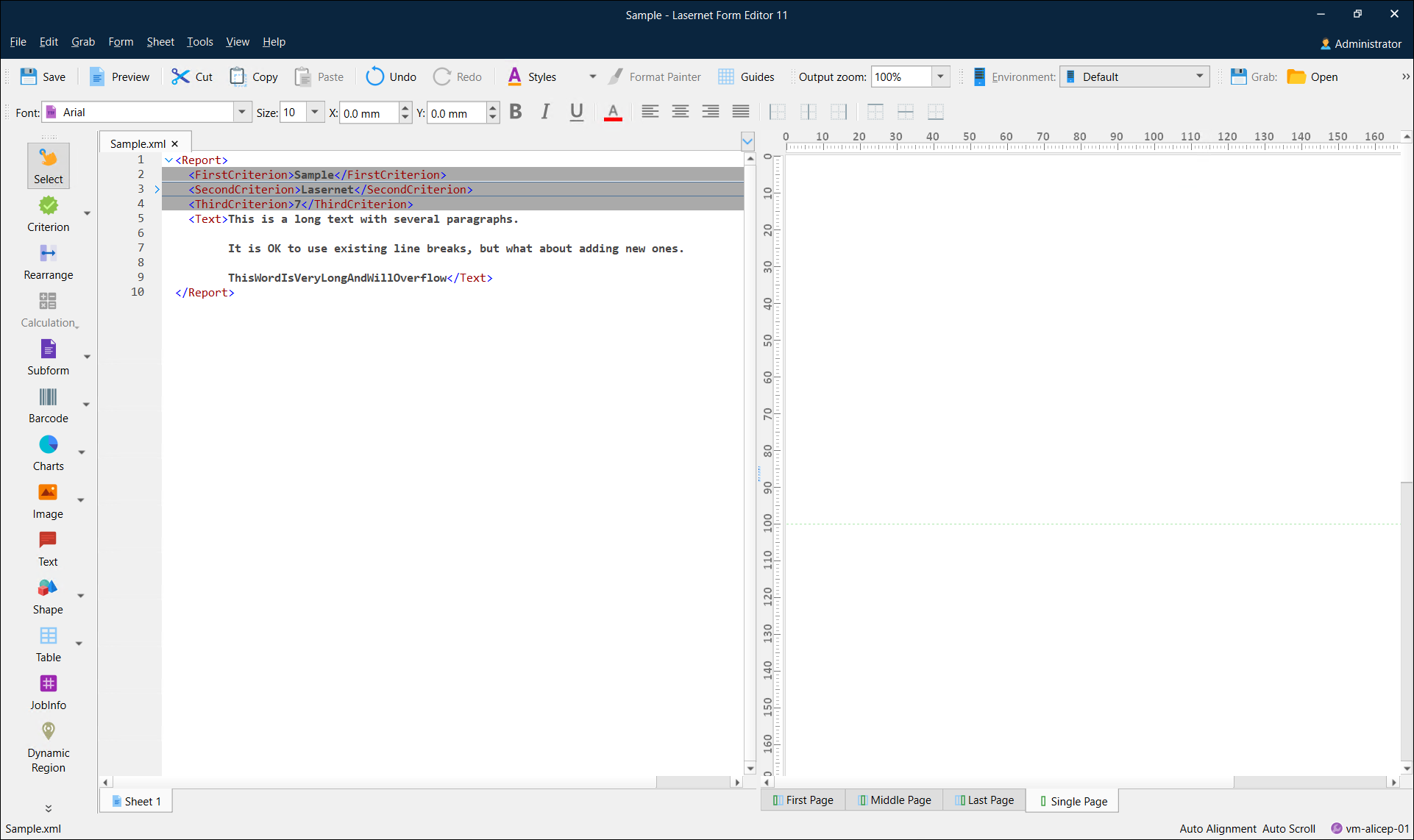
The input view shows three objects highlighted in dark grey, indicating that the form contains three criteria to recognize the XML data.
Select Criteria from the Form menu to edit the criteria. Each criteria has a name defined by a letter used in a form expression. You can manually add new form criteria, edit the existing list, or move items in the list up or down. Ensure that the form expressions are listed in the expected order after moving a criteria up or down.