

Applies to: Lasernet Core 11 and 10 (not Lasernet Essentials / Professional / Advanced)
The XML tab of the Sheet Options window enables you to configure the output of an XML sheet.
Refer to the information for the Lasernet Core version you are using.
Lasernet Core 11
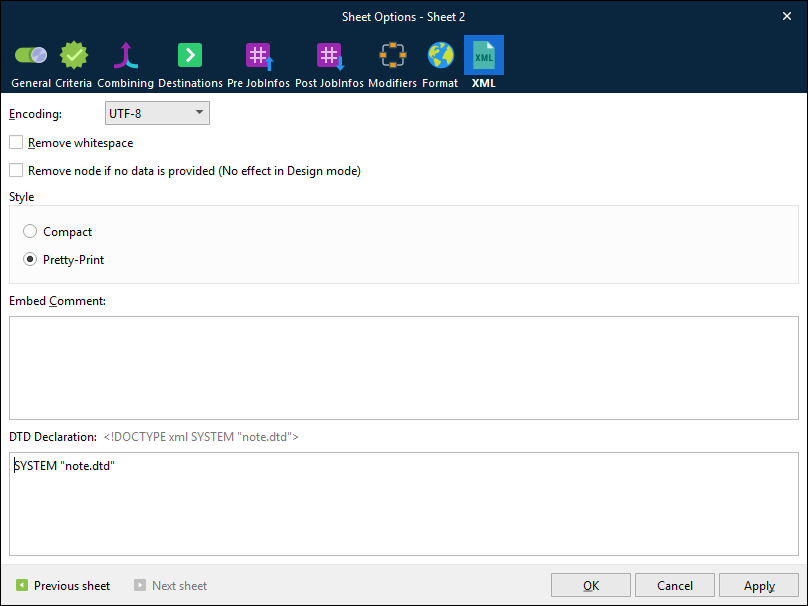
The XML tab contains the following settings.
Property | Description |
|---|---|
Encoding | Select the encoding for the XML file that Lasernet Core will produce. The default is UTF-8, which enables the XML to be viewed in a browser. |
Remove whitespace | Removes leading and trailing spaces from the text inside an element node. Alternatively, use the Trim Spaces rearrange property to configure whitespace handling at the rearrange level. For more information, see Edit Rearrange Properties. |
Remove node if no data is provided (No effect in Design mode) | Prevent nodes that contain no data from being included in the output. This setting overrides the settings of individual nodes on the sheet. |
Style | Controls the format of the output XML. Compact: The entire XML document is written as one line. Pretty-Print: The XML contains line breaks and indentation to make it more human-readable. This setting does not affect how the XML is presented in Lasernet Form Editor. |
Embed Comment | Adds information at the beginning of an XML file. For example, company details. Comments are used only by the receiver of the file and are rarely used in an XML business-to-business solution. |
DTD Declaration | Defines the structure, permitted elements, and attributes of an XML document. |
Lasernet Core 10
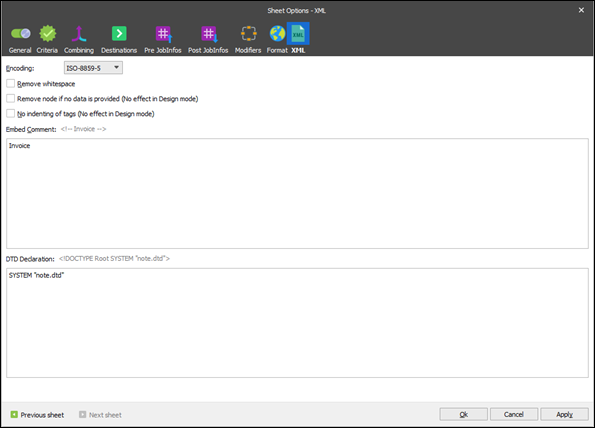
The XML tab contains the following settings.
Property | Description |
|---|---|
Encoding | Definition of the XML file’s encoding format when produced by Lasernet Core. The default is UTF-8, which allows the viewing of the XML file in a browser. |
Remove whitespace | In most XML prints, blank fields are not allowed with the data, which can happen when mapping data in Lasernet Core. Here, blank fields mean empty spaces before and after the text. This setting makes it possible to remove these blank fields. Alternatively, Trim Spaces before and after can be chosen in the input properties or Whitespace on edges for output properties, respectively. |
Remove node if no data is provided (No effect in Design mode) | This is used to exclude empty nodes from the output. Note that this setting overrides the settings of individual nodes on the sheet. |
No indenting of tags (no effect in Design mode) | Controls the formatting of the XML. When selected, the XML output generated is written as one long line containing all the tags. When cleared, each tag is placed on a separate line, and whitespace is added to indent the tags to give them a tree-like look when viewed in a text editor. The check box does not affect how the XML is presented in Lasernet Form Editor. |
Embed Comment | Is used to add information at the beginning of an XML file; for example, company details. Comments are only used for the receiver of the file and are rarely used in an XML business-to-business solution. |
DTD Declaration | Defines the structure and the legal elements and attributes of an XML document. |