Applies to: Lasernet Core 10
Database Connections
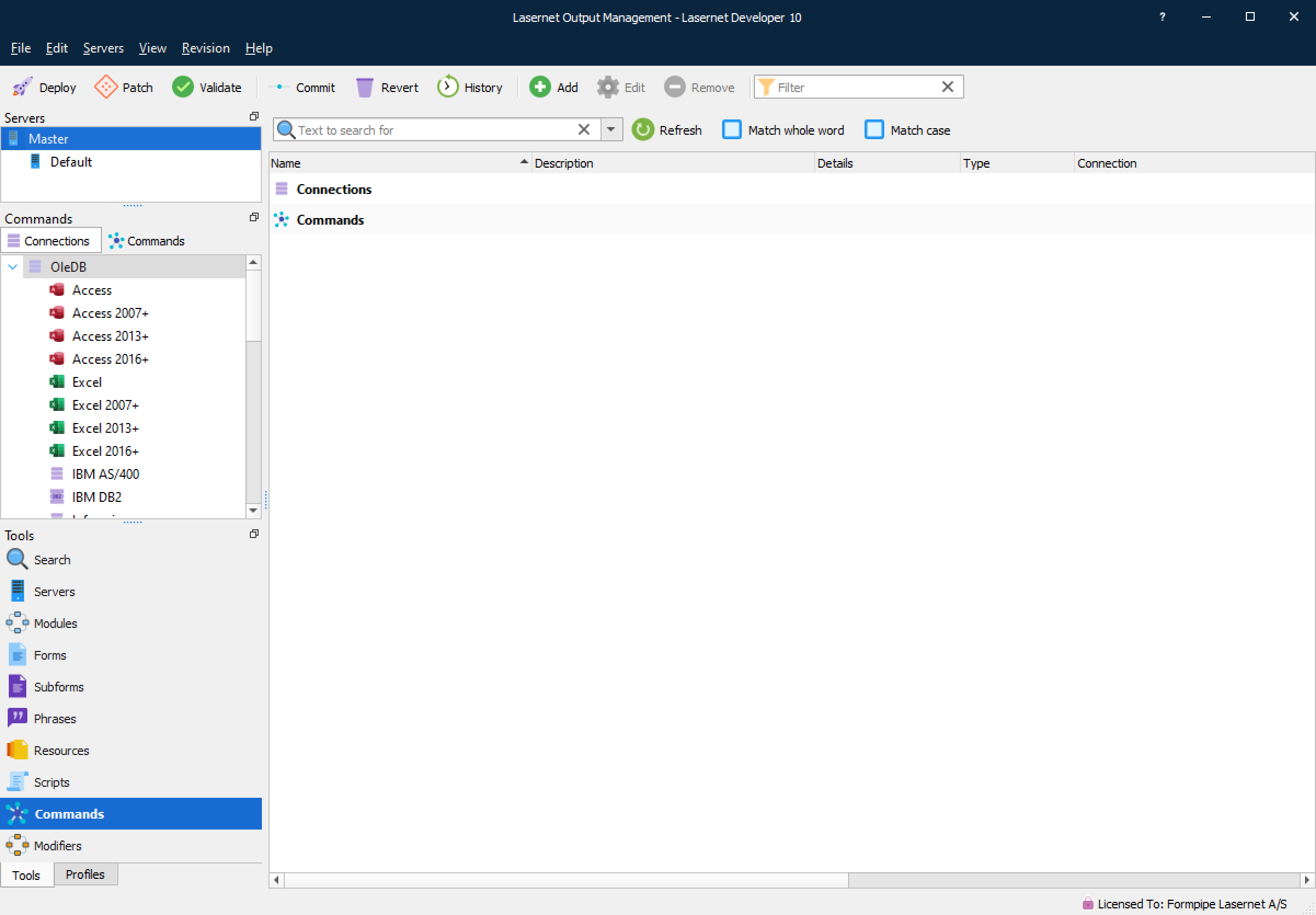
In order to work with a database a connection is required. The parameters required for each type of database vary, therefore a general overview is provided here, together with more specific instructions for commonly used databases.
Note
This area also contains connections that are used to access Microsoft Azure services, such as SharePoint (see SharePoint) and Azure Storage (see Azure Storage).
Connection Name
A unique name used for referencing the connection in the commands.
Server type
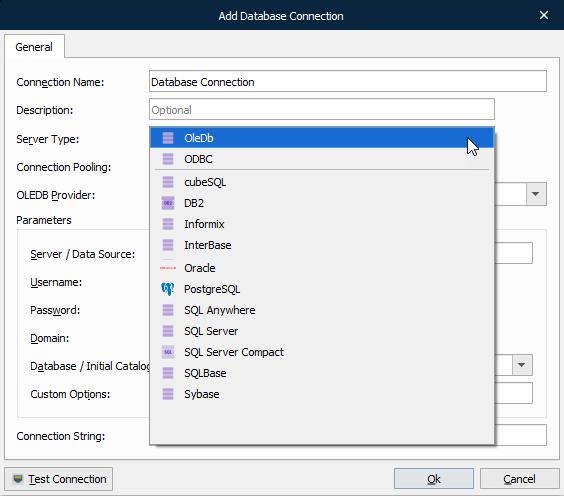
OleDb
All major databases use OLEDB drivers. These are supported via the OLEDB framework which provides access to almost every function of the database.
The necessary drivers for your database must be installed on the computer running Lasernet Core. They also need to be installed on the computer that runs the Lasernet Developer otherwise connections and commands cannot be tested.
If Lasernet Core can’t communicate via the OLEDB provider, it will result in an error. This can typically happen if the connection string has not been defined as intended or Lasernet Core is not sharing the same 32-bit or 64-bit architecture as the OLEDB provider. In such scenarios, the error message COM error when communicating with OleDb: Provider can’t be found. It may not be properly installed will occur.
ODBC
To use ODBC, an external client and driver components must be installed on the computer running Lasernet Core. Any ODBC client can access a DBMS (Database Management System) for which there is an ODBC driver. DBMS server is a back-end system, for example SQL Server, Oracle and AS/400, or any DBMS for which an ODBC driver exists.
ODBC drivers must be installed and maintained via the Windows ODBC Data Source Administration tool and support the same 32-bit or 64-bit architecture as Lasernet Core.
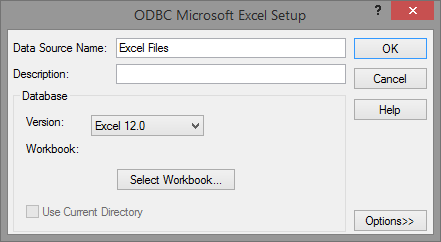
Info: When adding a Database Connection using ODBC in Lasernet Developer, the Data Source Name (located in the Windows ODBC Administration tool) has to be entered in the field for the Database / Initial Catalog value.
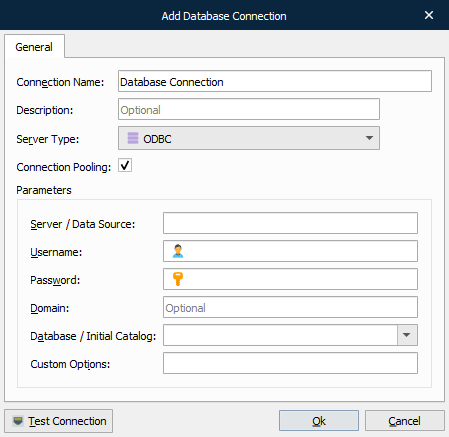
Native (SQLAPI)
Lasernet Core uses a SQLAPI and Microsoft’s OleDb framework as libraries. SQLAPI provides specific drivers for selected databases. These drivers are generally fast, and often require 3rd party drivers to be able to connect to the selected database.
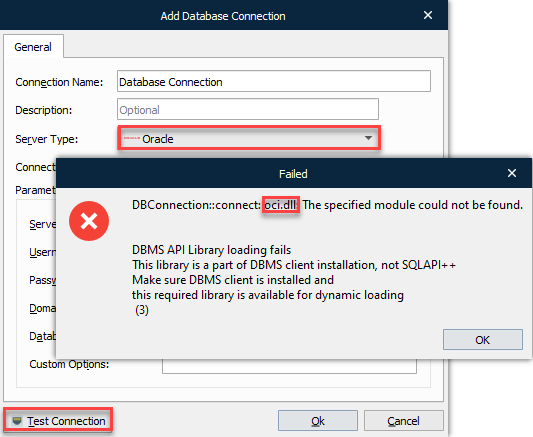
Select one of the supported databases and click Test Connection. If the required driver is not available the connection will fail. The dialog will provide you with information about required 3rd party drivers to successfully connect to the selected database type. Ensure that the driver from the database provider has the same bit architecture as your Lasernet Developer and Lasernet Core Service and that it is available for both applications, if they are not installed on the same computer. The driver must be installed in the same directory as your Lasernet Core software.
SharePoint
This connection is used for connecting to a SharePoint server.
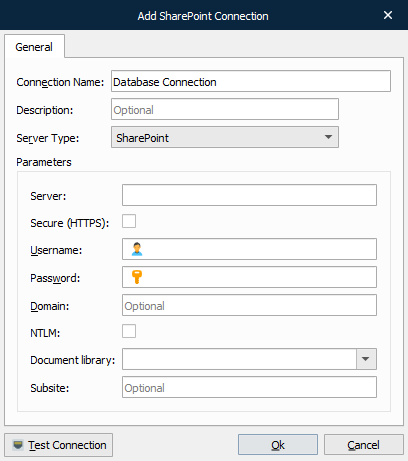
Refer to the Lasernet Core 10 SharePoint Guide for more information.
Azure Storage
This connection is used for connecting to Azure Storage.
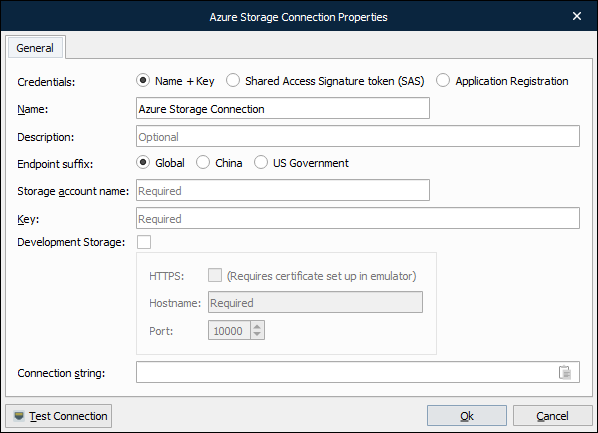
Refer to the Lasernet Core 10 Azure Guide for more information.
General Settings
Connection Pooling
The Connection pooling option is activated by default when adding a new Database Connection. It works as a cache of database connections which can be reused when future requests to the database are required. Connection pools are used to enhance performance when executing commands on a database. Opening and maintaining a database connection for each user is costly and wastes resources. When using connection pooling, the connection is placed in the pool after it has been created and used over and over again, so that a new connection does not have to be established. If all the connections are being used, a new connection is made and is added to the pool. Connection pooling also cuts down on the amount of time a user must wait to establish a connection to the database.
When exporting or migrating a database connection from an earlier version that does not support pooling, the setting will not be activated automatically. Instead, Lasernet Core will connect to the database and behave as in older versions.
OLEDB Provider
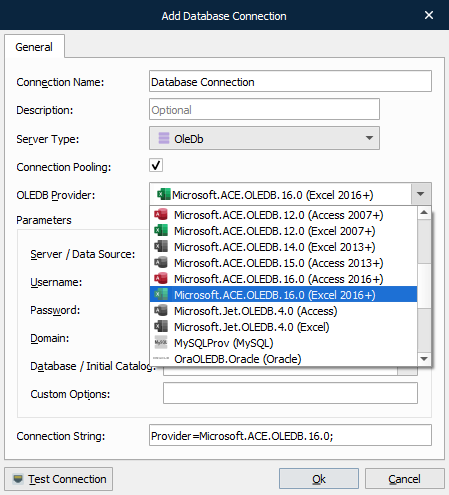
The OleDb Provider list is enabled when the server type is set to OleDb. There are many providers listed here however the list is not exhaustive. You can enter any provider you want to. The following web site, http://www.connectionstrings.com/, may help with specific details for your provider.
Server/Data Source
This is usually the name of the server on which the database server runs. It corresponds to the OleDb Data Source setting. For Microsoft Access databases, this is the full path to the .mdb file.
Username and Password
This is the username and the password for the connection. If using integrated security for OleDb and SQL Server they can be left empty and Integrated Security=SSPI can be set in Custom Options.
Database/Initial Catalog
This is the name of the database on the server. It corresponds to the OleDb Initial Catalog setting. For ODBC it is the name of the DSN (Data Source Name).
Custom Options
Custom Options are only used for OLEDB and give the opportunity to set any specific options needed. One setting could be Integrated Security=SSPI for SQL Server.
Connection String
The Connection String field is visible/readonly when a specific OleDb provider is selected. In the case of an unsuccessful connection to a database server, you can set the connection string to Custom (User defined) and edit the Connection String manually.
Database Commands
Database commands are used for executing SQL queries against databases.
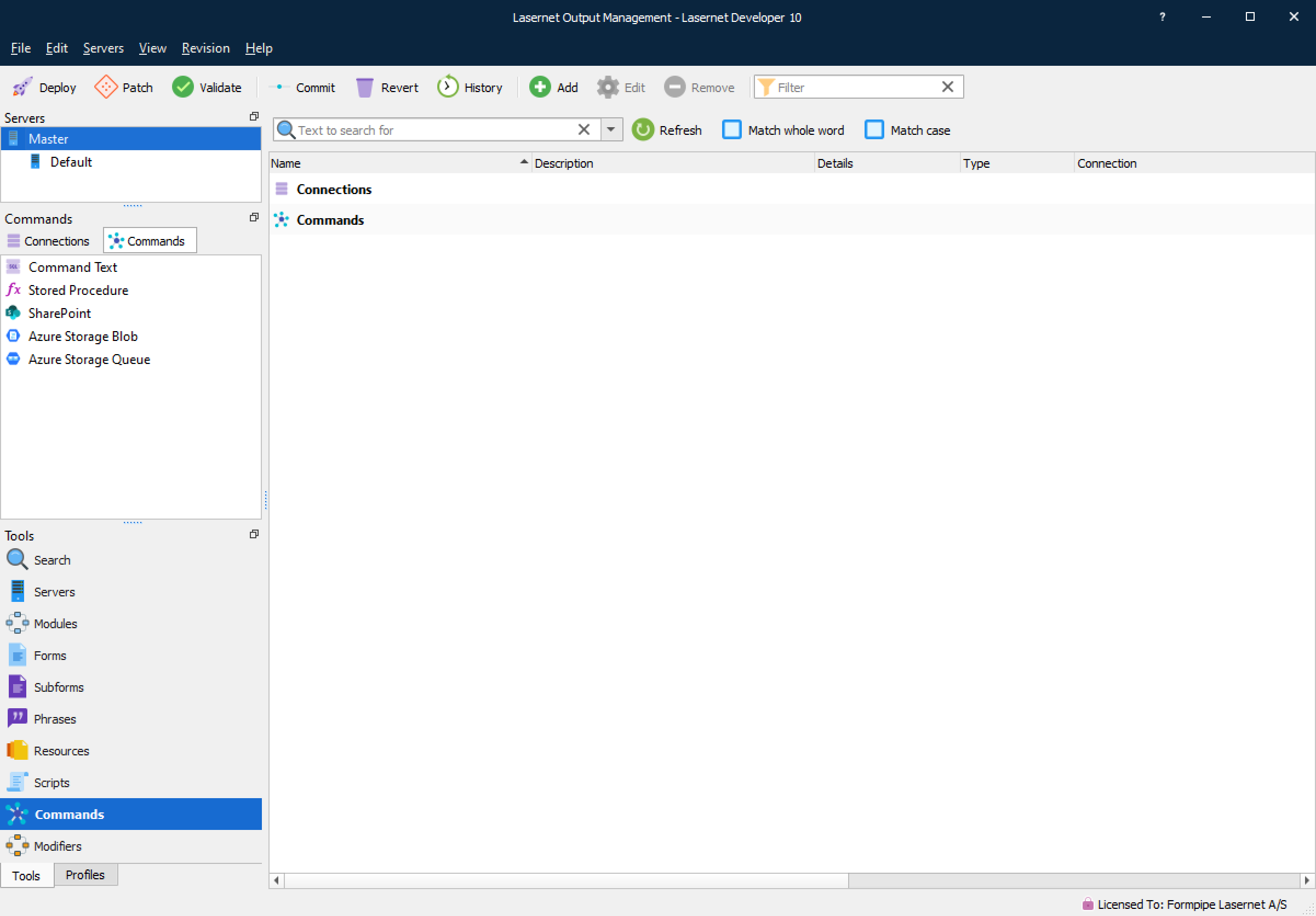
Command Name
Command name is a unique name which is used for referencing the Database Command when calling it from either a modifier point or script.
Connection
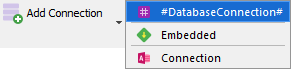
Choose the connection to execute the command through. There is a special connection in the connection list called #DatabaseConnection#, which instructs Lasernet Core to use the connection name that is put in the JobInfo DatabaseConnection. This can be used for choosing the connection dynamically at runtime.
Command Type
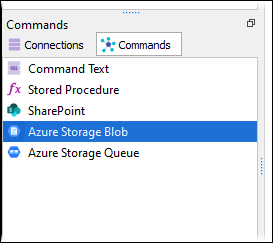
Once the server type for the connection is defined, you can choose the type for the Command Text. The available commands are: Command Text, Stored Procedure, SharePoint, Azure Storage Blob, and Azure Storage Queue. Command Text and Store Procedure are used for Database Connections: OleDB, ODBC and Native. A SharePoint command is always used with a SharePoint Connection.
Command Text
This is the SQL query which is sent to the database server. The SQL query usually retrieves data from the database or updates/inserts/deletes data in the database. The syntax supported in the command text depends on the specific database backend used, but there are some common features which Lasernet Core makes available. One is substituting #JobInfo# markers with the content of the given JobInfo – e.g.
select * from customers where id = #CustomerID#
This is substituted with the value of the JobInfo CustomerID when the command is run. When simple numeric values are needed, this is the preferred way to customize your SELECT statement. But when using string values, this can cause trouble. Consider this:
select * from mytable where text = '#SomeText#'
As before, Lasernet Core will substitute the #SomeText# with the actual value of that JobInfo. However, if a JobInfo contains text with an apostrophe it will not substitute correctly. Therefore binding must be used (recommended method). The example below shows the correct syntax:
select * from mytable where text = :sometext
Formatting the select statement this way makes ‘:sometext’ a bindable parameter. In the Parameters list, the default values, data types etc, for the parameter can now be set:
When editing each parameter there are some options:
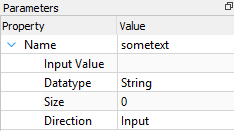
The Input Value field is used for setting the value of the parameter. This can be any #JobInfo# references, which are automatically substituted.
The Datatype field is used to set the type of the parameter. Usually, the database is quite strict about this setting, however some databases are capable of converting types by themselves. Generally, types like String, Double, Long (an integer) and Long binary are used. Lasernet Core also uses the type to determine how to convert input and output values.
Direction tells Lasernet Core and the database in which direction the data from the parameter flows. Input means that the data flows from Lasernet Core to the database. Output, which is Stored Procedure specific, means that the database backend fills the parameter with some data. Input/Output specifies that data flows in both directions.
Command Result
In the Tools > Command Result setting you can specify the behaviour of return values for JobInfos or activate that the result should be generated as XML.
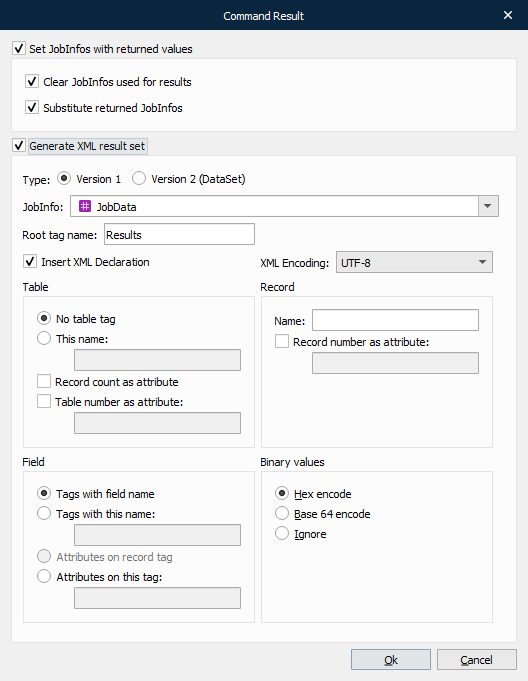
Set JobInfos with Returned Values
If Set JobInfos with returned values is selected, Lasernet Core returns data from the database into JobInfos, which are named after the column names in the table of the database. This means that if you retrieve more than one row of data from the database, you will get arrays of JobInfos containing data.
It is possible to find out if anything was returned. This is done by checking the JobInfo RecordCount. If the value is 0 (zero), no records were returned. Output parameters always return a value.
Clear JobInfos Used for Results
If Clear JobInfos used for results is selected, Lasernet Core automatically clears the JobInfos before starting to enter data into them.
Substitute Returned JobInfos
When this is checked, Lasernet Core will run JobInfo substitution on the returned values before storing them in JobInfos. See JobInfo Substitution for more information.
Generate XML Result Set
Default data is retrieved as JobInfos from the database. It is also possible to return the data into an XML document. This is useful if data needs to be placed into a job to be rearranged in the Form Engine or the result stored into a file.
Select Generate XML result set if you want to retrieve your database command result as an XML document. JobInfos containing field names and values from the database tables will also be created.
JobInfo
The name of the JobInfo that will contain the XML document.
By setting the value to JobData, the primary job parsing through Lasernet Core will now consist of the XML result set.
Root Tag Name
The root tag name of the XML document.
XML Encoding
The XML encoding to be used in the XML document.
Table Tag Name
Which (if any) tag name to be used for the table.
If No table tag is selected, the attribute is placed on the root tag.
Record count as attribute sets the value of the RecordCount attribute to the number of records returned from the database.
Record Tag Name
For each record returned from the database, this tag is used to enclose the records.
Record number as attribute sets the number of the record (starting from zero) in the attribute specified.
Field Tag Name
Specifies how to store the value in the XML document for each field in each record.
Tags with field name adds a tag for each field with the tag name set to the field name.
Tags with this name adds a tag with the given name for each field.
Attributes on record tag adds the field values as attributes on the record tag. Each attribute has the name from the field.
Attributes on this tag adds one tag with the given name and sets the values as attributes on that tag.
Binary Values
Choose how to handle binary values:
Hex encode encodes the value in this format
Base 64 encode encodes the value in this format
Ignore ignores binary values
Example
In this example all rows from the table MAIL_DB are selected where the field CustNo is equal to 44756404.
select * from MAIL_DB where CustNo = '44756404'

In the Database Command modifier, Generate XML result set is selected and the parameters are defined as follows:
The result is an XML document stored into the JobInfo DBData with the following structure.
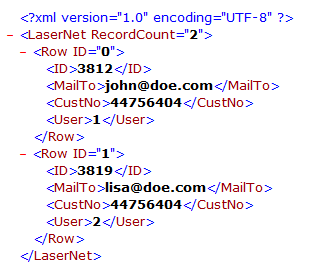
XML encoding is set to UTF-8.
Root tag named <LaserNet> with record count defined as an attribute (two records are selected).
Each record includes <Row> with ID defined as an attribute containing the record number.
Tags selected from the table are named with field names and the value of the field is added.
Other variants of the XML document can be defined by setting the appropriate properties.
DataTable Relations Between Queries in Database Command
You can specify how DataTables are related, making it possible to have master/detail relationship. This enables you to mail merge or create reports, for example, with customers and their orders, based on your query.
Stored Procedures
Calling a stored procedure is as easy as picking a database connection, selecting which procedure to call and filling in the parameters accordingly.
Lasernet Core supports input and output parameters as well as a return value from the procedure (OleDB connections only). Features may vary depending on the backend used. For example, Lasernet Core reads the possible parameters from some backends (SQL Server, Oracle etc.), while for others it’s up to the user to add parameters manually via the Add/Remove buttons in the toolbar.
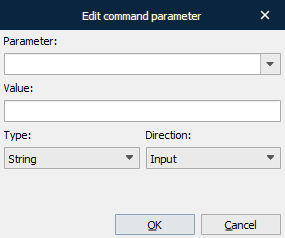
Parameter values support JobInfo substitution.
Parameters can have different directions; Input, Output, Input & Output and Return.
Input: Is sent to the backend.
Output: Parameter is filled with value set in backend.
Input & Output: Is sent to the backend and filled with value set in the backend.
Return: A procedure can return an integer value called a return code to indicate the execution status of a procedure.
The returned values are inserted into JobInfos with the name of the parameter. The return value is sent in “RETURN_VALUE” JobInfo. For Example:
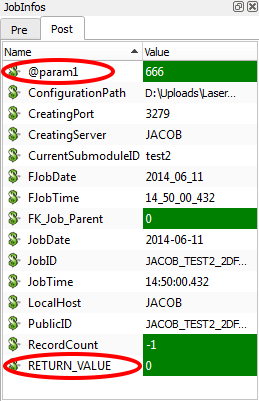
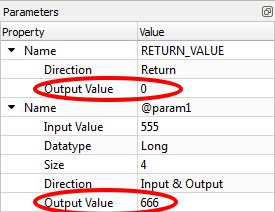
Datasets returned from a stored procedure are either inserted as JobInfos or as XML in JobData exactly like running a ‘Command Text’.
Executing a Query in Transaction or Without Transaction
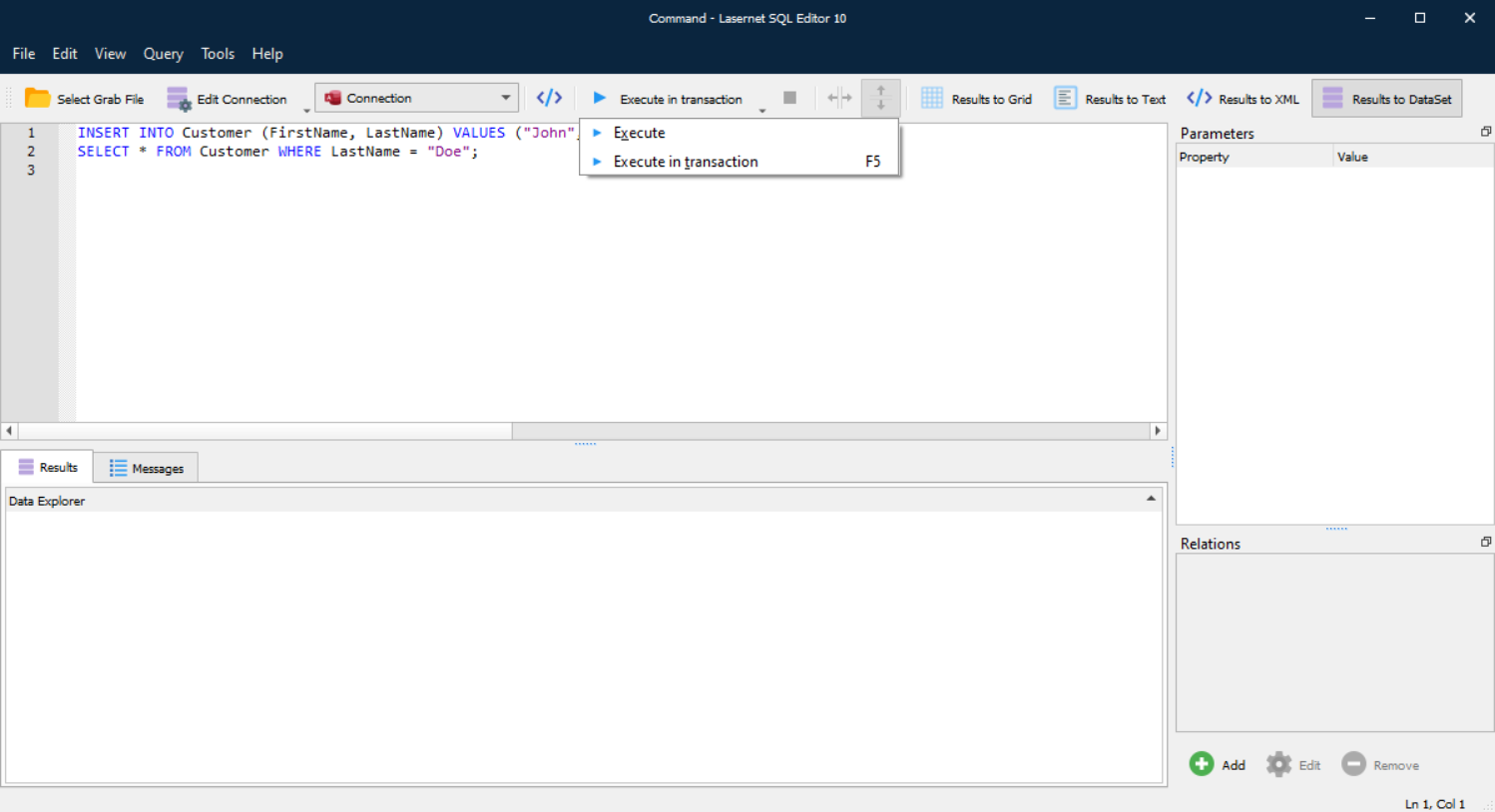
The Execute or Execute in transaction button in the toolbar is used for testing queries directly from the SQL Editor.
Execute with transaction
It can be advantageous to execute queries without actually changing the data in the database, especially when testing. As such, this is the default behaviour of the software in order to prevent accidental changes to the database being made. The feature issues a BEGIN TRANSACTION before executing the query and afterwards does a ROLLBACK TRANSACTION. Log and result sets show changes as they were at the time. Multiple changes and selects can be done simultaneously in the same transaction, if each query is terminated with a semi colon.
INSERT INTO Customer (FirstName, LastName) VALUES ("John", "Doe");
SELECT * FROM Customer WHERE LastName = "Doe";
Execute (Without Transaction)
Execute works identically to Execute in transaction except the BEGIN TRANSACTION and ROLLBACK TRANSACTION are not issued. This means the changes made to the database are permanent.
Executing Partial Queries
When having a several queries separated by semicolon, it can be useful to only execute a few of them. This can be done by selecting just the text covering the queries and then executing the query.
Table Editor
The table editor is built into the SQL Editor. You need a working connection to a database before you can manipulate tables in it. The table editor is only supported on a small subset of the supported backends in Lasernet Core.
The table editor is accessed via the Object Explorer using the Add Table or Edit Table option.
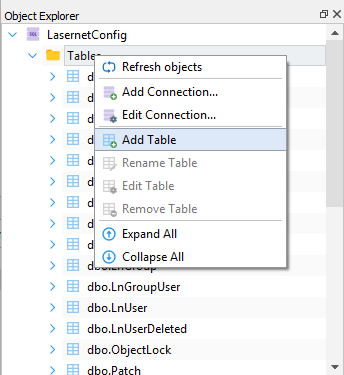
The features available in the table editor depend on the backend used. For example, some backends do not support the renaming of columns.
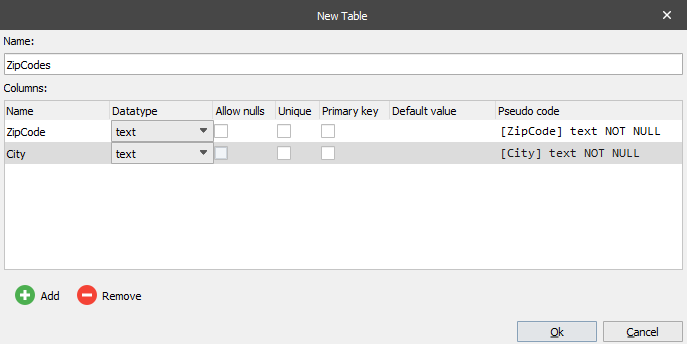
A table name must be specified and at least one column added to the table.
The specified datatype of the columns will reveal or lock out additional features; for example, precision of doubles.
The default value is used when inserting rows in the table where the column is not specified and given a value.
The Pseudo code example is for advanced users who want to know exactly how the column is created (SQL query sent to backend).
Relations between tables cannot be manipulated with the SQL/Table Editor, but must be done either with other software or via manually created SQL queries.
Database specific issues
MySQL and SQLite
In Lasernet 9, and older, an integration with native database drivers to MySQL and SQLite may require that their DLL’s are copied to the Lasernet Core installation folder.
Important
Due to security and synchronizing of Lasernet Core apps, with Lasernet Core, native database drivers for MySQL and SQLite are no longer supported from Lasernet Core 10. They can as an alternative be replaced with an Ole DB provider, which must be installed separately.