Applies to: Lasernet Core 10
The following sections describe how to create your own Lasernet Core configuration from the start. If you upgrade from Lasernet 9 to Lasernet Core 10 there is no need to manually import/export anything to get up and running.
Lasernet Developer provides an easy-to-use environment for configuring and maintaining input and output management rules on your Lasernet Core environment and designing great looking forms.
This article will give you an introduction to the various functions of the user interface.
Connect to Lasernet
The Connect to Lasernet login screen provides secure access to the Lasernet Config Server. The configuration server stores all your configurations, server settings, history, users/groups, and security roles.
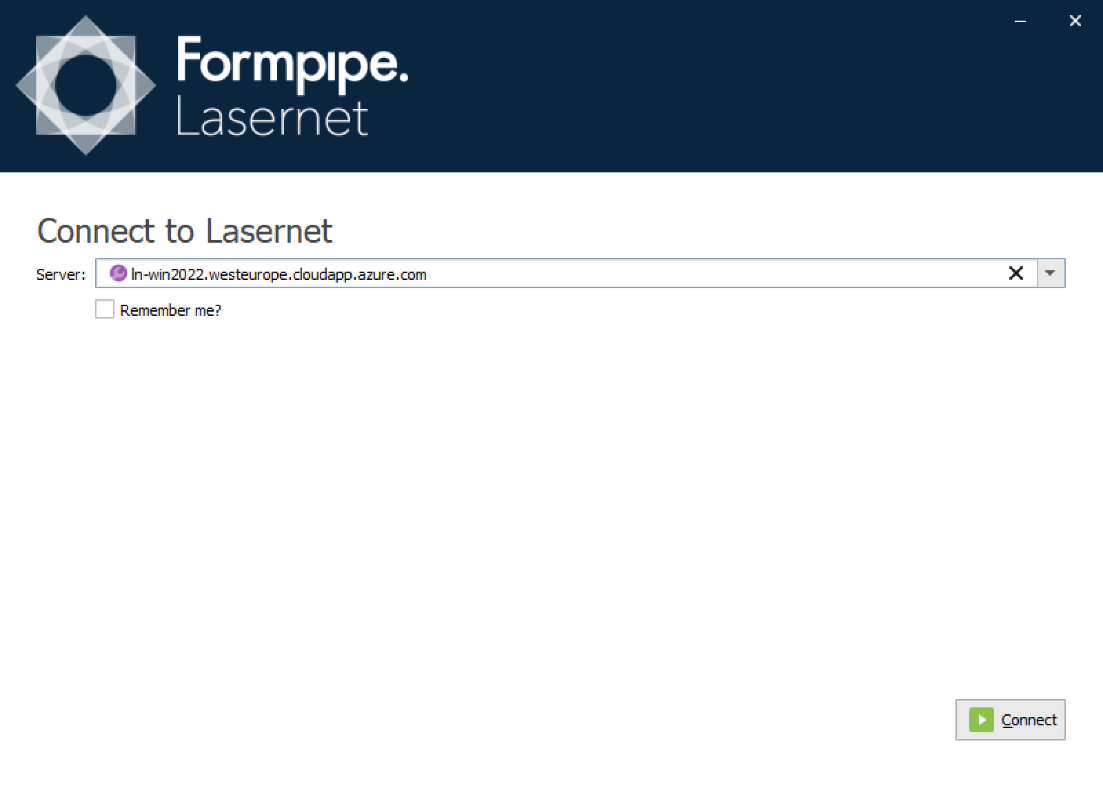
| Server | Name of the Lasernet Configuration Server hosted on-premise or in cloud. |
| Remember me | Activate to remember the last used credentials. |
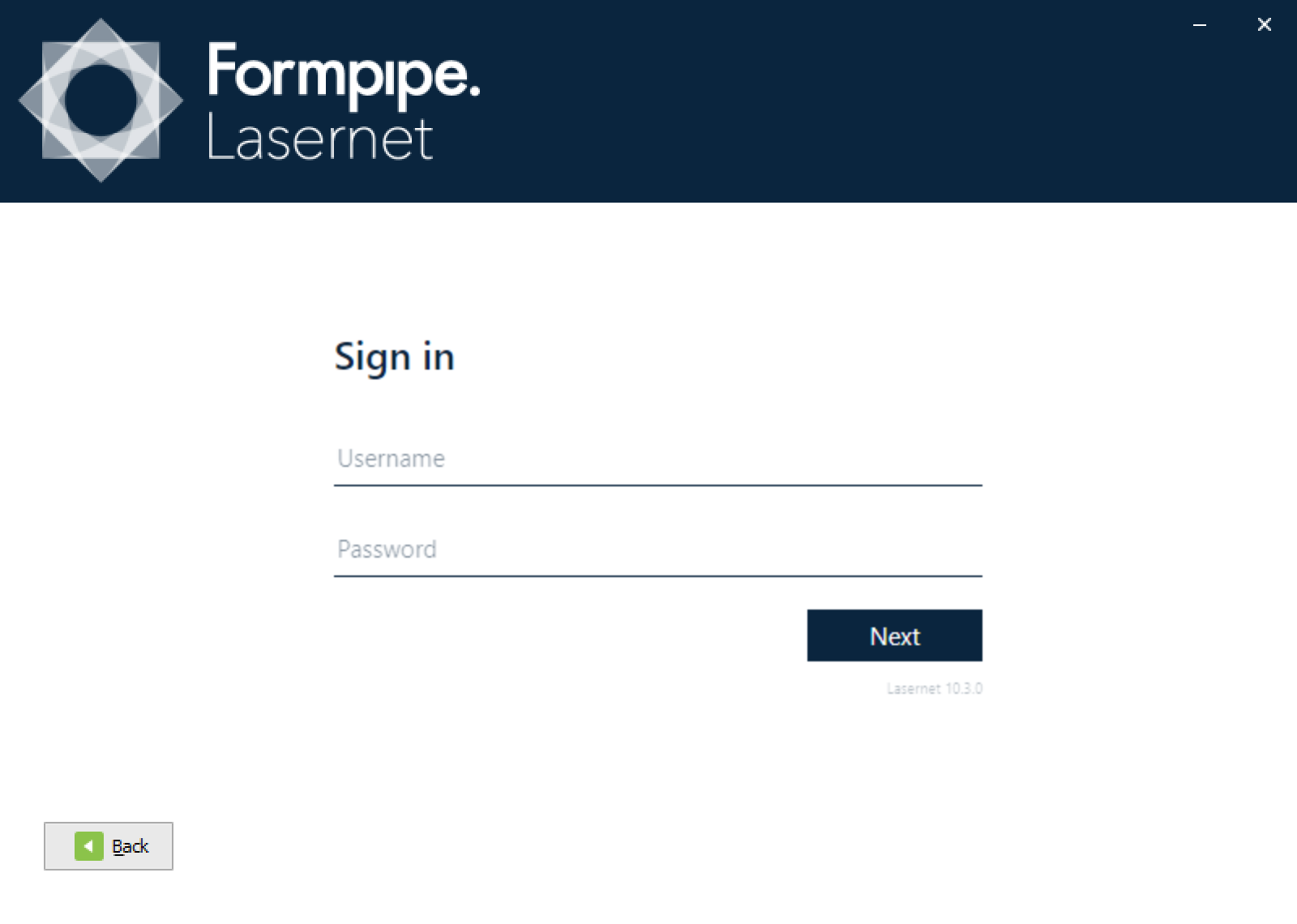
| Username | A user name added to the Lasernet Configuration Server. |
| Password | The password for the given username |
Start
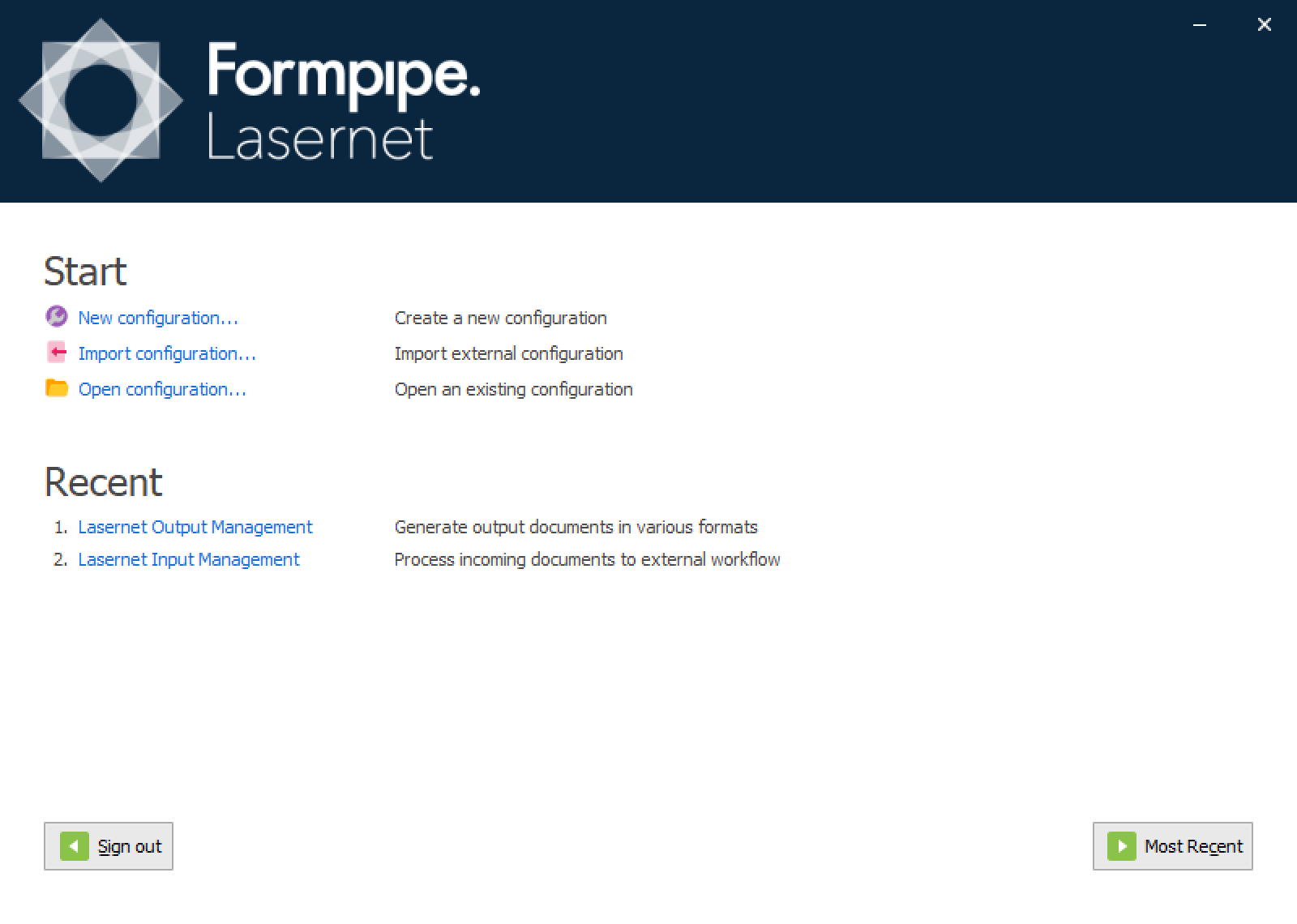
| New configuration | Create a new Lasernet Core configuration. |
| Import configuration | Import a configuration from disk. |
| Open configuration | Open a configuration stored in the Lasernet Config 10 server. |
| Recent | Open a recently used configuration. |
Click Back to return to the Connect to Lasernet screen. Click Most Recent to open the most recently used configuration.
New Configuration
Create a new Lasernet Core configuration.
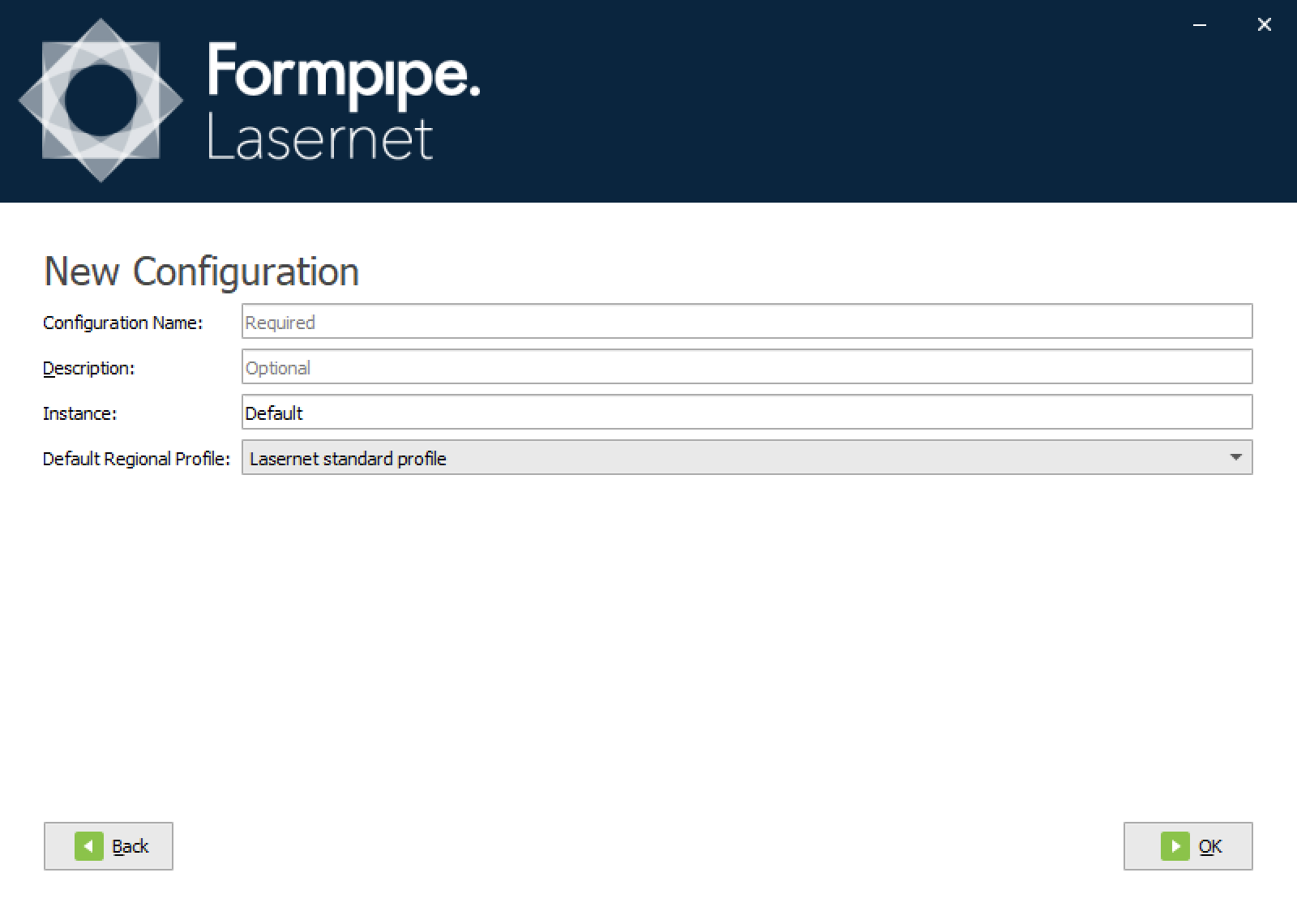
| Configuration Name | Name of the configuration to be stored on the configuration server. |
| Description | Type a description for the configuration. |
| Instance | Instance name of server that runs the Lasernet Core service as configured on the Lasernet Config Server. |
| Default Regional Profile | Select the default region for your configuration. This is used for formatting numbers and dates in documents. Select “Lasernet standard profile” to obtain settings from the local computer. Additional regional profiles can be added to the configuration at a later stage. |
User Interface Overview
The Lasernet Developer brings together a number of comprehensive tools that enable a developer to: set up documents, work with data, set business rules and logic, communicate between modules and environments (mail server, web server, printers, etc) and use design features. Below is a brief list of the different tools.
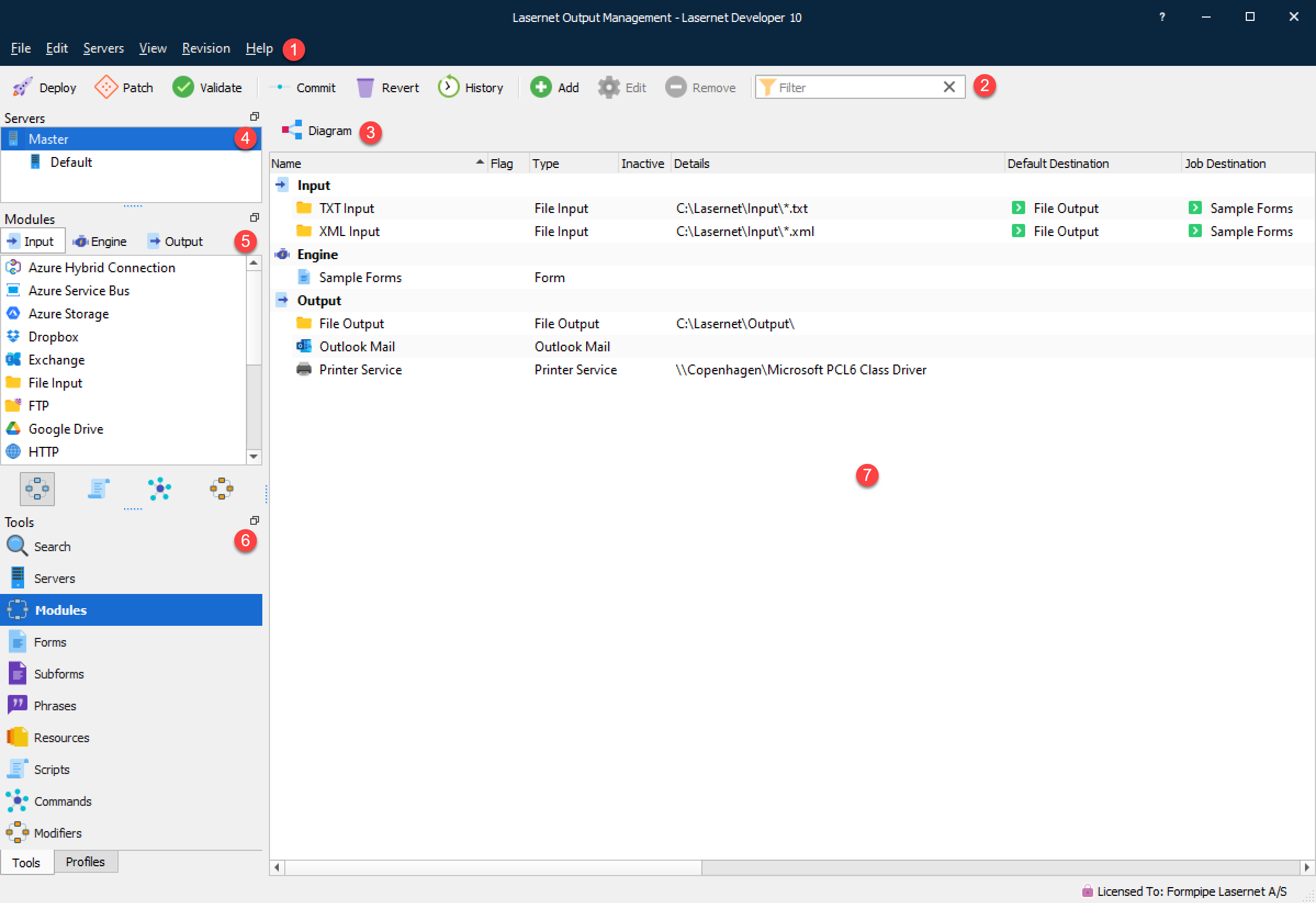
Menu bar (1)

File > Start Page: Return to the Start Page and connect to a new server, login as a new user or open a new configuration.
File > Export Configuration: Export the full configuration as an .lnconfigx file. Import the .lnconfigx file from the Start Page > Import Configuration dialog.
File > Export/Import Objects: More information regarding Export/Import Objects is available in Export and Import Objects.
File > Deploy/Patch: More information regarding Deploy/Patch Objects is available in the manual Lasernet Configuration Server and Deployment (Lasernet Config & Deployment).
File > Validate: Select Validate to parse the configuration. Lasernet Developer will check your configuration and inform you about a list of known warnings/errors found in the configuration.
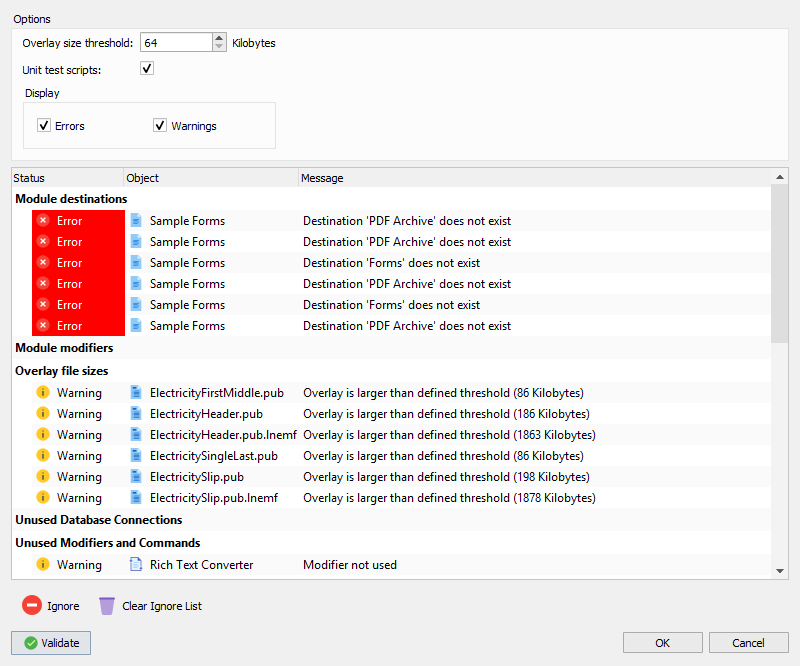
| Module destinations | Checks for orphaned module objects. If a destination has been added to a module that does not exist an error for the given module will be listed. |
| Module modifiers | Checks if unknown modifiers are called. If an unknown modifier has been added to a module, an error will list the name of the unknown modifier, the event point name and module name. |
| Overlay file size | Checks for overlay file sizes greater than the user defined threshold. If large overlay files are added to forms, it can result in big EMF and PDF files which can slow down processing. The default threshold value is set to 64 kilobytes. The recommended value can vary between configurations depending on output. If processing a batch of documents containing lots of pages, we recommend using a low threshold value (64kb). If you are only printing single jobs, it is possible to set a high value (1024 kb). |
Unused Database Connections |
Checks for unused database connections in the configuration. This alert is provided for your information only, as existing database connections that are not being used can often be deleted. |
| Unused Modifiers and Database Commands | Checks for unused modifiers and database commands in the configuration. This alert is provided for your information only as unused existing modifiers and database commands can often be deleted. Important: The validation check will not include modifiers and database commands executed as script commands. |
| Rearrange object names and script names | Checks for conflicting names between rearrange objects and script functions. Both will be seen as objects by the JavaScript engine so the same name cannot be used twice. |
| Script | Checks for unknown and inactive script modifiers. Will list the name of the unknown script modifier, the event point name and script name. |
| Script Unit Test | Runs the defined unit tests for scripts. Logged errors will result in validation errors. |
Toolbar (2)

Information about Deploy, Patch, Commit, Revert and History are available in the manual Lasernet Configuration Server and Deployment (Lasernet Config and Deployment).
Add, Edit and Remove are used to maintain the objects for Servers, Modules, Forms, SubForms, Phrases, Scripts, Database Commands, Modifiers and Profiles objects.
| Add | Select an object category and click Add button to create a new object in the selected object category. |
| Edit | Select any object in any category and click the Edit button to edit the properties of the object. |
| Remove | Select any object in any category and click the Remove button to delete the object from the entire configuration. |
Tool buttons (3)
The contents of the property bar vary depending on which tools you have in focus.
Modules

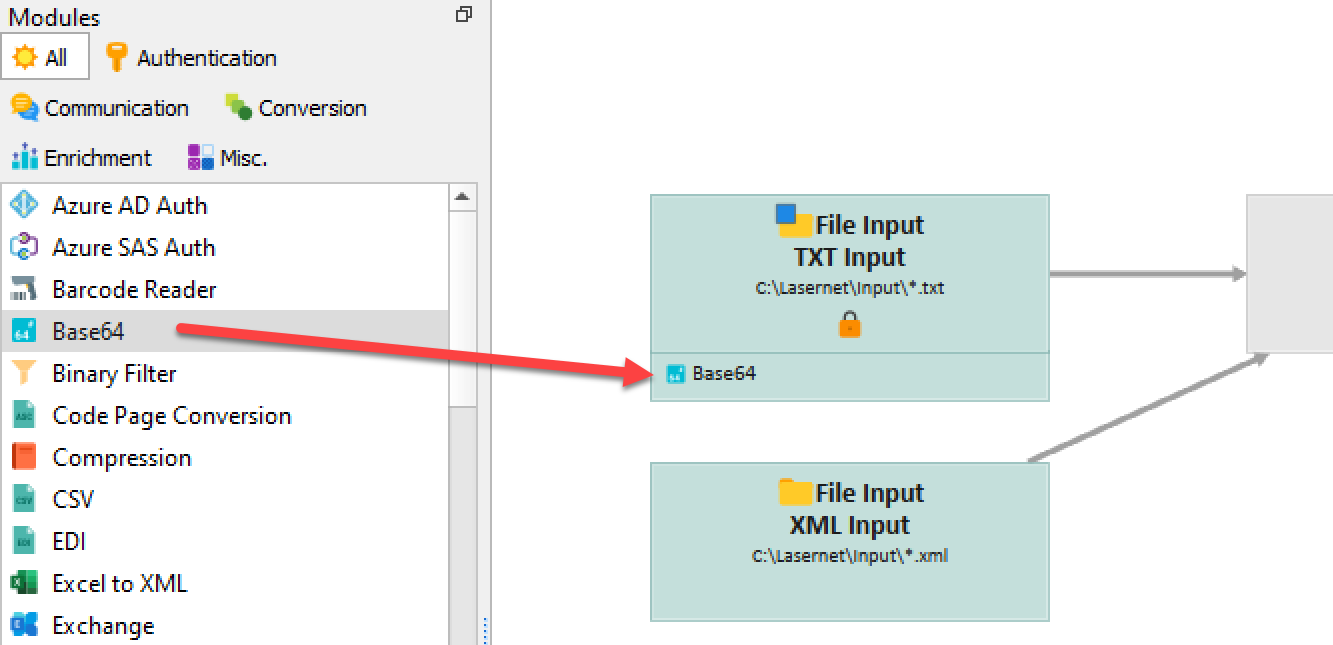
Diagram view is an alternative to the list view. You can toggle between list and diagram views via the tool button above the modules. For more information about diagram mode, see Diagram Mode.
Forms

The thumbnails view is an alternative to the list view. You can toggle between list and thumbnails view via the tool button above the forms.
Phrases

A search tool to filter the list of phrases by typing a search string or defined list of keywords that match your phrases. More information about phrases is available from the Lasernet Form Editor Guide.
Resources

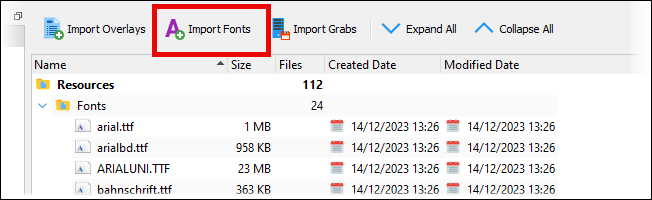
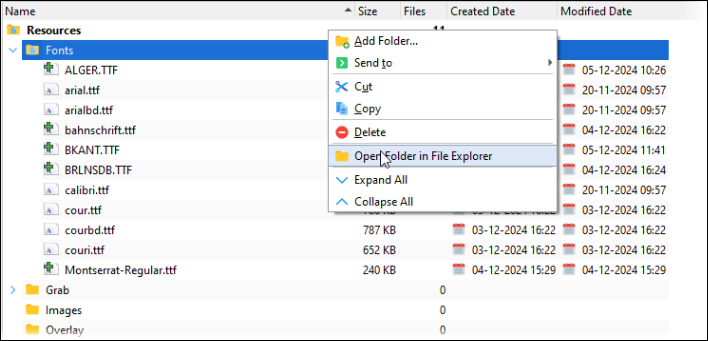
Click Import Overlays, Import Fonts, or Import Grabs to store those items as resources in the configuration. Expand and collapse the folders in the Resources area of Lasernet Developer to explore the resources stored by the configuration.
Import Fonts identifies which Windows fonts are used by the forms and phrases in the configuration and then copies them to the Fonts folder of the configuration’s Resources area. Fonts that are stored within the configuration can always be accessed by the Lasernet Form Editor, the Lasernet Developer, and by Lasernet Core environments, when working with EMF-based output such as PDF.
The benefits of storing fonts in the configuration are that the fonts are easily shared between users of Lasernet Developer and there is no requirement to manually install fonts on Lasernet Core servers.
Click Import Fonts to add the used fonts to the configuration.
Note
Other methods for adding fonts to the configuration as resources are:
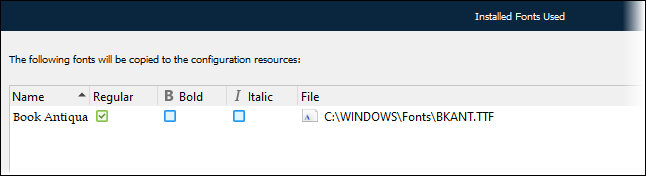
- When the Form Editor saves a form, it identifies any fonts that are used in the form design but are not present in the Fonts folder of the configuration’s Resources area. An Installed Fonts Used window lists fonts that Lasernet Core can copy to the Resources area.
- Manually copy a font file to the configuration’s Fonts folder on disk.
Scripts and Commands

A search tool to filter the list of scripts and SQL commands by typing a search string that matches your contents.
Servers (4)
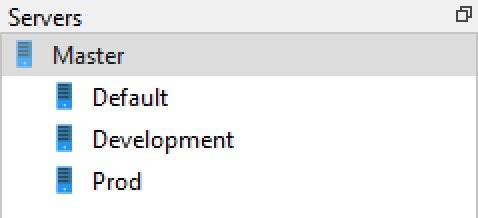
Choose the Server tool to show the list of servers and select which one you want to configure. Select Master to assign and set your objects to be inherited by all the servers in the list or select a specific server to assign your objects for that server only.
Objects (5)
The contents of the list vary depending on which tools you have in focus.
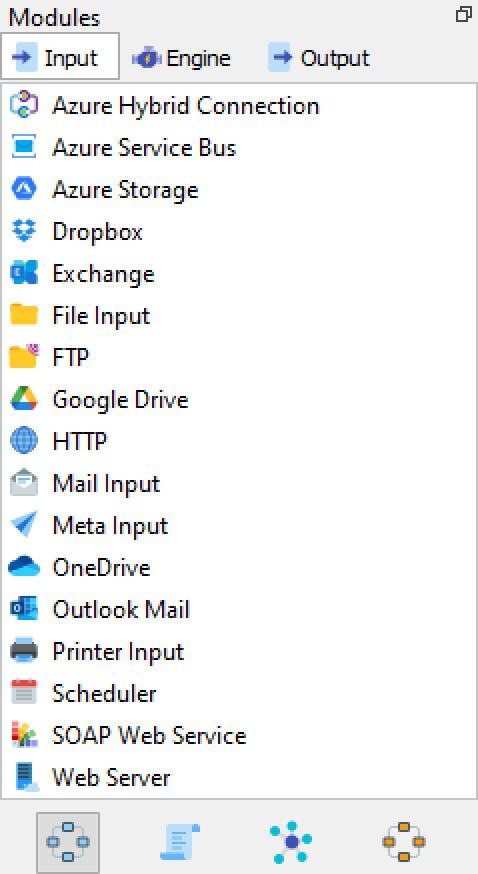
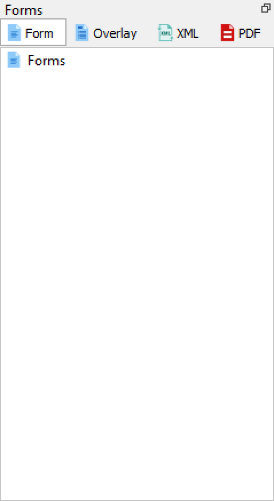
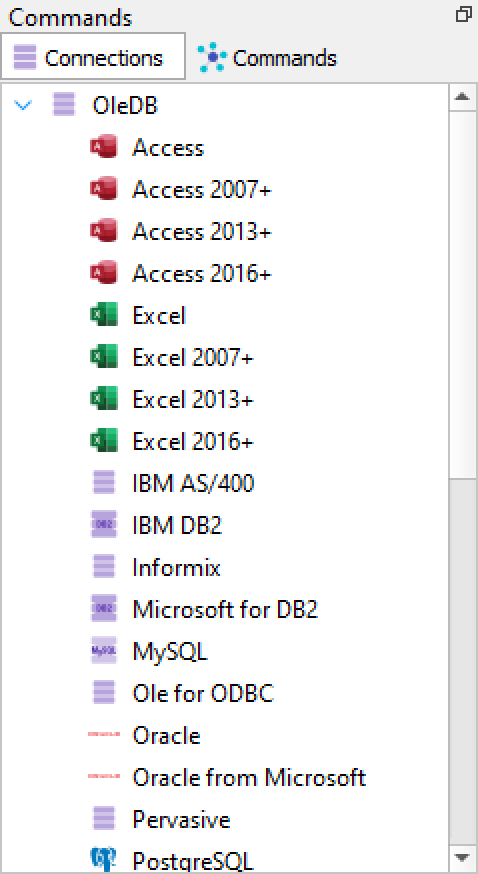
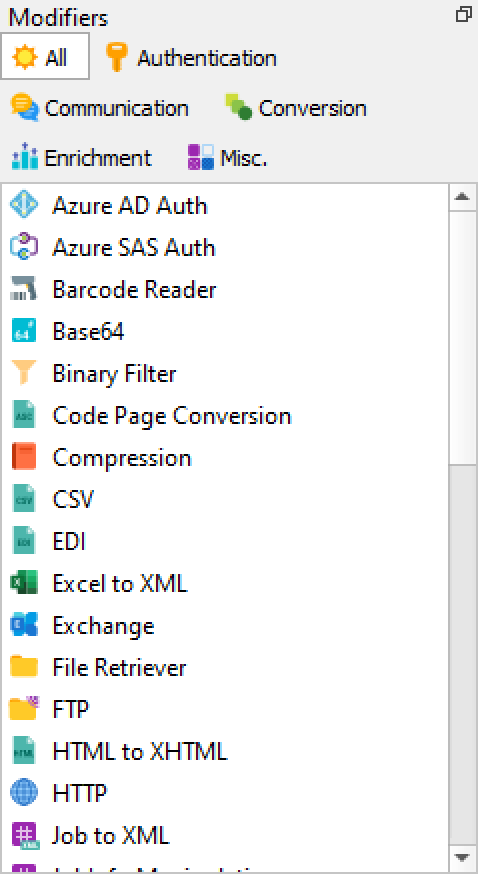
The list contains all available object types you can configure in the workflow. Double-click or drag them into the main window in diagram or list view mode.
In module mode you will also have shortcuts for adding script, command and modifier objects to your workflow by dragging them to a module in the main window.