Applies to: Lasernet Core 10
The Outlook Mail module integrates directly with Office 365 to retrieve emails. It is an alternative to the Exchange module using Exchange Web Services (EWS) introduced by Microsoft in Exchange Server 2007. EWS will longer receive feature updates, while the service will continue to receive security updates and certain non-security updates.
Microsoft has announced that EWS will still be available and supported for use in production environments, but is deprecated in Lasernet Core and will no longer be supported in future versions.
We recommend the Outlook Mail module, using Microsoft Graph API, to access Exchange Online data.
Note for Users of Lasernet Core 10.12.1 and Earlier
If you use Lasernet Core 10.12.1 or earlier, and your configuration contains an affected OneDrive, Outlook Mail, or SharePoint module, you must upgrade to Lasernet Core 10.13.3, and then update and redeploy your configurations. If you do not, your Lasernet Core system will stop working on the 1st April 2027.
For more information, see Make Mandatory Configuration Updates Due to OneDrive, Outlook Mail, and SharePoint Module Changes.
If you are upgrading from Lasernet 9 or earlier, see Upgrade from Lasernet 9 to 10.
Configure Authentication
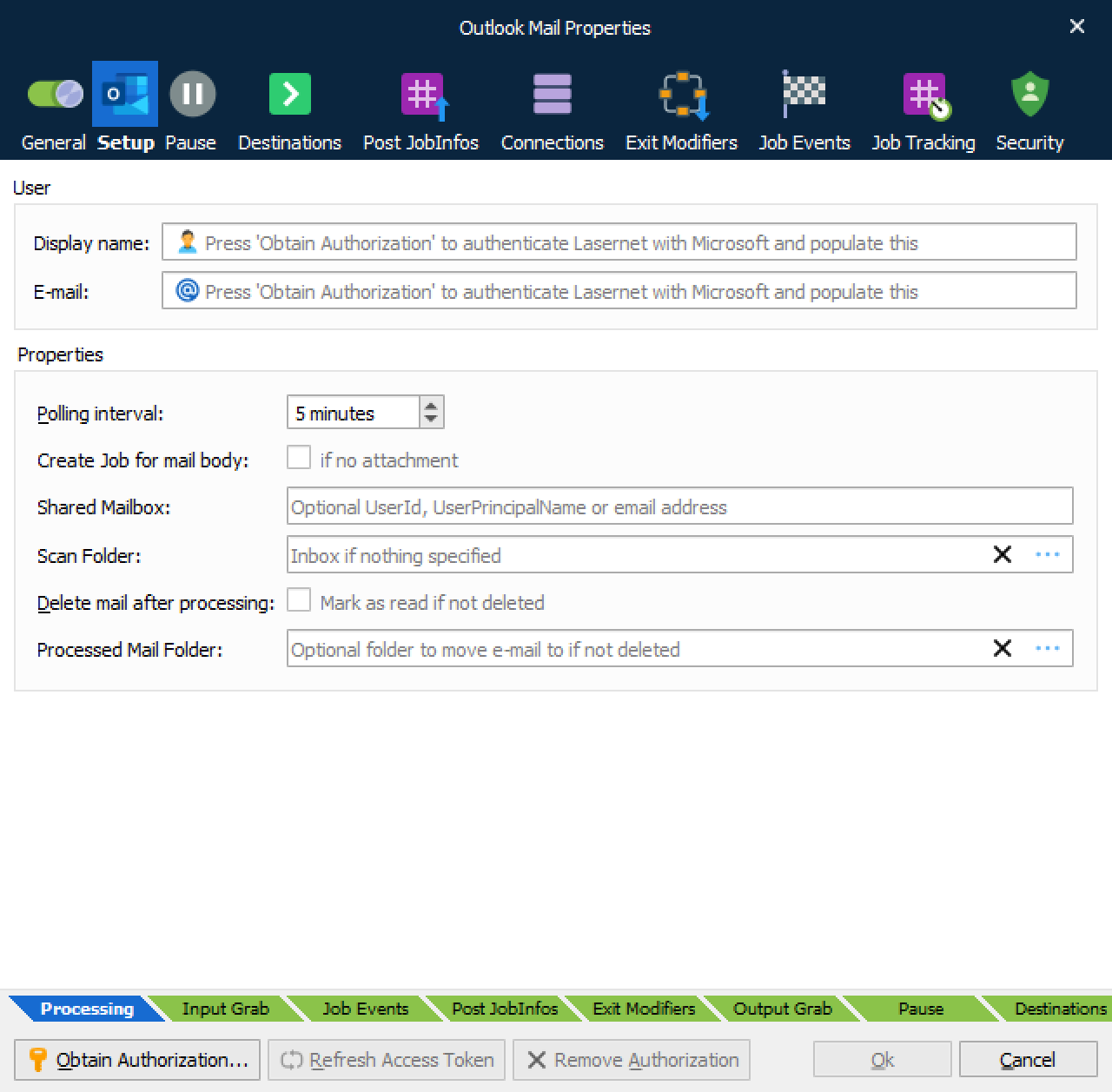
Click Obtain Authorization to access the account for your organization and to autofill the Display name and E-mail fields.
The Lasernet Outlook Mail module will obtain authorization to:
Maintain access to data to which you have granted access
Configure individual permission to send mail on behalf of yourself
Configure API permission to send mail on behalf of others
Sign you in and read your profile
General
| Display name | Display name for the account (click Obtain Authorization to autofill this field). |
| E-mail address for the account (click Obtain Authorization to autofill this field). | |
| Polling interval | The interval between retrieval of new emails |
| Create job for mail body | A Job will be created from the email body, if no attachment available. |
| Scan folder | Folder where emails are read from. If scanning a sub folder of the Inbox, the syntax is Inbox\test |
| Delete mail after processing it | Activate to delete mail after processing otherwise the email will be marked as read. |
| Processed Mail Folder | If specified, processed emails will be moved to this folder. If left blank, the mail will remain in the scan folder. If processed to a sub folder to Send, the syntax is Send\test |
JobInfos
When a mail is received, a job is created for each attachment – JobData is set to the attachment. The following JobInfos are set:
| InputAttachmentCount | Total number of attachments included in the incoming email. |
| InputAttachmentNumber | Handling attachment number for the incoming email. |
| InputBody | The body of the mail. |
| InputFilename | The filename of the attachment. |
| InputFromEmail | The email address of the sender. |
| InputFromName | The display name of the sender. |
| InputHeaderFieldName and InputHeaderFieldValue | A pair of JobInfo lists that contain the names and values of the custom mail headers received by this module. Each header’s name is an item in InputHeaderFieldName. That header’s value is the corresponding item in InputHeaderFieldValue. For example, if InputHeaderFieldName[5] = X-MS-Has-Attach, the value of the X-MS-Has-Attach mail header (in this example, Yes) is in InputHeaderFieldValue[5]. |
| InputMessageID | Unique identifier for the incoming mail. |
| InputMimeType | The mimetype of the attachment. |
| InputReplyTo | The ‘reply to’ address of the sender for the incoming email. |
| InputSubject | The subject of the mail. |