

This article describes how to use the updated Electronic Reporting feature, available by downloading Lasernet FO Connector 7.3. For more information on how to use electronic reports (or e-documents) in Lasernet FO Connector, consult the Lasernet Tracking Guide.
Overview
Each country uses a specific e-invoicing format.
The following matrix provides an overview of supported formats of electronic documents divided by country, network, and distribution system:
Countries | Format | Network | Distribution |
|---|---|---|---|
Poland | FA(3) - Faktura | KSeF | API to access point |
Germany | XRechnung and ZUGFeRD | PEPPOL | API to access point and email |
Belgium, Denmark, Finland, Norway, Sweden, the Netherlands, and others | PEPPOL BIS Billing 3.0 | PEPPOL | FTP/SFTP or API to access point |
France | Factur-X (CII), UBL 2.1 (CII) | PDP(PA/AP) | API to access point |
The configuration process necessary to use e-invoicing with Lasernet FO Connector is broadly similar in all cases. A detailed step-by-step guide can be found in the Configuration section.
The main country-specific differences are detailed below.
Poland
Poland uses a country-specific e-invoicing format called FA(3) - Faktura, the provider of which is KSeF (Krajowy System e-Faktur).
With Lasernet FO Connector, users can send and receive Polish vendor invoices. The full process is supported:
Retrieve the KSeF number (UUID) and QR code.
Automatically distribute PDFs via email, including the KSeF number and QR code, as required by law.
Provide the required reference KSeF number to the original document when creating a credit note.
Supported reports include FreeText invoice, Salesorder invoice, and all versions of Project invoice.
Tax Registration Number
Polish business transactions require the use of a “nip” number. This is the equivalent of a tax registration number.
In Dynamics 365 FinOps, this number is entered in the Tax registration number field, located under Organization administration > Organizations > Legal entities > Tax registrations.
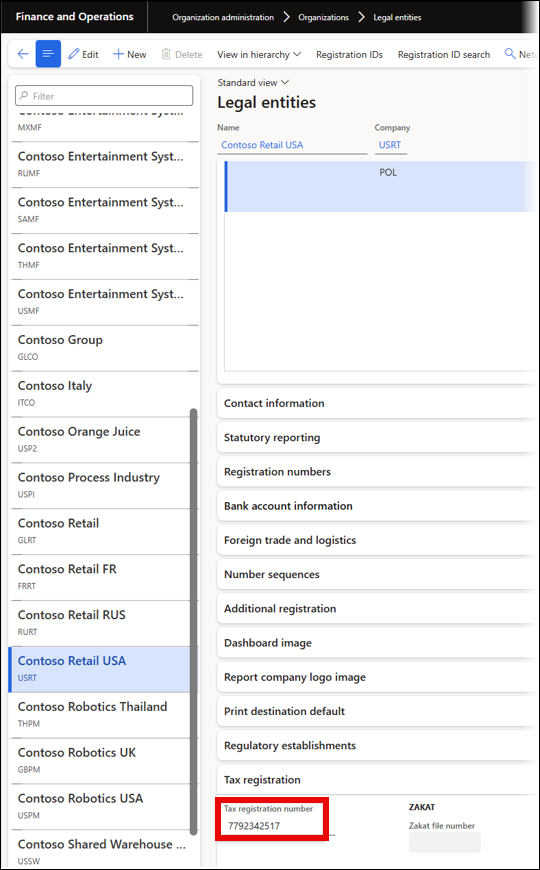
If the electronic documents are being sent outside of Poland, the “nip” number defaults to 1.
Germany
Germany uses country-specific e-invoicing formats: XRechnung, which uses UBL (Universal Business Language), and the hybrid format ZUGFeRD, which embeds a machine-readable XML file (XRechnung (CII)) within a human-readable PDF.
E-invoices distribution systems often use ZUGFeRD for customers who use email, and XRechnung for customers who use PEPPOL.
The XRechnung version of an invoice can also be sent via the PEPPOL network, with the ZUGFeRD version emailed simultaneously, if necessary.
Lasernet FO Connector supports inbound documents for Germany via XRechnung and ZUGFeRD, coming from both the PEPPOL network and email.
France
For issuing and receiving electronic invoices, France requires that payment notifications must be provided via PDP or PA, which are government-certified electronic invoicing platforms.
The statuses of the invoices in these platforms are as follows:
Deposited: The invoice is in the system.
Rejected: The buyer found an error.
Accepted: The buyer agreed to pay.
Paid: Critical status, as taxes are only due at this time.
Configuration
The following sections provide a step-by-step guide to configuring the updated e-invoicing feature in Lasernet FO Connector. Specifically:
The prerequisite steps to set up electronic reporting in Dynamics 365 FinOps.
How to configure the updated Electronic Reporting Connector.
How to configure the connection between Lasernet and the e-Invoicing provider.
How to configure the Lasernet Report to be used for e-invoicing.
1. Prerequisite Setup in Dynamics 365 Finance and Operations
Microsoft provides country-specific, detailed guides for setting up electronic invoicing in FinOps.
The following are the prerequisite steps for using e-invoicing with Lasernet FO Connector:
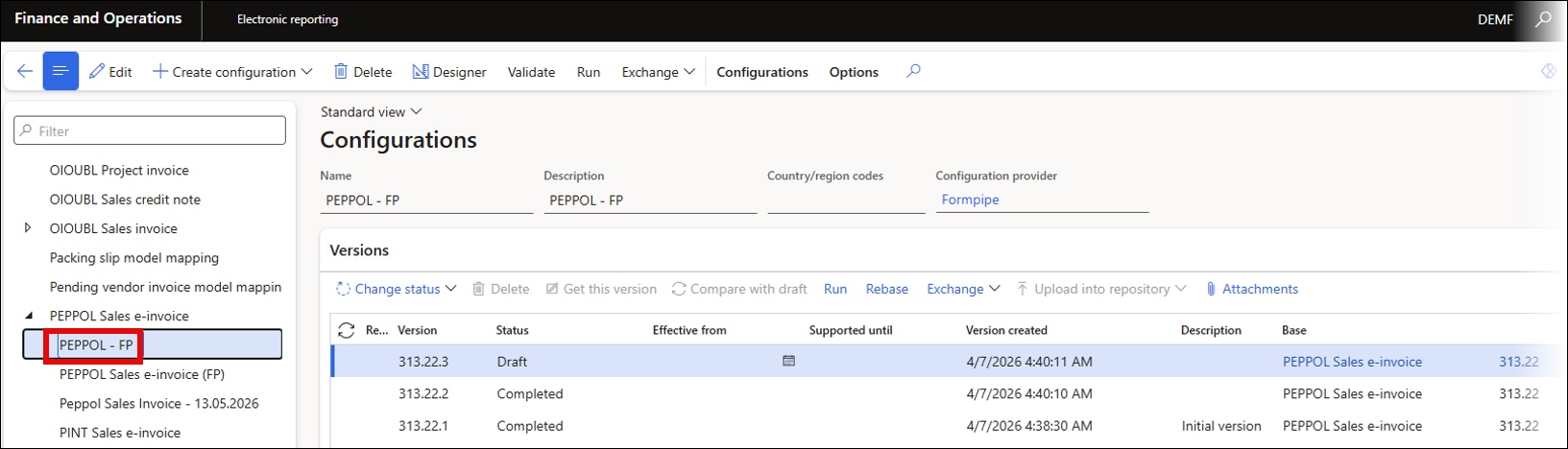
Create and select a provider from the Electronic reporting workspace.
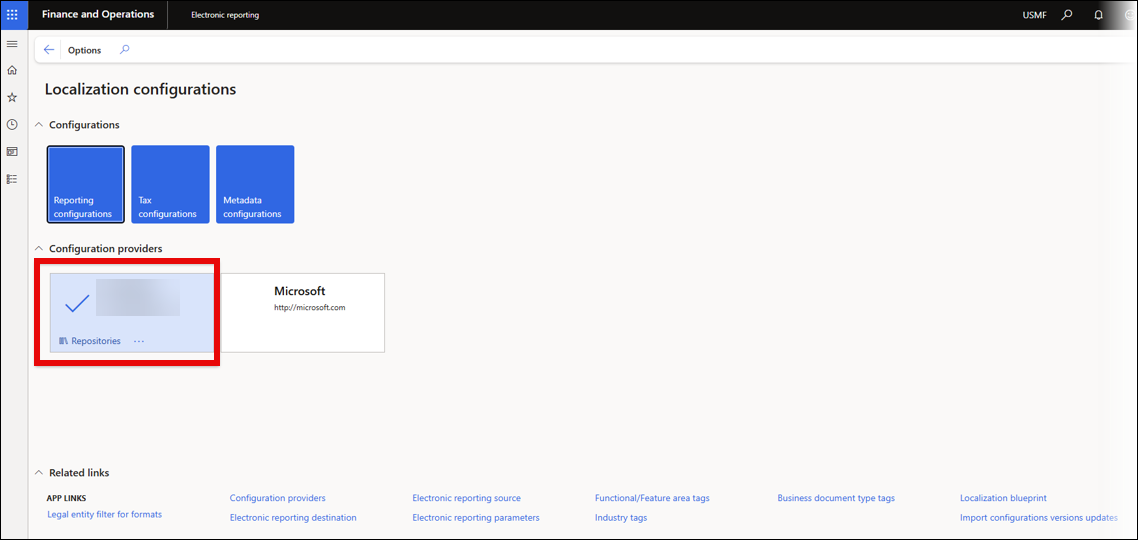
Retrieve the desired formats.
Activate Sales invoice, Project invoice, and any other reports needed. PL, DE, etc stand for the identifying Country/region codes. When using PEPPOL, the network name is also visible.
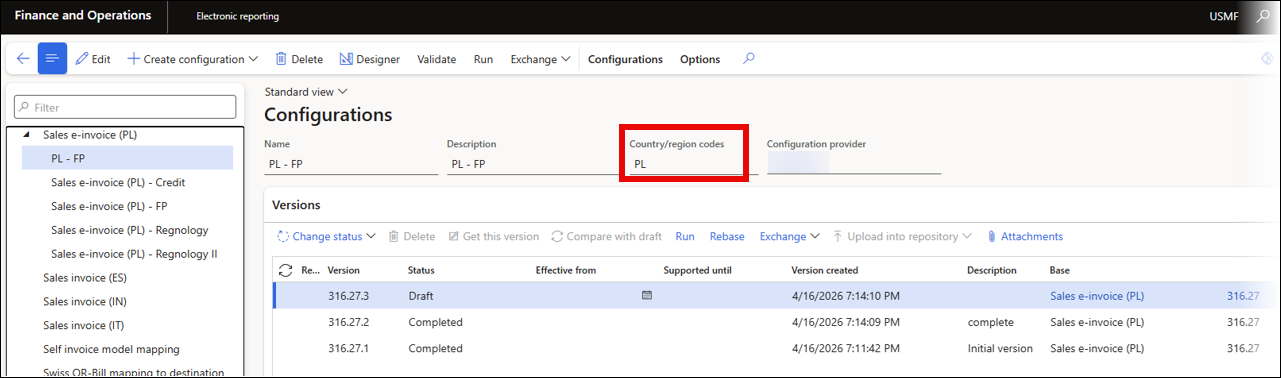
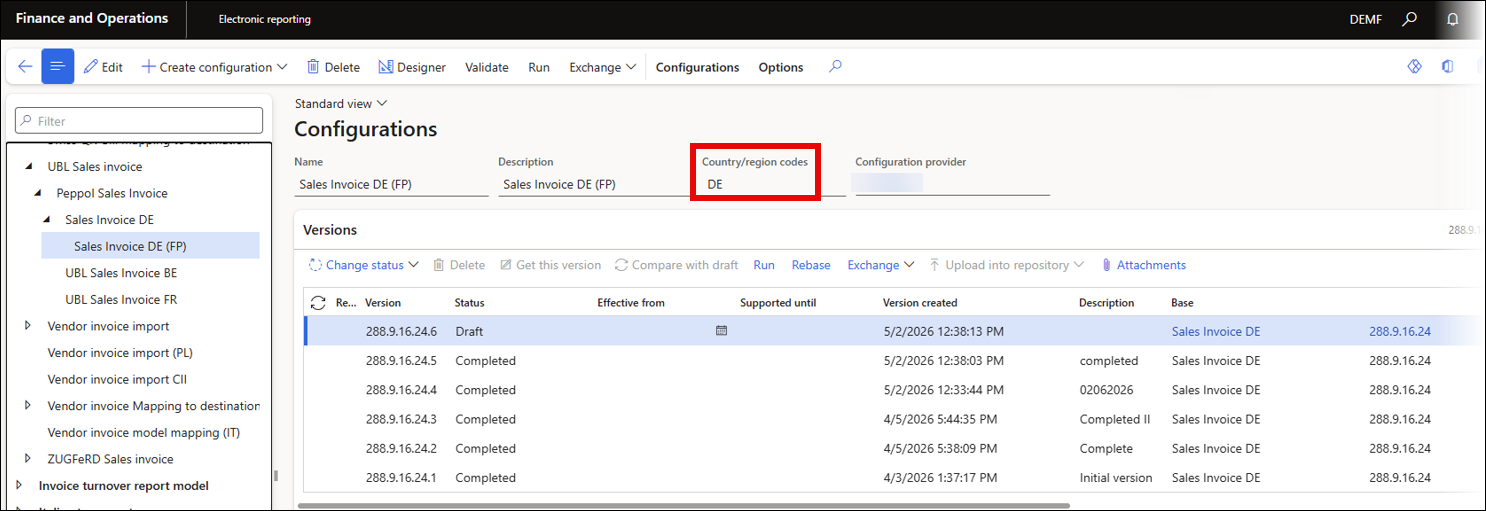
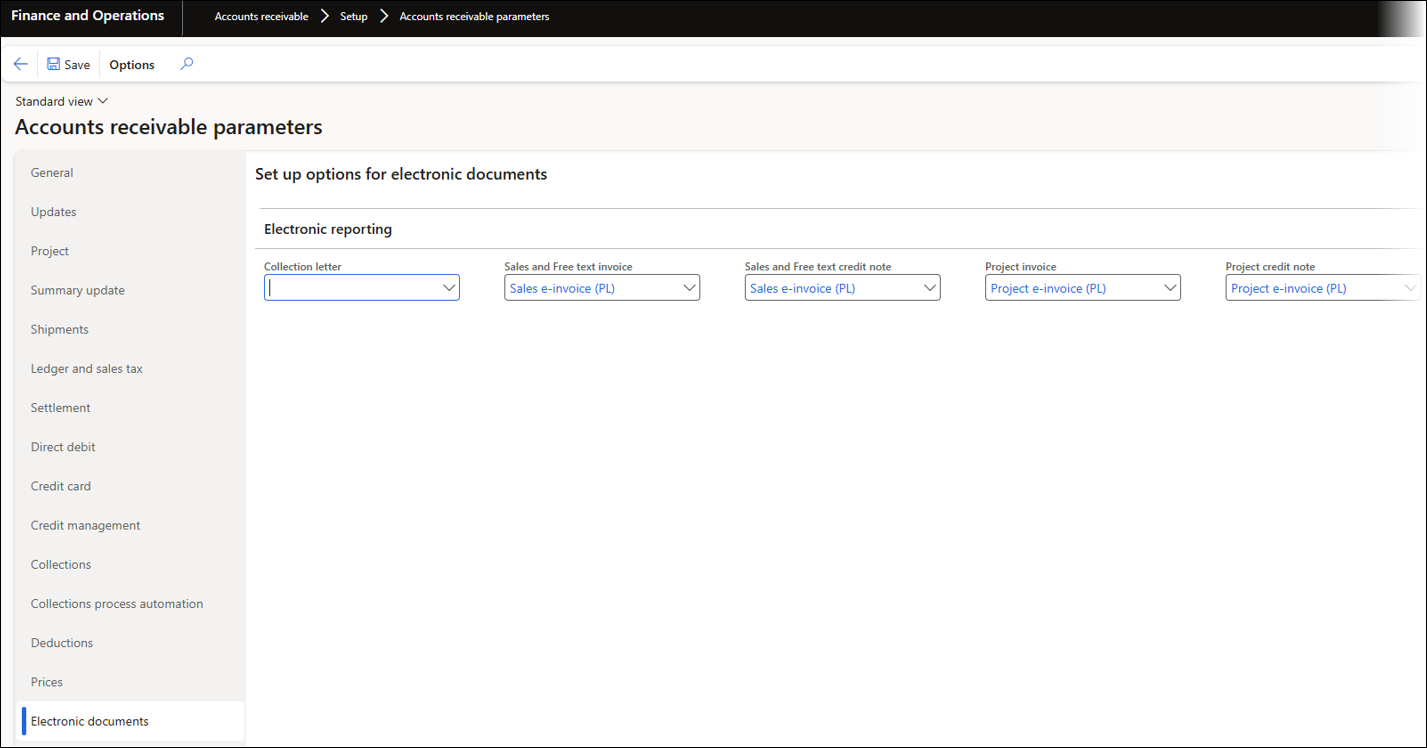
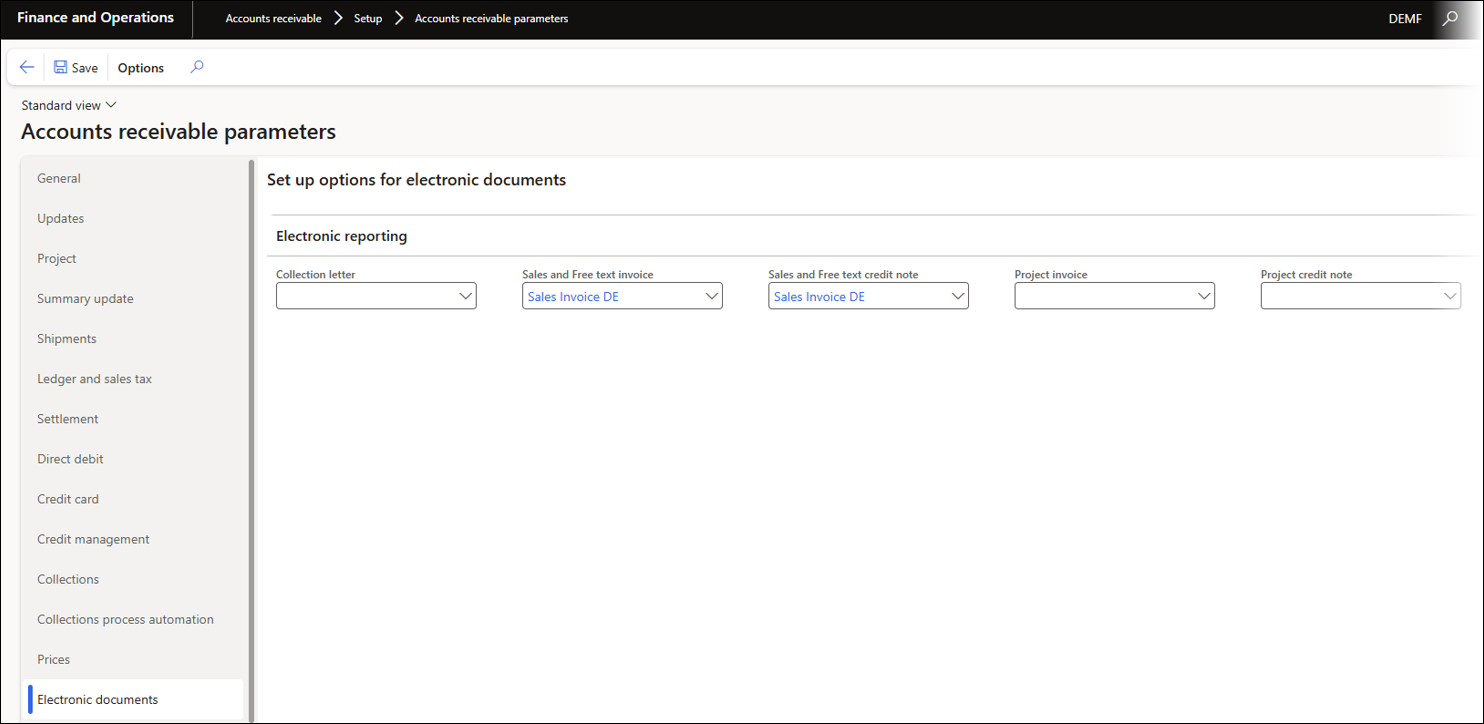
Navigate to Accounts receivable > Setup > Accounts receivable parameters > Electronic documents. In the Electronic reporting FastTab, select the correct format for each report type. For example, the PL format for Poland and the DE Format for Germany.
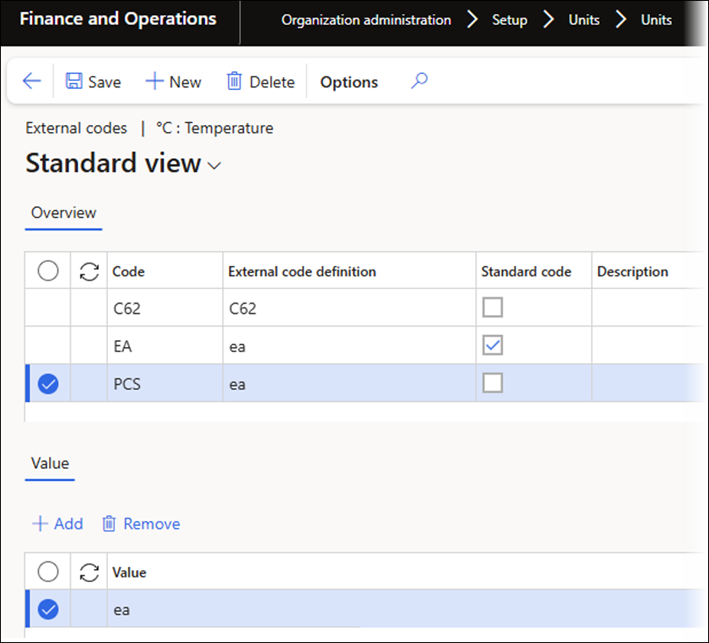
Navigate to Organization administration > Setup > Units > Units > External codes to select the standardized External code definition to be used in e-invoices.
2. Configuration of the Electronic Reporting Connector
To configure the Electronic Reporting Connector, follow these steps:
Navigate to Lasernet > Setup > Electronic reporting connector > Electronic reporting connector parameters > License terms > Electronic reporting connector license.
Add a License code.
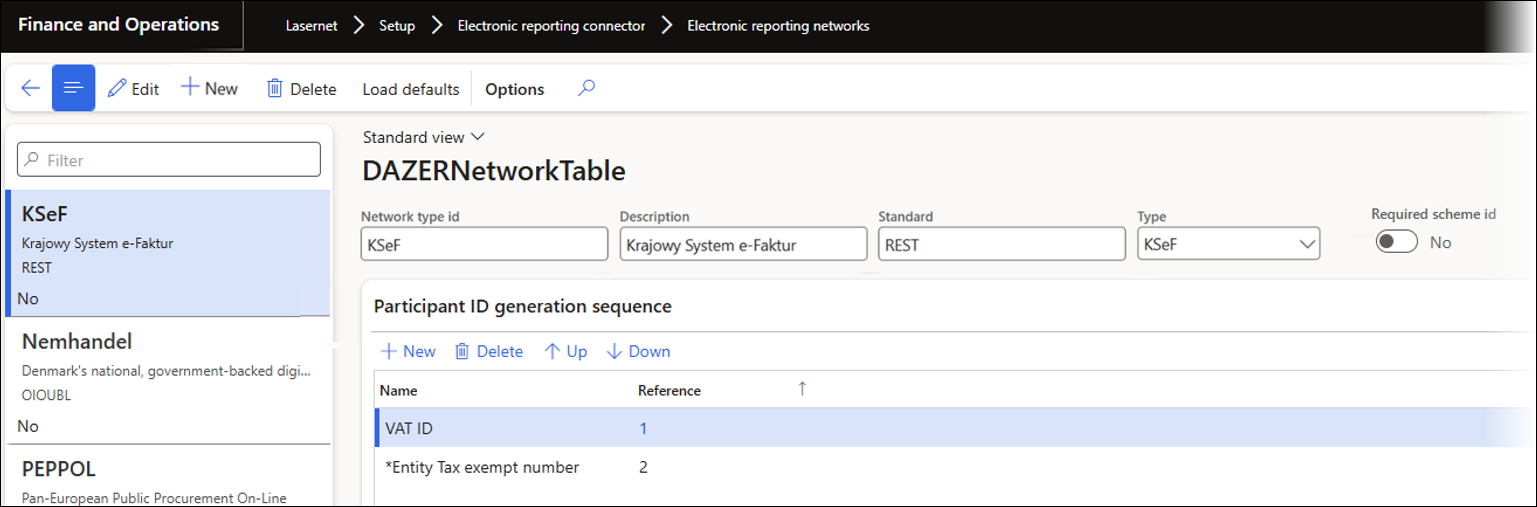
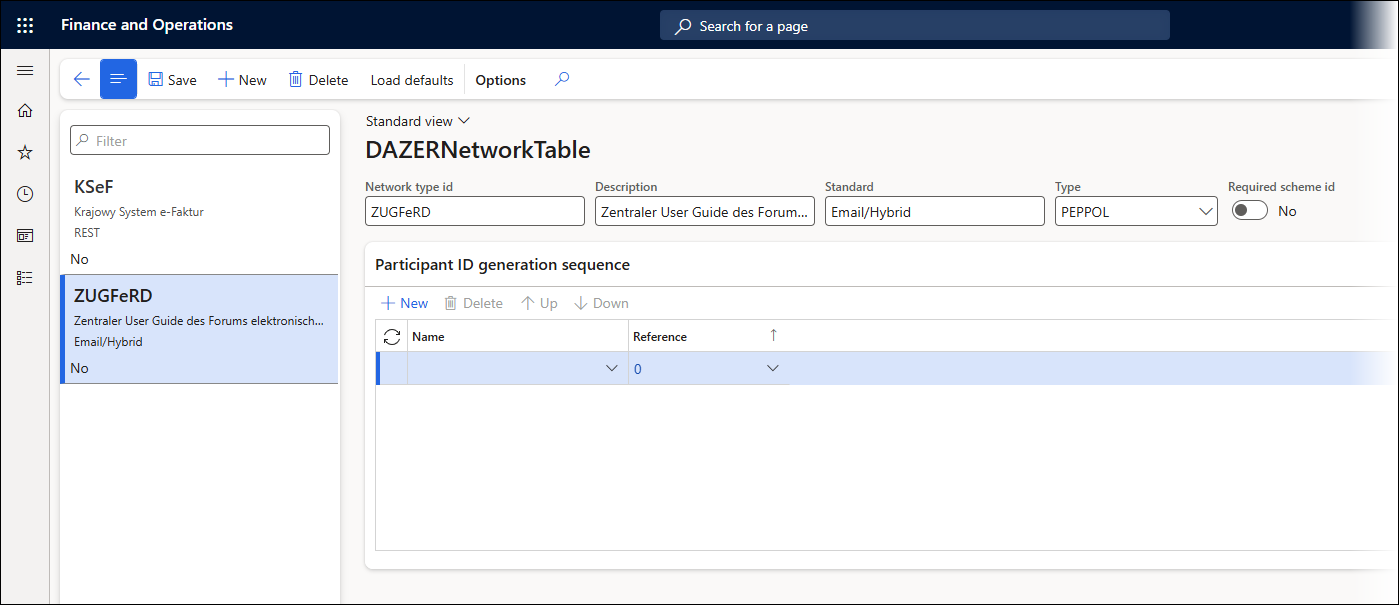
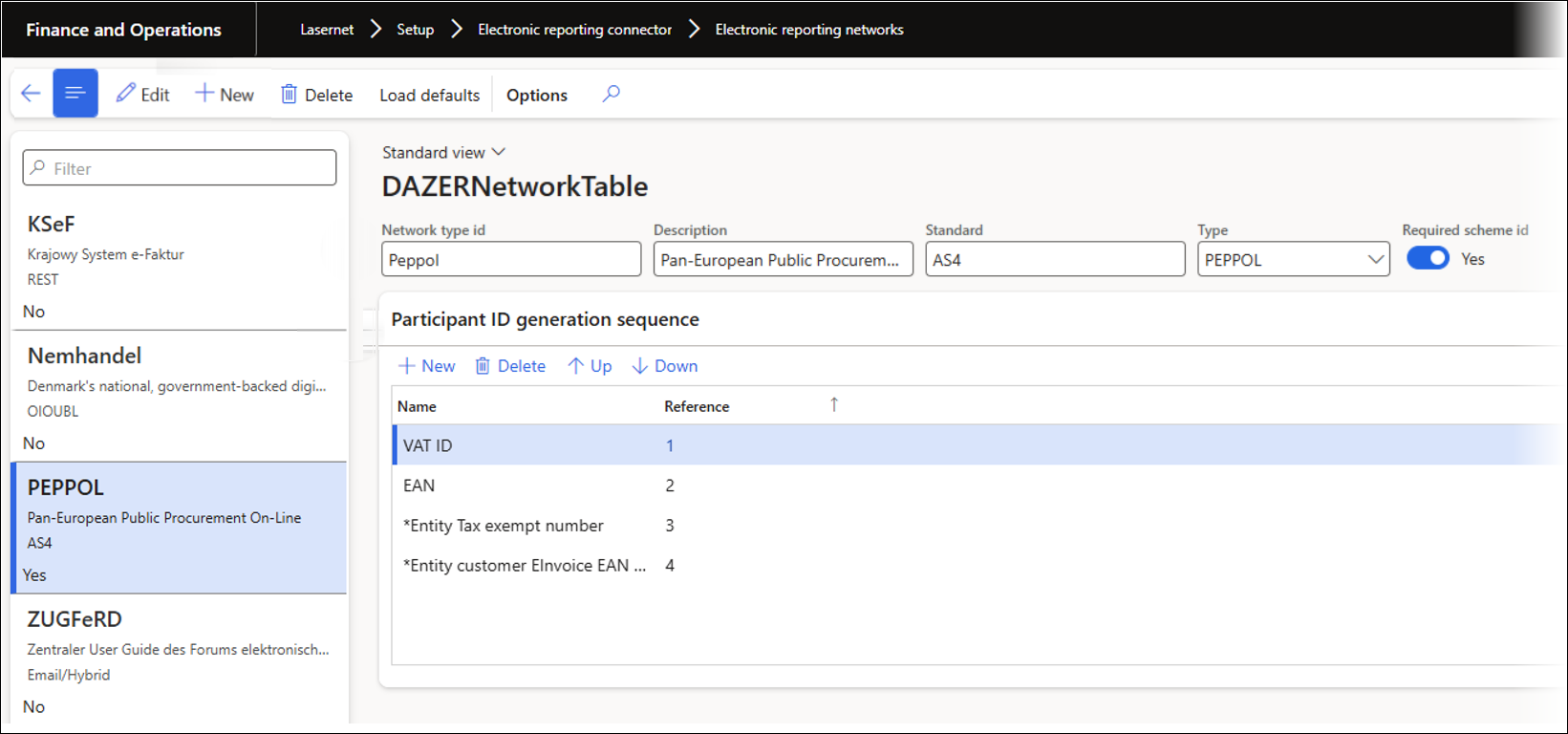
Navigate to Lasernet > Setup > Electronic reporting connector > Electronic reporting networks.
Create a new network by entering country-specific information in the fields.
3. Configuration of the Connection Between Lasernet and the E-Invoicing Provider
To validate and send e-invoices to the intended destination, you must create a new connection. Follow these steps:
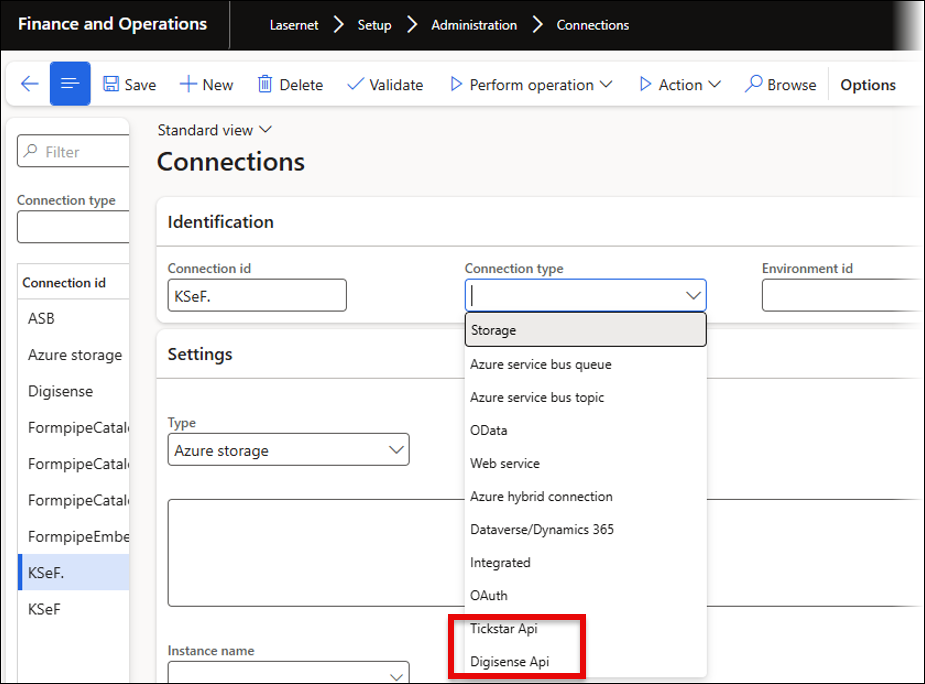
Navigate to Lasernet > Setup > Administration > Connections.
Click New to create a new connection.
Give it a Connection id (the name you choose will be visible in Custom ports).
Select the e-invoicing provider you have agreed to use from the Connection type dropdown menu. Two new options have been introduced: Tickstar and Digisense.
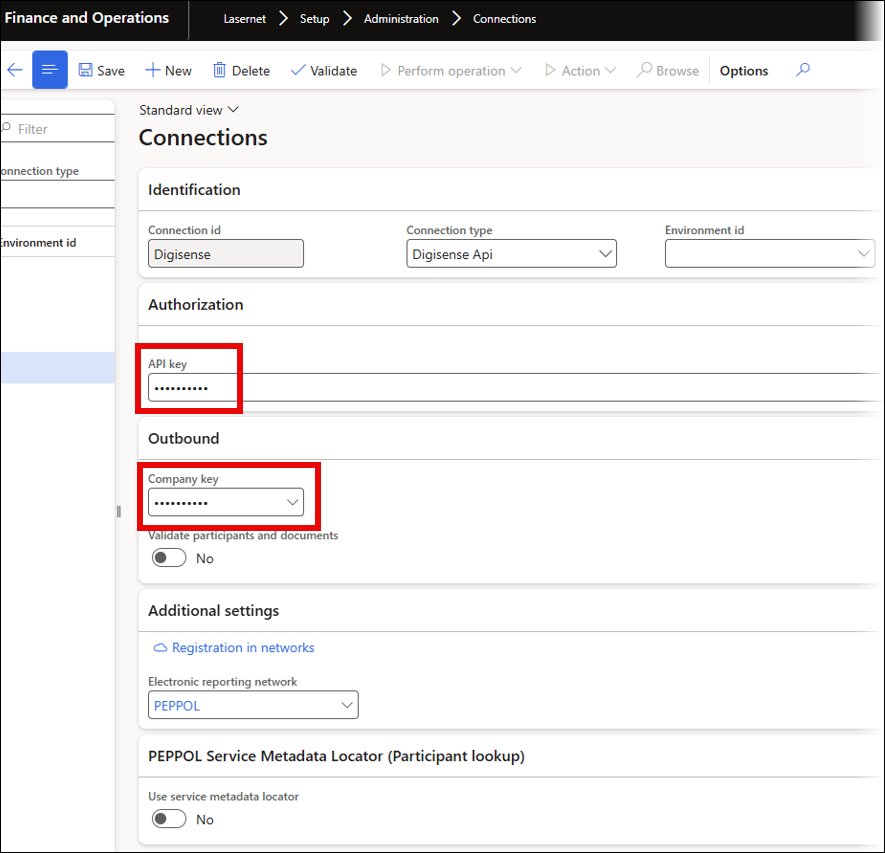
Digisense
When using Digisense, an API key and a Company key are required and will be provided to you when you sign up with the chosen provider.
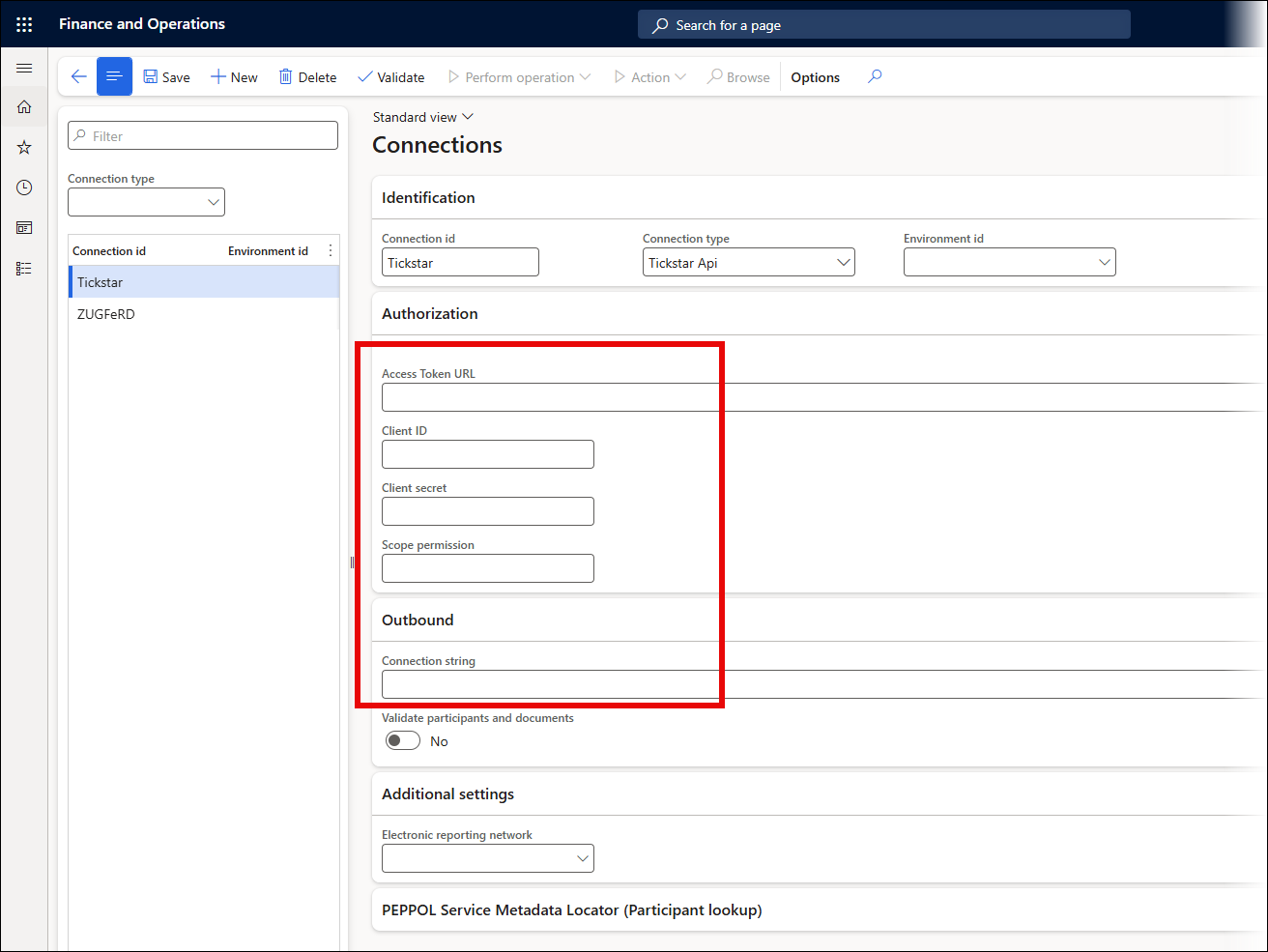
Tickstar
When using Tickstar, the following fields must be filled with the appropriate information to ensure authorization is obtained and the system is connected to Azure through the Connection string.
SFTP Port
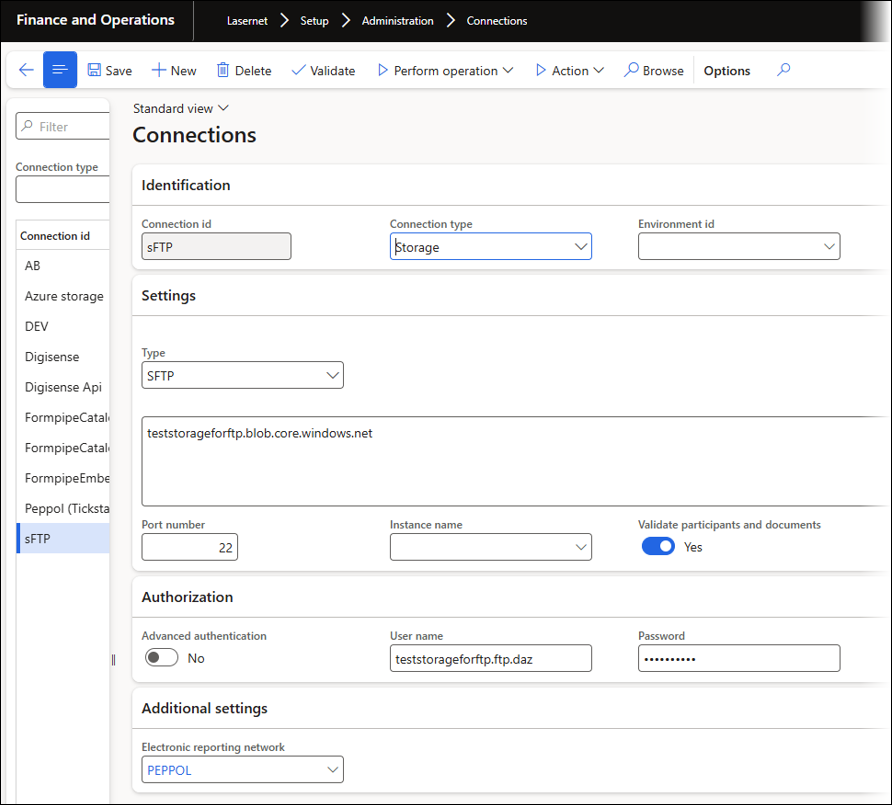
When using an SFTP port as your connection, follow these steps:
Give the connection a unique name in the Connection id field.
Select Storage from the Connection type dropdown.
Select SFTP from the Type dropdown.
Insert the SFTP folder in the blank text box.
The Port number field defaults to 22.
In the Instance name field, select the instance to be used when connected.
The Validate participants and documents toggle checks whether the sender and receiver IDs, as well as the outgoing document, are configured for the network. If you want to cross-check with the network, use the service metadata locator.
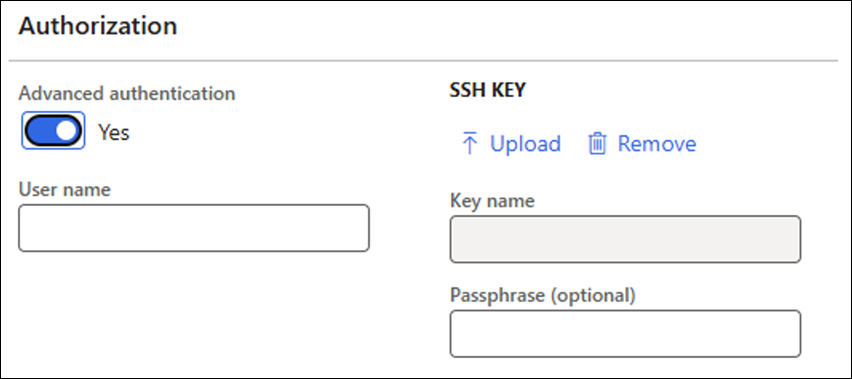
Toggle the Advanced authentication button to No if a username and password are necessary; toggle the button to Yes if a certificate and client ID are used.

From the Electronic reporting network dropdown, select the network you are using the SFTP port for.
4. Configuration of the Lasernet Report
To add an electronic invoice as a custom file to a report, follow these steps:
Navigate to Lasernet > Common > Reports.
Select the desired SalesInvoice, FreeTextInvoice, or ProjectInvoice report.
Set the Add electronic invoice as a custom file option in the General FastTab to Yes.
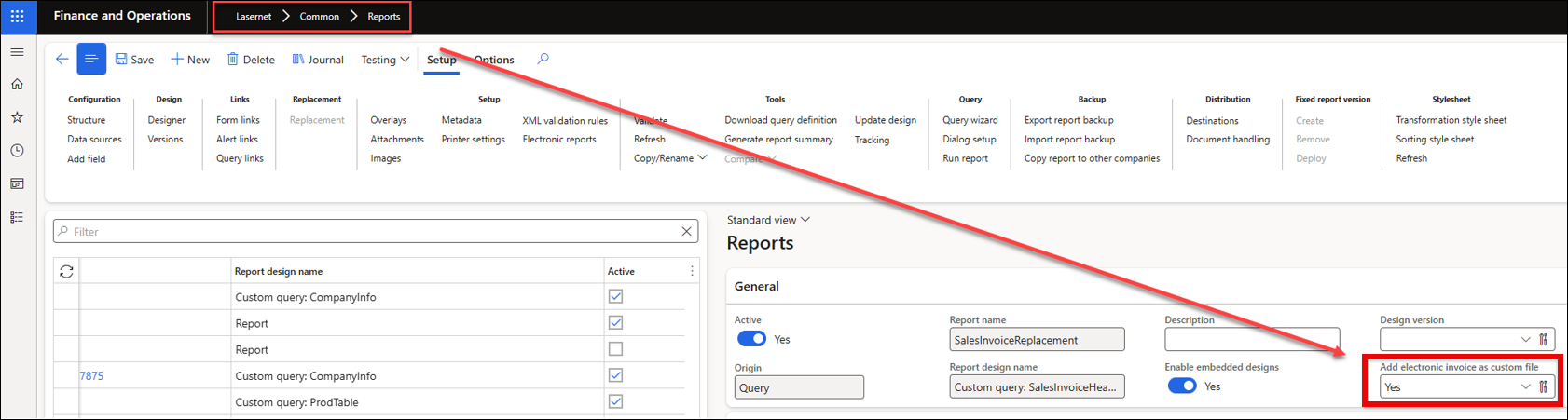
This enables Lasernet to distribute the e-invoice created by Electronic Reporting.
Note
For Polish business transactions, we recommend using the following expression to ensure the file is distributed only when it has the required certificates:
IF CustomProperty.PrepareElectronic =”Yes” THEN “Yes” ELSE “No”
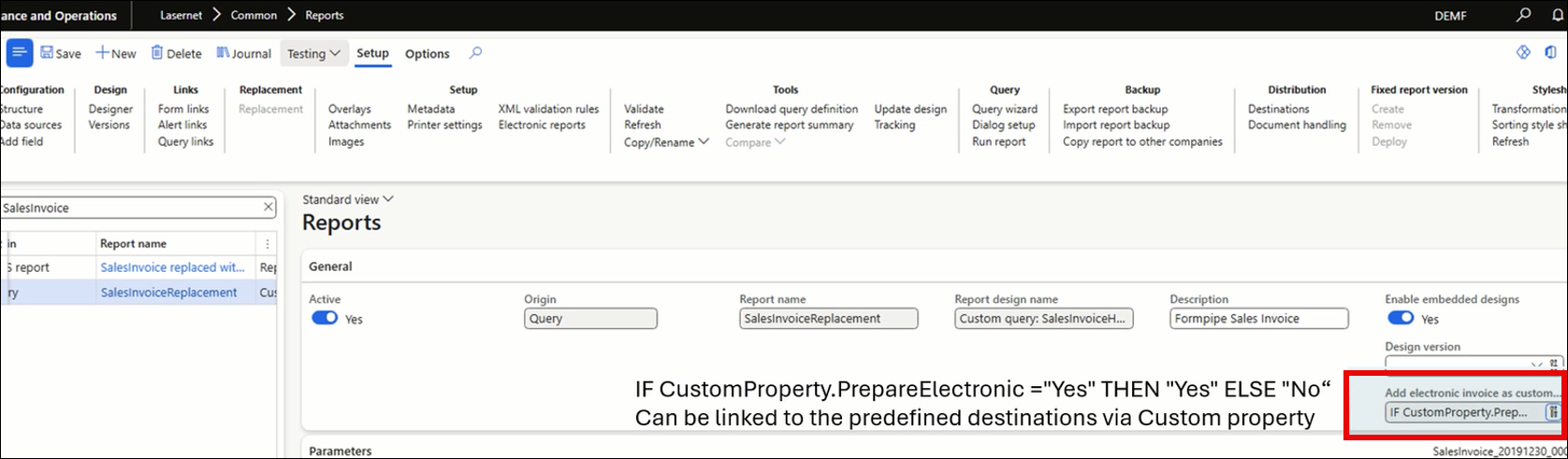
Furthermore, a Functional properties catalog has been added to the Custom properties form.
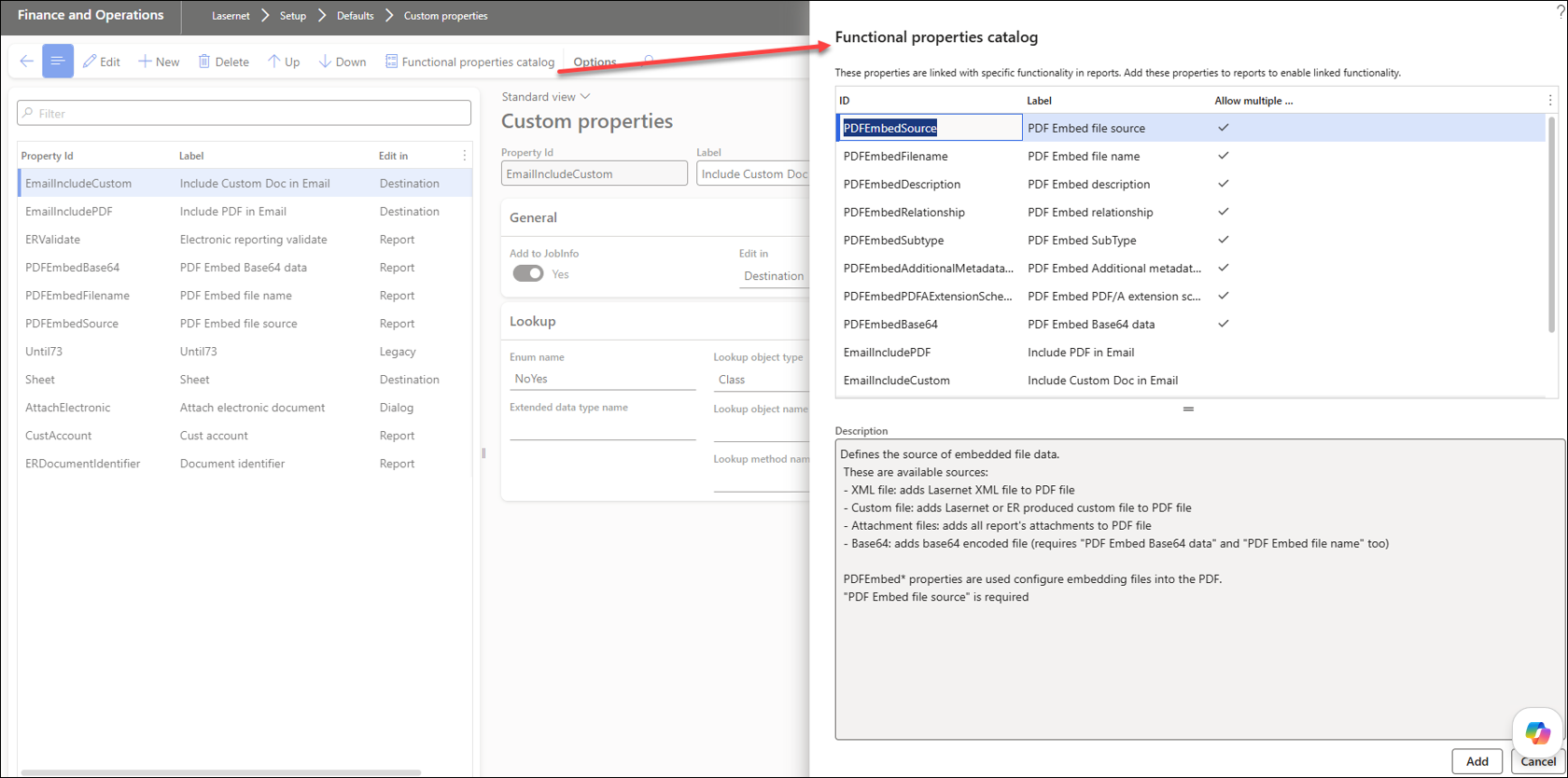
These functional properties are similar to Lasernet JobInfos and can be useful for predefined destinations.
Validation of E-Documents
Pre-Validation
Electronic document validation occurs after the invoice has been posted, so it is too late to correct any errors.
The Lasernet Electronic Reporting Connector 7.3 provides pre-validation. This means that the system provides an option to validate the information before it is posted and only parse the XML file to Lasernet if there are no validation errors, giving the user a chance to change or add missing information.
The following is an example of a scenario where information is missing:
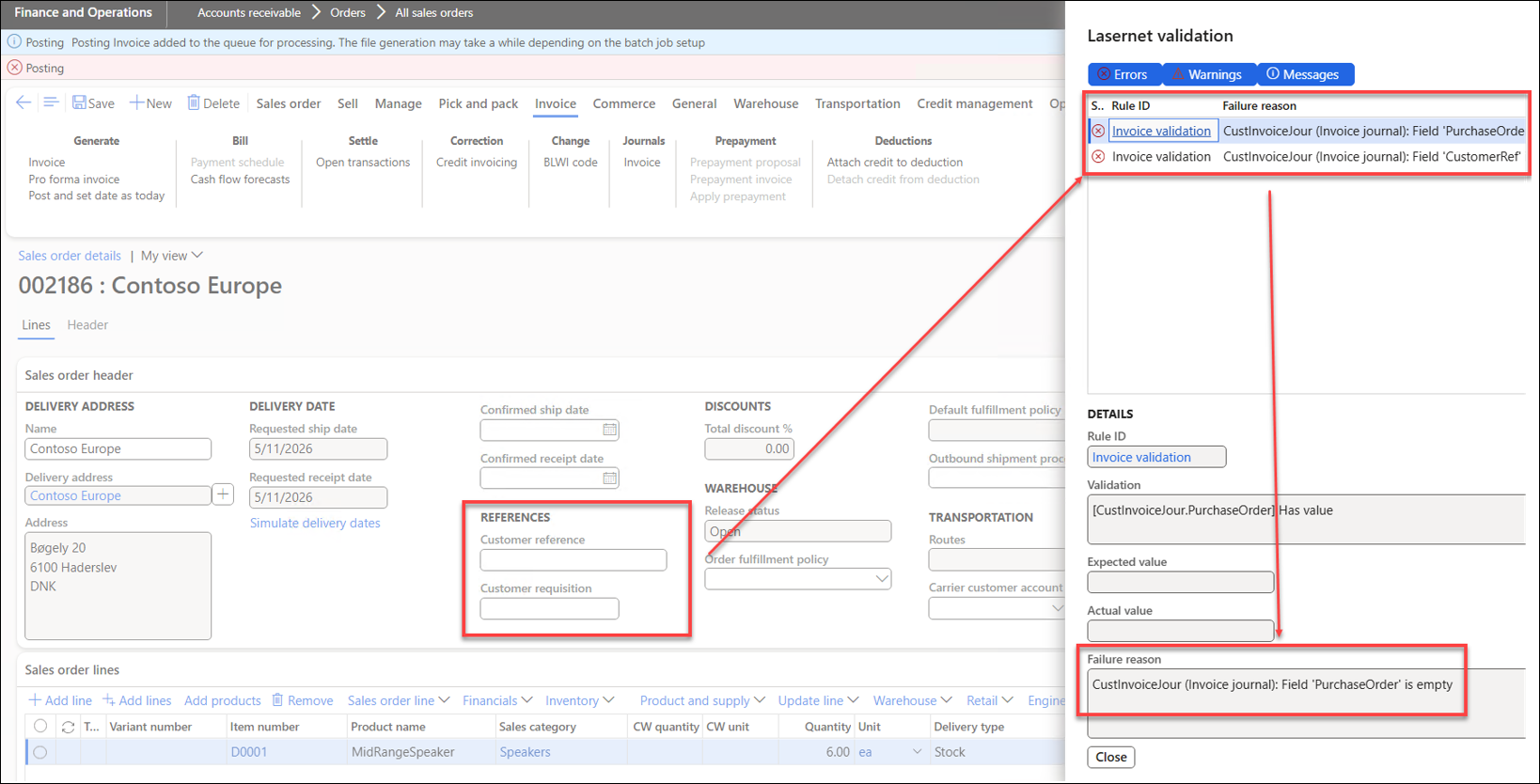
Validation Rules
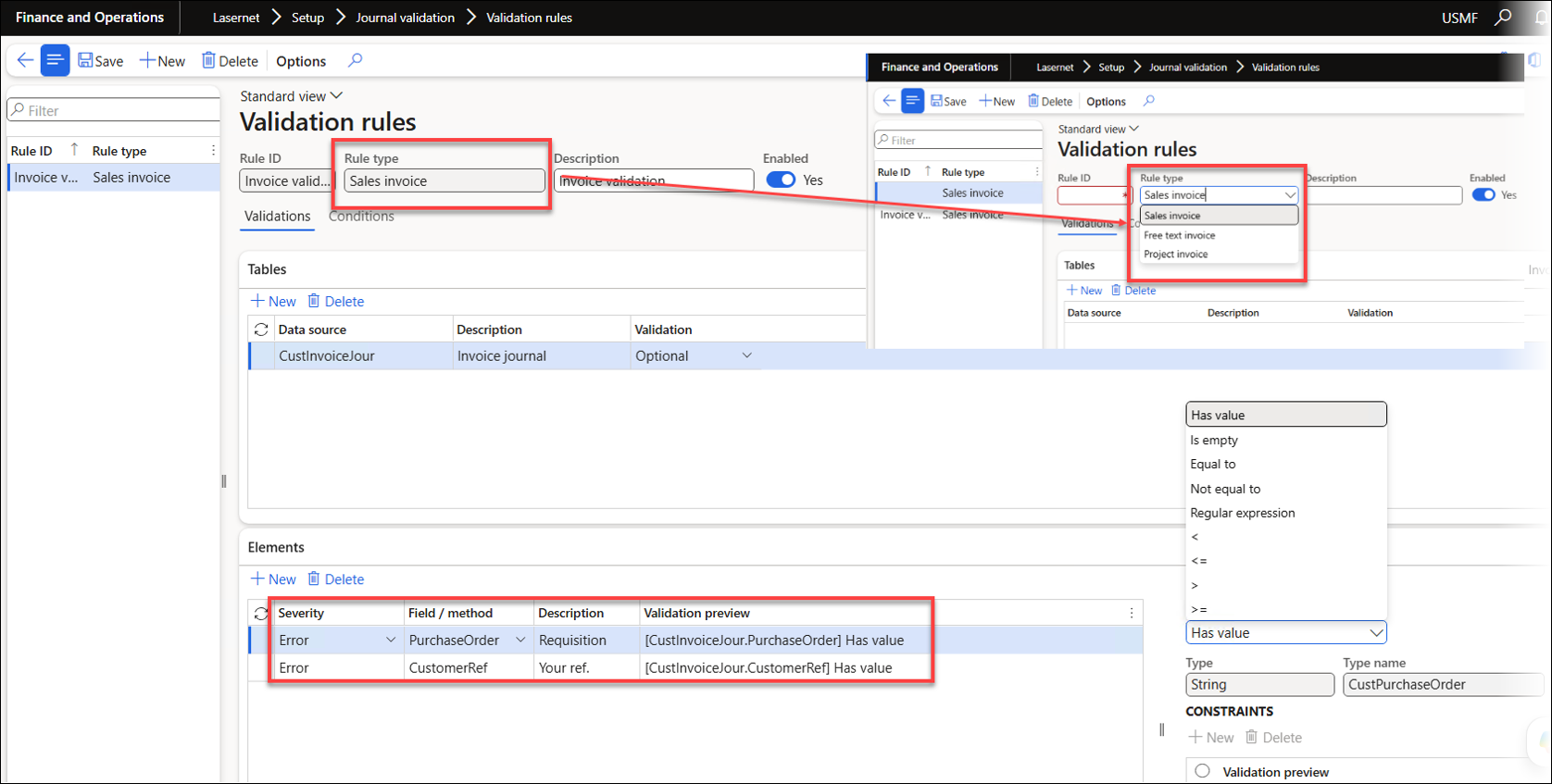
It is possible to use validation methods to provide even more accurate validation rules. These work for FreeText, SalesInvoice, and Project Invoices.
Online Validation of the Final E-Invoice
The final electronic document can be validated in either of two ways:
Online validation, using one of the suggested providers or brokers.
Local validation, using Schema (
.xsd) or Schematron (.sch/.xsl)
Adding one of the suggested provider or broker ensures that the document is not distributed if it contains errors.
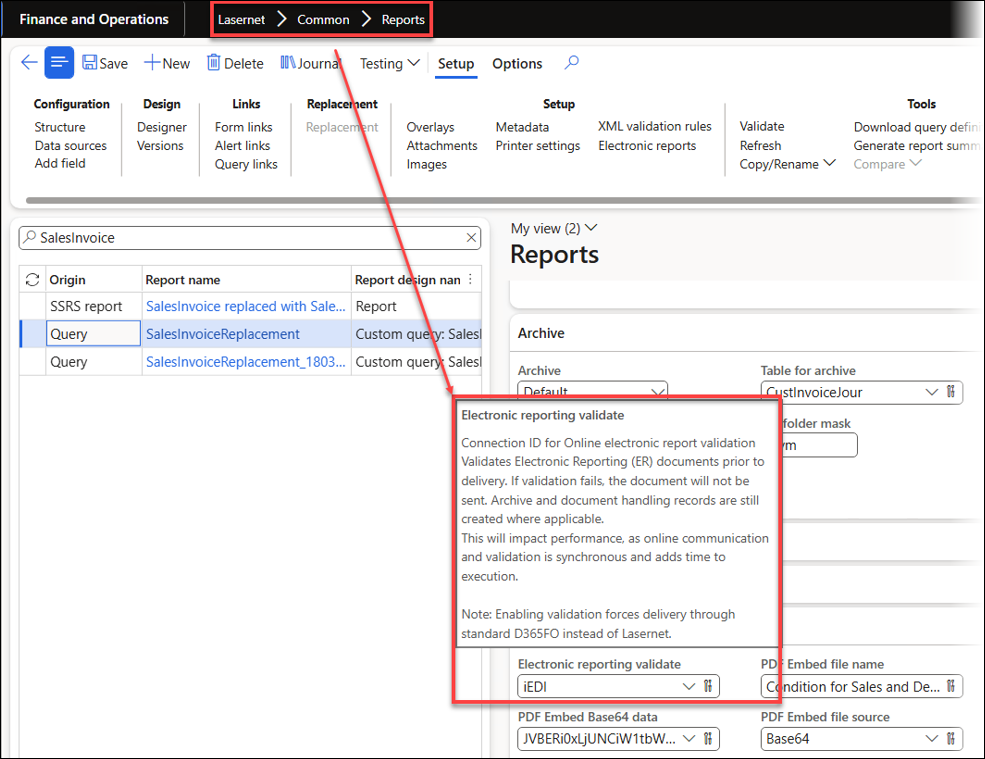
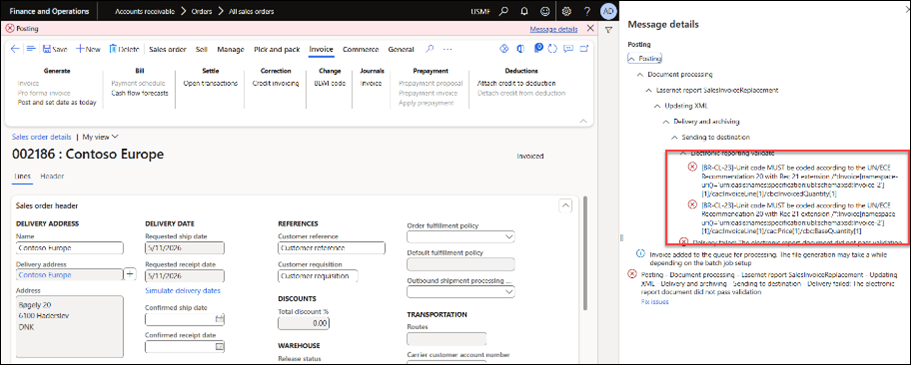
FinOps is responsible for sending the document, while the electronic document can still be prepared using Lasernet Embedded or Lasernet Server. It is also possible to use only the existing electronic document from FinOps.
Preview
XML Validation
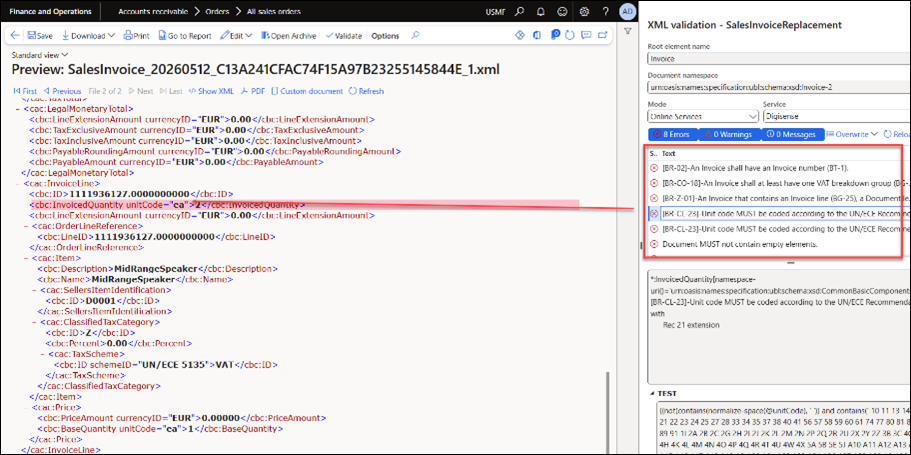
It is now possible to identify the exact issue using XML validation on the Preview form.
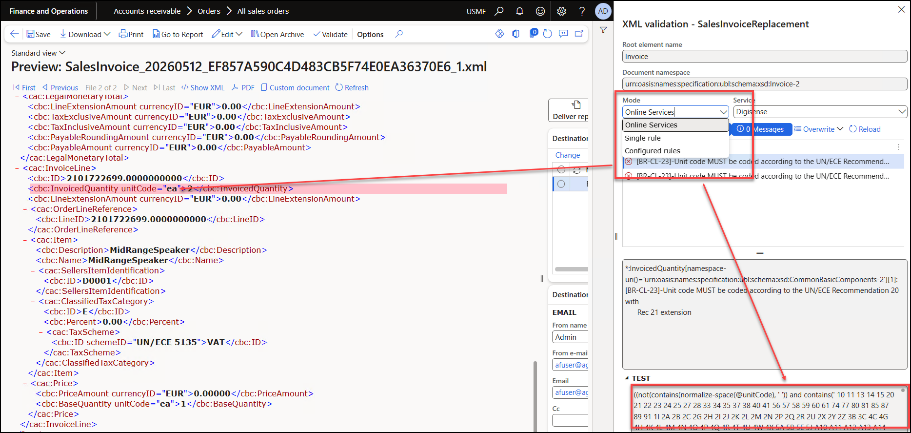
It is also possible to validate a Proforma invoice:
Jump to Predefined Destination from XML Preview
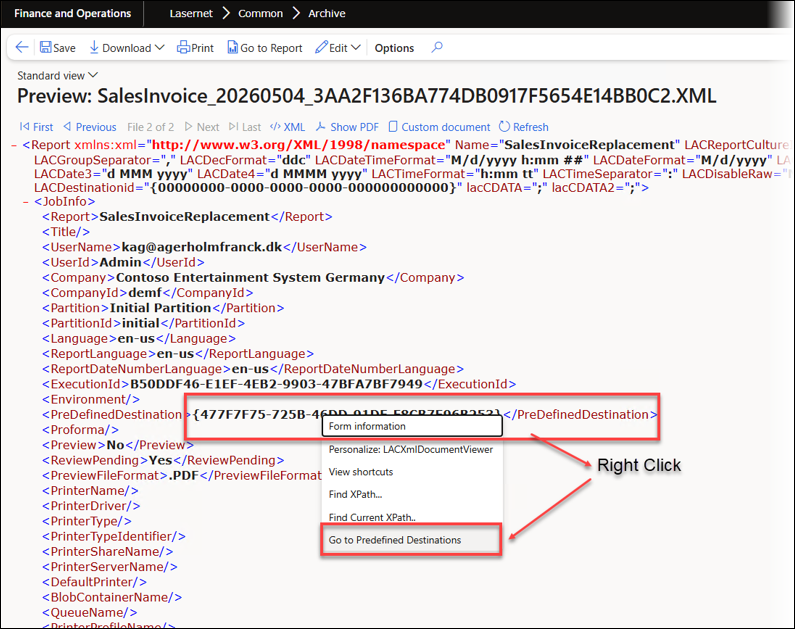
Lasernet FO Connector 7.3 introduces a feature particularly useful for demonstrations or for managing numerous rules in Predefined destinations.
Right-click a node on the XML preview to instantly navigate to the relevant rule:
Download Binary Encoded Data from XML Preview
It is now possible to download any "binary encoded" documents directly from a Preview form. This is especially useful for e-documents, as it is often required to "inline" the Lasernet report into the e-document. Lasernet supports both outbound and inbound documents.
This approach greatly streamlines and improves the process.