

The Lasernet Knowledge Base is designed to enhance your experience with our products and services. Our knowledge base serves as a comprehensive resource, offering the latest product release notes, changelogs, detailed guides, and articles, all in one centralized location.
Find Your Way Around the Lasernet Knowledge Base
Quick Search
Use the Search here bar at the top of the Lasernet Knowledge Base homepage to quickly find guides, articles, videos, and release notes for all our products. Click the bar and then enter your search words at the top of the pop-up window.
As shown below, the pop-up window displays search results. Click the document that you would like to view. 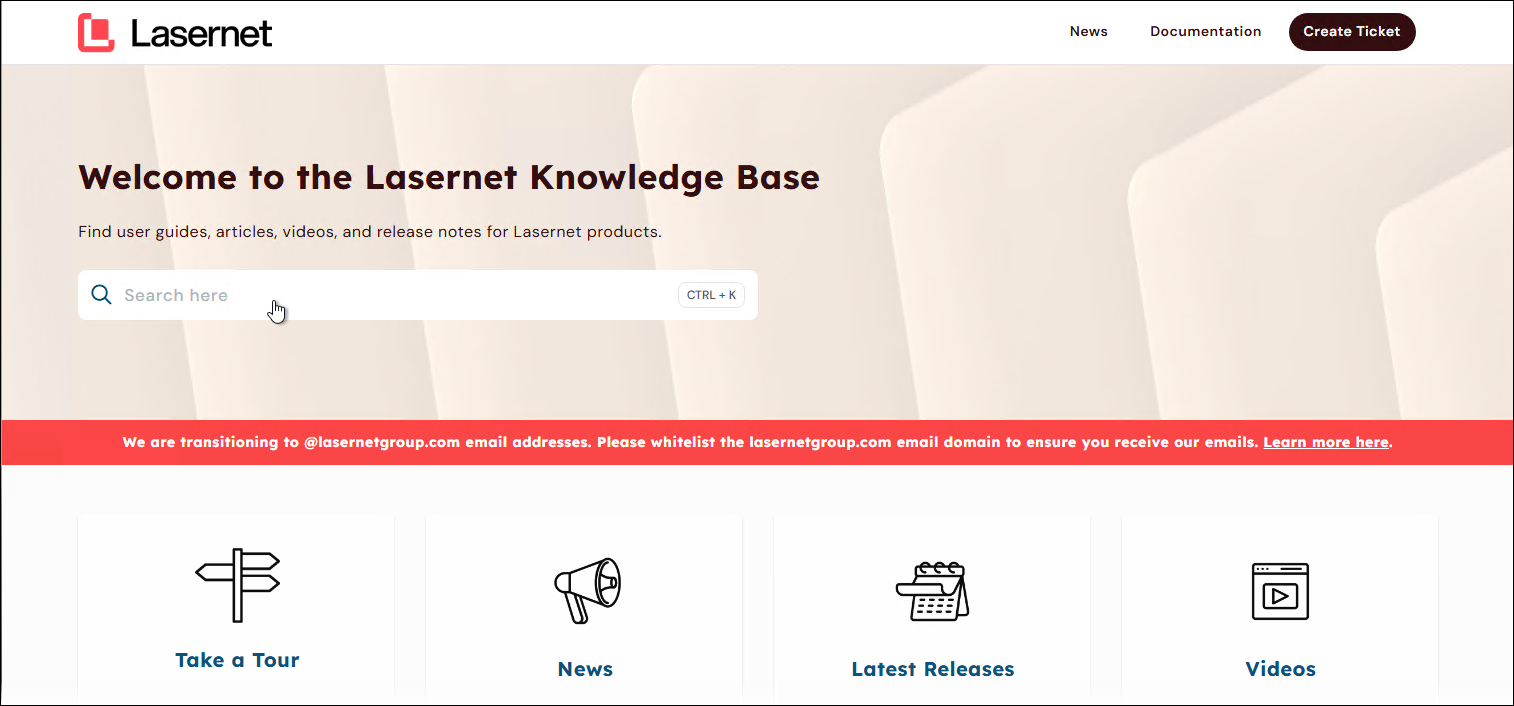
.png)
Scroll down the pop-up window to see all your search results. Use the page controls at the bottom of the search results to navigate between search result pages.
.png)
Advanced Search
To use the advanced search, click More article filters at the bottom of the displayed search results.

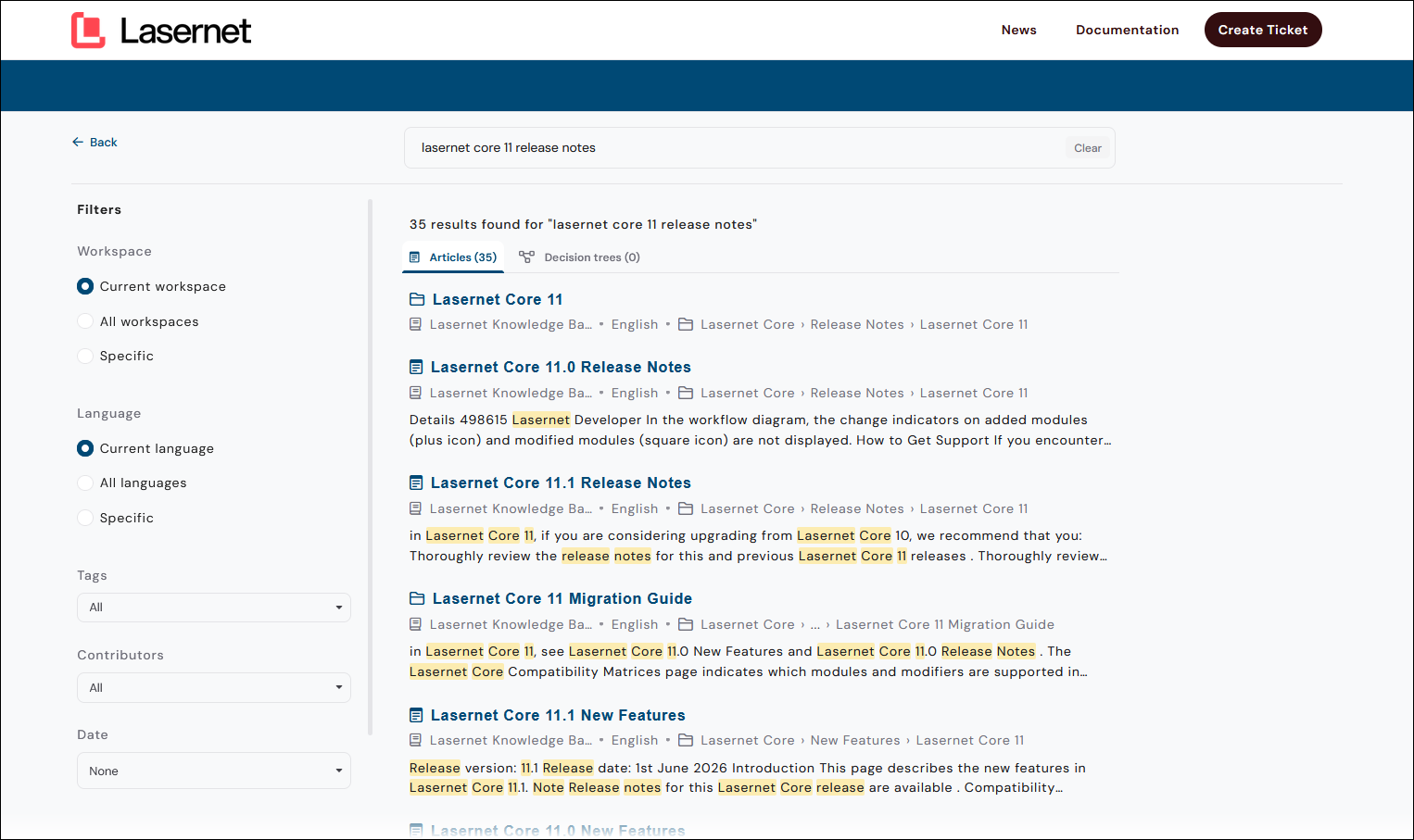
Scroll to the bottom of the search results to navigate between search result pages.
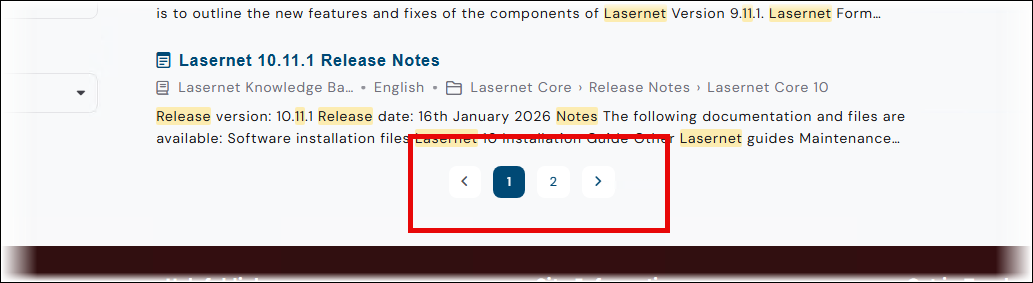
The advanced search provides access to search result filters such as Categories, Contributors, Tags, and the Date that the article was last updated.
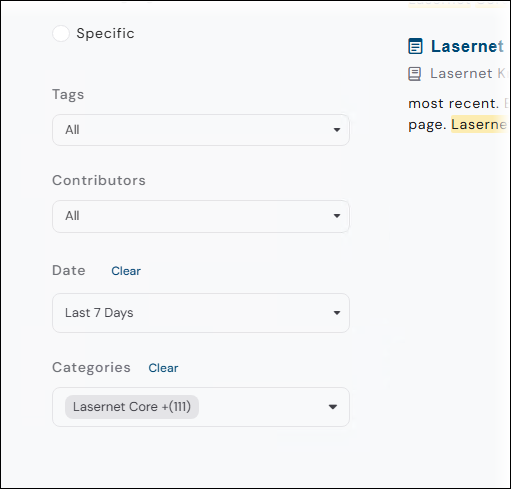
Filter | Description |
|---|---|
Categories | Apply this filter to refine search results and see articles belonging to those categories. |
Tags | Apply this filter to narrow results down to articles containing the selected tags. |
Date | Apply this filter to see results based on when an article was updated. |
Contributors | Apply this filter to see articles that a particular contributor has worked on. |
Navigation
The knowledge base is organized by product and content type, making it easy to navigate and find what you’re looking for. Each of the top-level product categories contains subcategories including Guides, General Information, FAQs, Release Notes, and New Features.
To navigate the knowledge base’s structure, follow these steps:
In the navigation bar on the left, click on the arrow next to a category (>) to expand it.
Repeat the above step to expand subcategories.
Click an article to read it.
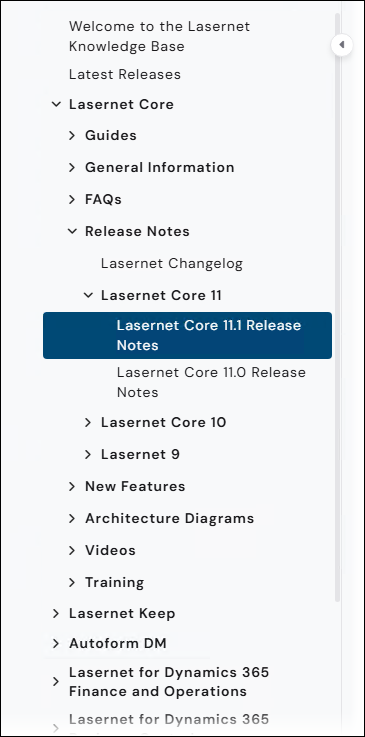
The navigation is displayed by default. To hide it, click the hide icon (<) near its top.
Articles
The knowledge base presents articles in a clear and easy-to-use way.
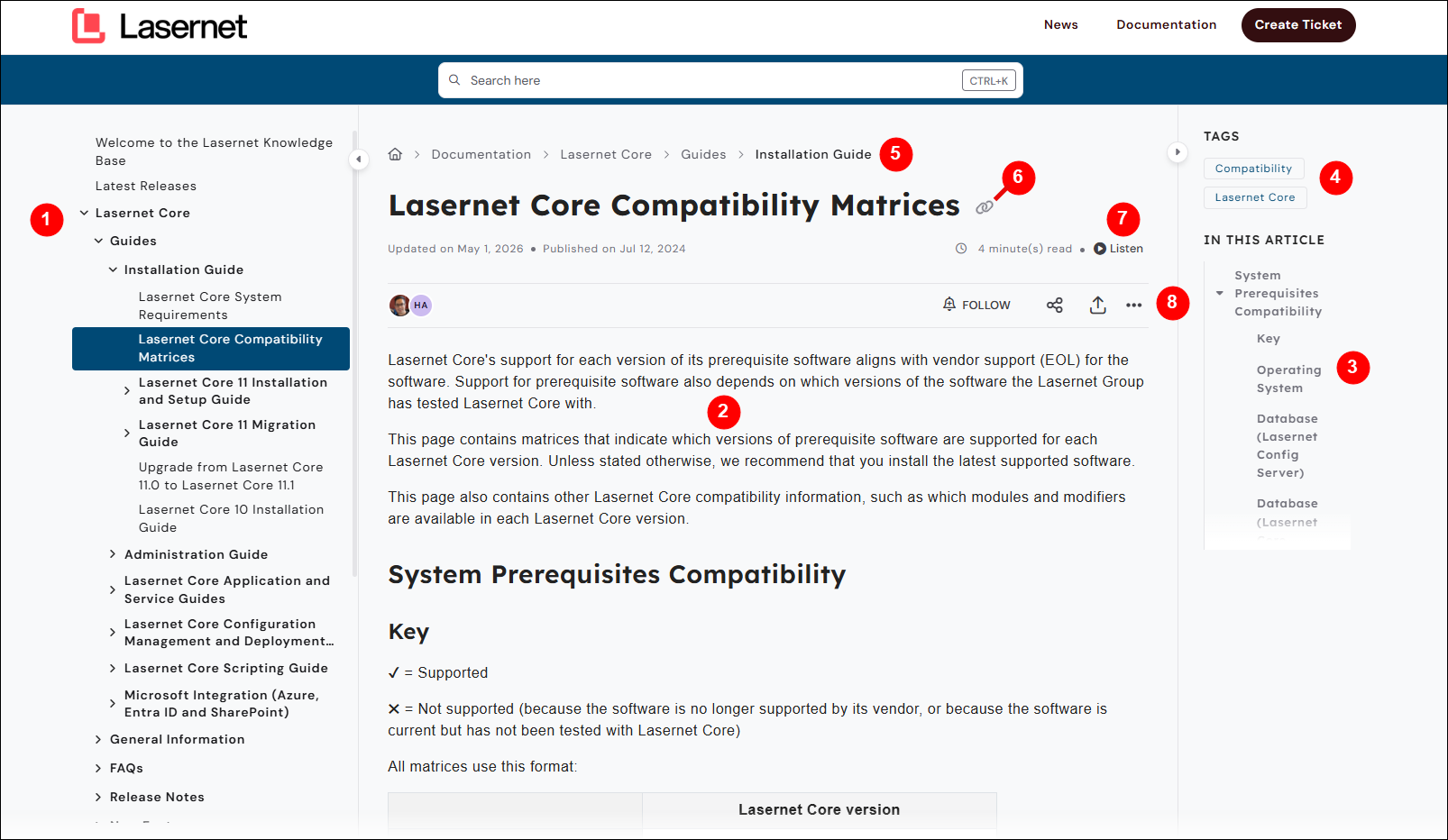
Some notable elements of the article view are described below.
Element | Name | Description |
|---|---|---|
1 | Navigation | Enables you to browse the knowledge base. For more information, see Navigation. |
2 | Article content | |
3 | In this article | The article’s table of contents. Use this to navigate to sections of the article. Scroll up and down in this area to see the whole table of contents. |
4 | Tags | The tags that are applied to this article. Click a tag to see other articles that have the same tag. |
5 | Breadcrumbs | The location of this article in the knowledge base. |
6 | Copy link | Click to copy an article link to the clipboard. |
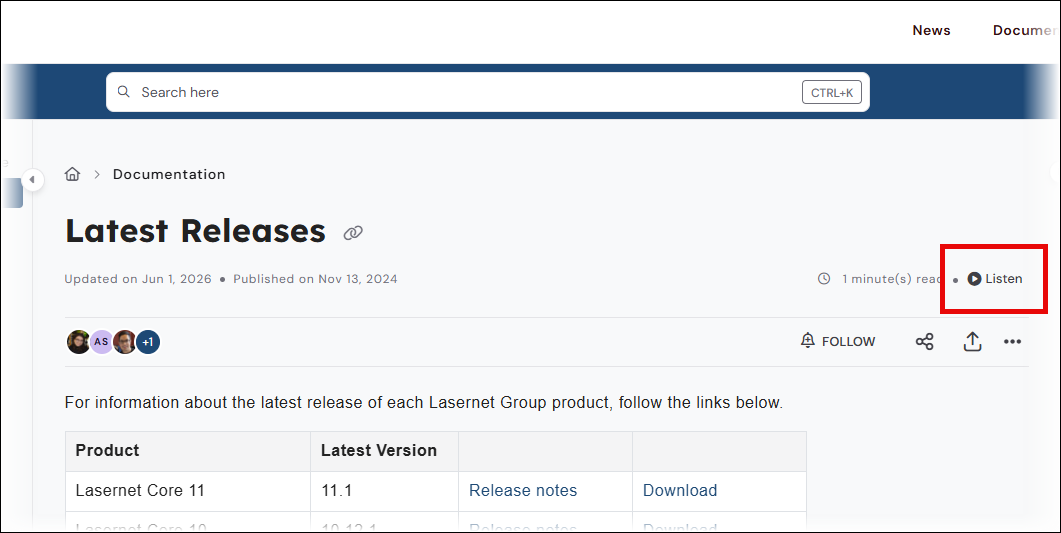
7 | Listen | Reads the article to you. For more information, see Listen. |
8 | Toolbar | Provides access to the following features:
|
Follow
You can subscribe to change notifications for articles. You will receive an email when an article that you are following is updated.
You can follow individual articles. Or, to receive a notification when any article in a particular area of the knowledge base changes, you can follow a category.
Follow an Article
Click Follow in the article toolbar.
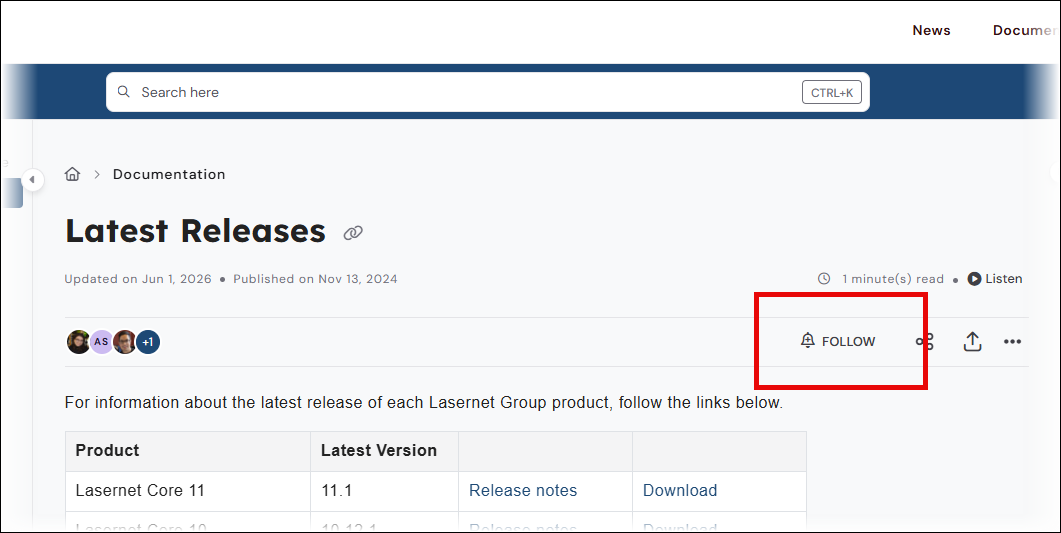
In the Follow this article window, enter your email address.
Click Follow.
You will receive an email whenever the article changes.
Follow a Category
To follow a category, click the … (three dots) beside a category in the navigation, and then click Follow category.
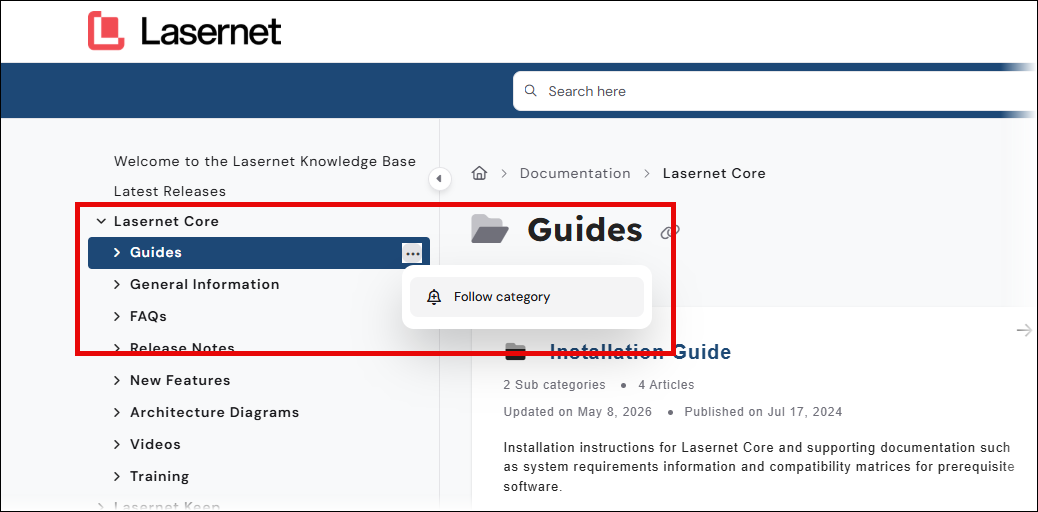
You will receive an email whenever an article is updated or published in that area.
Unsubscribe
To unsubscribe, click the Unsubscribe link in the email that you receive.
Listen
The Listen feature reads an article to you.
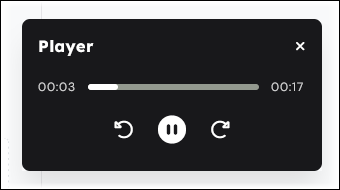
To use the feature, click Listen. Use the Player panel to pause, skip back, and skip forward.
News, Downloads, and Demo Licenses
To access Lasernet Group product news, click News in the header bar. You will be redirected to the News page on the Lasernet Support Portal. .png)
Software downloads and demo licenses are also on the Lasernet Support Portal. Software download files can be accessed via links in the release notes or the release announcement for that version.
Raise a Support Ticket
Use the Create Ticket button in the header bar:
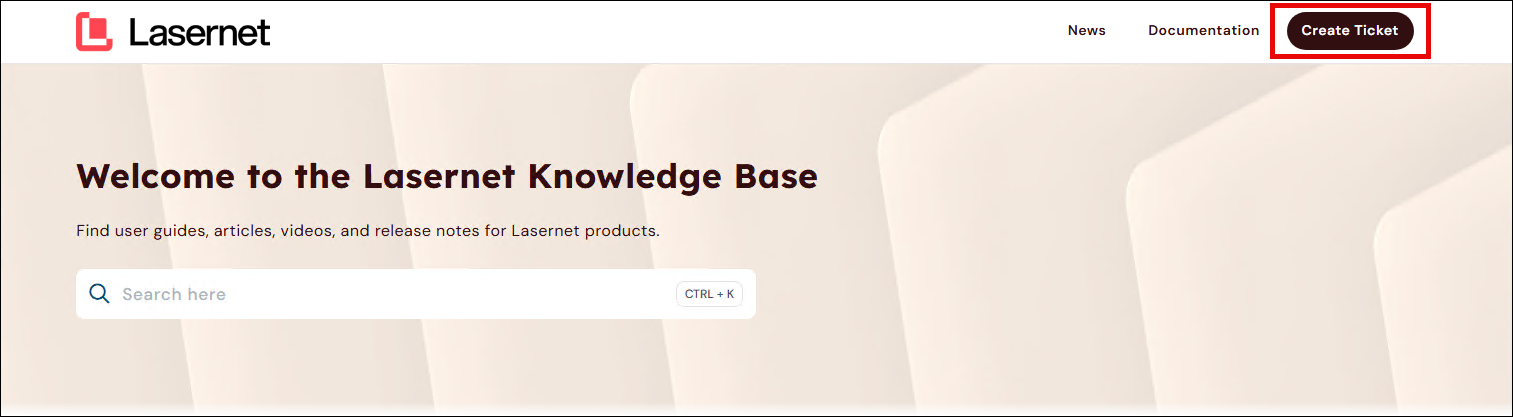
For more information, see Best Practices for Raising Support Tickets.
Note
You will need to log in to the Lasernet Support Portal to create tickets.