Applies to: Lasernet Core 10
The Outlook Mail module integrates directly with Office 365 to send emails. It is an alternative to the Exchange module using Exchange Web Services (EWS) introduced by Microsoft in Exchange Server 2007. EWS will longer receive feature updates, while the service will continue to receive security updates and certain non-security updates.
Microsoft has announced that EWS will still be available and supported for use in production environments. However, we recommend the Outlook Mail module, using Microsoft Graph API, to Exchange Online data.
Note for Users of Lasernet Core 10.12.1 and Earlier
If you use Lasernet Core 10.12.1 or earlier, and your configuration contains an affected OneDrive, Outlook Mail, or SharePoint module, you must upgrade to Lasernet Core 10.13.3, and then update and redeploy your configurations. If you do not, your Lasernet Core system will stop working on the 1st April 2027.
For more information, see Make Mandatory Configuration Updates Due to OneDrive, Outlook Mail, and SharePoint Module Changes.
If you are upgrading from Lasernet 9 or earlier, see Upgrade from Lasernet 9 to 10.
Configure Authentication
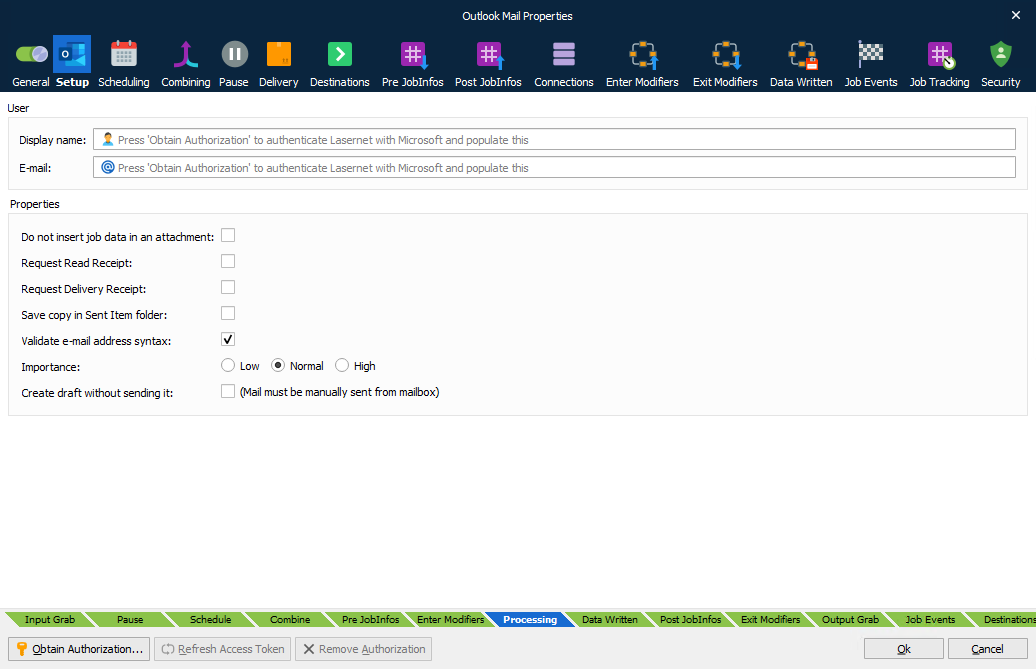
Click Obtain Authorization to access the account for your organization and to autofill the Display name and E-mail.
The Lasernet Outlook Mail module will obtain authorization to:
Maintain access to data you have given it access to
Send mail on behalf on others or yourself
Sign you in and read your profile
General
| Display name | Display name for the account (click Obtain Authorization to autofill this field). |
| E-mail address for the account (click Obtain Authorization to autofill this field). | |
| Do not insert job data in an attachment | If selected, an e-mail will be sent without including JobData as an attachment. EWS server will as report a non-critical error log message when sending emails without attachments: Unable to read MimeContent; This operation can’t be performed because this service object doesn’t have an Id. |
| Request Read Receipt | If selected, a receipt will be sent to the e-mail address when the recipient has opened the e-mail. Note: The JobInfo MailRequestReadReceipt must be set to true (1) to overrule default behaviour. |
| Request Delivery Receipt | If selected, a delivery receipt will be sent to the e-mail address when the message is successfully delivered to the recipient. A JobInfo overrides the default behaviour. Note: The JobInfo MailRequestDeliveryReceipt must be set to true (1) to overrule default behaviour. |
| Save copy in Sent Item folder | If selected, a copy of the e-mail will be stored in the Sent Item folder in your email client. |
| Validate e-mail address syntax | If selected, the email syntax in MailTo, MailCC and MailBCC will be validated before sending the email to the mail server. If the syntax is not valid, the job will fail. To prevent a job from failing the setting must be de-activated. This will allow mail addresses to contain syntax used for external fax systems connected to mail servers. Comma and semicolon are valid as separators if MailTo, MailCC or MailBCC contain multiple addresses. |
| Importance | Set the category of importance to Low, Normal (default) or High. |
| Create draft without sending it | If selected, a draft will be created to manually open and edit the e-mail before sending from mailbox. |
Headers
Optionally, you can add custom MIME headers to the emails sent by an Outlook Mail Output module. Some possible uses for custom headers are to enable the sending organization to troubleshoot delivery issues by examining unique codes in the header data in bounced emails, and to enable enhanced workflow visibility by enabling the organization to track emails back to their originating Lasernet Core process or job.
You can add up to five custom headers.
The Outlook Mail Output module will add the configured custom headers to outgoing email and give each header the specified value. A custom header’s Name must start with X- or x-; for example, x-Invoice-Number.
You can specify a static value for a header; for example, Lasernet Core Mail. Else you can use JobInfo substitution if you want header values to be dynamic. For example, you could enter a JobInfo reference (like #InvoiceNumber#) as the header’s Value.
If a mail is bounced back to the sender and is read by Lasernet Core’s Outlook Mail Input module, Lasernet Core creates JobInfos that have names and values corresponding to the custom headers in the bounced email.
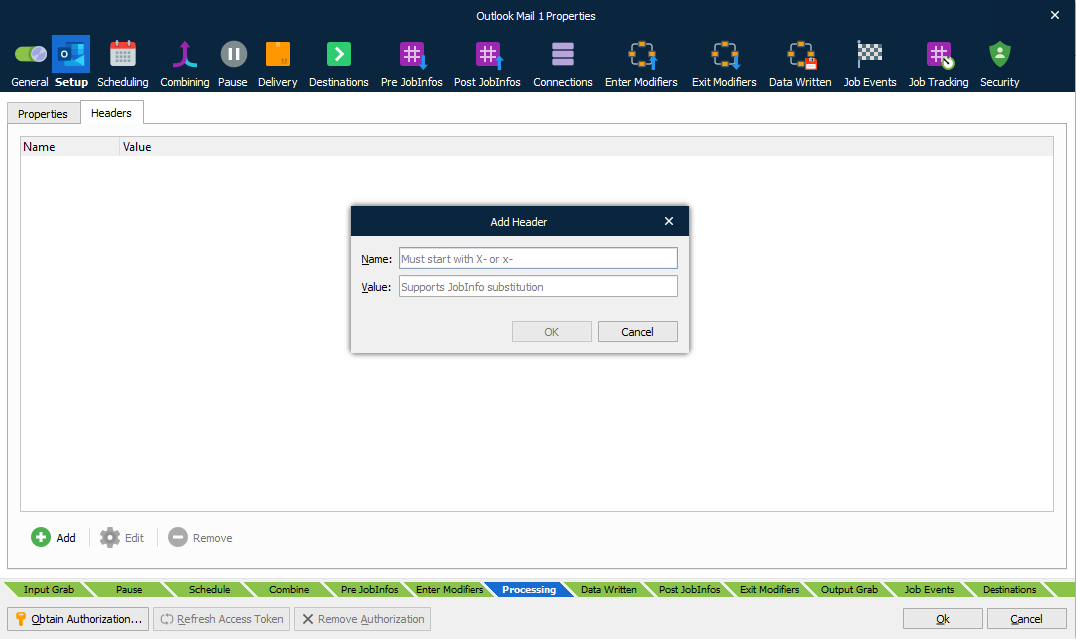
| Name | The name of the custom header added to email must start with X- or x-. |
| Value | Set a value for the header. Supports JobInfo substitution. |